1. Bubuka
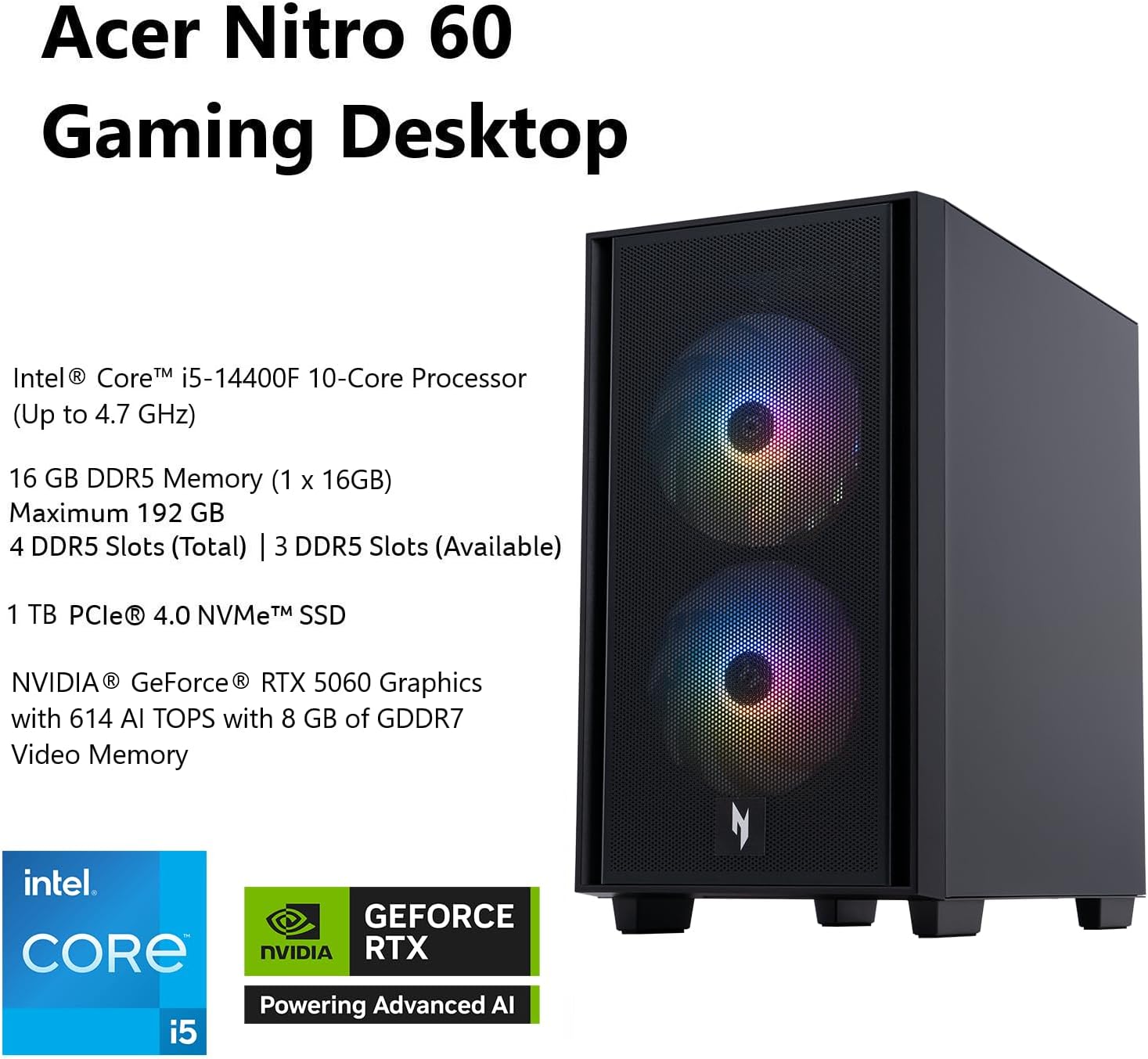
The Acer Nitro 60 N60-640-UR21 Gaming Desktop is engineered for high-performance gaming and demanding tasks. Featuring an Intel Core i5-14400F 10-Core Processor and NVIDIA GeForce RTX 5060 Graphics, this system delivers smooth, lag-free experiences. With 16GB DDR5 RAM and a 1TB PCIe Gen 4 SSD, it ensures rapid loading times and efficient multitasking. Advanced cooling, stellar audio capabilities, and high-speed connectivity complete this powerful gaming machine.

Figure 1: Acer Nitro 60 N60-640-UR21 Gaming Desktop
2. Setup Guide
Follow these steps to set up your Acer Nitro 60 Gaming Desktop:
- Ngabongkar kotak: Sacara saksama miceun sadaya komponén tina bungkusan. Kotak kedah ngandung:
- PC Desktop
- Antena Wi-Fi éksternal
- Kabel listrik
- Sambungkeun Periferal: Connect your monitor, keyboard, and mouse to the appropriate ports on the rear of the desktop.
- Sambungkeun Kakuatan: Plug the power cord into the desktop's power input and then into a wall outlet.
- Connect External Wi-Fi Antenna: Screw the external Wi-Fi antenna into the designated port on the rear of the desktop for optimal wireless connectivity.
- Daya Hurung: Pencét tombol daya anu aya di payun desktop.

Figure 2: Connecting your Acer Nitro 60 to a monitor and peripherals
3. Parentah Operasi
Your Acer Nitro 60 comes pre-installed with Windows 11 Home, providing a user-friendly interface for all your computing needs.
Hareup Panel palabuhan
The front panel offers convenient access to essential ports:
- USB 3.2 Gen1 5 Gbps Type-A Ports (x2): Pikeun nyambungkeun alat USB anu kecepatan tinggi.
- Audio Jacks (x2): Pikeun headphone sareng mikropon.
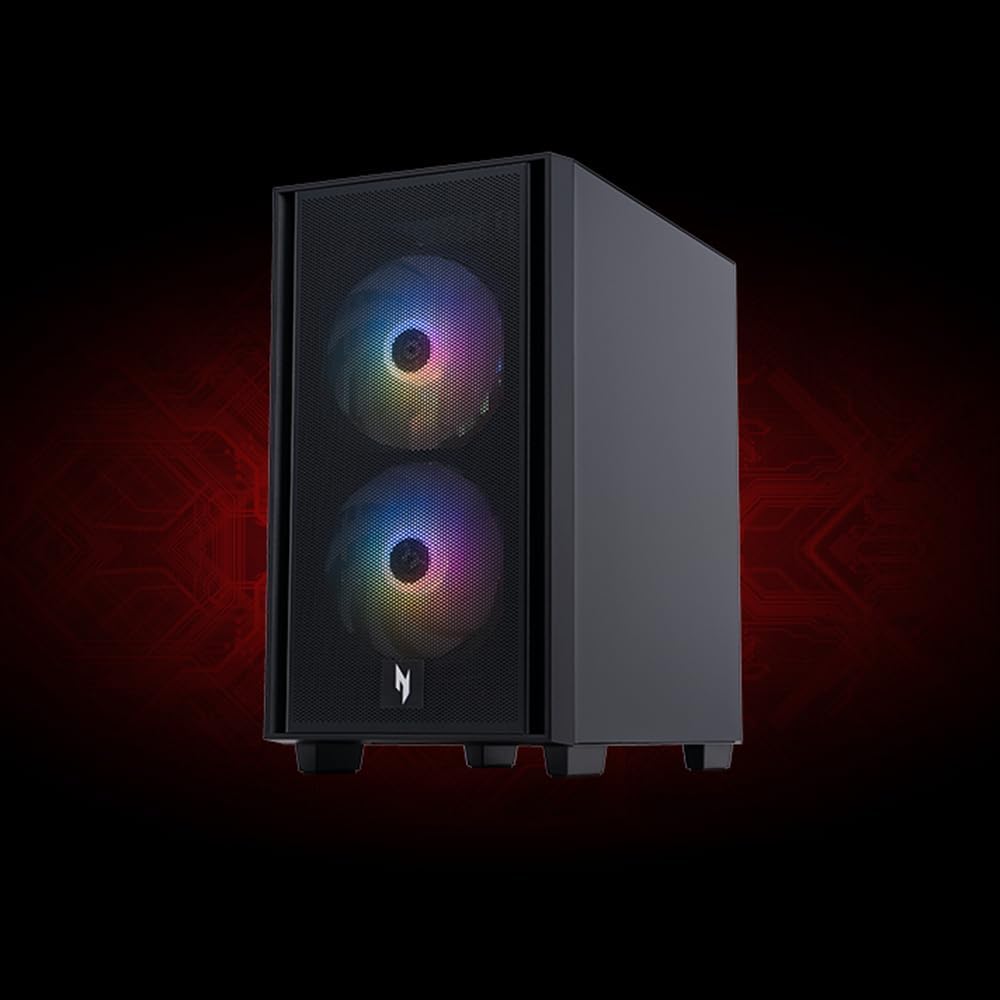
Figure 3: Front panel ports for easy access
Palabuhan Panel Rear
The rear panel provides comprehensive connectivity:
- USB 3.2 Gen2x2 20 Gbps Type-C Port (x1): Ultra-fast data transfers and quick device charging.
- USB 3.2 Gen2 10 Gbps Type-A Port (x1): High-speed USB connectivity.
- USB 2.0 480 Mbps Ports (x4): Pikeun alat USB standar.
- Audio Jacks (x3): For multi-channel audio setups.
- RJ-45 Ethernet Port (x1): Pikeun sambungan jaringan kabel.
- Display Ports 2.1b (x3) & HDMI 2.1b Port (x1): For connecting multiple displays.

Figure 4: Rear connectivity ports
Konéktipitas Wireless
The desktop features Realtek Wi-Fi 6 802.11ax, supporting dual-stream 2.4GHz and 5GHz bands for stable and fast internet. Bluetooth 5.3 is also included for connecting wireless peripherals.
4. Pangropéa
To ensure the longevity and optimal performance of your Acer Nitro 60 Gaming Desktop, regular maintenance is recommended:
- Tetep beresih: Regularly clean the exterior of the desktop with a soft, dry cloth. Use compressed air to clear dust from vents and internal components to maintain optimal airflow.
- Pastikeun aliran hawa anu leres: Position the desktop in a well-ventilated area, ensuring that air vents are not obstructed. The reliable ARGB Lighting CPU Cooler with high air flow blades and U-shape copper heat pipes is designed to keep temperatures low.
- Apdet parangkat lunak: Keep your operating system, drivers (especially graphics drivers), and applications updated to the latest versions for security and performance improvements.
- Cadangan Data: Sacara rutin nyadangkeun data penting ka drive éksternal atanapi panyimpenan awan pikeun nyegah leungitna data.
Gambar 5: Internal view highlighting cooling and components
5. Cara ngungkulan
If you encounter issues with your Acer Nitro 60, consider the following basic troubleshooting steps:
- Henteu aya kakuatan: Ensure the power cord is securely connected to both the desktop and the wall outlet. Try a different power outlet.
- Henteu aya tampilan: Check that your monitor is properly connected to the graphics card ports (DisplayPort or HDMI) and that the monitor itself is powered on. Try a different cable or monitor if possible.
- Periferal Teu Jalan: Ensure USB devices are securely plugged into the correct ports. Try connecting them to a different USB port. For wireless devices, check battery levels and pairing status.
- Performance Lambat: Close unnecessary applications. Check for background processes consuming high resources. Ensure your system drivers are up to date.
- Masalah Konektipitas Internét: For Wi-Fi, ensure the external antenna is connected and positioned correctly. Restart your router and modem. For wired connections, check the Ethernet cable and router status.
- System Freeze/Crash: Restart the computer. If the issue persists, check for recent software installations or hardware changes. Consider running system diagnostics.
6. Spésifikasi
| Fitur | Spésifikasi |
|---|---|
| Nomer modél | N60-640-UR21 |
| Prosesor | Intel Core i5-14400F 10-Core (Up to 4.7GHz) |
| Ram | 16GB DDR5 (bisa dilegakeun ka 192GB) |
| Panyimpenan | 1TB PCIe 4.0 NVMe SSD |
| Kartu Grafis | NVIDIA GeForce RTX 5060 with 8GB GDDR7 Video Memory (614 AI TOPS) |
| Sistem operasi | Windows 11 Imah |
| Konéktipitas Wireless | Realtek Wi-Fi 6 802.11ax, Bluetooth 5.3 |
| Ethernet | Realtek Gigabit Ethernet |
| Audio | Realtek Audio |
| Sasayogian tanaga | 650W - 80 Plus Gold |
| Ukuran (L x W x H) | 14.9 x 8.5 x 15.9 inci |
| Beurat | 13.62 pon |
7. Garansi jeung Rojongan
For warranty information, technical support, and service inquiries, please refer to the official Acer website or contact Acer customer support directly. Keep your purchase receipt and product serial number (located on the desktop chassis) handy when seeking support.
Anjeun tiasa mendakan langkung seueur inpormasi sareng sumber dukungan dina Toko Acer.