Bubuka
This comprehensive guide is designed to help you unlock the full potential of your laser engraver using LightBurn software. It serves as your ideal companion, guiding you from initial setup through to the creation of creative and durable projects. Whether you are a beginner or an experienced maker, this manual provides clear, step-by-step instructions, practical examples, and professional tips to maximize every function within LightBurn, enabling you to produce high-quality work.
Key features of this guide include:
- Clear and Detailed Instructions: Suitable for users of all skill levels.
- Ready-to-Use Tips and Tricks: For immediate and effective results.
- Illustrations and Real-World Cases: To accelerate your learning process.
- Focus on Durable, Beautiful, and Functional Projects: Guiding you to create lasting works.
With this guide, you gain not just instructions, but the confidence and skills to transform your ideas into extraordinary creations.
Persiapan Parangkat Lunak
This section details the process of installing and configuring LightBurn software on your computer. Proper setup is crucial for seamless operation with your laser engraver.
- Download LightBurn: Obtain the latest version of LightBurn from the official website. Ensure compatibility with your operating system.
- Pamasangan: Follow the on-screen prompts to install the software. Accept the license agreement and choose an installation directory.
- Pamasangan supir: Install any necessary drivers for your specific laser engraver model. Refer to your laser engraver's manual for driver details.
- Konfigurasi awal: Launch LightBurn. The software will guide you through the initial device setup wizard. Select your laser controller type and connection method (e.g., USB, Ethernet).
- Workspace Setup: Define your laser's work area dimensions within LightBurn to match your physical machine.
- Test Sambungan: Perform a connection test to ensure LightBurn can communicate with your laser engraver.
For detailed visual instructions, refer to the relevant chapters within the guide.
Operating LightBurn
bagian ieu nyadiakeun leuwihview of the fundamental operations within LightBurn, enabling you to design, prepare, and execute laser projects.
Designing Your Project
- Napigasi Antarmuka: Familiarize yourself with the LightBurn interface, including toolbars, menus, and panels.
- Creating Shapes: Use the drawing tools to create basic geometric shapes, lines, and text.
- Importing Designs: Import vector graphics (SVG, AI, DXF) and raster images (JPG, PNG, BMP) into your workspace.
- Editing and Arranging: Manipulate objects by scaling, rotating, grouping, and aligning them.
Layer and Cut Settings
- Understanding Layers: Assign different operations (Cut, Engrave, Fill) to distinct layers.
- Configuring Cut Settings: Adjust laser power, speed, passes, and other parameters for each layer based on material type and desired outcome.
- Material Library: Utilize or create custom material settings for consistent results.
Executing the Project
- Praviewing the Job: Anggo 'Praview' window to visualize the laser path and estimated job time before starting.
- Bingkai: Use the 'Frame' function to ensure your design fits correctly on your material.
- Starting the Job: Send the job to your laser engraver and monitor its progress.
Detailed instructions for advanced features and specific project types are covered in depth throughout the manual.
Pangropéa Parangkat Lunak
Regular maintenance of your LightBurn software ensures optimal performance and data integrity.
- Apdet parangkat lunak: Periodically check for and install the latest LightBurn software updates to benefit from new features, bug fixes, and performance improvements.
- Backup Your Settings: Regularly back up your LightBurn preferences, device settings, and material libraries. This can be done via the 'File'menu.'
- Proyék File Manajemén: Organize your project files in a logical folder structure and back them up to an external drive or cloud storage.
- Manajemén Lisensi: Keep a record of your LightBurn license key for future installations or transfers.
While LightBurn is software, maintaining your physical laser engraver (cleaning lenses, mirrors, rails) is also crucial for consistent results, though outside the scope of this software guide.
Ngarengsekeun Masalah Umum
This section addresses common problems encountered while using LightBurn and provides solutions to help you resolve them.
| Masalah | Mungkin Cukang lantaranana | Solusi |
|---|---|---|
| Laser not connecting to LightBurn | Incorrect port selection, driver issues, cable problem, laser not powered on. | Verify USB/Ethernet cable connection. Check device manager for driver status. Ensure laser is powered on. Select correct COM port in LightBurn 'Devices' settings. |
| Laser teu firing atawa kaluaran lemah | Low power setting, incorrect material settings, laser tube/diode issue, focus problem. | Increase power setting in 'Cut Settings'. Verify material settings. Check laser focus. Consult laser engraver's manual for hardware diagnostics. |
| Engraving/cutting is inaccurate or distorted | Loose belts, incorrect steps per mm, material shifting, mechanical issues with laser. | Inspect and tighten belts on your laser engraver. Calibrate steps per mm in LightBurn device settings. Secure material firmly. Check for any physical obstructions or damage to the laser's moving parts. |
| Software crashes or freezes | Outdated software, corrupted installation, insufficient system resources. | Update LightBurn to the latest version. Reinstall LightBurn. Close other demanding applications. Ensure your computer meets minimum system requirements. |
For more specific issues, refer to the detailed troubleshooting sections within the guide or the official LightBurn documentation and community forums.
Spésifikasi Pitunjuk
| Atribut | Rincian |
|---|---|
| Judul | LightBurn User Guide: A Step-by-Step Manual for Designing with Purpose, Crafting with Precision, and Creating Projects That Last |
| Pangarang | Avery Craftsman |
| pamedal | Diterbitkeun sacara mandiri |
| Tanggal Publikasi | 9 Agustus 2025 |
| Basa | English (Originally Italian Edition) |
| Panjang Print | 187 kaca |
| ISBN-13 | 979-8297233195 |
| ASIN | B0FLW5JZ8B |
| Item Beurat | 1.23 pon |
| Diménsi | 8.5 x 0.43 x 11 inci |
Rojongan jeung Sumberdaya
For additional support regarding LightBurn software or this guide, please refer to the following resources:
- Official LightBurn Websitus: Visit the official LightBurn website for software downloads, updates, and comprehensive documentation.
- LightBurn Community Forum: Engage with other LightBurn users and experts to ask questions, share projects, and find solutions.
- Author's Resources: Check for any supplementary materials or updates provided by the author, Avery Craftsman.
- Kontak Penerbit: For inquiries related to the publication of this guide, contact the publisher, Independently published.
This guide is intended as an instructional manual and does not include a warranty for the LightBurn software itself, which is provided by the software developer. Please refer to LightBurn's official terms of service and licensing for software warranty information.
Rujukan Visual

Gambar 1: Front cover of the LightBurn User Guide. The title "LightBurn User Guide" is prominently displayed, indicating its purpose as a comprehensive manual for laser design and engraving software.
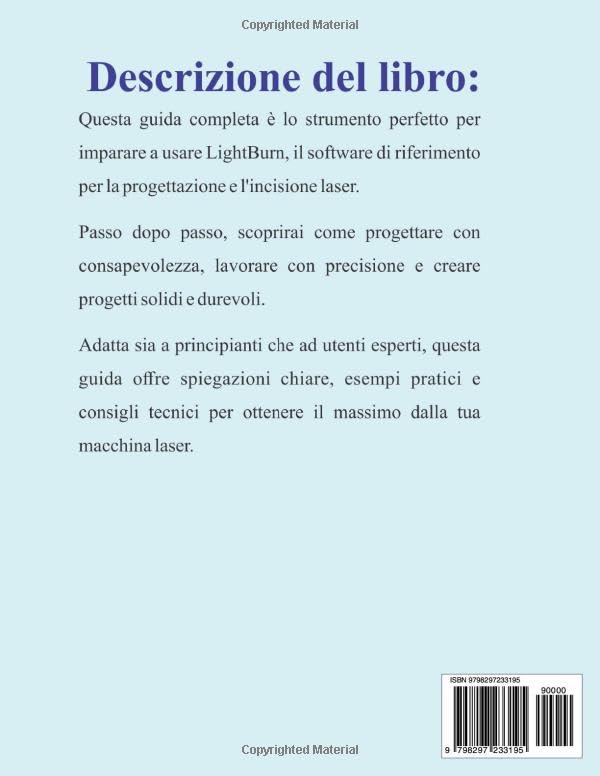
Gambar 2: Back cover of the LightBurn User Guide. This image displays the book's description in Italian, summarizing its content and benefits, along with the ISBN barcode for identification.


