
1. Bubuka
Thank you for choosing the TeckNet EKB035 Foldable Bluetooth Keyboard. This portable wireless keyboard is designed for convenience and versatility, featuring a tri-fold design, integrated multi-touch touchpad, and a numeric keypad. It supports seamless connection across multiple devices and operating systems, making it an ideal companion for various computing needs.
2. Eusi Paket
- TeckNet EKB035 Foldable Bluetooth Keyboard
- Kabel Ngecas USB-C
- Kantong Pelindung
- Stand Telepon
- Manual pamaké
3. Fitur Produk
- Foldable & Space-Saving Design: This keyboard features a tri-fold design with a 64-key QWERTY layout. It folds into a compact size, saving desk space and making it easy to carry. The sturdy construction and magnetic closure ensure it stays securely closed when not in use, ideal for travel and remote work.
- Touchpad & Numeric Keypad: No need for an extra mouse. This wireless keyboard includes a built-in multi-touch touchpad that supports gestures like tap, scroll, and swipe. Easily switch between touchpad and numeric keypad modes by pressing Fn + Spasi for versatile input. Note: Gesture support may be limited on systems older than Windows 10.
- Sambungan Multi-Alat: Equipped with 3 Bluetooth 5.2 channels, this keyboard allows seamless pairing and switching between up to three devices. Enjoy smooth and stable connections within a 33-foot range. Compatible with iPads, iPhones, phones, tablets, laptops, and Bluetooth-enabled computers. Works with Android, iOS, iPadOS, macOS, and Windows systems.
- Tipe-C Rechargeable: Features a built-in 150mAh lithium battery, providing up to 120 days of standby time or 40 hours of active use with a two-hour charge. The keyboard includes an automatic sleep function and easy on/off control to conserve power. Charge effortlessly via the included USB-C cable.
- Lightweight, Portable & Travel-Ready: Designed for mobility, this portable wireless keyboard folds down to just 7.2 × 4.2 × 0.63 inches. It includes a protective pouch and an additional phone stand, making it easy to carry in your backpack, briefcase, or handbag for use during trips, in cafes, or for remote meetings.
4. Setélan
4.1 Ngecas kibor
Before initial use, fully charge the keyboard. Connect the provided USB-C cable to the keyboard's charging port and to a USB power source (e.g., computer, wall adapter). The charging indicator light will show the charging status and turn off when fully charged. A full charge takes approximately 2 hours.
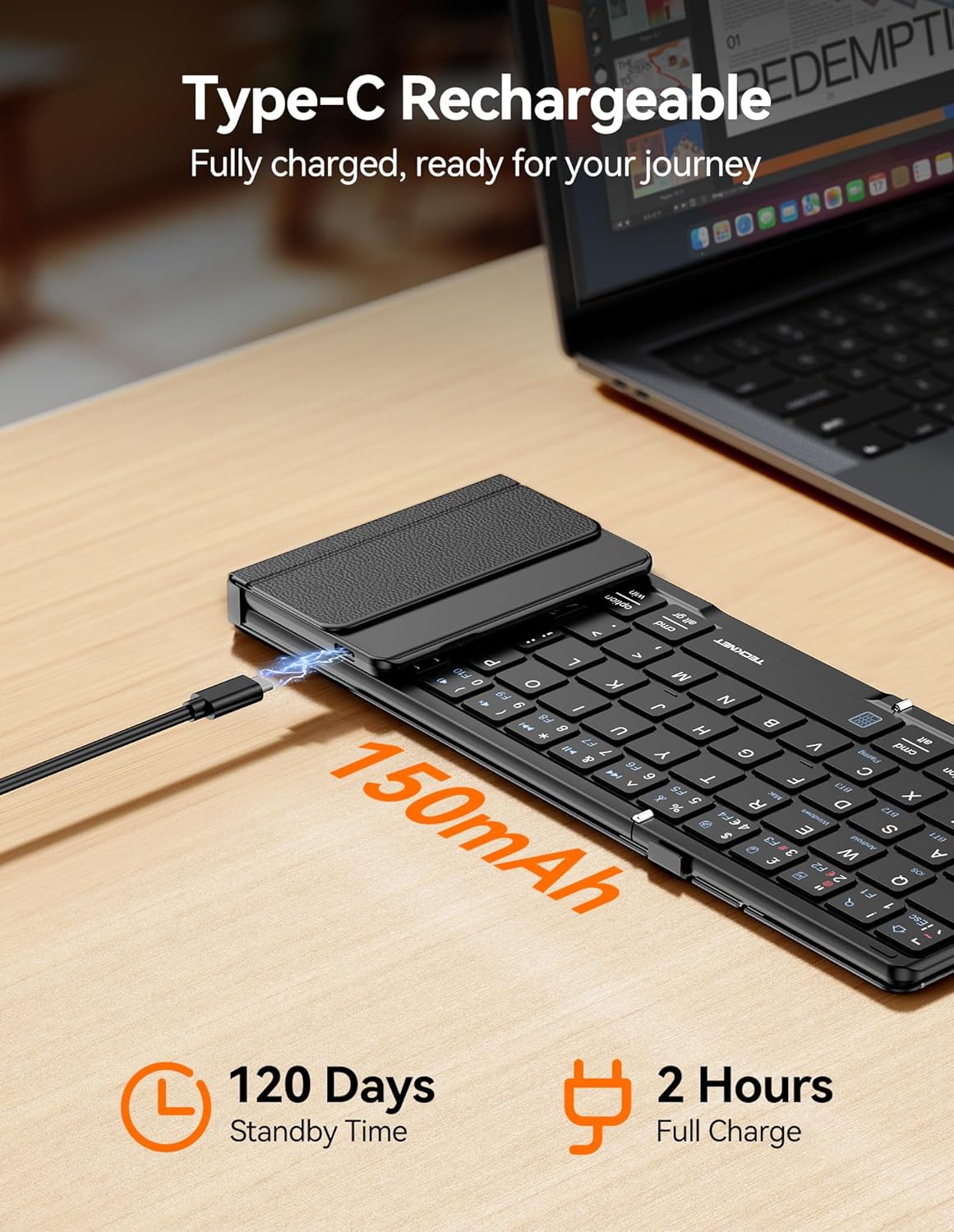
Image: TeckNet EKB035 keyboard being charged via USB-C cable.
4.2 Powering on / Pareum
To power on the keyboard, unfold it. The keyboard will automatically power on. To power off, fold the keyboard. It will automatically enter sleep mode or power off to conserve battery.
4.3 Nyapasangkeun Bluetooth
- Buka kibor pikeun ngahurungkeunana.
- Pencét éta Fn + BT1, Fn + BT2, atawa Fn + BT3 keys simultaneously to select a Bluetooth channel. The corresponding indicator light will flash.
- Pencét Fn + C to enter pairing mode. The selected Bluetooth indicator will flash rapidly.
- Dina alat anjeun (smartphone, tablet, komputer), aktipkeun Bluetooth sareng milarian alat anu sayogi.
- Select "TeckNet EKB035" from the list of found devices.
- Turutan sagala parentah dina layar pikeun ngalengkepan prosés masangkeun. Lampu indikator bakal eureun kedip-kedip saatos hasil masangkeun.

Image: TeckNet EKB035 keyboard connected to multiple devices.
4.4 Ngaganti Antara Alat Anu Dipasangkeun
To switch between devices, simply press Fn + BT1, Fn + BT2, atawa Fn + BT3 corresponding to the channel your device is paired with.
4.5 Operating System Layout Switching
For optimal key functionality, switch the keyboard layout to match your device's operating system:
- Fn + Q for Android devices
- Fn + W for Windows devices
- Fn + E for iOS/macOS devices
5. Parentah Operasi
5.1 Paké keyboard dasar
The keyboard functions like a standard QWERTY keyboard. Type as you normally would. Special function keys (F1-F12) can be accessed by pressing the Fn konci dina kombinasi jeung kenop fungsi nu dipikahoyong.
5.2 Touchpad and Numeric Keypad Modes
The right section of the keyboard serves as both a multi-touch touchpad and a numeric keypad.

Image: TeckNet EKB035 keyboard showing touchpad and numeric keypad.
- Ngalihkeun Modeu: Pencét Fn + Spasi to toggle between touchpad mode and numeric keypad mode.
- Sapuan touchpad: In touchpad mode, use standard multi-touch gestures for navigation, scrolling, and clicking. (Specific gesture support may vary by OS).
- Papan tombol angka: In numeric keypad mode, the keys function as a standard 10-key numeric pad for efficient data entry.
6. Pangropéa
- Jauhkeun kibor tina cairan sareng suhu anu ekstrim.
- Clean the keyboard with a soft, dry cloth. Do not use harsh chemicals or abrasive materials.
- When not in use, fold the keyboard to protect the keys and touchpad.
- Simpen dina tempat anu tiis, garing.
7. Cara ngungkulan
7.1 Keyboard Not Connecting/Pairing
- Pastikeun keyboard dihurungkeun sareng dicas pinuh.
- Pastikeun Bluetooth diaktipkeun dina alat Anjeun.
- Ensure the keyboard is in pairing mode (Fn + C, indicator flashing rapidly).
- Cobi pegatkeun sambungan sareng pasangkeun deui kibor tina setélan Bluetooth alat anjeun.
- Pastikeun kibor aya dina jangkauan Bluetooth 33 kaki ti alat anjeun.
- Pareuman terus hurungkeun deui kibor (tilep sareng buka) sareng alat anjeun.
7.2 Kibor Teu Ngetik
- Check if the keyboard is successfully connected to your device (Bluetooth indicator solid).
- Ensure the correct operating system layout is selected (Fn + Q/W/E).
- Verify the battery level and charge if necessary.
7.3 Touchpad/Numeric Keypad Not Responding
- Ensure you are in the correct mode by pressing Fn + Spasi.
- Clean the touchpad surface to remove any dirt or debris.
- Remember that gesture support may be limited on older Windows 10 systems.
8. Spésifikasi
| Fitur | Katerangan |
|---|---|
| merek | TAKEUN |
| Nomer modél | EKB035 |
| Téhnologi konektipitas | Bluetooth 5.2 |
| Katerangan kibor | Foldable, QWERTY Layout (64 keys) |
| Fitur husus | Foldable, Rechargeable, Integrated Touchpad, Numeric Keypad |
| Alat nu cocog | Tablet, Computer, Laptop, Smartphone (Android, iOS, iPadOS, macOS, Windows) |
| Sumber Daya | Didukung ku Batré (Batré Litium 150mAh) |
| Port ngecas | USB-C |
| Waktu Ngecas | Kira-kira. 2 jam |
| Waktu sayaga | Nepi ka 120 dinten |
| Active Use Time | Nepi ka 40 jam |
| Bahan | palastik |
| Ukuran Dilipat (L x W x H) | 34.1 x 10.6 x 1.5 cm |
| Dilipat Ukuran (L x W x H) | Kira-kira. 7.2 x 4.2 x 0.63 inci (18.3 x 10.7 x 1.6 cm) |
| Warna | Hideung |
9. Garansi jeung Rojongan
TECKNET products are designed to provide reliable performance. For warranty information, technical support, or customer service inquiries, please refer to the warranty card included with your product or visit the official TECKNET websitus. Punten tahan bukti pameseran anjeun pikeun klaim garansi.