1. Bubuka
This manual provides detailed instructions for the installation, operation, and maintenance of your AINAVI 10-inch Touchscreen Car Stereo designed for Honda Accord 8th Generation vehicles (model years 2008-2012). Please read this manual thoroughly before installation and use to ensure proper functionality and safety.
The unit features an Android 12 system with 2GB RAM and 64GB ROM, offering a 10.2-inch IPS touchscreen display, wired/wireless CarPlay, Android Auto, GPS navigation, Bluetooth, Wi-Fi, and support for a 1080P AHD rearview kaméra.
2. Eusi Paket
Pastikeun yén sadaya komponén aya dina bungkusan:
- Head Unit (10-inch touchscreen)
- Frame + Screen assembly
- Power cable (may include CANbus for some models)
- RCA cable set
- Car microphone
- modul GPS
- 2 x kabel USB
- Reversing control cable
- 1080P Pungkur view kaméra
- Frame removal tool

Gambar 2.1: Included Components. Note that specific cables may vary by model.
3. Setup jeung Instalasi
This unit is designed for 100% plug-and-play installation. However, professional installation is recommended. Ensure the vehicle's ignition is off and the battery is disconnected before beginning installation.
3.1. Cék kasaluyuan
This radio is compatible with original factory-style car radios for Honda Accord 8th Generation (2008, 2009, 2010, 2011, 2012). Before proceeding, verify your car's model, year, and the shape of the center console. If your vehicle has a small display above the radio, this unit is generally compatible. If your vehicle has a large integrated screen, it may not be compatible.

Gambar 3.1: Compatibility Guide for Honda Accord 8th Gen.
3.2. Léngkah-léngkah Pamasangan (Umum)
- Carefully remove the original factory radio and trim using the provided frame removal tool.
- Connect the new head unit's wiring harness to the vehicle's existing wiring. Ensure all connections are secure.
- Connect the GPS module and microphone. Position the GPS antenna in a location with a clear view langit (contona, dasbor).
- If installing the rearview camera, route the camera cable to the rear of the vehicle and connect it to the reversing control cable.
- For audio input, if your vehicle has a built-in AUX port (e.g., in the center armrest), use Cable G (provided) to connect to that AUX input for sound transmission.
- Mount the new head unit and frame assembly into the dashboard opening.
- Reconnect the vehicle battery and test the unit's functionality.
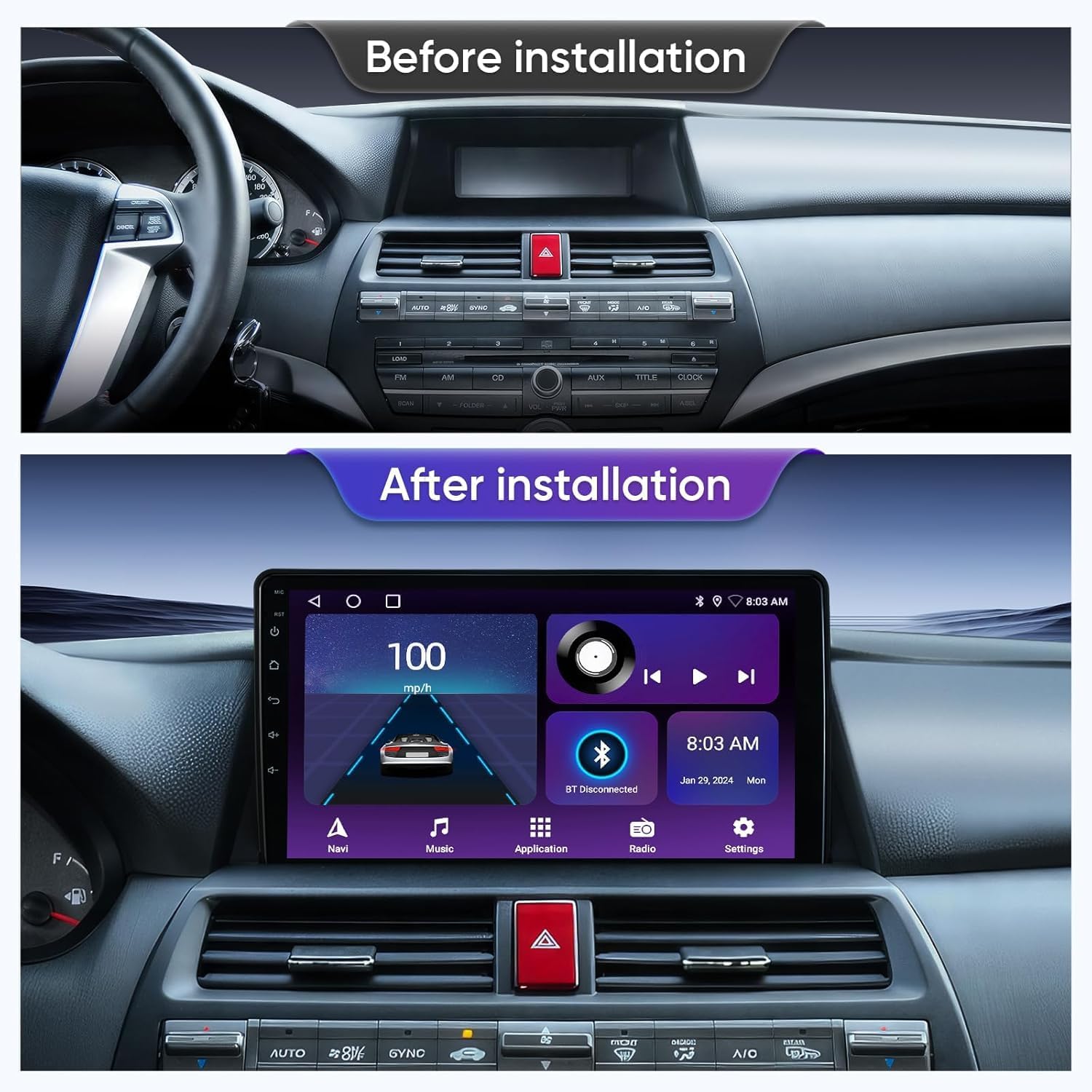
Gambar 3.2: Before and After Installation.

Gambar 3.3: Installed Head Unit Display.
4. Parentah Operasi
4.1. Navigasi Antarbeungeut Dasar
The unit operates on an Android 12 system with a responsive 10.2-inch IPS touchscreen. Navigate through applications and settings by tapping and swiping on the screen, similar to a smartphone or tablet.
4.2. Wired/Wireless CarPlay and Android Auto
Connect your iPhone via Bluetooth for wireless CarPlay or via USB for wired CarPlay. For Android phones, connect via USB for Android Auto. This allows access to maps, music, calls, and other compatible applications directly on the head unit's screen. Voice assistants like Siri or Google Assistant can be activated for hands-free operation.

Gambar 4.1: Apple CarPlay and Android Auto Functionality.
4.3. GPS Napigasi
The built-in GPS module supports both online and offline maps. You can download map software from the Google Play application market. The system provides real-time navigation and route guidance.

Gambar 4.2: GPS Navigation Interface.
4.4. Wi-Fi jeung Bluetooth Konéktipitas
Connect the unit to a Wi-Fi hotspot (e.g., from your smartphone) to access the internet for online music streaming, map updates, and app downloads. Bluetooth allows for hands-free calling and audio streaming from your mobile device.

Gambar 4.3: Wi-Fi and Bluetooth Connection Screens.
4.5. Split Screen Mode and MirrorLink/Airplay
The split-screen feature allows you to run two applications simultaneously on the display, such as navigation and music. MirrorLink (for Android) and Airplay (for iPhone) enable screen mirroring from your smartphone to the head unit.

Gambar 4.4: Split Screen Mode and Steering Wheel Control.

Gambar 4.5: Split Screen and Mirroring Capabilities.
4.6. Kontrol Setir (SWC)
The unit supports existing steering wheel controls for convenient operation. You can configure button functions (short press and long press) through the system settings.
4.7. Full RCA Output
The unit provides full RCA output, allowing connection to external monitors (e.g., headrest screens) for passengers to view content from the head unit.

Gambar 4.6: Full RCA Output to External Displays.
4.8. Tukangeunview Kaméra
The included IP69 waterproof 1080P AHD rearview camera provides a 170° wide-angle view with a fisheye design for enhanced visibility when reversing. The display automatically switches to the camera feed when the vehicle is in reverse gear.

Gambar 4.7: 1080P Pungkurview Tampilan Kaméra.
5. Pangropéa
Pikeun mastikeun umur panjang sareng kinerja optimal stereo mobil anjeun, turutan pedoman perawatan ieu:
- Ngabersihan layar: Anggo lawon anu lemes sareng henteu lint pikeun ngusap layar rampa. Pikeun smudges nekad, rada dampen lawon jeung cai atawa cleaner aman layar. Hindarkeun bahan abrasive atanapi bahan kimia kasar.
- Apdet parangkat lunak: Periodically check for system software updates through the unit's settings menu to ensure you have the latest features and security patches.
- Kaayaan Lingkungan: Hindarkeun ngalaan unit ka suhu anu ekstrim, sinar panonpoé langsung pikeun période anu berkepanjangan, atanapi kalembaban anu kaleuleuwihan.
- Sambungan kabel: Pastikeun sadaya kabel disambungkeun aman. sambungan leupas bisa ngakibatkeun masalah intermittent.
6. Cara ngungkulan
Bagian ieu ngabahas masalah umum anu anjeun tingali.
| Masalah | Mungkin Cukang lantaranana | Solusi |
|---|---|---|
| Taya kaluaran sora. | Incorrect AUX cable connection or volume too low. | Ensure Cable G is correctly connected to the vehicle's AUX port. Check the volume settings on both the head unit and the vehicle's audio system. |
| Unit teu hurung. | Loose power connection or blown fuse. | Verify all power cables are securely connected. Check the vehicle's fuse box for any blown fuses related to the stereo. |
| Sinyal GPS lemah atanapi teu akurat. | GPS antenna obstruction or poor placement. | Ensure the GPS antenna is placed in a location with a clear view langit, bébas tina halangan. |
| CarPlay / Android Auto teu nyambung. | Incorrect connection method or software issue. | For wireless CarPlay, ensure Bluetooth is enabled on your iPhone. For wired connections, try a different USB cable. Restart both the phone and the head unit. |
If problems persist, please refer to the Support section for further assistance.
7. Spésifikasi
| Fitur | Rincian |
|---|---|
| Ukuran tampilan | 10 inci |
| Sistem operasi | Android 12 |
| Ram | 2GB |
| Rom | 64GB |
| Téhnologi konektipitas | Bluetooth, USB, Wi-Fi |
| Fitur husus | Touchscreen, CarPlay, Android Auto, MirrorLink, Airplay, DSP, GPS Navigation, Backup Camera Support |
| Tipe Peta | North America, Worldwide (via downloadable apps) |
| Mode Kaluaran Audio | Stereo |
| Tipe Pamasangan | Dasbor Gunung |
| Item Beurat | 5.17 pon |
| Ukuran Paket | 15.39 x 13.58 x 5.67 inci |
8. Émbaran jaminan
This AINAVI car stereo unit comes with a 12-Month Manufacturer's Guarantee from the date of purchase. This warranty covers defects in materials and workmanship under normal use. It does not cover damage caused by improper installation, accident, misuse, abuse, neglect, or unauthorized modification.
Punten tahan bukti pameseran anjeun pikeun klaim garansi.
9. Rojongan
For technical assistance, installation support, or any other inquiries regarding your AINAVI car stereo, please contact the seller directly through the Amazon messaging system.
Jang ngalampahkeun ieu:
- Pindah ka sajarah pesenan Amazon anjeun.
- Locate your purchase of the AINAVI 10-inch Touchscreen Car Stereo.
- Click on the seller's name (e.g., "HomeCar").
- Select the option to "Ask a question" or "Contact Seller."

Gambar 9.1: How to Contact Seller for Support.


