1. Setélan
This section guides you through the initial setup of your OPPO Reno 14 5G smartphone.
1.1 Unboxing jeung Eusi Paket
Carefully unbox your device. The standard package typically includes:
- OPPO Reno 14 5G Smartphone
- Kabel Tipe-C USB
- Adaptor kakuatan
- Alat Ejector SIM
- Gancang Mimitian Guide
- Guide Kasalametan
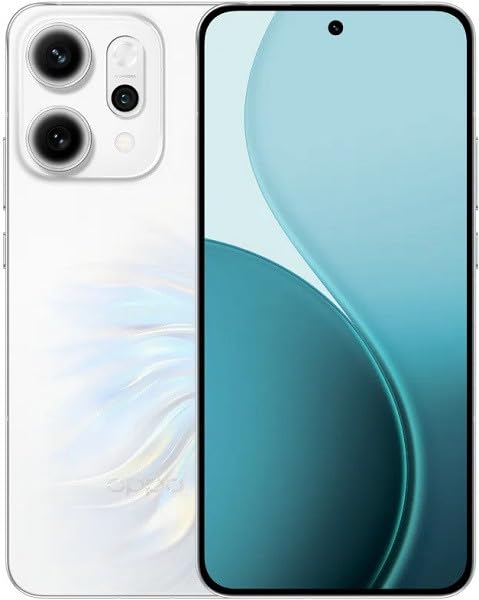
Image: OPPO Reno 14 5G smartphone and typical package contents. This image provides a general overview of the device and what you might find in the box.
1.2 Nyelapkeun Kartu SIM
- Tangtukeun lokasi baki kartu SIM di sisi telepon Anjeun.
- Selapkeun alat SIM ejector kana liang leutik gigireun baki terus pencét pageuh nepi baki pops kaluar.
- Place your Nano-SIM card(s) into the tray with the gold contacts facing down, ensuring they are correctly aligned. This device supports Dual SIM functionality.
- Taliti nyorong baki deui kana telepon nepi ka ngaklik kana tempatna.
Note: Ensure the phone is powered off before inserting or removing SIM cards.
1.3 Daya Awal Hurung sareng Setup
- Pencét terus tahan tombol Daya (biasana di sisi katuhu) dugi ka logo OPPO muncul.
- Turutan parentah dina layar pikeun milih basa anjeun, wewengkon, nyambung ka Wi-Fi, tur nyetel akun Google Anjeun.
- You will be prompted to set up security features like a PIN, pattern, fingerprint, or face unlock.
1.4 Ngecas Alat
Sateuacan nganggo heula, disarankeun pikeun ngeusi batre alat anjeun sapinuhna.
- Sambungkeun kabel USB Type-C ka port ngecas di handapeun telepon.
- Sambungkeun tungtung kabel anu hiji deui kana adaptor daya, teras colokkeun adaptor kana stop kontak.
- Indikator ngecas bakal nembongan dina layar.
2. Ngoperasikeun Alat Anjeun
Learn how to navigate and use the core functions of your OPPO Reno 14 5G.
2.1 Napigasi Dasar
- Tombol Daya: Pencét pikeun ngahurungkeun/mareuman layar. Pencét terus tahan pikeun mareuman atanapi ngamimitian deui.
- Tombol Volume: Saluyukeun volume media, volume telepon, atanapi volume rington.
- Gerak layar rampa: Swipe up for app drawer, swipe down for notifications/quick settings, pinch to zoom, tap to select.
2.2 Nelepon jeung Ngirim Talatah
- Telepon: Open the Phone app, enter the number or select a contact, then tap the call icon.
- Pesen: Buka aplikasi Talatah, ketok ikon pesen anyar, lebetkeun panarima sareng pesen anjeun, teras ketok kirim.
2.3 Pamakéan kaméra
Your OPPO Reno 14 5G features a high-quality camera system.
- Buka aplikasi Kamera tina layar utama anjeun atanapi laci aplikasi.
- Pilih modeu anu dipikahoyong (Poto, Pidéo, Potret, Peuting, jsb.).
- Ketok tombol jepret pikeun moto atanapi ngamimitian/eureun ngarekam video.
- Tap on the screen to focus on a specific area.
2.4 Nyambungkeun ka Wi-Fi sareng Bluetooth
- Wifi: Pindah ka Setelan > Wi-Fi, turn Wi-Fi on, select your network, and enter the password if required.
- Bluetooth: Pindah ka Setelan > Bluetooth, turn Bluetooth on, select the device you wish to pair with from the available devices list.
3. Pangropéa
Pangropéa anu leres mastikeun umur panjang sareng kinerja optimal alat anjeun.
3.1 Ngabersihan Alat Anjeun
- Anggo lawon anu lemes sareng henteu lint pikeun ngusap layar sareng awak.
- Ulah make bahan kimia kasar, bahan abrasive, atawa sprays aerosol.
- Ulah ngalaan alat ka beueus kaleuleuwihan.
3.2 Apdet parangkat lunak
Regularly check for and install software updates to enhance security, stability, and introduce new features.
- Pindah ka Setélan > Ngeunaan alat > Apdet (or similar path depending on ColorOS version).
- Turutan parentah dina-layar pikeun ngundeur tur masang sagala apdet sadia.
3.3 Perawatan Batré
- Hindarkeun suhu anu ekstrim, anu tiasa ngirangan umur batre.
- Use only the original OPPO charger and cable or certified compatible accessories.
- Ulah ngantep batré lengkep solokan remen.
3.4 Manajemén Panyimpenan
Pikeun ngajaga kinerja anu optimal, atur panyimpenan alat anjeun sacara rutin.
- Pindah ka Setelan > Panyimpenan ka view pamakéan gudang.
- Pupus teu perlu files, apps, and clear cache data.
- Consider backing up photos and videos to cloud storage or an external device.
4. Cara ngungkulan
This section addresses common issues you might encounter with your OPPO Reno 14 5G.
4.1 Alat Henteu Hurungkeun
- Pastikeun batréna geus dieusian. Sambungkeun carjer sareng antosan sababaraha menit sateuacan nyobian hurungkeun.
- Pareuman terus restart sacara paksa: Pencét terus tahan tombol Daya sareng tombol Volume Naék sacara babarengan salami sakitar 10-15 detik dugi ka logo OPPO némbongan.
4.2 Network Issues (No Signal, Cannot Make Calls)
- Pariksa naha kartu SIM parantos dipasang kalayan leres.
- Ensure Airplane Mode is off (swipe down from the top for Quick Settings).
- Balikan deui alat.
- Pindah ka Setelan > Jaringan seluler and check network settings.
4.3 Aplikasi ngadat atanapi katirisan
- Tutup aplikasi sareng buka deui.
- Clear the app's cache: Go to Settings > Apps > [App Name] > Storage usage > Clear cache.
- Apdet aplikasi ti Google Play Store.
- Upami masalahna tetep, cabut sareng pasang deui aplikasina.
4.4 Reset Pabrik (Pamungkas)
Perhatosan: Reset pabrik bakal mupus sadaya data dina telepon anjeun. Nyadangkeun data penting sateuacan neraskeun.
- Pindah ka Settings > System settings > Back up and reset > Reset phone.
- Pilih Pupus sadaya data.
- Confirm your decision and enter your lock screen password if prompted.
5. Spésifikasi
Key technical specifications for the OPPO Reno 14 5G CPH2737.
| Fitur | Spésifikasi |
|---|---|
| merek | OPPO |
| Modél | Reno 14 5G (CPH2737) |
| Kapasitas Panyimpenan Mémori | 256 GB |
| RAM Mémori Dipasang Ukuran | 12 GB |
| Tipe tampilan | AMOLED |
| Téhnologi sélular | 5G |
| Téhnologi konektipitas | 5G |
| Jumlah slot Kartu SIM | Dual SIM |
| Faktor Bentuk | Bar |
| Panyadia Layanan Nirkabel | Henteu dikonci |
| Warna | Bodas |
6. Garansi jeung Rojongan
Information regarding your product's warranty and how to obtain support.
6.1 Garansi Produk
Your OPPO Reno 14 5G is covered by a limited manufacturer's warranty. The specific terms and duration of the warranty may vary by region and local laws. Please refer to the warranty card included in your product packaging or visit the official OPPO websitus kanggo inpormasi garansi lengkep.
The warranty typically covers defects in materials and workmanship under normal use. It does not cover damage caused by accidents, misuse, unauthorized modifications, or normal wear and tear.
6.2 Rojongan Palanggan
If you encounter any issues that cannot be resolved using the troubleshooting steps in this manual, or if you require further assistance, please contact OPPO customer support.
- Dukungan Online: Mangga sumping ka OPPO resmi website and navigate to the 'Support' section for FAQs, online chat, and service center locations.
- Rojongan Telepon: Refer to your region-specific OPPO website or the quick start guide for local customer service contact numbers.
- Puseur Palayanan: For hardware-related issues, you may need to visit an authorized OPPO service center. Check the official website for the nearest location.
When contacting support, please have your device's model number (CPH2737) and IMEI number ready. The IMEI can usually be found by dialing *#06# on your phone's dialer, on the product packaging, or in Settings > About device > Status.