
1. Bubuka
Welcome to your new Acer Nitro 60 N60-640-UR25 Desktop. This manual provides essential information for setting up, operating, maintaining, and troubleshooting your computer. Please read this guide thoroughly to ensure optimal performance and longevity of your device.
2. Émbaran Kasalametan
Observe the following safety precautions to prevent damage to your computer and to ensure your personal safety.
- Sasayogian tanaga: Use only the power adapter provided with your desktop. Ensure the power outlet is properly grounded.
- Ventilasi: Do not block ventilation openings. Ensure adequate airflow around the desktop to prevent overheating.
- Cairan sareng Uap: Keep the desktop away from liquids and excessive moisture. Do not operate with wet hands.
- panempatan: Place the desktop on a stable, flat surface. Avoid placing it near heat sources or in direct sunlight.
- Palayanan: Do not attempt to service the desktop yourself. Refer all servicing to qualified service personnel.
3. Eusi Paket
Pastikeun yén sadaya item aya dina pakét anjeun:
- Acer Nitro 60 N60-640-UR25 Desktop Unit
- Kabel listrik
- Dokuméntasi (Panduan Mimitian Gancang, Kartu Garansi)
4. Setélan
4.1 Ngabongkar bungkusan
Carefully remove the desktop from its packaging. Retain the packaging materials for future transport or servicing needs.
4.2 Nyambungkeun périferal
Connect your monitor, keyboard, mouse, and other devices to the appropriate ports on the desktop.

Gambar: Tukangeun view of the Acer Nitro 60 desktop, highlighting the available ports for connecting peripherals such as monitors, keyboards, mice, and network cables.
- Monitor: Connect your monitor to the NVIDIA GeForce RTX 5070 Ti graphics card's HDMI or DisplayPort outputs.
- Keyboard sareng Mouse: Sambungkeun keyboard sareng beurit anjeun ka palabuhan USB anu sayogi.
- Jaringan: For a wired connection, connect an Ethernet cable to the LAN port. For wireless, ensure your Wi-Fi antenna is connected (if external) or that the internal Wi-Fi is enabled.
- Audio: Sambungkeun spiker atanapi headphone kana colokan kaluaran audio.
4.3 Powering On
After connecting all peripherals, plug the power cord into the desktop and then into a wall outlet. Press the power button located on the front or top of the desktop to turn it on.

Image: A close-up of the top-front panel of the Acer Nitro 60 desktop, illustrating the location of the power button, USB ports, and audio jacks for easy access.
4.4 Setup Windows Awal
Upon first boot, Windows 11 Home will guide you through the initial setup process. Follow the on-screen instructions to configure your region, language, network, and user account.
5. Ngoperasikeun Desktop Anjeun
5.1 Manajemén kakuatan
- Pareuman: Klik tombol Mimitian, teras Daya > Pareuman.
- Uihan deui: Klik tombol Mimitian, teras Daya > Mimitian Deui.
- Saré: Klik tombol Mimitian, teras Daya > Sare.
5.2 Ngartos Port sareng Konéktivitas
Your Acer Nitro 60 desktop offers a variety of ports for versatile connectivity:
- Port USB: For connecting keyboards, mice, external drives, and other USB devices.
- HDMI: For connecting to monitors or TVs.
- Ethernet (LAN): Pikeun sambungan internét kabel.
- Bluetooth: For wireless connection to compatible devices like headphones or game controllers.
- Wifi: Pikeun aksés internét nirkabel.
5.3 Kinerja Grafis
Dilengkepan hiji NVIDIA GeForce RTX 5070 Ti Graphics Card, your desktop delivers high-performance visuals for gaming, content creation, and AI-driven tasks. Ensure your display drivers are up to date for optimal performance.
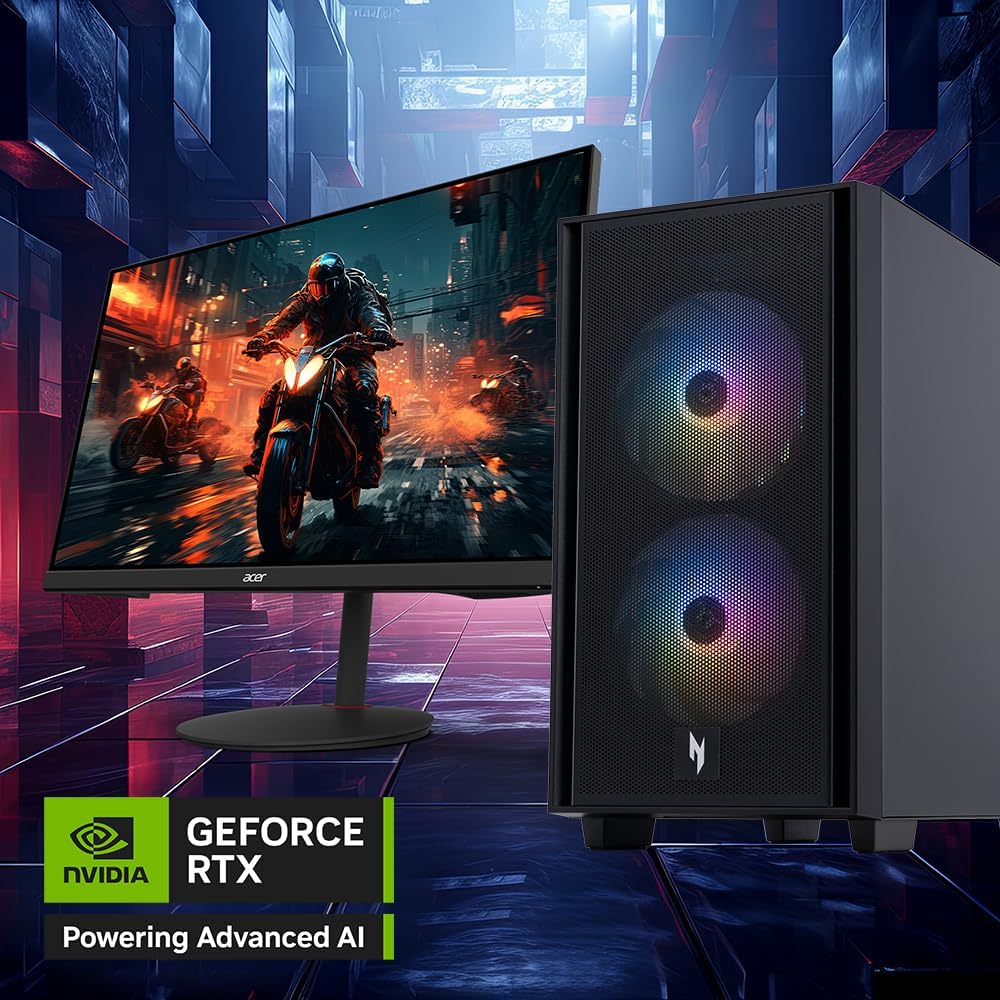
Image: The Acer Nitro 60 desktop positioned beside a monitor, showcasing its capability to render detailed and immersive gaming environments, powered by its advanced graphics card.
5.4 Prosesor sareng Mémori
The Intel Core i7-14700F 20-Core Processor jeung 32GB DDR5 Mémori provide robust performance for demanding applications and multitasking. The 2TB PCIe 4.0 NVMe SSD ensures fast boot times and rapid data access.

Gambar: Hiji internal view of the Acer Nitro 60 desktop, revealing the Intel Core i7 processor with its cooling solution and the installed DDR5 memory sticks, emphasizing the powerful internal components.
6. Pangropéa
6.1 Cleaning Your Desktop
Regular cleaning helps maintain performance and extends the lifespan of your desktop.
- Luar: Ngagunakeun lemes, damp cloth to wipe the exterior surfaces. Avoid harsh chemicals.
- Ventilasi: Periodically use compressed air to clear dust from the ventilation grilles and fans. Ensure the desktop is powered off before cleaning.
6.2 Apdet parangkat lunak
Keep your operating system and drivers updated to ensure security, stability, and optimal performance.
- Pembaruan Windows: Access Windows Update through Settings > Update & Security > Windows Update.
- Pembaruan supir: Regularly check the Acer support website and NVIDIA's website for the latest graphics drivers.
6.3 Nyadangkeun Data
Cadangkeun data penting anjeun sacara rutin ka drive éksternal atanapi panyimpenan awan pikeun nyegah leungitna data.
7. Cara ngungkulan
Bagian ieu ngabahas masalah umum anu anjeun tingali.
| Masalah | Solusi anu mungkin |
|---|---|
| Desktop does not power on | Pastikeun kabel daya disambungkeun pageuh kana desktop sareng stop kontak dina témbok. Uji stop kontakna nganggo alat anu sanés. |
| Henteu aya tampilan dina monitor | Check monitor power and cable connections. Ensure the monitor is connected to the graphics card output, not the motherboard's integrated graphics ports. Try a different cable or monitor if possible. |
| Sistem slow atanapi unresponsive | Close unnecessary applications. Check Task Manager for high CPU/memory usage. Ensure sufficient free space on the SSD. Run a virus scan. |
| Masalah konektipitas jaringan | For wired connections, check the Ethernet cable and router. For Wi-Fi, ensure Wi-Fi is enabled and you are connected to the correct network. Restart your router/modem. Update network drivers. |
| Unusual noises from desktop | Loud fan noise may indicate overheating or dust buildup. Clean the fans. If the noise persists or is grinding, contact customer support. |
8. Spésifikasi
Key technical specifications for your Acer Nitro 60 N60-640-UR25 Desktop:
- Prosesor: Intel Core i7-14700F 20-Core Processor (Up to 5.4 GHz)
- Grafik: NVIDIA GeForce RTX 5070 Ti with 16 GB GDDR7 Video Memory
- Mémori: 32 GB DDR5 RAM
- Panyimpenan: 2 TB PCIe 4.0 NVMe SSD
- Sistem operasi: Windows 11 Imah
- Audio: Realtek Audio
- Konektipitas: Bluetooth, Ethernet, HDMI, USB, Wi-Fi (802.11ac)
- ukuran: 12 x 19 x 21 inci
- beurat: 25 pon
- Jenis colokan kakuatan: Type A - 2 pin (North American)
9. Émbaran jaminan
Your Acer Nitro 60 N60-640-UR25 Desktop comes with a 1-taun jaminan kawates. Please refer to the included warranty card for detailed terms and conditions. Keep your proof of purchase for warranty claims.
10. Rojongan Palanggan
For technical assistance, warranty service, or additional information, please visit the official Acer support websitus atanapi ngahubungan departemén layanan palanggan maranéhna.
Rojongan Acer Websitus: www.acer.com/support