Bubuka
The Norwii N21 is a versatile Bluetooth presentation clicker designed to enhance your presentations. It combines multiple functions into one device, including wireless slide control, a telescopic pointer, a touchscreen stylus, a laser pointer, volume control, and a countdown timer with vibration alerts. This manual provides detailed instructions for setting up and operating your Norwii N21 presenter.
Fitur konci
- Konektipitas Ganda: Connects via Bluetooth or a USB-A receiver for broad compatibility.
- Kontrol presentasi: Navigate slides forward and backward, activate full screen or black screen, and adjust system volume.
- Telescopic Pointer: Extends up to 65cm for physical pointing during presentations.
- Touchscreen Stylus: Integrated stylus on the telescopic pointer for writing on touch screens.
- Pointer laser: Built-in red laser for highlighting specific content. (Class II laser product)
- Timer Countdown: Features vibration alerts at 10, 5, and 0 minutes before the set time ends, helping manage presentation duration.
- USB-C Rechargeable: Equipped with a 360mAh lithium battery, offering weeks of use on a 2-hour charge.
- Reprogrammable Buttons: Customize button functions via the Norwii Presenter software.

Gambar 1: Leuwihview of Norwii N21's six-in-one functionality.
Eusi pakét
The Norwii N21 package typically includes:
- Norwii N21 Presentation Clicker
- USB-A Receiver (stored inside the clicker)
- Kabel Ngecas USB-C
- Manual pamaké
- Lanyard (may vary by package)
Disetél
1. Ngecas Alat
Before first use, fully charge the Norwii N21. Connect the provided USB-C cable to the charging port on the side of the presenter and to a USB power source. The display will show the battery percentage during charging. A full charge takes approximately 2 hours and provides weeks of usage.

Figure 2: Charging the Norwii N21 via USB-C port.
2. Daya Hurung / Pareum
Locate the power switch on the side of the device. Slide it to the "ON" position to power on the presenter. The display will show the current battery level. Slide to "OFF" to power off.
3. Nyambungkeun ka Alat Anjeun
The Norwii N21 offers two connection methods: Bluetooth and USB-A receiver.
Sambungan Bluetooth:
- Pastikeun presenter parantos dihurungkeun.
- Pencét lila Setting/Bluetooth button (often marked with a gear or Bluetooth icon) until the blue LED starts blinking. This indicates pairing mode.
- On your computer or tablet, go to Bluetooth settings and select "Norwii Presenter" from the list of available devices to pair.
- Once paired, the blue LED will stop blinking and remain solid. The presenter will automatically reconnect to the last paired device when powered on.

Figure 3: Bluetooth pairing with a tablet.
USB-A Receiver Connection:
- Locate the USB-A receiver, typically stored in the tail end of the presenter.
- Colokkeun panarima USB-A kana port USB anu sayogi dina komputer anjeun.
- The computer should automatically detect and install the necessary drivers (Plug and Play).
- When both Bluetooth and USB-A are connected, the USB-A connection takes priority.

Figure 4: Connecting via USB-A receiver.
Parentah Operasi
Diajar ngeunaan tombol-tombol sareng fungsina:
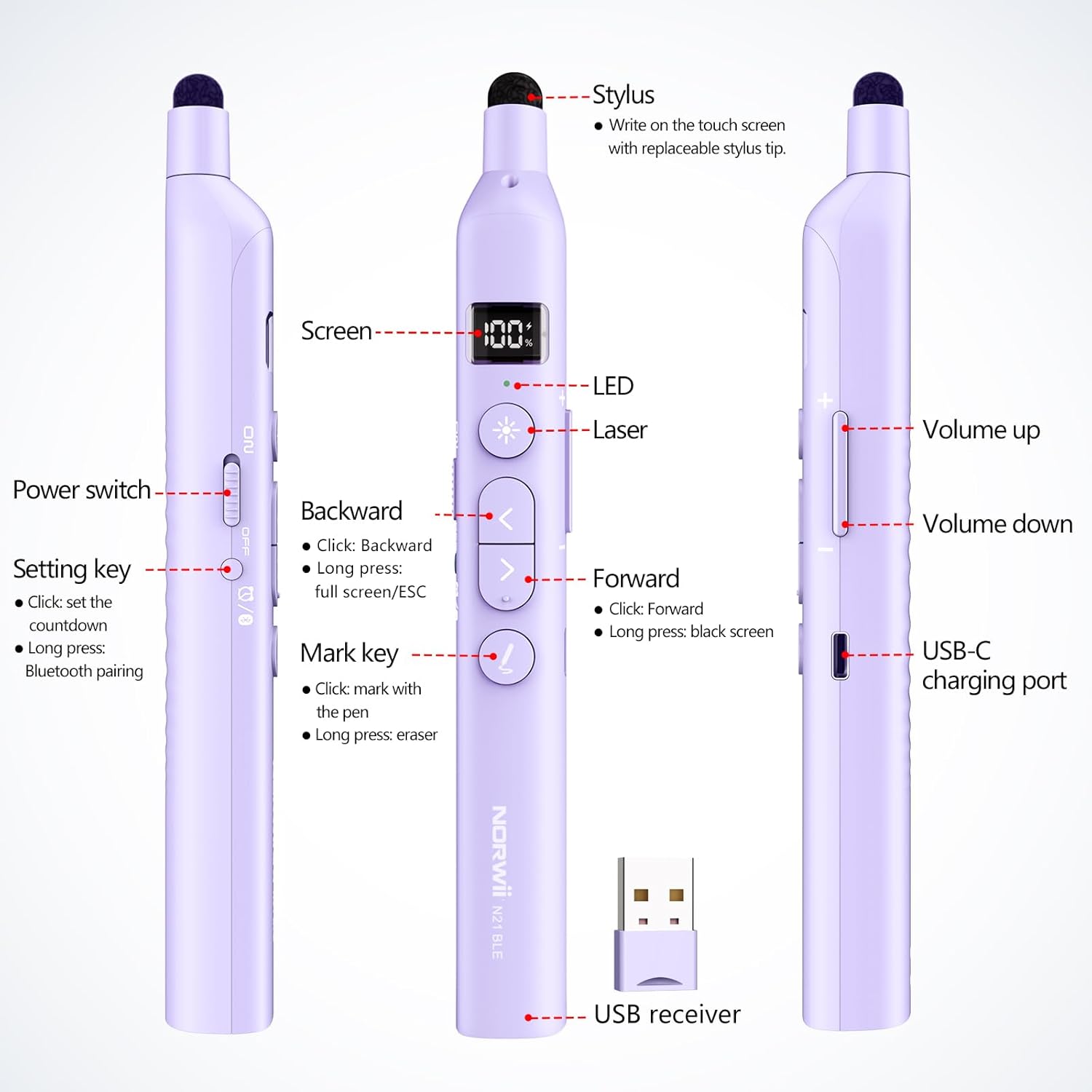
Figure 5: Norwii N21 button layout and functions.
- Forward Button (>):
- Short press: Advance to the next slide.
- Long press: Activate black screen or Exit (Esc) in presentation software.
- Backward Button (<):
- Short press: Go back to the previous slide.
- Long press: Activate full screen in presentation software.
- Laser Button (Star icon):
- Press to activate the red laser pointer. Release to turn off.
- Mark Key (Pen icon):
- Short press: Enter pen mode for annotation (e.g., in PowerPoint).
- Long press: Activate eraser function.
- Tombol Volume (+/-):
- Press to adjust the system volume up or down.
- Telescopic Pointer:
- Gently pull the tip to extend the telescopic pointer. It can extend up to 65cm.
- Use the soft stylus tip on the end for interacting with touchscreens.

Figure 6: Using the retractable pointer and stylus for annotation.
Timer mundur
- Pencét pondok Setting/Bluetooth tombol pikeun asup ka modeu timer.
- Ngagunakeun éta Forward (>) jeung Backward (<) buttons to adjust the desired countdown time.
- Pencét éta Setting/Bluetooth button again or wait 5 seconds for the timer to start automatically.
- The presenter will vibrate at 10, 5, and 0 minutes remaining to alert you.
- Pencét dua kali dina Setting/Bluetooth button to quickly restart the last set countdown.

Figure 7: Setting and using the countdown timer.
Customizing Button Functions (Compatibility Modes)
The Forward and Backward buttons support four modes for different presentation software. Long-press the Backward (<) jeung Forward (>) buttons simultaneously for 3 seconds to switch between modes:
- Naek turun: For PowerPoint, Keynote, and similar applications.
- Kénca/Katuhu: For Prezi, Propresenter, MediaShout, and similar applications.
- Page Up/Page Down: For Google Slides, web browsers, photo viewers, sareng seueur deui.
- Scroll Up/Down: For e-books and other scrolling content.
You can also customize key functions using the Norwii Presenter software, available for download from the official Norwii websitus.

Figure 8: Switching between compatibility modes.

Figure 9: Customizing buttons via Norwii Presenter software.
Kasaluyuan
The Norwii N21 is compatible with a wide range of devices and operating systems:
- Sistem Operasi: Windows, macOS, Linux, Android.
- Software presentasi: PowerPoint, Prezi, Keynote, Propresenter, MediaShout, Google Slides, and more.
- Alat anu cocog: Laptops, Personal Computers, Tablets, Home Theater systems.

Figure 10: Broad compatibility with various operating systems.
spésifikasi
| Nomer modél | N21 |
| Konektipitas | Bluetooth, 2.4GHz USB-A Receiver |
| Range nirkabel | Nepi ka 100 méter (328 suku) |
| Jenis laser | Red Laser (Class II) |
| Telescopic Pointer Length | Extends up to 65 cm |
| Batré | Batré Litium 360mAh diwangun-di |
| Port ngecas | USB-C |
| Item Beurat | 2.24 ons |
| Dimensi produk | 72.24 x 11.61 x 5.2 inches (Note: This dimension seems unusually large for a clicker, likely a packaging or shipping dimension. Actual device is compact.) |
Pangropéa
- Jaga alat tetep bersih ku cara ngusap ku kaén anu lembut sareng garing.
- Ulah ngalaan alat ka suhu ekstrim, Uap, atawa sinar panonpoé langsung.
- Store the USB-A receiver inside the presenter when not in use to prevent loss.
- Ensure the telescopic pointer is fully retracted before storing to prevent damage.
Pamérésan masalah
- Alat teu ngabales:
- Check if the device is powered on and fully charged.
- Ensure the USB-A receiver is securely plugged in or Bluetooth is properly paired.
- Try restarting your computer or the presenter.
- Pointer laser teu jalan:
- Pastikeun alat diaktipkeun.
- Press the laser button firmly.
- Slide control issues:
- Verify the presenter is in the correct compatibility mode for your software (see "Customizing Button Functions").
- Ensure the presentation software is in focus on your computer.
Émbaran Kasalametan
- Kasalametan laser: This product contains a Class II laser. Do not stare directly into the laser beam or point it at people or animals. Avoid direct eye exposure.
- Jauhkeun alat tina jangkauan barudak.
- Ulah nyobian ngabongkar atawa ngaropéa alat. Ieu tiasa ngabatalkeun jaminan sareng nyababkeun résiko kaamanan.
- Anggo ngan ukur kabel ngecas anu disayogikeun atanapi anu disarankeun.
Video Produk Resmi
Video 1: N21 BLE Product Introduction by NORWII. This video provides a brief overview of the Norwii N21 Bluetooth Presentation Clicker's features and functionality.
Garansi sareng Rojongan
Norwii products are designed for reliability and performance. For warranty information, technical support, or service inquiries, please refer to the contact information provided on the product packaging or visit the official Norwii websitus. Simpen resi pameseran anjeun pikeun klaim jaminan.