
1. Bubuka jeung Leuwihview
The Aputure Storm 400x is a high-performance 400W tunable-white LED video light designed for professional video recording and studio photography. It features a CCT range of 2,500K to 10,000K, IP65 weather protection, and a Bowens Mount for versatile light shaping. This manual provides essential information for the safe and effective use of your Storm 400x.

Image 1.1: The Aputure Storm 400x V-Mount LED Video Light with its standard reflector.
Fitur konci:
- BLAIR Tunable White Light Engine: Utilizes Blue/Lime/Amber/Indigo/Red emitters for high-quality white light and precise +/- green adjustability.
- Kompak sareng Kuat: Delivers significant output comparable to higher-wattage COB lights in a compact form factor.
- Advanced Color Tuning: Offers saturated colors across over 70% of Rec.2020 color space using Limited HSIC+ and x,y control modes.
- Professional Control Options: Supports wireless control via Sidus Bluetooth Mesh, CRMX, and 5-Pin DMX.
- Perlindungan Cuaca IP65: Ensures reliable operation in various environmental conditions with sealed components.
2. Naon dina Box
Please verify that all items listed below are included in your package. If any items are missing or damaged, contact your retailer or Aputure support.

Image 2.1: All components included with the Aputure Storm 400x.
- 1 x STORM 400x Lamp Sirah
- 1 x STORM 400x Control Box
- 1 x Lightning Clamp
- 1 x 35° Angle Hyper Reflector
- 1 x STORM 400x Head Cable (3m)
- 1 x AC Power Cable (6m)
- 1 x Bowens Mount Protection Cover
- 1 x Soft Carrying Case
3. Parentah Setup
Before initial use, ensure the Storm 400x is updated to firmware version 1.4 or higher for reliable performance. Refer to the Aputure websitus pikeun parentah update firmware.
3.1 Assembling the Light
- Ngagantelkeun Lamp Head to a Stand: Securely mount the STORM 400x lamp head onto a compatible light stand using the integrated yoke and locking mechanism.
- Sambungkeun Kotak Kontrol: Use the provided 3m head cable to connect the lamp head to the control box. Ensure the connectors are fully seated and locked.
- Pasangkeun Reflektor: Align the 35° Hyper Reflector with the Bowens Mount on the lamp head. Insert and twist clockwise until it locks into place.
- Amankeun Kotak Kontrol: Use the Lightning Clamp to attach the control box to the light stand or another secure point.
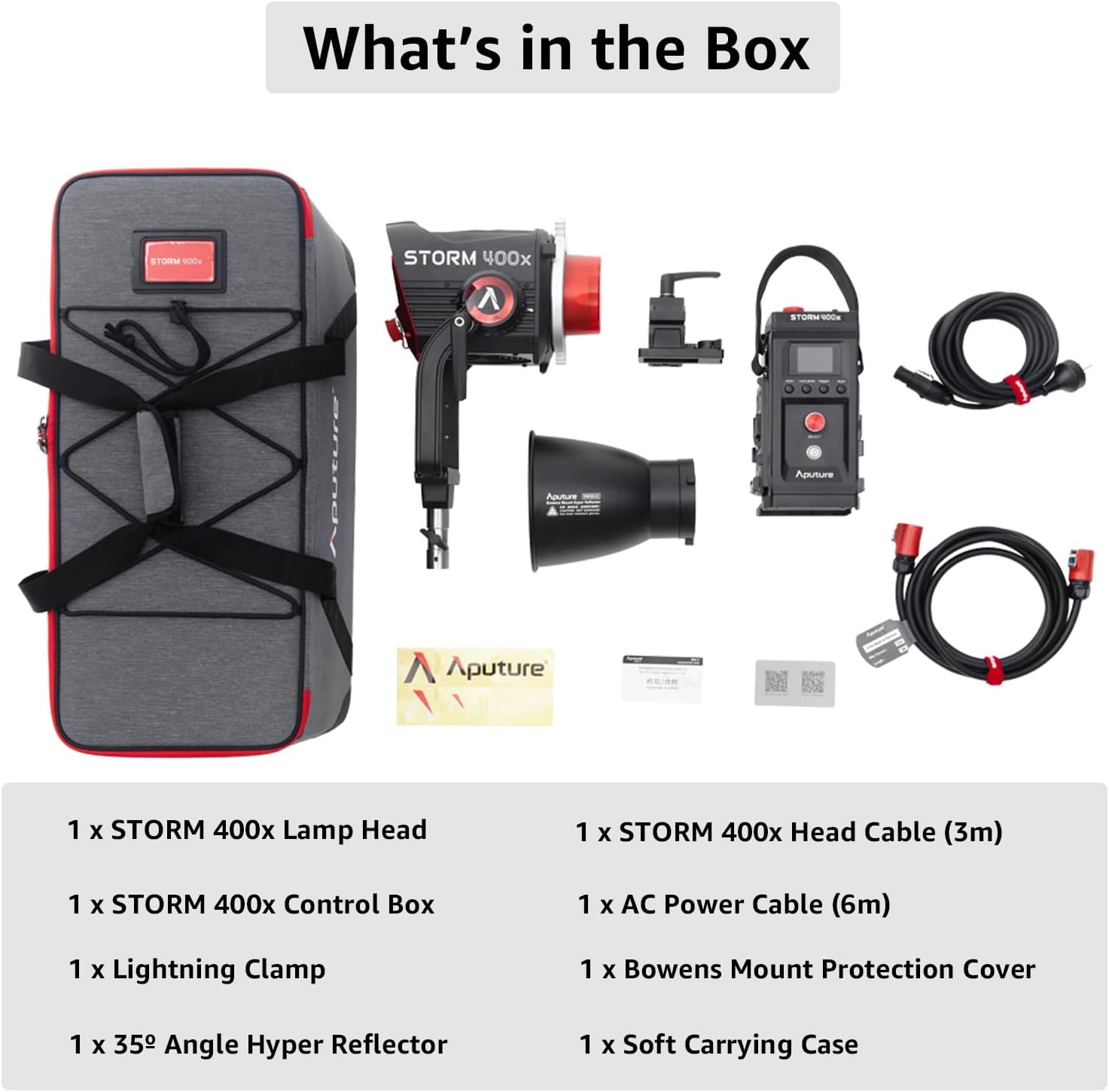
Image 3.1: The Storm 400x lamp head and control box, ready for assembly.
3.2 Powering Unit
Connect the AC power cable to the control box, then plug it into a suitable power outlet. The Storm 400x also supports V-Mount battery power (batteries sold separately) for portable operation.
4. Parentah Operasi
4.1 Operasi Dasar
- Hurungkeun/Pareuman: Press the power button on the control box to turn the unit on or off.
- Saluyukeun Caang: Use the intensity dial on the control box to adjust the light output from 0% to 100%.
- Adjust Color Temperature (CCT): Rotate the CCT dial to change the color temperature between 2,500K and 10,000K.
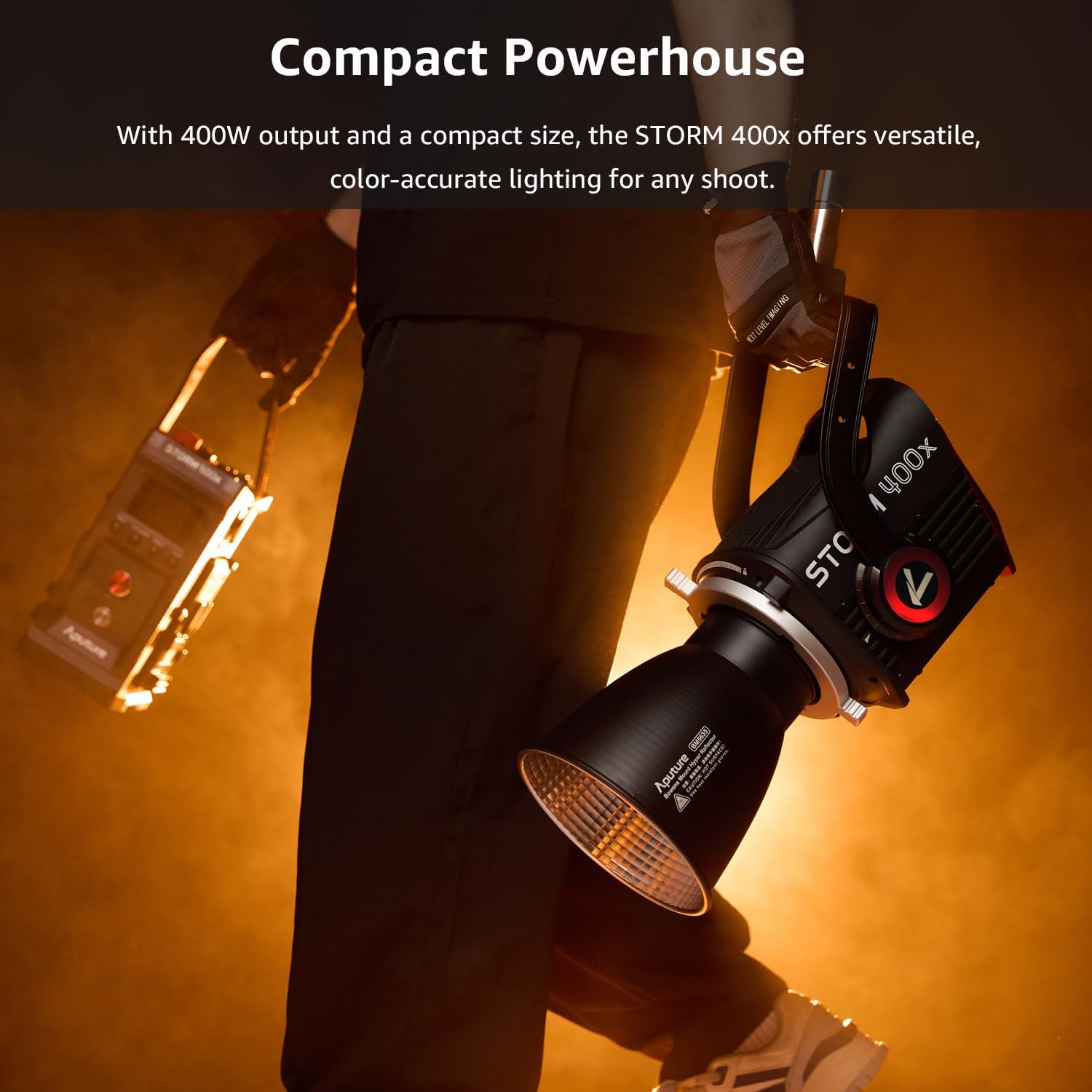
Image 4.1: The control box interface for adjusting light settings.
4.2 Advanced Color Tuning
The Storm 400x features advanced color tuning capabilities:
- Limited HSIC+ Mode: Access this mode via the control box menu to adjust Hue, Saturation, and Intensity, along with additional color parameters.
- x,y Control Mode: For precise color matching, use the x,y coordinate system to select specific color points within the Rec.2020 color space.
4.3 Kadali nirkabel
The Storm 400x offers multiple wireless control options:
- Aplikasi Sidus Link: Download the Sidus Link app on your smartphone or tablet to control the light via Bluetooth Mesh. This provides comprehensive control over all light functions.
- LumenRadio CRMX: For professional setups, the light supports CRMX wireless DMX control.
- 5-Pin DMX: Connect to a DMX console using a 5-pin DMX cable for integration into existing lighting systems. The unit offers 12 DMX control profiles and customizable DMX signal loss behaviors.
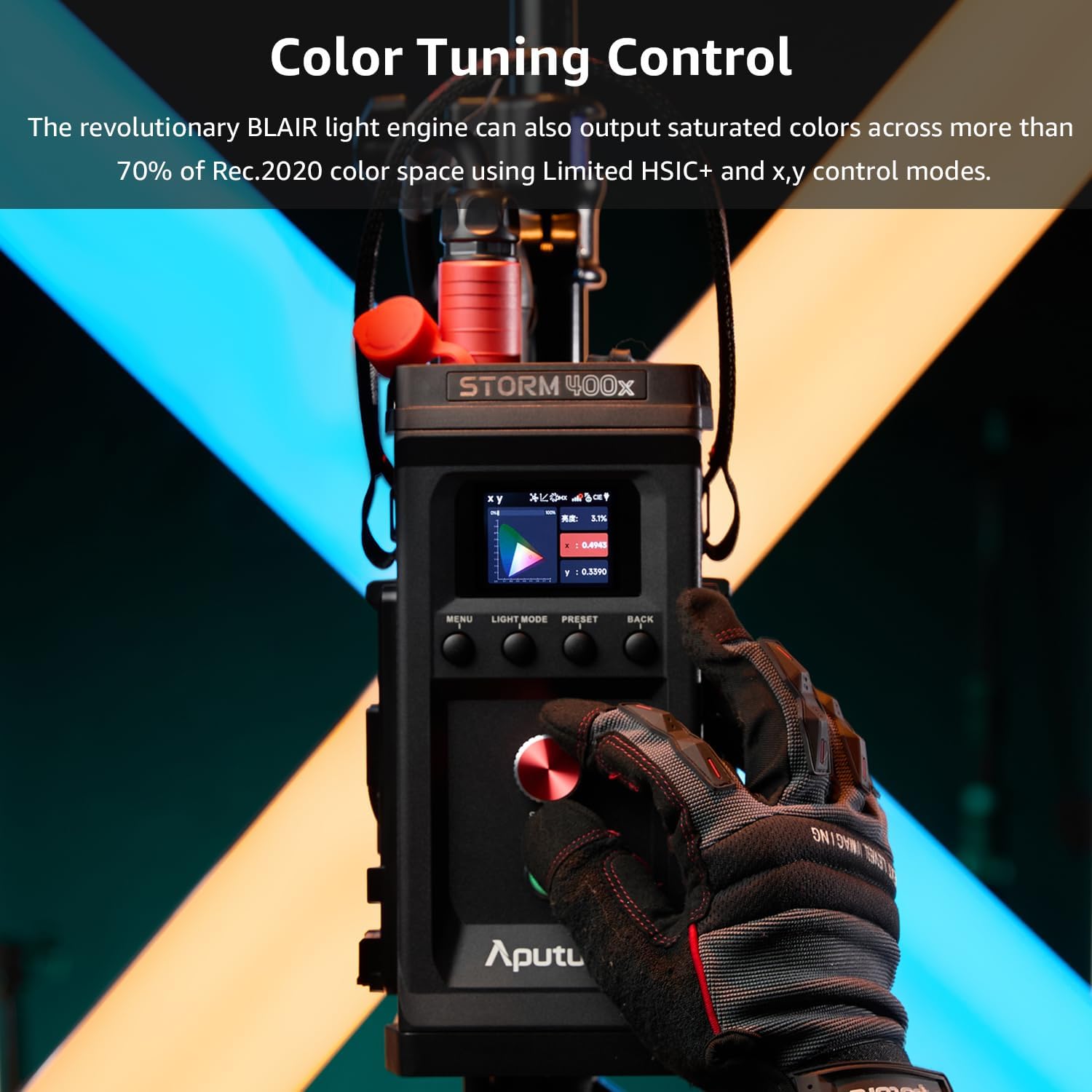
Image 4.2: Remote control of the Storm 400x using the Sidus Link app.
5. Pangropéa
Proper maintenance ensures the longevity and optimal performance of your Aputure Storm 400x.
5.1 beberesih
- Lap bagian luar lamp head and control box with a soft, dry cloth.
- Pikeun kokotor nekad, make rada damp cloth with a mild cleaning solution, then dry thoroughly.
- Ulah nganggo bahan kimia, pangleyur, atanapi pembersih anu kasar.
- Keep the fan vents clear of dust and debris to ensure proper cooling.
5.2 Panyimpenan
- Store the unit in its soft carrying case when not in use to protect it from dust and physical damage.
- Store in a cool, dry environment, away from direct sunlight and extreme temperatures.
5.3 IP65 Weather Protection
The Storm 400x features IP65 dust and weather protection, allowing it to be used in challenging outdoor conditions. While it is resistant to dust and water splashes, avoid submerging the unit or exposing it to high-pressure water jets.

Image 5.1: The Storm 400x is designed for all-weather use.
6. Cara ngungkulan
If you encounter issues with your Storm 400x, refer to the following common problems and solutions:
| Masalah | Mungkin Cukang lantaranana | Solusi |
|---|---|---|
| Lampu teu hurung. | Power cable not connected securely; no power from outlet; faulty cable/unit. | Check all power connections. Test the outlet with another device. Try a different power cable if available. |
| Taya kaluaran lampu. | Brightness set to 0%; lamp head cable loose; unit in standby mode. | Increase brightness. Ensure lamp head cable is securely connected. Check the display for standby indicators. |
| Kontrol nirkabel teu tiasa dianggo. | Bluetooth/CRMX not enabled; app not connected; interference. | Ensure Bluetooth/CRMX is active on the light and control device. Re-pair the device with the Sidus Link app. Move closer to the light or away from sources of interference. |
| Inaccurate color output. | Incorrect CCT/HSIC settings; outdated firmware. | Verify CCT and color mode settings. Perform a firmware update if available. |
If the problem persists after attempting these solutions, please contact Aputure customer support.
7. Spésifikasi
Detailed technical specifications for the Aputure Storm 400x.
| Fitur | Rincian |
|---|---|
| merek | Aputure |
| Ngaran modél | STORM 400x |
| Kaluaran kakuatan | 400W |
| Suhu Warna (CCT) | 2,500K - 10,000K |
| Mesin Warna | BLAIR (Blue/Lime/Amber/Indigo/Red) |
| Cakupan Rohangan Warna | >70% Rec.2020 (Limited HSIC+, x,y control) |
| Tipe Gunung | Bowens Gunung |
| Téhnologi konektipitas | Bluetooth (Sidus Link), LumenRadio CRMX, 5-Pin DMX |
| Panganteur Hardware | Bluetooth |
| Tingkat Résistansi Cai | IP65 (Dust and Weather Protection) |
| Tipe Kontrol Paparan | Manual (M) |
| Flash Mode Pedaran | Constant illumination, Adjustable brightness, Adjustable color temperature |
| Alat nu cocog | Sidus Link, Sidus Link Pro, LumenRadio CRMX, Bluetooth-enabled devices |
8. Garansi jeung Rojongan
8.1 Émbaran jaminan
The Aputure Storm 400x comes with a 1-taun jaminan kawates from the date of purchase. This warranty covers manufacturing defects and workmanship under normal use. It does not cover damage caused by misuse, unauthorized modifications, accidents, or improper maintenance.
8.2 Rojongan Palanggan
For technical assistance, warranty claims, or any questions regarding your Aputure Storm 400x, please contact Aputure customer support through their official website or your local distributor. Please have your product model and purchase information ready when contacting support.

Image 8.1: Aputure's commitment to customer satisfaction.