
Bubuka
The RayNeo HDMI Adapter (Model XRAC-ADA01OS) is designed to connect various HDMI-enabled devices and iPhones (up to iPhone 14) to RayNeo AR glasses, including the Air 3s, Air 2s, and Air 2 models. This adapter facilitates video output at resolutions up to 4K@30Hz or 1080P@120Hz, while also providing simultaneous charging capabilities. This manual provides instructions for setup, operation, maintenance, and troubleshooting to ensure optimal use of your adapter.
Naon dina Box
Punten parios yén sadaya barang anu didaptarkeun di handap aya dina pakét anjeun:
- RayNeo HDMI to Glasses and Charging Adapter x 1
- Lightning to C Adapter (MFI Certified) x 1
- Kabel Ekstensi HDMI x 1
- Silicone Rubber Cap x 3
- Buku Panduan x 1

Produk Leuwihview
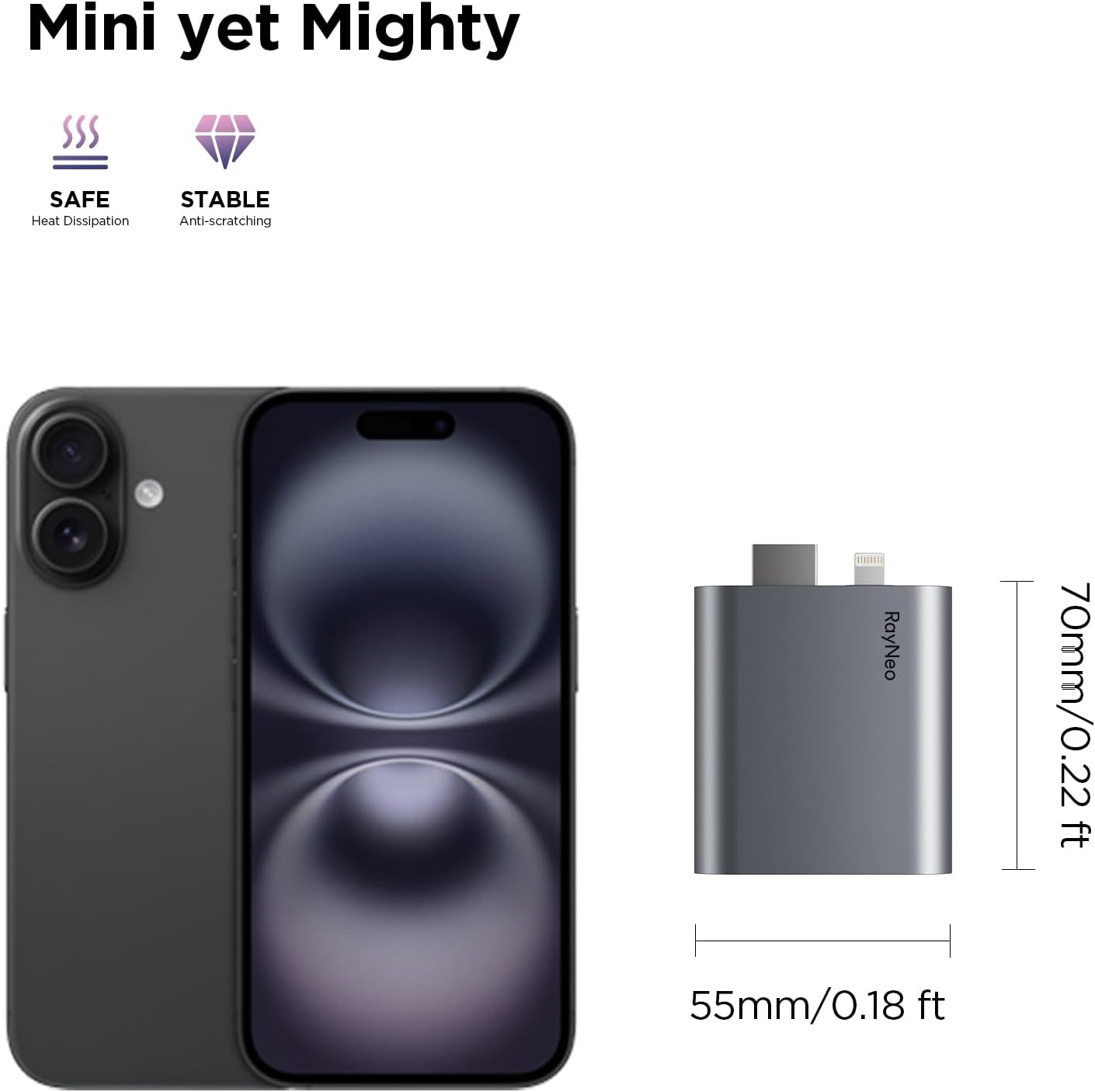
The RayNeo HDMI Adapter is designed for portability and durability. It features a compact form factor with dimensions of approximately 70mm (0.22 ft) in height and 55mm (0.18 ft) in width. The adapter incorporates features for efficient heat dissipation and anti-scratching properties, ensuring reliable performance during extended use.
Parentah Setup
The RayNeo HDMI Adapter offers a plug-and-play experience, requiring no additional software installations or complex configurations.
- Connect to RayNeo AR Glasses: Plug the USB-C connector of the adapter into your RayNeo Air 3s, Air 2s, or Air 2 AR glasses.
- Sambungkeun ka Alat Sumber:
- For HDMI devices (e.g., game consoles, laptops): Use the provided HDMI extension cable to connect the adapter's HDMI port to your source device's HDMI output.
- For iPhone (up to iPhone 14) and other Lightning devices: Connect the Lightning to C Adapter (MFI Certified) to your iPhone, then connect the adapter's USB-C input to the Lightning to C Adapter. Note: An Apple Digital AV Adapter (sold separately) may be required for some Lightning devices.
- Power Connection (Optional, for charging): Connect a USB-C power source (e.g., power bank, wall adapter) to the adapter's power input port to enable simultaneous charging of your AR glasses and source device.
- Adjust AR Glasses: Ensure your RayNeo AR glasses are properly adjusted for the best viewsudut ing.

Parentah Operasi
Once connected, the RayNeo HDMI Adapter will automatically project the display from your source device onto your RayNeo AR glasses. The adapter supports a large virtual display experience, projecting content onto a 201-inch equivalent screen for an immersive viewpangalaman.
Gaming with RayNeo AR Glasses
The adapter is ideal for connecting gaming consoles to your AR glasses, providing a personal and expansive gaming display.
Kasaluyuan
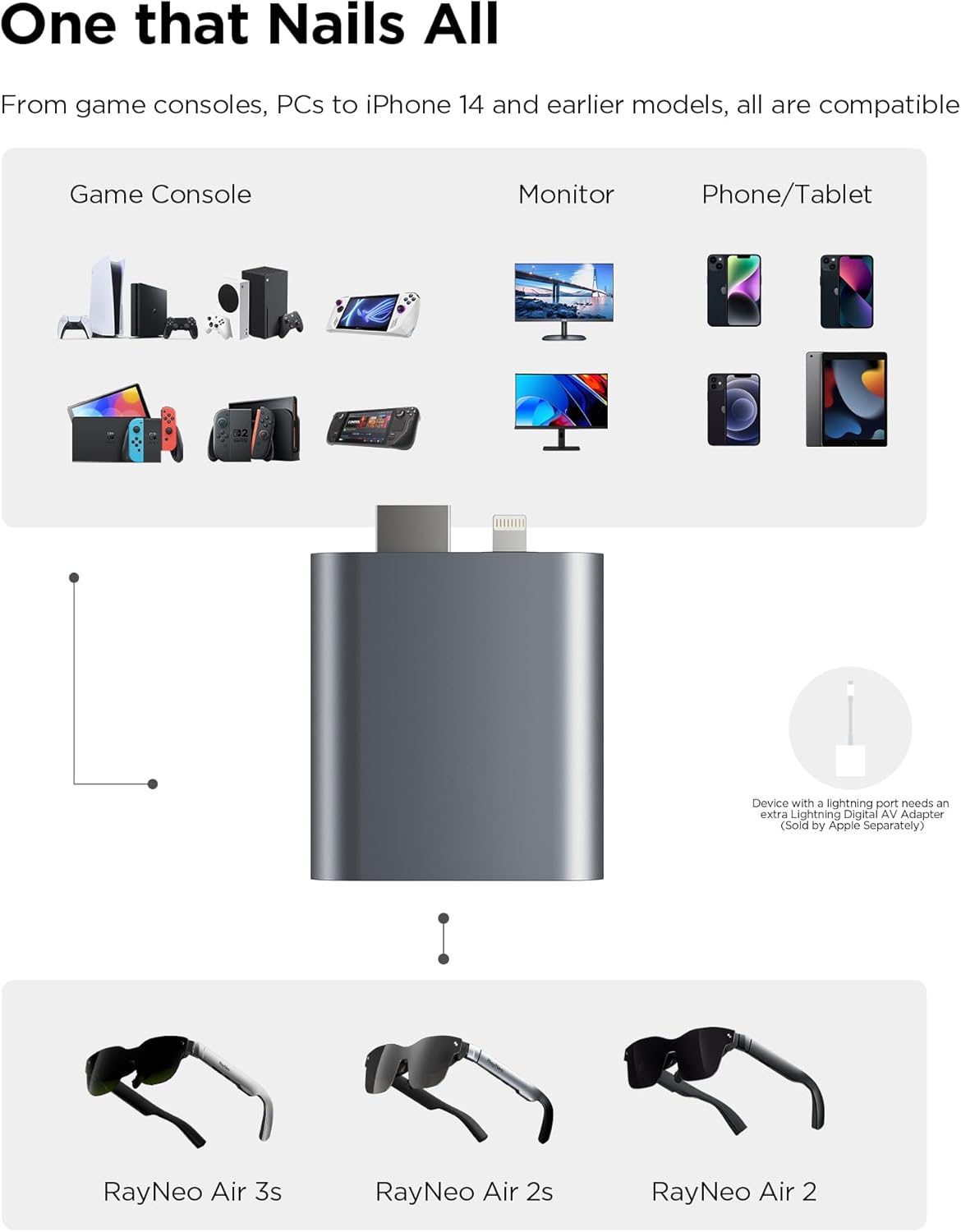
The RayNeo HDMI Adapter is designed for wide compatibility with various devices and RayNeo AR glasses:
- RayNeo AR Glasses: RayNeo Air 3s, RayNeo Air 2s, RayNeo Air 2.
- Alat HDMI: Gaming Consoles (e.g., Xbox, PlayStation 4/5, Nintendo Switch, Steam Deck), Laptops, and other devices with HDMI output.
- Lightning Devices: iPhones (up to iPhone 14) and other devices with a Lightning port. Note: An Apple Digital AV Adapter (sold separately) is required for Lightning devices.
The adapter supports video output at 4K@30Hz, 2K@30Hz, and 1080P@120Hz. It does not support HDR10 and is not compatible with Air 4 Pro glasses.
Ngecas
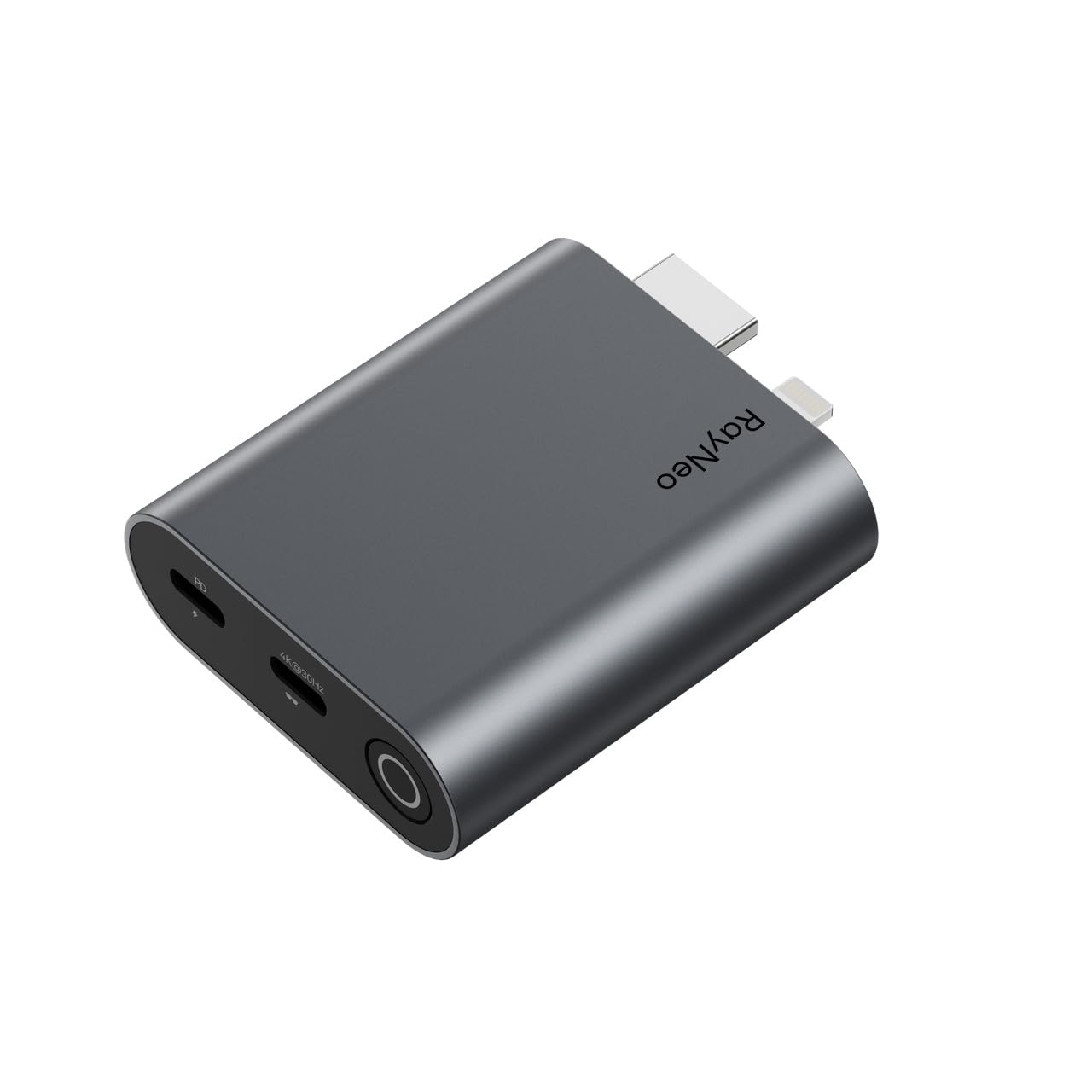
The RayNeo HDMI Adapter features a built-in battery and supports simultaneous charging. This allows you to power your connected AR glasses and source device (e.g., iPhone, game console) while actively using the adapter, ensuring uninterrupted entertainment or productivity.
Pangropéa
To ensure the longevity and optimal performance of your RayNeo HDMI Adapter, follow these maintenance guidelines:
- Keep the adapter clean by wiping it with a soft, dry cloth. Avoid using abrasive cleaners or solvents.
- Simpen adaptor di tempat anu tiis sareng garing jauh tina sinar panonpoé langsung sareng suhu anu ekstrim.
- Avoid exposing the adapter to water or excessive moisture.
- Handle the adapter and its connectors with care to prevent physical damage.
Pamérésan masalah
If you encounter issues with your RayNeo HDMI Adapter, please refer to the following common troubleshooting steps:
- No Display on AR Glasses:
- Ensure all cables are securely connected to the adapter, AR glasses, and source device.
- Verify that the source device is powered on and outputting a signal.
- Check the compatibility of your source device and AR glasses with the adapter (refer to the Compatibility section).
- If using an iPhone/Lightning device, confirm that an Apple Digital AV Adapter is correctly connected and functioning.
- Sambungan Intermittent:
- Ensure cables are not bent or damaged. Try using different cables if available.
- Avoid placing the adapter near strong electromagnetic interference.
- Masalah ngecas:
- Confirm that the power source is functional and providing sufficient power.
- Check the USB-C power cable for damage.
- Kualitas pidéo goréng:
- Ensure your source device is configured to output at a resolution and refresh rate supported by the adapter (e.g., 4K@30Hz, 1080P@120Hz).
- Verify that the AR glasses are clean and properly adjusted.
If problems persist after following these steps, please contact RayNeo customer support.
spésifikasi
| Fitur | Rincian |
|---|---|
| merek | RayNeo |
| Nomer modél | XRAC-ADA01OS |
| Alat nu cocog | Gaming Console, Laptop, iPhone (up to 14), RayNeo Air 3s/Air 2s/Air 2 AR Glasses |
| Tipe Panyambung | HDMI, Lightning (via adapter) |
| Kaluaran Video | 4K@30Hz, 2K@30Hz, 1080P@120Hz |
| Ngecas Sakaligus | Sumuhun |
| Item Beurat | 0.17 pon |
| Jumlah Palabuhan | 2 (HDMI input, USB-C output to glasses, USB-C for power) |
| Warna | kulawu |
Garansi sareng Rojongan
The RayNeo HDMI Adapter (Model XRAC-ADA01OS) is covered by a 1-Taun Garansi Produsén provided by RayNeo Co., Ltd. This warranty covers defects in materials and workmanship under normal use.
For warranty claims, technical assistance, or further inquiries, please refer to the contact information provided on the official RayNeo website or the product packaging. Please retain your proof of purchase for warranty validation.