Bubuka
The vretti P83 is a versatile and portable A4 thermal printer designed for convenient printing on the go. Utilizing direct thermal printing technology, it eliminates the need for ink, toner, or ribbons, offering a clean and efficient printing solution. This manual provides detailed instructions for setting up, operating, maintaining, and troubleshooting your P83 printer to ensure optimal performance.

Figure 1: The vretti P83 Portable A4 Thermal Printer, showcasing its compact design and A4 printing capability.
1. Setélan
1.1 Unboxing sareng Inspeksi Awal
Carefully remove all components from the packaging. Verify that all items are present: the vretti P83 printer, USB cable, and user manual. Inspect the printer for any visible damage. If any components are missing or damaged, contact customer support immediately.
1.2 Ngecas Printer
Before first use, fully charge the printer. Connect the provided USB cable to the printer's charging port and the other end to a compatible USB power adapter (not included) or a computer's USB port. The charging indicator light will show the charging status. A full charge ensures optimal battery life for portable use.
Figure 2: The vretti P83 printer, highlighting its compact form factor suitable for travel and various environments.
The printer features a 2000mAh large capacity battery, ideal for travel, home, business, and study environments.
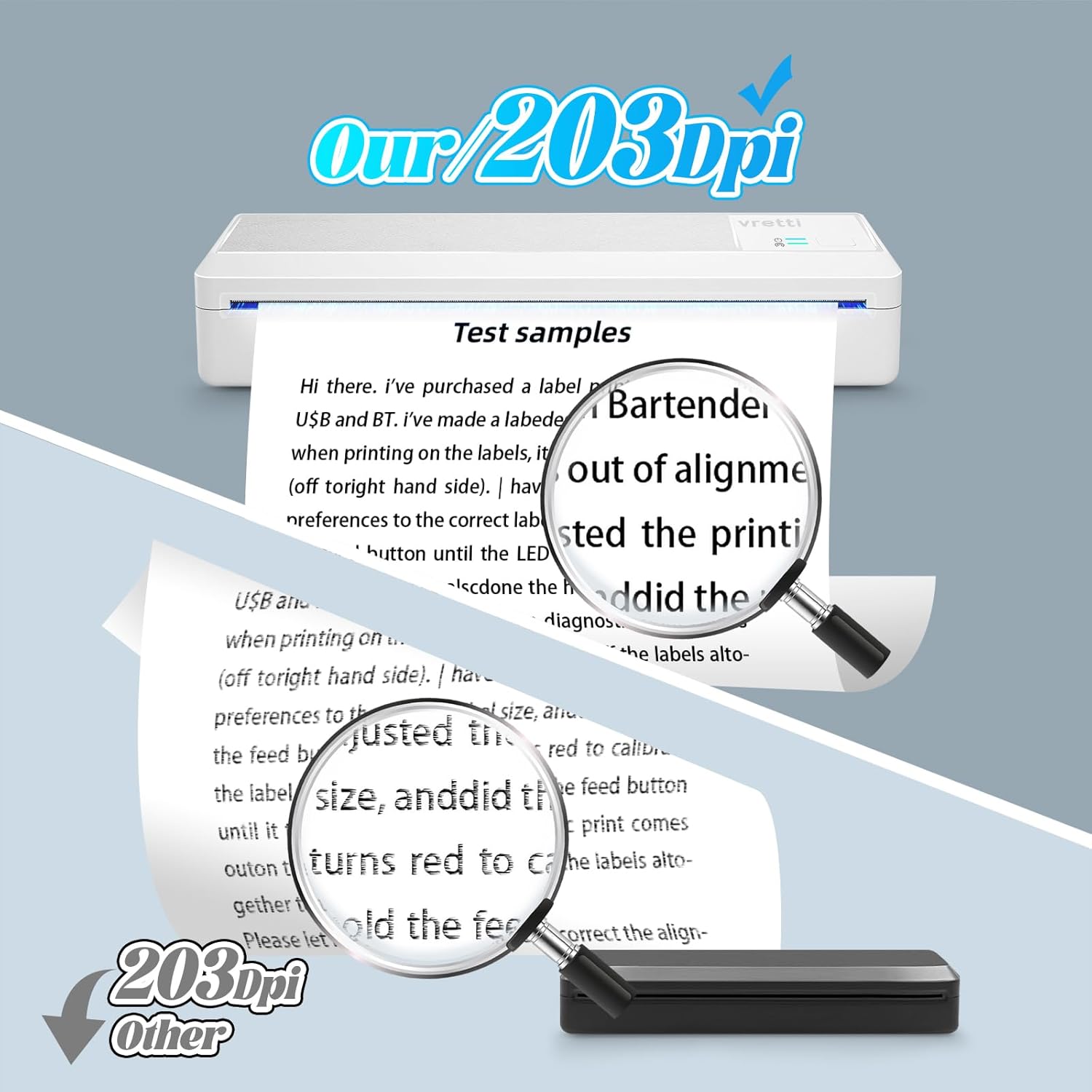
Figure 3: The vretti P83 printer demonstrating its portability and lightweight design (approximately 1.46 lbs).
1.3 Ngamuat Thermal Paper
The vretti P83 printer supports only thermal paper, available in both roll and continuous folding paper formats. It is compatible with various sizes, including US Letter, A4, B5, A5, 110mm, 80mm, and 53mm.
- Buka panutup kompartemen kertas.
- Insert the thermal paper roll or stack of folding paper, ensuring the printable side is facing the print head.
- Gently feed the paper until it is aligned with the paper guides.
- Close the paper compartment cover securely.
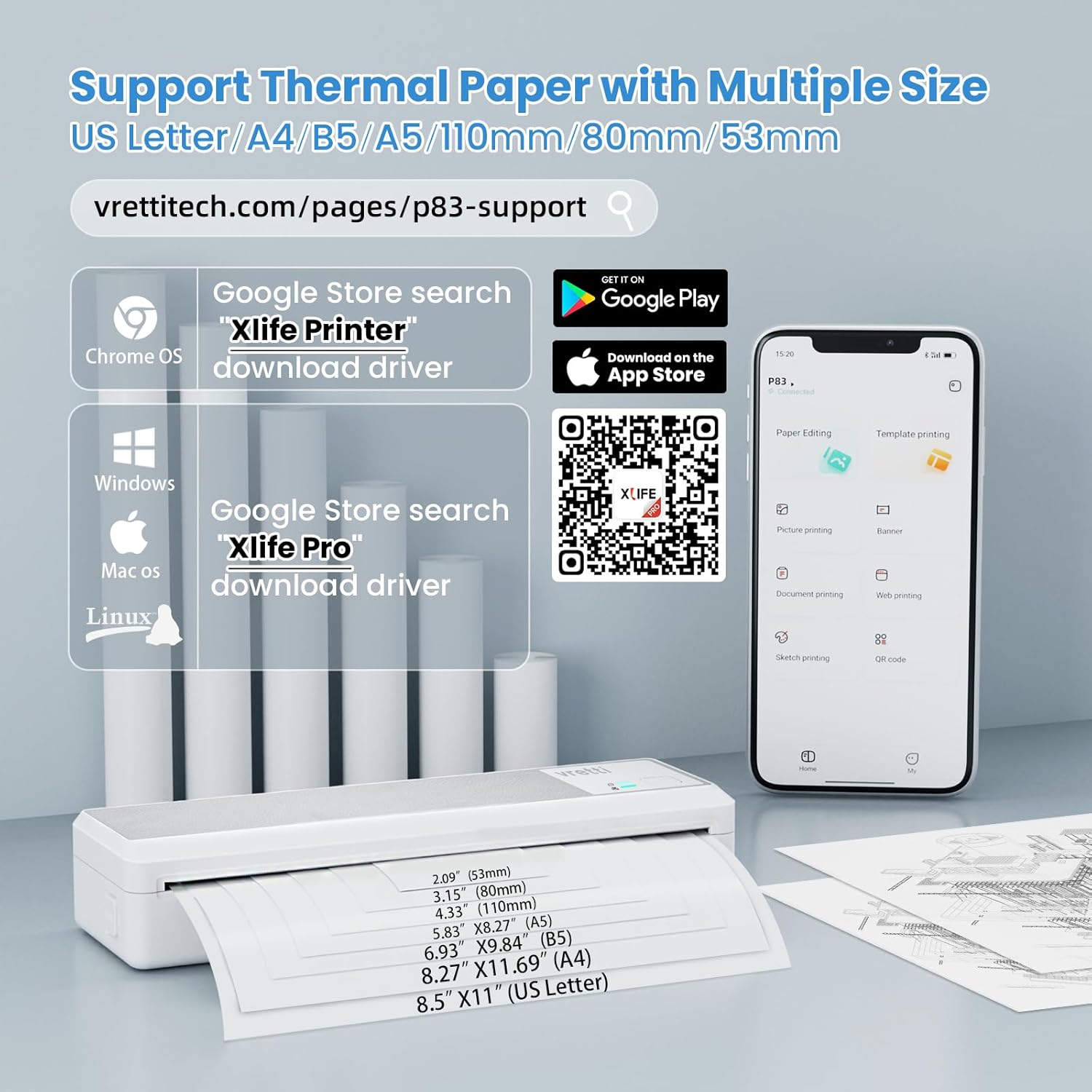
Figure 4: The vretti P83 printer demonstrating its compatibility with both roll and folding thermal paper types.

Figure 5: Illustration of the various paper sizes supported by the vretti P83 printer, including A4, B5, A5, and smaller formats.
1.4 Pamasangan Software sareng Konéktipitas
The vretti P83 offers high compatibility with various operating systems and devices.
- For iOS/Android Smartphones and Tablets: Download the "Xlife Pro" app from your device's app store (Google Play Store for Android, App Store for iOS). This app facilitates Bluetooth connection and printing.
- For Windows/Mac OS Computers: Connect the printer via USB. For Windows and Mac OS, you may need to download the "Xlife Printer" driver. Milarian pikeun "Xlife Printer" in the Google Store (for Chrome OS) or refer to the official vretti support page for driver downloads.
- For Linux/Chrome OS: The printer supports USB connection for Linux and Chrome OS. For Chrome OS, search "Xlife Printer" in the Google Store to download the driver.
You can find the app and driver downloads at the following link: https://m.yoyin.net/h5/download/download_xylife_oversea.html
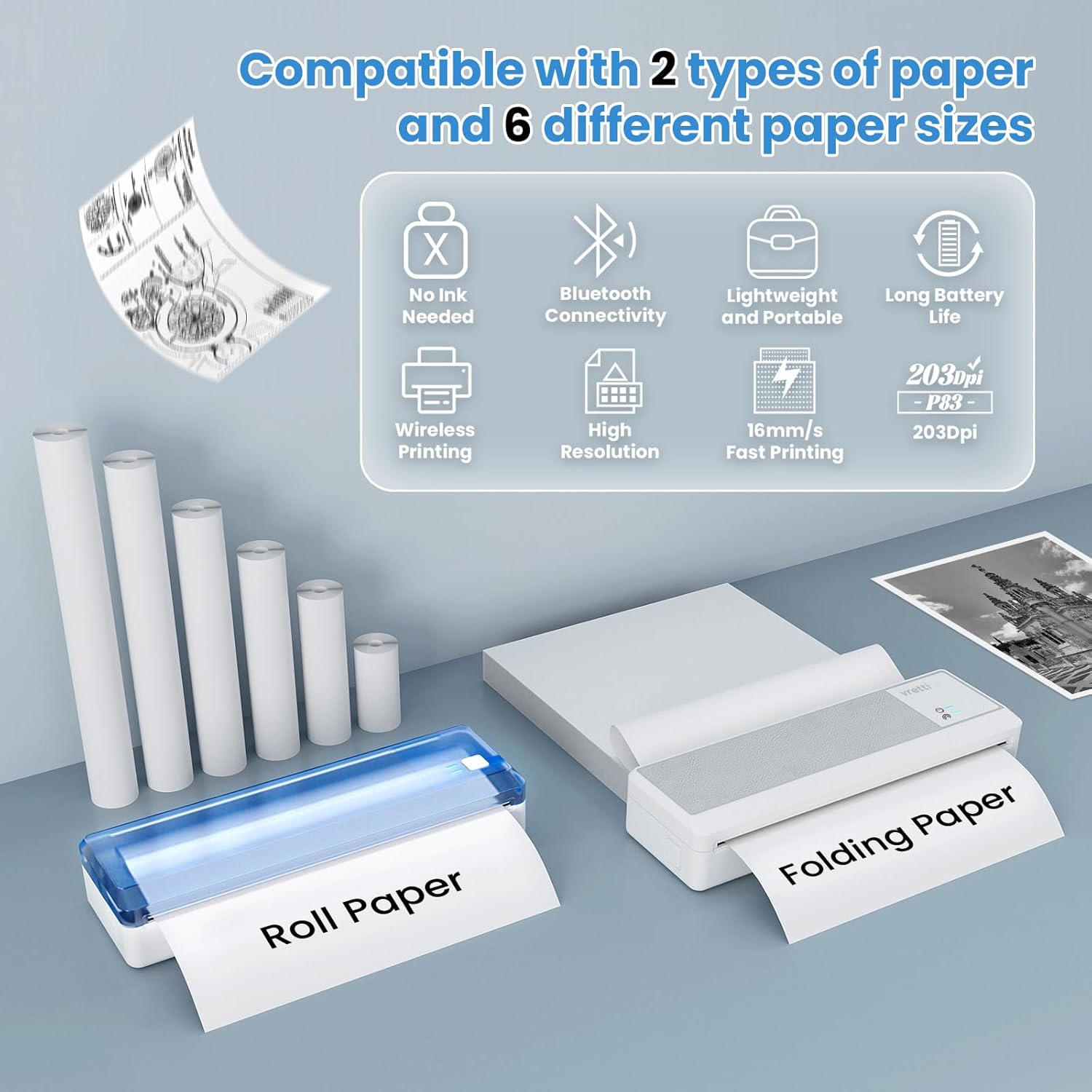
Gambar 6: Leuwihview of the vretti P83's extensive connectivity options, including Bluetooth for mobile devices and USB for computers running Windows, Mac OS, Linux, and Chrome OS.

Figure 7: Instructions for downloading the "Xlife Pro" app and "Xlife Printer" driver, including QR codes for easy access.
2. Ngoperasikeun Printer
2.1 Nyambungkeun ka Alat Anjeun
- Bluetooth Connection (Mobile Devices):
- Pastikeun Bluetooth diaktipkeun dina smartphone atanapi tablet anjeun.
- Turn on the vretti P83 printer.
- Open the "Xlife Pro" app. The app will guide you through pairing the printer.
- Select the P83 from the list of available Bluetooth devices to connect.
- USB Connection (Computers):
- Pastikeun driver anu diperyogikeun parantos dipasang dina komputer anjeun.
- Sambungkeun printer ka komputer Anjeun nganggo kabel USB nu disadiakeun.
- The computer should recognize the printer automatically.
2.2 Nyitak Dokumén
Once connected, you can print various documents, including invoices, contracts, lists, photos, exam documents, forms, research materials, and travel documents.
- From Mobile App: Open the document or image within the "Xlife Pro" app, adjust print settings (if available), and initiate printing.
- Ti Komputer: Open the document in your preferred application (e.g., Word, PDF viewer), select "Print" from the file menu, choose the vretti P83 printer, adjust print settings, and click "Print".
The printer delivers a clear print effect with 203DPI resolution, ensuring sharp characters and graphics.

Gambar 8: A close-up view demonstrating the clear and sharp output quality of the vretti P83 printer at 203DPI resolution.
3. Pangropéa
3.1 Ngabersihan Printer
Pembersih rutin ngabantosan ngajaga kualitas citak sareng manjangkeun umur printer.
- Pareuman printer teras pegatkeun tina daya.
- Make kaen nu lemes, teu aya lint rada dampened with water or isopropyl alcohol to wipe the exterior.
- To clean the print head, use a specialized thermal print head cleaning pen or a cotton swab lightly dampened with isopropyl alcohol. Gently wipe across the print head surface. Allow it to dry completely before use.
- Cabut lebu kertas atanapi lebu tina jalur kertas nganggo sikat lemes atanapi hawa anu dikomprés.
3.2 Panyimpenan
When not in use, store the printer in a cool, dry place away from direct sunlight and extreme temperatures. Keep it covered to prevent dust accumulation. Remove any paper from the paper compartment if storing for an extended period.
3.3 Perawatan Batré
Pikeun maksimalkeun umur batre:
- Hindarkeun sering-sering ngeusi batre.
- Charge the printer regularly, even if not in frequent use.
- Do not expose the printer to high temperatures, as this can degrade battery performance.
4. Cara ngungkulan
This section addresses common issues you might encounter with your vretti P83 printer.
| Masalah | Mungkin Cukang lantaranana | Solusi |
|---|---|---|
| Printer teu hurung | batré lemah; Tombol daya teu dipencet leres | Charge the printer; Press and hold the power button for a few seconds |
| Taya kaluaran print | No paper; Incorrect paper loading; Connection issue; App/driver issue | Load thermal paper; Re-load paper correctly; Reconnect Bluetooth/USB; Reinstall app/driver |
| Blurry or faded print | Print head dirty; Low battery; Poor quality thermal paper | Clean the print head; Charge the printer; Use high-quality thermal paper |
| Teu bisa nyambung via Bluetooth | Bluetooth off on device; Printer not in pairing mode; App not open | Enable Bluetooth; Ensure printer is discoverable; Open "Xlife Pro" app and follow pairing steps |
| Cannot connect via USB | Driver not installed; Faulty USB cable/port | Install "Xlife Printer" driver; Try a different USB cable or port |
Upami masalahna teras-terasan, mangga tingali bagian Dukungan kanggo bantosan salajengna.
5. Spésifikasi
| Fitur | Rincian |
|---|---|
| Modél | P83 |
| Téhnologi percetakan | Langsung Thermal |
| Resolusi citak | 203 DPI |
| Tipe Kertas | Thermal Paper (Roll & Folding) |
| Ukuran Kertas Dirojong | US Letter, A4, B5, A5, 110mm, 80mm, 53mm |
| Konektipitas | Bluetooth (iOS/Android), USB (Windows/Mac OS/Linux/Chrome OS) |
| Kapasitas batré | 2000 mah |
| Ukuran (L x W x H) | 27.1 x 11.9 x 6.9 cm (kira-kira 10.67 x 4.69 x 2.72 inci) |
| Beurat | 930 g (kira-kira 1.46 lbs) |
| Warna | Kulawu Bodas |
6. Garansi jeung Rojongan
vretti is committed to providing excellent after-sales service. If you have any questions or require assistance with your vretti P83 printer, our professional Afier-Sales team is available to help.
- Bantosan Téknis: Lifetime technical support is available via email, phone, and remote control.
- Inpormasi kontak: Please refer to the contact details provided with your product packaging or visit the official vretti websitus pikeun inpormasi pangrojong paling up-to-date.
We recommend registering your product on the vretti websitus pikeun nampi apdet sareng ngaksés sumber daya dukungan tambahan.


