Bubuka
This manual provides detailed instructions for the setup, operation, and maintenance of your MoKo Ergonomic Foldable Bluetooth Keyboard DF047. Please read this manual thoroughly before using the product to ensure optimal performance and longevity.
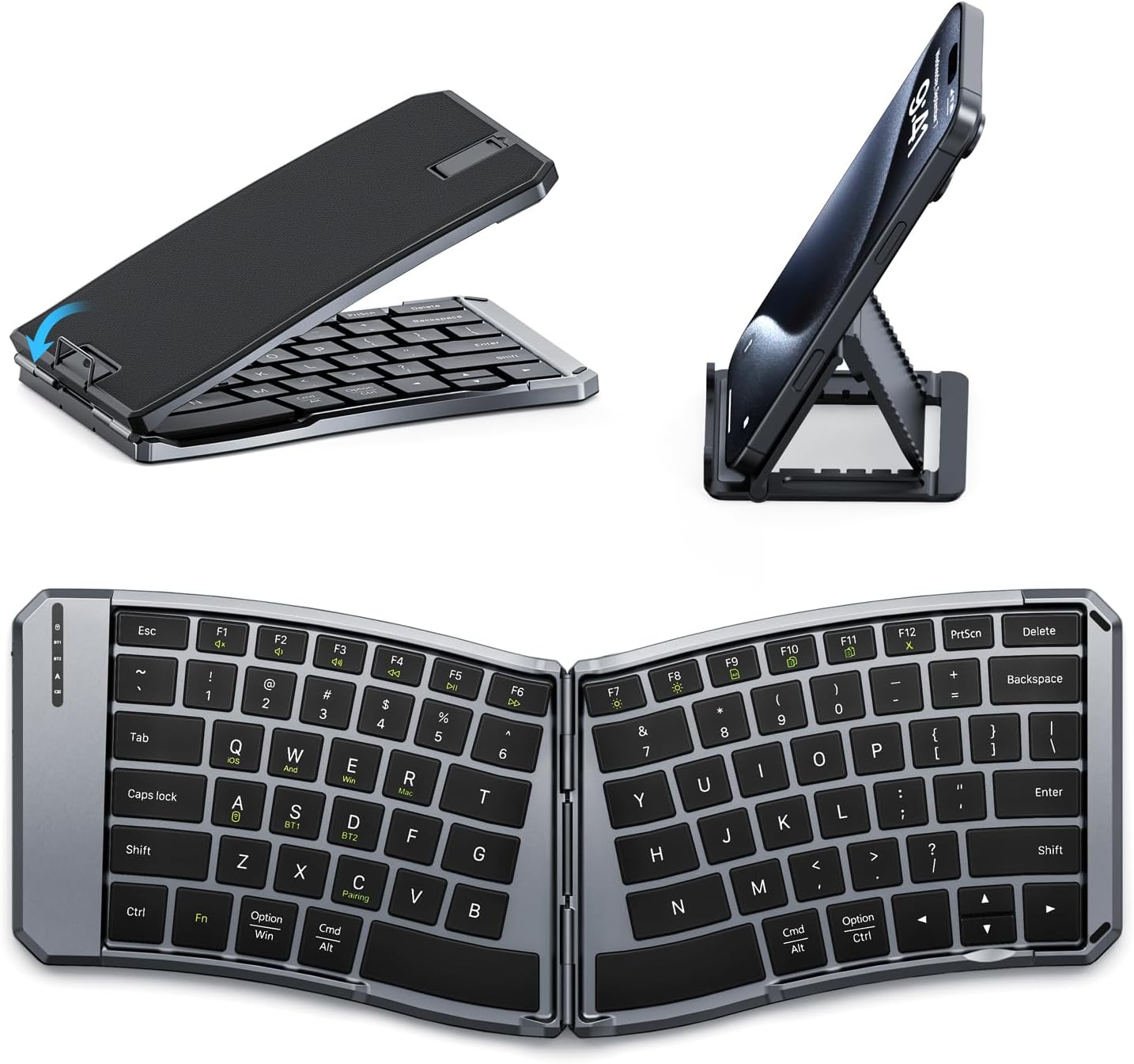
Image: The MoKo Ergonomic Foldable Bluetooth Keyboard shown in its compact folded form, alongside a phone stand, and fully unfolded, highlighting its ergonomic design.
Fitur produk
- Ergonomic design for comfortable typing.
- Foldable and portable for easy travel.
- Dual connection modes: Bluetooth and 2.4G wireless.
- Connects up to 3 Bluetooth devices simultaneously.
- Wide compatibility with iOS, Android, Windows, and Mac OS.
- Built-in 140mAh rechargeable battery (USB-C).
- Auto-sleep function for extended battery life.
- Back locking clasp for stability during use.
- PU leather non-slip pad on base.
- Scissor mechanism keys for quiet typing.
Disetél
1. Unboxing sareng Inspeksi Awal
Carefully remove the keyboard and all accessories from the packaging. Inspect for any signs of damage.
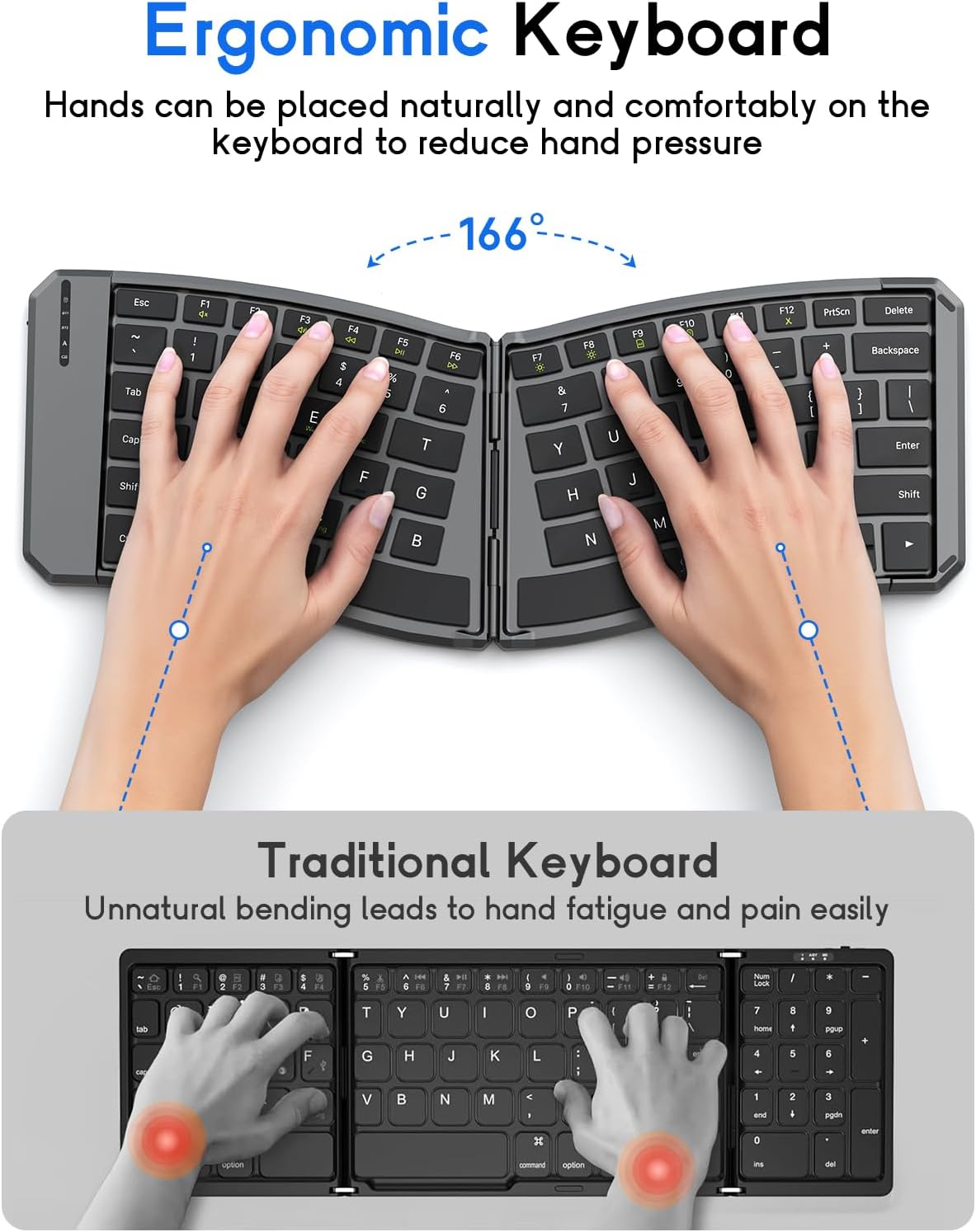
Image: The MoKo Ergonomic Foldable Bluetooth Keyboard in its compact, folded form, ready for transport.
2. Ngecas kibor
- Panggihan port ngecas USB-C di sisi kibor.
- Connect the provided USB-C cable to the keyboard and a power source (e.g., computer USB port, USB wall adapter).
- The charging indicator light will illuminate. A full charge typically takes about 2 hours.
- Sakali dicas pinuh, lampu indikator bakal robah atanapi pareum.

Gambar: A close-up view of the keyboard's USB-C charging port, illustrating where to connect the charging cable.
3. Unfolding the Keyboard
Gently unfold the keyboard until it lies flat. Ensure the back locking clasp is engaged for stability, especially when using on a lap.

Image: The MoKo Ergonomic Foldable Bluetooth Keyboard fully opened, showcasing its split ergonomic layout.

Gambar: A lengkep view of the back locking clasp, which secures the keyboard in its unfolded position for stable typing.
Parentah Operasi
1. Daya Hurung / Pareum
Slide the power switch located on the side of the keyboard to the "ON" position to turn it on. Slide it to "OFF" to power down.
2. Nyambungkeun via Bluetooth
- Hurungkeun kibor.
- Pencét éta Fn + Q (for iOS), Fn + W (for Android), or Fn + E (for Windows) keys to select the appropriate operating system mode.
- Pencét Fn + C pikeun asup ka modeu pairing. Lampu indikator Bluetooth bakal kedip-kedip.
- On your device (smartphone, tablet, PC), go to Bluetooth settings and search for "Bluetooth Keyboard" or a similar name.
- Pilih kibor anu bade dipasangkeun. Lampu indikator bakal eureun kedip-kedip saatos nyambung.
- To switch between paired Bluetooth devices (up to 3), press Fn + BT1, Fn + BT2, atawa Fn + BT3.
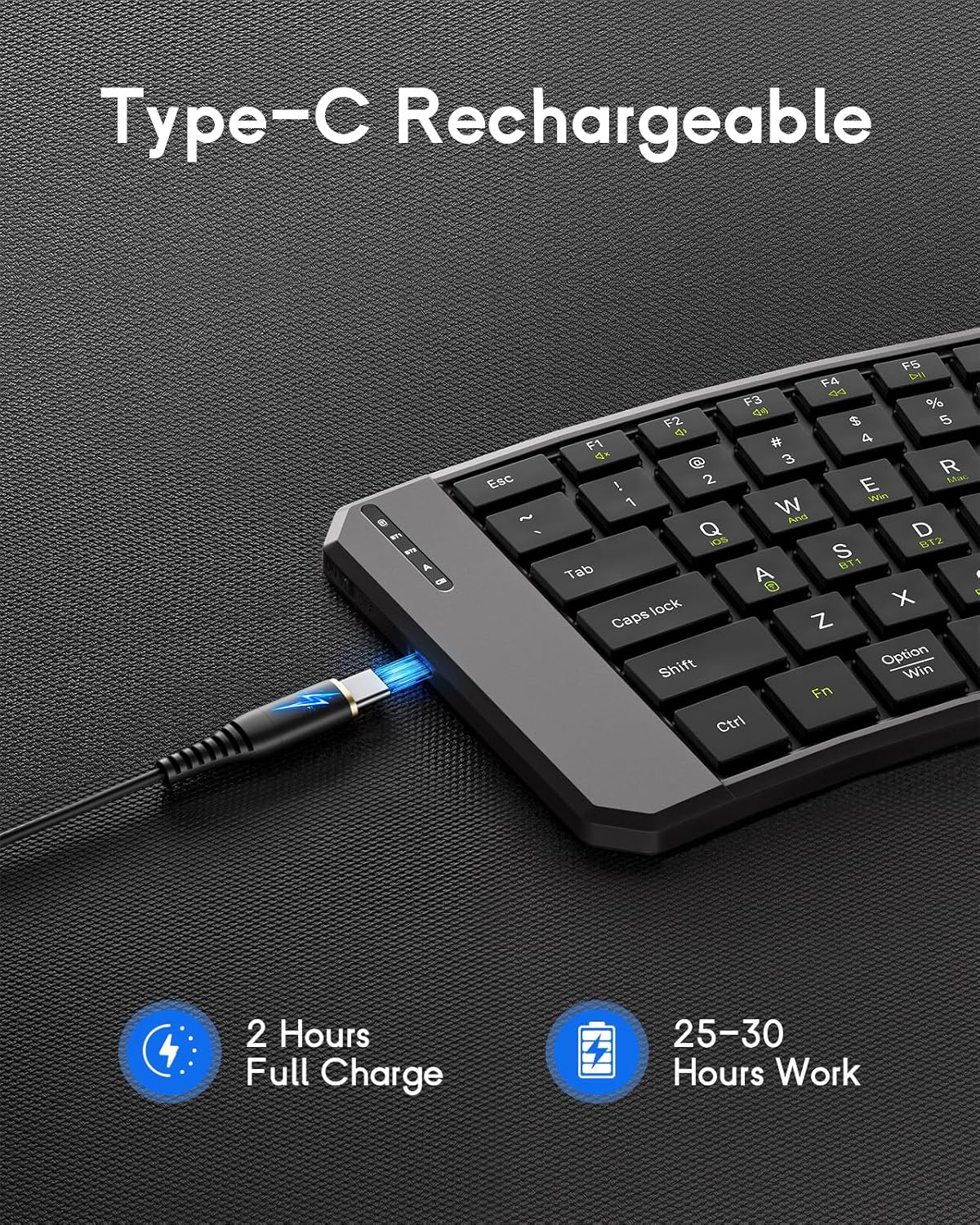
Image: The keyboard demonstrating its ability to connect to a smartphone, tablet, and laptop simultaneously using Bluetooth and 2.4G wireless connections.
3. Nyambungkeun via 2.4G Wireless (USB Receiver)
- Hurungkeun kibor.
- Panggihan panarima USB 2.4G (biasana disimpen dina kompartemen dina kibor).
- Colokkeun panarima USB ka port USB nu sadia dina komputer atawa alat Anjeun.
- Kiborna kedahna nyambung sacara otomatis.
4. System Compatibility Selection
- Fn + Q: ios
- Fn + W: Android
- Fn + E: Windows
- Fn + Urang Sunda: Mac OS

Image: A visual guide illustrating the Fn key combinations required to switch between iOS, Android, Windows, and Mac OS modes for optimal compatibility.
5. Konci Multimedia
The keyboard features dedicated multimedia keys for quick access to functions like volume control, playback, etc. Refer to the key legends for specific functions.

Image: The keyboard layout emphasizing the independent multimedia keys for efficient task processing.
Pangropéa
- Jaga keyboard tetep bersih ku cara ngusap ku kaén anu garing sareng lemes.
- Avoid exposing the keyboard to extreme temperatures, moisture, or direct sunlight.
- Entong nganggo bahan kimia kasar atanapi beberesih kasar.
- Store the keyboard in its folded position when not in use to protect the keys and conserve space.
Pamérésan masalah
Kibor Teu Nyambung:
- Pastikeun keyboard dihurungkeun sareng dicas pinuh.
- Pariksa yen Bluetooth diaktipkeun dina alat Anjeun.
- Make sure the correct operating system mode is selected (Fn + Q/W/E/R).
- Lebet deui kana modeu pasangan (Fn + C) and try connecting again.
- If using 2.4G, ensure the USB receiver is properly plugged in.
- Coba balikan deui keyboard sareng alat anjeun.
Konci Teu Ngabales:
- Pariksa tingkat batré jeung ngecas lamun perlu.
- Pastikeun kibor disambungkeun kalayan leres kana alat anjeun.
- Bersihkeun kokotor-kokotor anu aya di sabudeureun konci.
Lag or Disconnections:
- Nyedekkeun ka alat anjeun pikeun ngurangan gangguan.
- Pastikeun teu aya alat séjén anu nyababkeun gangguan Bluetooth.
- Re-pair the keyboard with your device.
spésifikasi
| Fitur | Rincian |
|---|---|
| Modél | DF047 |
| Diménsi Produk (Melu) | 7.09 × 4.92 × 1.5 inci (18 × 12.5 × 3.8 cm) |
| Diménsi Produk (Dilebarkeun) | 14.09 × 4.92 × 0.75 inci (35.8 × 12.5 × 1.9 cm) |
| Item Beurat | 13.4 ons |
| Téhnologi konektipitas | Bluetooth, Nirkabel 2.4G |
| Kapasitas batré | 140 mah |
| Port ngecas | USB-C |
| Waktu Ngecas | Kira-kira. 2 jam |
| Waktos Gawé | 25-30 jam (dicas pinuh) |
| Kasaluyuan | iOS, Android, Windows, Mac OS |
| Tata perenah kibor | QWERTY |
| Fitur husus | Ergonomic, Foldable, Lightweight, Portable, Auto-sleep, Back Locking Clasp, Non-slip Pad, Scissor-switch keys |
Video Produk Resmi
Video: An official product video demonstrating the features and functionality of the MoKo Ergonomic Foldable Bluetooth Keyboard, including its ergonomic design, portability, and connectivity options.
Garansi sareng Rojongan
For warranty information and customer support, please refer to the contact details provided in your product packaging or visit the official MoKo websitus. Simpen resi pameseran anjeun pikeun klaim jaminan.
Manufacturer: MoKo
ASIN: B0FD9K7DKS


