1. Produk Langkungview
The Thunderobot Storm 15 4050 is a high-performance gaming laptop designed for demanding applications and immersive gaming experiences. It features a 15.6-inch Full HD display with a 165Hz refresh rate, an Intel Core i7-13620H processor, and NVIDIA GeForce RTX 4050 graphics. This laptop is equipped with 32GB DDR4 RAM and a 1TB PCIe M.2 SSD for fast boot times and efficient multitasking.
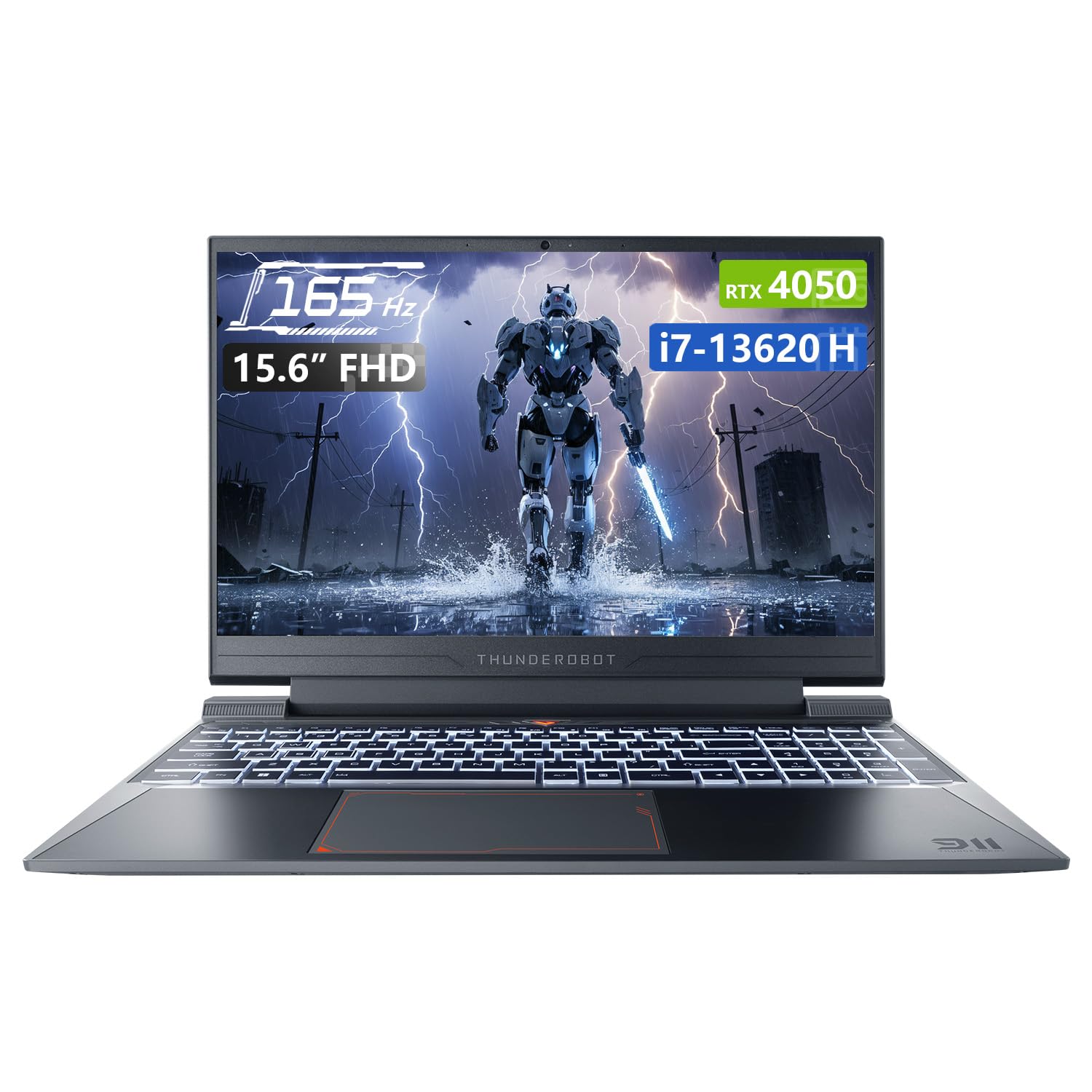
Image: Thunderobot Storm 15 4050 Gaming Laptop, front view with screen on.
Fitur konci:
- High-Speed Memory & Storage: 32GB DDR4 RAM and 1TB PCIe M.2 SSD for quick boot times and seamless multitasking.
- Kinerja anu kuat: Intel Core i7-13620H processor and NVIDIA GeForce RTX 4050 GPU for fast processing and stunning visuals.
- 165Hz FHD Display: 15.6-inch screen with a 165Hz refresh rate for ultra-smooth motion and clear visuals.
- Sistim cooling efisien: Frost Cooling System with dual heat pipes, an 80-blade turbine fan, and 126 copper fins for stable performance.
- Konektipitas: USB-A, USB-C, HDMI, RJ-45, and Wi-Fi for comprehensive peripheral support.
- Kibor Lampu tukang: RGB backlit keyboard with a numeric pad for enhanced usability.

Image: Diagram illustrating the performance capabilities of the RTX 4050 GPU and Intel Core i7-13620H CPU.
2. Setup Guide
2.1 Unboxing sareng Ngahurungkeun Mimiti
- Cabut laptop sareng sadaya asesoris sacara saksama tina bungkusan.
- Sambungkeun adaptor daya ka port input daya laptop teras ka stop kontak.
- Buka tutup laptop sareng pencét tombol daya, biasana aya di luhur kibor atanapi di sisi.
- Turutan pitunjuk dina layar pikeun ngalengkepan setelan Windows 11 Home awal.
2.2 Nyambungkeun périferal
The Thunderobot Storm 15 offers various ports for connecting external devices.

Image: Diagram showing the various ports and slots on the Thunderobot Storm 15 laptop.
- Alat USB: Connect external mice, keyboards, or storage devices to the available USB 3.1 Type-A or USB 3.1 Gen 2 Type-C ports.
- Tampilan éksternal: Anggo port HDMI pikeun nyambungkeun monitor éksternal atanapi TV.
- Sambungan jaringan: For a stable wired internet connection, plug an Ethernet cable into the RJ-45 Ethernet port.
- Audio: Connect headphones or external speakers to the 3.5mm Combo Audio Jack.
3. Parentah Operasi
3.1 Manajemén kakuatan
- Daya Hurung: Pencét tombol daya.
- Modeu Bobo: Tutupkeun tutupna atanapi pilih 'Sare' tina menu Mimitian Windows.
- Pareuman: Pilih 'Pareuman' tina menu Mimitian Windows.
- Uihan deui: Pilih 'Restart' tina menu Start Windows.
3.2 Fungsi kibor
The laptop features a full-size backlit keyboard with a numeric pad.

Gambar: Deukeut view of the Thunderobot Storm 15's full-size backlit keyboard.
- Kontrol lampu latar: Use the dedicated function keys (Fn + [key]) to adjust keyboard backlight brightness or toggle it on/off.
- Pad angka: The integrated numeric pad allows for efficient data entry.
- Tombol Fungsi: Utilize the Fn key in combination with F1-F12 for various system controls like volume, screen brightness, and Wi-Fi toggle.
3.3 Setélan tampilan
The 15.6-inch FHD display supports a 165Hz refresh rate.

Image: The 15.6-inch FHD 165Hz display of the Thunderobot Storm 15 laptop.
- Laju Refresh: To ensure optimal gaming performance, verify the display refresh rate is set to 165Hz in Windows Display Settings.
- Caang: Atur kacaangan layar nganggo tombol fungsi khusus atanapi ngalangkungan Setélan Tampilan Windows.
3.4 Setélan Audio
The laptop features professional sound certification and high-specification speakers.

Image: Laptop displaying sound waves, indicating wide range audio capabilities.
- Kontrol volume: Atur volume nganggo tombol fungsi atanapi mixer volume Windows.
- Audio éksternal: Connect headphones or external speakers to the 3.5mm combo jack for private listening or enhanced audio output.
3.5 Using the Control Center
The Control Center software allows you to customize performance modes, fan speed, and lighting settings.

Image: Screenshots of the Thunderobot Control Center interface, showing performance modes, fan adjustment, and lighting settings.
- Modeu kinerja: Switch between 'Berserk mode' (full performance), 'Game mode' (speed and smooth), and 'Audio and video office' (battery life optimized) based on your needs.
- Penyesuaian kipas: Manually adjust fan speeds for optimal cooling or quieter operation.
- Setélan cahaya: Customize the RGB keyboard backlight effects and colors.
- Catetan: System mode switching in Control Center requires the device to be connected to a power source.
4. Pangropéa
4.1 Ngabersihan Laptop
- layar: Anggo kaén anu lemes sareng teu aya serat anu hampang dampdikumbah ku cai atawa pembersih layar. Hindarkeun bahan kimia anu kasar.
- Keyboard sareng Chassis: Use a soft cloth to wipe surfaces. A can of compressed air can remove dust from between keys and vents.
- ventilasi: Regularly check and clean the cooling vents to prevent dust buildup, which can hinder airflow and lead to overheating.

Image: Diagram illustrating the highly efficient air cooling system of the Thunderobot Storm 15.
4.2 Software and Driver Updates
- Pembaruan Windows: Rutin pariksa sareng pasang apdet Windows pikeun mastikeun stabilitas sareng kaamanan sistem.
- Pembaruan supir: Keep graphics drivers (NVIDIA) and other system drivers updated for optimal performance and compatibility. Visit the Thunderobot support websitus atanapi resmi NVIDIA websitus pikeun drivers panganyarna.
4.3 Perawatan Batré
- Ulah sering ngosongkeun batréna sagemblengna.
- Simpen laptop di tempat anu tiis sareng garing upami henteu dianggo kanggo waktos anu lami.
- For prolonged use while plugged in, consider using battery management software (if available) to limit charging to 80% to extend battery lifespan.
5. Cara ngungkulan
5.1 Teu Aya Daya / Teu Hurung
- Pastikeun adaptor kakuatan disambungkeun sacara aman ka laptop sareng stopkontak listrik anu tiasa dianggo.
- Pastikeun stop kontak listrik berpungsi ku cara nyolokkeun alat sejen.
- If the battery is completely drained, allow the laptop to charge for at least 15-30 minutes before attempting to power it on.
5.2 Masalah tampilan
- Layar kosong: Try connecting an external monitor to check if the issue is with the laptop's display or the graphics card.
- Gambar Kedip-kedip/Distorsi: Update your graphics drivers. Adjust the display refresh rate in Windows settings.
- Layar taram: Adjust brightness using function keys or Windows settings.
5.3 Performance Lag
- Check the Control Center to ensure the laptop is in an appropriate performance mode (e.g., 'Game mode' or 'Berserk mode') when running demanding applications.
- Tutup aplikasi latar tukang anu teu perlu.
- Ensure the cooling vents are clear and the laptop is not overheating.
- Update drivers, especially graphics drivers.
5.4 Masalah Audio
- Check volume levels in Windows and ensure speakers are not muted.
- Verify that the correct audio output device is selected in Windows Sound Settings.
- Apdet panggerak audio.
- If using external audio devices, ensure they are properly connected.
6. Spésifikasi
| Fitur | Spésifikasi |
|---|---|
| Ngaran modél | Badai 15 |
| Ukuran layar | 15.6 inci |
| Resolusi layar | 1920 x 1080 piksel (FHD) |
| Resolusi layar Max | 1920x1080 Piksel |
| Prosesor | Intel Core i7-13620H (4.9 GHz) |
| Ram | 32 GB DDR4 (3200 MHz) |
| Hard Drive | 1 TB PCIe M.2 SSD |
| Grafik Coprocessor | GPU laptop NVIDIA GeForce RTX 4050 |
| Sistem operasi | Windows 11 Imah |
| Tipe Wireless | 801.11ac (Wi-Fi) |
| USB 3.0 palabuhan | 3 |
| Fitur husus | Kibor anu diterangan ka tukang, Keypad Numerik |
| Item Beurat | 12 pon |
| Dimensi produk | 14.12 x 10.14 x 0.94 inci |
7. Garansi jeung Rojongan
Every Thunderobot laptop includes a 12-garansi sasih, nawiskeun dukungan ahli, diagnostik anu lengkep, sareng suku cadang asli upami diperyogikeun perbaikan. Salaku tambahan, a garansi 90 poé is provided on all warranty replacement parts, ensuring hassle-free repairs. Your complete satisfaction is our commitment.

Image: Graphic detailing Thunderobot's warranty and service commitment.
For technical support, warranty claims, or further assistance, please visit the official Thunderobot support websitus atanapi ngahubungan layanan palanggan maranéhna.


