OPPO Reno 13 5G PKM110 Dual SIM Smartphone
Instruksi Manual
Bubuka
This manual provides essential information for the safe and efficient use of your OPPO Reno 13 5G PKM110 Dual SIM smartphone. Please read this guide thoroughly before operating your device to ensure optimal performance and longevity. Keep this manual for future reference.
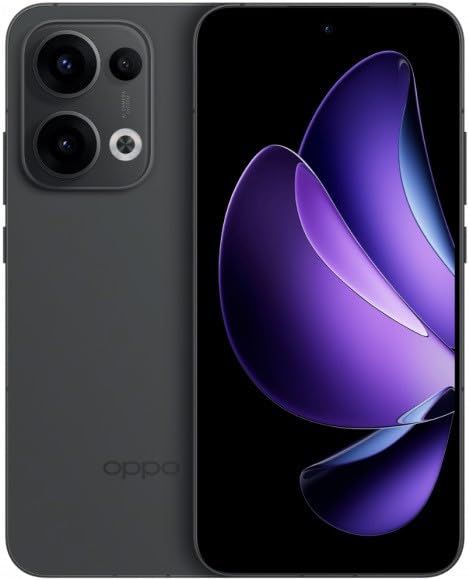
Figure 1: OPPO Reno 13 5G PKM110 Dual SIM Smartphone. This image displays the front and back of the device, highlighting its sleek design and camera module.
Disetél
1. Unboxing sareng Inspeksi Awal
Sacara saksama miceun sadaya barang tina bungkusan. Pastikeun yén komponén di handap ieu aya:
- OPPO Reno 13 5G PKM110 Smartphone
- Kabel Tipe-C USB
- Adaptor kakuatan
- Alat Ejector SIM
- Pituduh Mimiti Gancang (dokumén ieu)
Inspect the device for any visible damage. If any components are missing or damaged, contact your retailer.
2. Pamasangan Kartu SIM
- Tangtukeun lokasi baki kartu SIM di sisi alat Anjeun.
- Insert the SIM ejector tool into the small hole on the SIM tray and press gently until the tray pops out.
- Place your Nano-SIM cards into the designated slots on the tray. Ensure the gold contacts face downwards and the cut corner aligns correctly. This device supports Dual SIM functionality.
- Taliti selapkeun deui baki SIM kana telepon nepi ka ngaklik kana tempatna.
3. Daya Awal Hurung sareng Setup
- Pencét terus tahan tombol Daya (anu aya di sisi katuhu) dugi ka logo OPPO némbongan.
- Turutan parentah dina-layar pikeun ngarengsekeun setelan awal, kaasup pilihan basa, sambungan Wi-Fi, setelan akun Google, jeung setelan kaamanan.
4. Ngecas Alat
Before first use, it is recommended to fully charge your device. Connect the USB Type-C cable to the phone's charging port and the other end to the power adapter. Plug the adapter into a wall outlet. The charging indicator will appear on the screen.
Parentah Operasi
1. Napigasi Dasar
- Gerak layar rampa: Ketok pikeun milih, gesek pikeun ngagulung, ciwit pikeun ngazum.
- Layar Utama: Aksés aplikasi sareng widget anjeun. Gesek ka kenca atawa ka katuhu pikeun napigasi antara layar.
- Panel Bewara: Gesek ka handap ti luhur layar pikeun view bewara sareng setelan gancang.
- Aplikasi panganyarna: Swipe up from the bottom of the screen and hold (or tap the recent apps button, if configured) to view aplikasi anu nembe dianggo.
2. Nelepon jeung Ngirim Talatah
- Nelepon: Buka aplikasi 'Telepon', lebetkeun nomerna, teras ketok ikon telepon.
- Ngirim pesen: Open the 'Messages' app, tap the new message icon, enter the recipient's number or select from contacts, type your message, and tap send.
3. Nyambungkeun ka Jaringan
- Wifi: Pindah ka Setelan > Wi-Fi, hurungkeun Wi-Fi, pilih jaringan anu dipikahoyong, teras lebetkeun kecap akses upami diperyogikeun.
- Data Seluler (5G): Pindah ka Setélan > Jaringan Seluler, ensure 'Mobile data' is enabled. Your device supports 5G connectivity where available.
- Bluetooth: Pindah ka Setelan > Bluetooth, turn Bluetooth on, and pair with compatible devices.
4. Pamakéan kaméra
Open the 'Camera' app. Tap the shutter button to take a photo. Swipe left or right to switch between different modes (e.g., Photo, Video, Portrait). Tap the camera icon to switch between front and rear cameras.
5. Fitur Kaamanan
- Buka konci sidik: Ngadaptarkeun sidik jari anjeun dina Settings > Password & Biometrics > Fingerprint.
- Muka konci: Nyetél pangakuan raray dina Settings > Password & Biometrics > Face.
- Konci layar: Choose a PIN, pattern, or password for screen lock in Settings > Password & Biometrics > Lock screen password.
Pangropéa
1. Apdet parangkat lunak
Pariksa apdet parangkat lunak sacara rutin pikeun mastikeun alat anjeun ngagaduhan fitur sareng patch kaamanan pangénggalna. Buka Setélan > Ngeunaan alat > Apdet pikeun mariksa tur masang apdet.
2. Ngabersihan Alat Anjeun
Use a soft, lint-free cloth to clean the screen and body of your phone. Avoid using harsh chemicals or abrasive materials. Do not expose the device to excessive moisture.
3. Kaperawatan batré
- Hindarkeun suhu anu ekstrim.
- Ulah sering teuing nepi ka batréna béak sagemblengna.
- Anggo ngan ukur carjer sareng kabel anu disatujuan ku OPPO.
4. Manajemén gudang
To free up storage space, regularly clear cache data, uninstall unused apps, and transfer large files (photos, videos) to cloud storage or a computer. Go to Settings > About device > Storage pikeun ngatur panyimpenan alat anjeun.
Pamérésan masalah
1. Alat Teu Ngabales
Upami alat anjeun teu ngaréspon, pencét sareng tahan tombol Daya salami sakitar 10-15 detik pikeun maksa ngamimitian deui.
2. Masalah Konektipitas Jaringan
- Henteu aya sinyal: Ensure your SIM card is properly inserted. Try restarting the device. Check if airplane mode is off.
- Masalah Sambungan Wi-Fi: Restart your router and your phone. Forget the network in Wi-Fi settings and reconnect.
3. Aplikasi nabrak atanapi katirisan
Hapus cache sareng data pikeun aplikasi anu bermasalah (Settings > Apps > App management > [App Name] > Storage usage > Clear cache/Clear data). Upami masalahna masih aya, copot teras pasang deui aplikasi éta.
4. Reset pabrik
WARNING: A factory reset will erase all data on your phone, including apps, photos, and settings. Back up your data before proceeding.
Pikeun ngalakukeun reset pabrik, buka Setélan > Setélan sistem > Cadangan sareng reset > Reset telepon > Hapus sadaya data. You will need to confirm your screen lock password.
spésifikasi
| Fitur | Spésifikasi |
|---|---|
| merek | OPPO |
| Ngaran modél | Oppo Reno 13 5G PKM110 |
| Kapasitas Panyimpenan Mémori | 256 GB |
| RAM Mémori Dipasang Ukuran | 12 GB |
| Tipe tampilan | AMOLED |
| Téhnologi sélular | 5G |
| Jumlah slot Kartu SIM | Dual SIM |
| Faktor Bentuk | Bar |
| Warna | Hideung |
| Panyadia Layanan Nirkabel | Henteu dikonci |
Garansi sareng Rojongan
1. Émbaran jaminan
Your OPPO Reno 13 5G PKM110 is covered by a limited warranty. Please refer to the warranty card included in your product packaging for detailed terms and conditions, including warranty period and coverage specifics. Keep your proof of purchase for warranty claims.
2. Rojongan Palanggan
For technical assistance, troubleshooting beyond this manual, or warranty service, please contact OPPO customer support. Visit the official OPPO website for contact information, service center locations, and online support resources.


