1. Bubuka
The VALETON GP-5 is a super compact multi-effects processor and NAM/IR loader pedal designed for guitar and bass players. It combines studio-quality HD effects with a portable stompbox design, offering extensive tonal possibilities and flexible connectivity for both practice and performance.
- Exceptional Sound and Portability: Combines studio-quality HD effects with a compact stompbox design, offering over 100 organic effects and 9 customizable modules for seamless pedalboard integration.
- NAM and IR Compatibility: Load up to 80 Neural Amp Modeler (NAM) files and 20 third-party cabinet IRs, with 50 curated presets included for instant professional tones.
- Smart Control and Display: Features a color LCD screen, customizable LED footswitch (4 modes), and a Bluetooth-enabled mobile app for wireless tone editing and management.
- Professional Connectivity: Stereo TRS output, USB-C audio interface (Win/Mac/iOS/Android), and wireless BT 5.0 playback for enhanced recording flexibility and stage-ready setups.
- Tour-Ready Durability: Built into a robust metal enclosure with dual power options (9V DC or USB 5V, not included), weighing only 237g for effortless transport.
2. Produk Langkungview
Familiarize yourself with the physical components and connections of your VALETON GP-5 pedal.

Figure 2.1: VALETON GP-5 Multi-Effects Processor
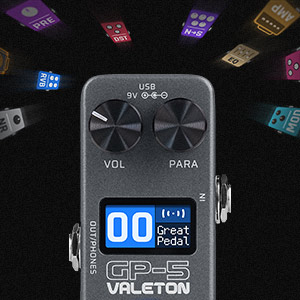
Figure 2.2: Close-up of the GP-5 display showing effect modules.

Figure 2.3: Detailed diagram of GP-5 controls and ports.
- 1. DI: Guitar/Bass input.
- 2. OUT/PHONES: Stereo TRS output for amplifier atanapi headphone.
- 3. VOL Knob: Kadali volume master.
- 4. PARA Knob: Parameter adjustment and selection.
- 5. Tampilan: Color LCD screen for visual feedback.
- 6. Saklar suku: Multi-functional footswitch for patch changes, tuner, and more.
- 7. Port USB-C: For audio interface connection (Win/Mac/iOS/Android) and 5V USB power.
- 8. 9V DC Input: For 9V DC power supply (not included).
3. Ngamimitian
3.1 Eusi pakét
- VALETON GP-5 Multi-Effects Processor
- Kabel USB-C
- Manual pamaké
3.2 Powering On
Connect a 9V DC power adapter (center negative, not included) to the 9V DC input, or connect the supplied USB-C cable to a 5V USB power source (e.g., mobile phone charger, power bank, computer USB port).
3.3 Sambungan Dasar
- Connect your guitar or bass to the IN jack.
- Nyambungkeun OUT/TELEPON jack ka anjeun amplifier, audio interface, or headphones.
- For computer recording or app control, connect the USB-C port to your computer or mobile device.
4. Operasi dasar
This section covers the fundamental controls and functions of the GP-5.
Video 4.1: Basic Operation of the M-Vave ANN Black Box (similar functionality to GP-5).
4.1 Adjusting Volume and Parameters
- The VOL knob controls the global output volume.
- The PARA knob is used to enter, exit, or confirm projects/settings. Rotate it to navigate through options or adjust values.
- When a preset is selected, you can adjust its specific volume by rotating the PARA kenop.
4.2 Effect Module Control
- Press and hold any effect module key (e.g., FX, AMP, MOD, DLY, REV, CAB) to quickly turn that module effect on or off.
- Briefly press an effect module key to enter its parameter interface. In this interface, use the PARA knob to adjust parameters.
- The left footswitch can also be used to open/close the currently selected effect module.
4.3 Bluetooth Hurung/Pareuman
- To turn Bluetooth on or off, press and hold the RUMAH key. The display will indicate "Bluetooth ON" or "Bluetooth OFF".
4.4 Modeu Tuner
- To enter tuner mode, press both the left and right footswitches simultaneously.
- In tuner mode, the display shows the reference frequency (Ref) in the lower left corner, adjustable from 430-450Hz using the PARA kenop.
- The lower right corner shows the output mode (Bypass or Mute), which can also be selected with the PARA kenop.
- Press any key briefly to exit tuner mode.
5. Fitur canggih
5.1 NAM and IR Loading
The GP-5 supports loading third-party Neural Amp Modeler (NAM) files and Impulse Responses (IRs) for cabinet simulation. This is typically done via dedicated software on a computer or mobile app.
Video 5.1: How to load IR and AMP files (demonstrated on a similar device).
Refer to the official VALETON software/app for detailed instructions on importing and managing NAM and IR files. Ensure your files aya dina format cocog.
5.2 Mobile App Control
The GP-5 can be controlled wirelessly via a Bluetooth-enabled mobile app (iOS/Android). This app allows for comprehensive tone editing, preset management, and real-time parameter adjustments.

Figure 5.1: Wireless tone editing via the mobile app.
Download the official VALETON GP-5 app from your device's app store. Connect via Bluetooth as described in section 4.3. The app provides a visual interface to customize your effects chain, adjust individual effect parameters, and save/load presets.
5.3 OTG Internal Recording
The GP-5 features an OTG (On-The-Go) internal recording function, allowing you to record directly to your mobile phone or tablet via the USB-C connection. This is ideal for capturing ideas, practicing, or creating content.
To use this feature, connect the GP-5 to your mobile device using a compatible USB-C to USB-C or USB-C to Lightning cable (depending on your device). Open your preferred audio recording application on your mobile device. The GP-5 will act as an audio interface, sending its output directly to the app.
6. Spésifikasi
| Fitur | Katerangan |
|---|---|
| Diménsi | 10.2 x 6.5 x 6.2 cm |
| Item Beurat | 270 g |
| Bahan Awak | logam |
| Warna | Hideung |
| Tipe Panyambung | USB-C, Bluetooth 5.0 |
| Panganteur Hardware | Bluetooth 5, USB-C |
| Format Sinyal | Digital |
| Jinis kakuatan | Wired Electric (9V DC or USB 5V) |
| Éfék Kaluaran Audio | Multi-Efek |
| Tipe Kontrol | Tombol |
7. Cara ngungkulan
- Henteu aya kakuatan: Ensure the 9V DC adapter is correctly connected and functional, or the USB-C cable is providing 5V power.
- Henteu aya sora: Check all audio cable connections (input, output, headphones). Verify volume levels on the GP-5 and connected devices. Ensure no effect modules are bypassed or muted unintentionally.
- Masalah Sambungan Bluetooth: Make sure Bluetooth is enabled on both the GP-5 (hold HOME button) and your mobile device. Ensure no other devices are interfering with the connection. Try restarting both the GP-5 and your mobile device.
- Aplikasi Teu Ngabales: Close and reopen the mobile app. Disconnect and reconnect Bluetooth. Ensure the GP-5 firmware is up to date.
- Sora distort: Check input gain levels on the GP-5 and your instrument. Reduce output volume if necessary. Ensure no faulty cables are being used.
8. Pangropéa
- beberesih: Anggo kaén anu lembut sareng garing pikeun ngabersihan unit. Hindarkeun pembersih abrasive atanapi pangleyur.
- Panyimpenan: Store the GP-5 in a cool, dry place away from direct sunlight and extreme temperatures.
- Penanganan: Hindarkeun ngaragragkeun unit atanapi nahan kana tabrakan anu kuat.
- Pembaruan firmware: Periodically check the VALETON websitus pikeun apdet firmware pikeun mastikeun kinerja optimal sarta aksés ka fitur anyar.
9. Garansi jeung Rojongan
For warranty information, technical support, or any questions regarding your VALETON GP-5, please refer to the official VALETON websitus atanapi ngahubungan dealer lokal Anjeun.


