1. Bubuka
This manual provides detailed instructions for the Machenike G3V2 Bluetooth Controller. It covers setup, operation, maintenance, and troubleshooting to ensure optimal performance and longevity of your device. Please read this manual thoroughly before using the controller.
2. Eusi Paket
Pastikeun yén sadaya item aya dina pakét anjeun:
- Machenike G3V2 Bluetooth Controller
- Ngecas Dock
- Kabel Ngecas USB-C
- Manual pamaké
- Dual-Core Receiver (USB Dongle)
3. Produk Langkungview
The Machenike G3V2 controller features Hall Effect joysticks, RGB lighting, programmable buttons, and a 1000mAh battery with a dedicated charging station. It supports multiple platforms including PC, Switch, iOS, and Android.

Gambar 3.1: Leuwihview of Machenike G3V2 Controller features.
4. Setélan
4.1. Ngecas Controller
Place the controller on the included charging dock. The built-in 1000mAh battery will begin charging via the USB-C port. The charging dock protects the controller and ensures efficient power replenishment for extended gaming sessions.
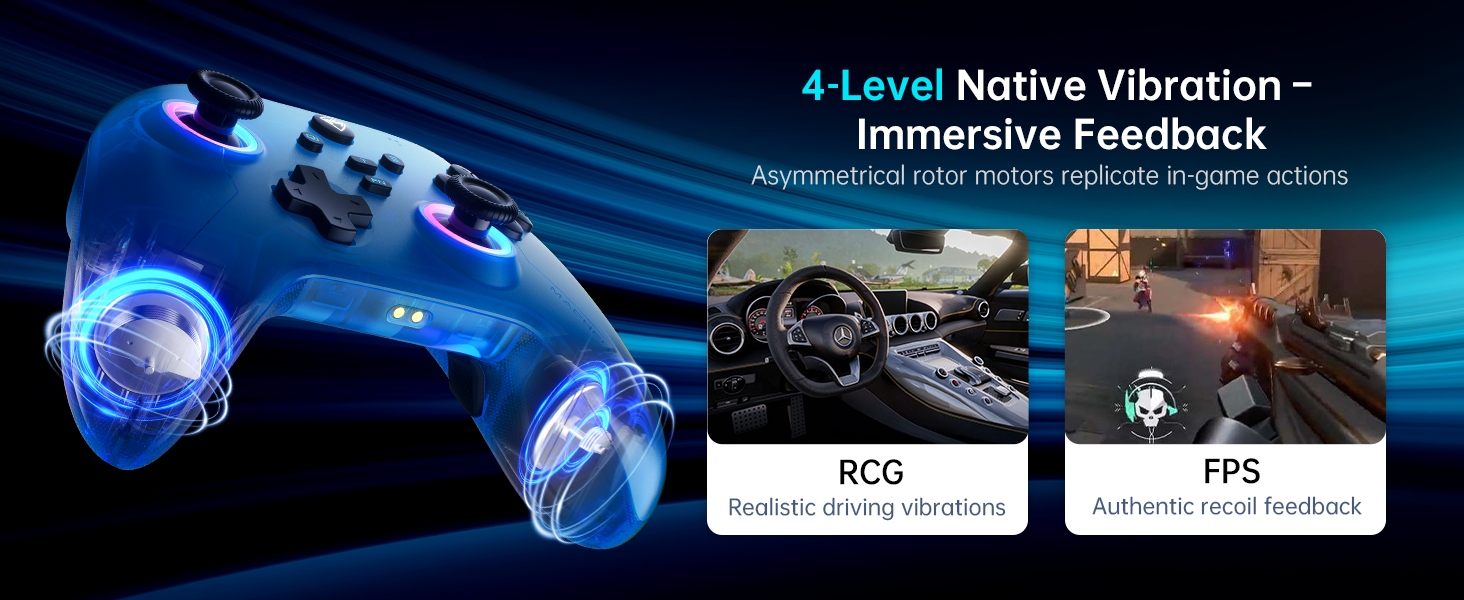
Figure 4.1: Controller on Dedicated Charging Dock.
4.2. Konektipitas
The Machenike G3V2 supports three connection modes: 2.4G (via dual-core receiver), Bluetooth, and Wired.
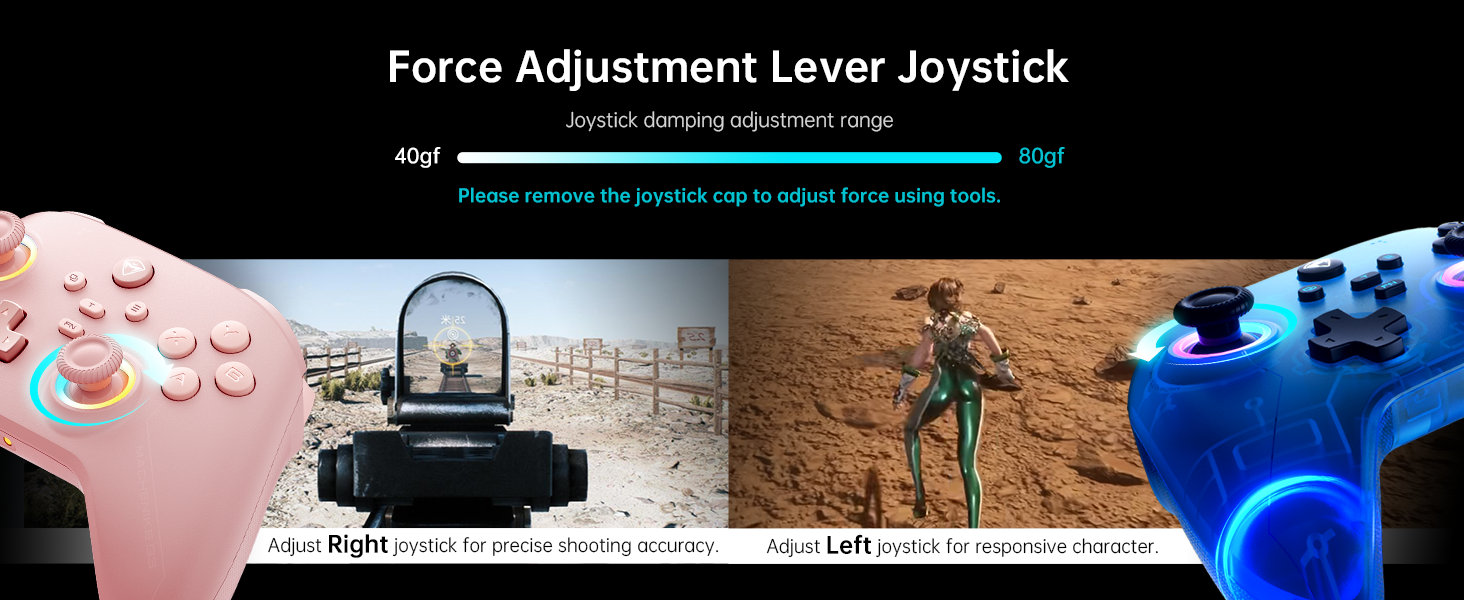
Figure 4.2: Multi-platform connectivity options.
4.2.1. Connecting to Nintendo Switch (Bluetooth Mode)
To connect your controller to a Nintendo Switch:
- Put the controller into Switch pairing mode by holding the Y + Home buttons simultaneously. The indicator light will flash rapidly, changing from slow to fast flashing.
- Dina Nintendo Switch anjeun, buka Menu HOME.
- Select the 'Controllers' icon, then choose 'Change Grip/Order'.
- Wait for the controller to connect automatically. Once connected, the controller will vibrate, and its icon will appear on the Switch screen.
- Press the 'A' button on your Machenike G3V2 controller to confirm.
- If you prefer the Switch button layout (A/B swapped), you can toggle it by pressing FN + A on the controller.
Video 4.1: Tutorial on connecting the Machenike G3V2 controller to a Nintendo Switch.
4.2.2. Connecting to PC/iOS/Android
For PC, iOS, and Android devices, follow the standard Bluetooth pairing procedure for your specific device. Ensure the controller is in the correct pairing mode (refer to the quick start guide for specific button combinations for different platforms).
5. Parentah Operasi
5.1. Customizable Back Buttons (M1/M2)
The G3V2 controller features two customizable back buttons (M1 and M2) that support up to 32 programmable actions, including macro recording and remapping. This is particularly useful for complex combos in fighting games or rapid actions in shooters.
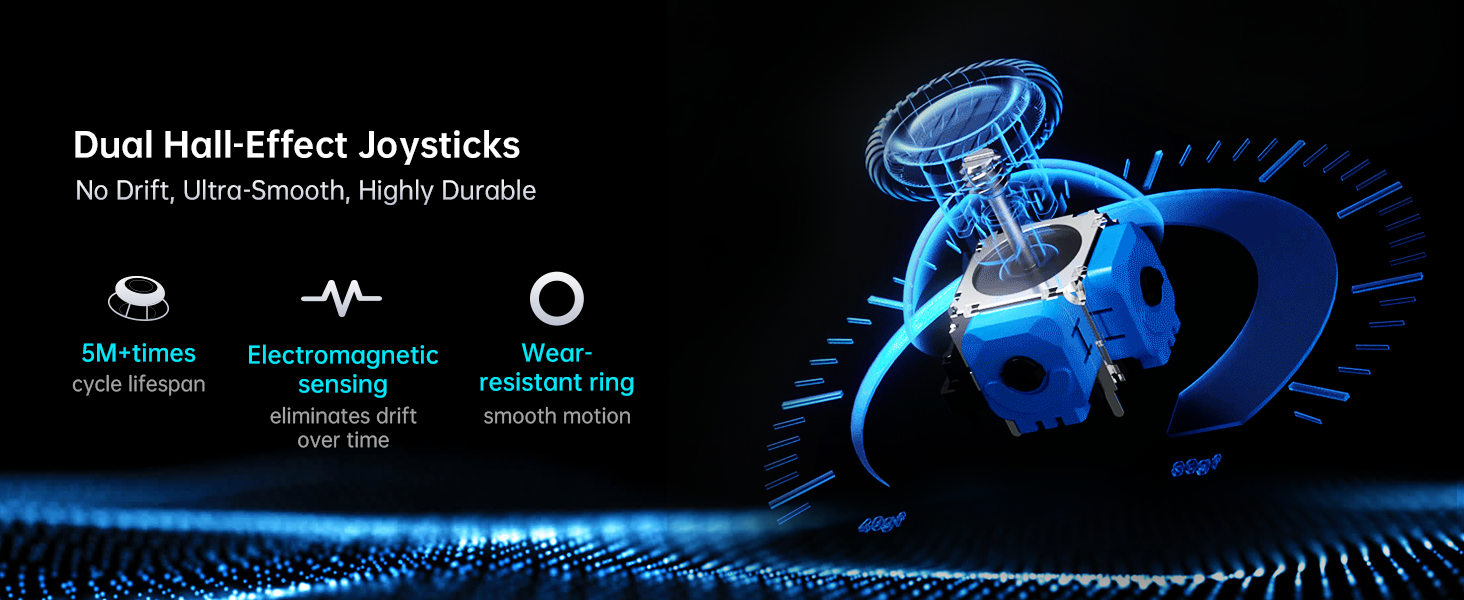
Figure 5.1: Dual Customizable Back Buttons.
Video 5.1: Tutorial on how to record keystroke macros for the back buttons.
5.2. Adjustable Hall Effect Joysticks and Triggers
The controller features dual Hall-Effect joysticks and triggers, offering precision and durability. The unique force adjustment feature allows you to customize joystick tension from 40gf to 80gf, adapting to various game requirements for responsive character movement or precise shooting accuracy. The triggers provide contactless, 255-level linear control with millisecond actuation.
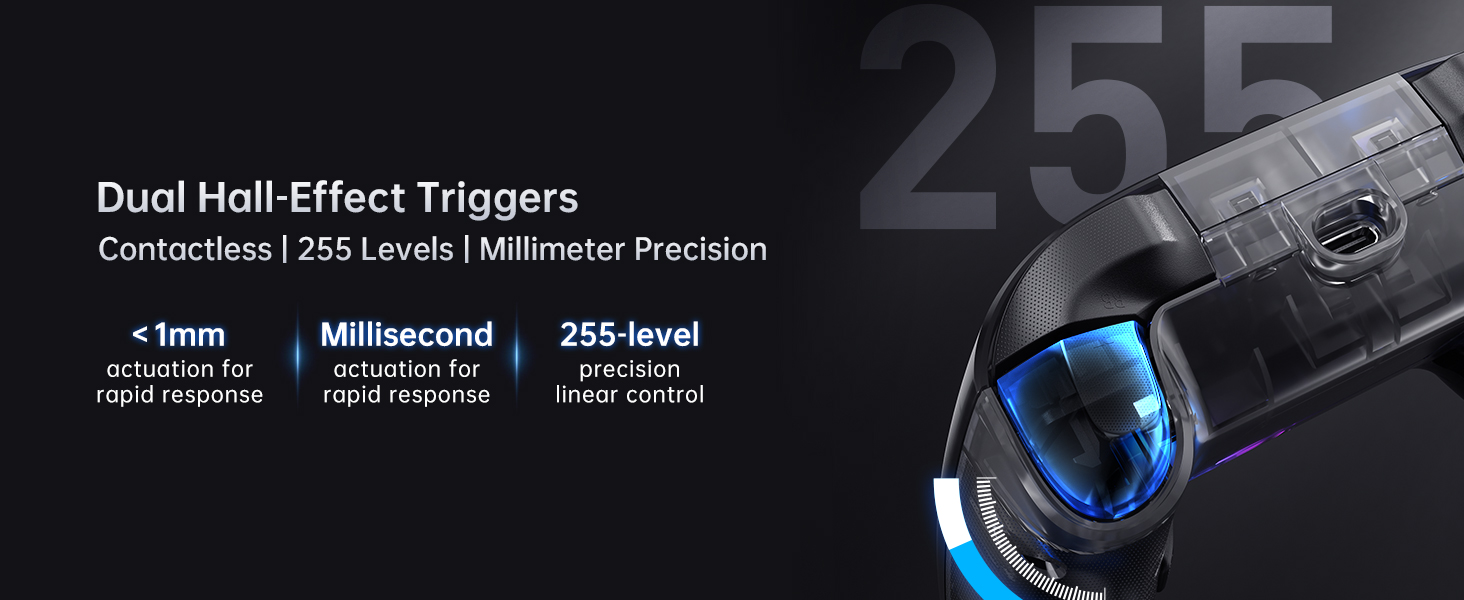
Figure 5.2: Force Adjustment Lever Joystick.
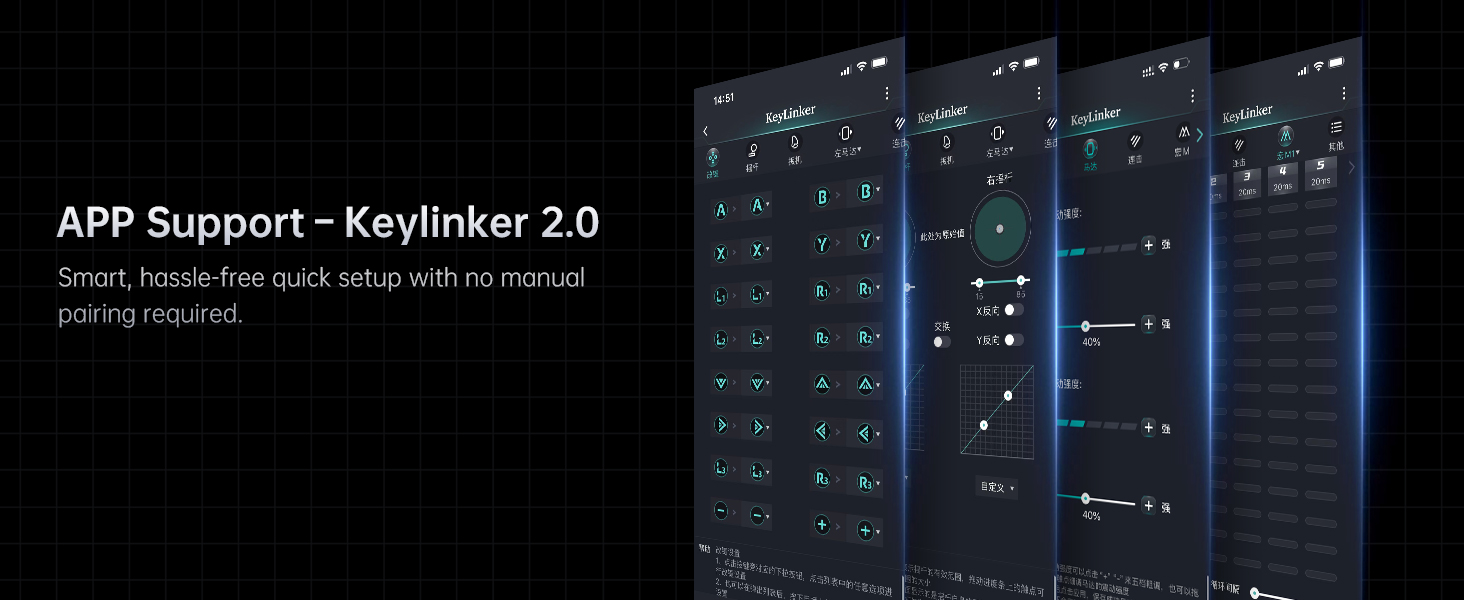
Figure 5.3: Dual Hall-Effect Joysticks.
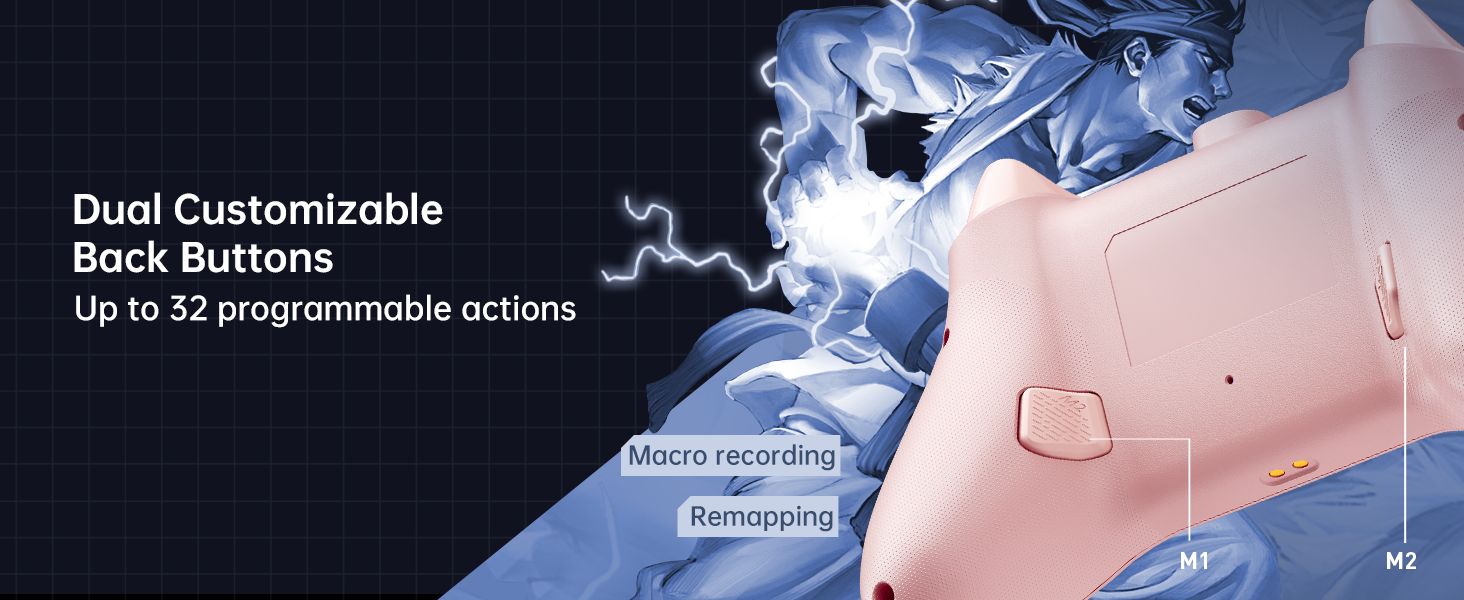
Figure 5.4: Dual Hall-Effect Triggers.
5.3. Lampu RGB
The controller features dual-ring dynamic RGB lighting around the joysticks, offering aesthetic customization to match your gaming setup.
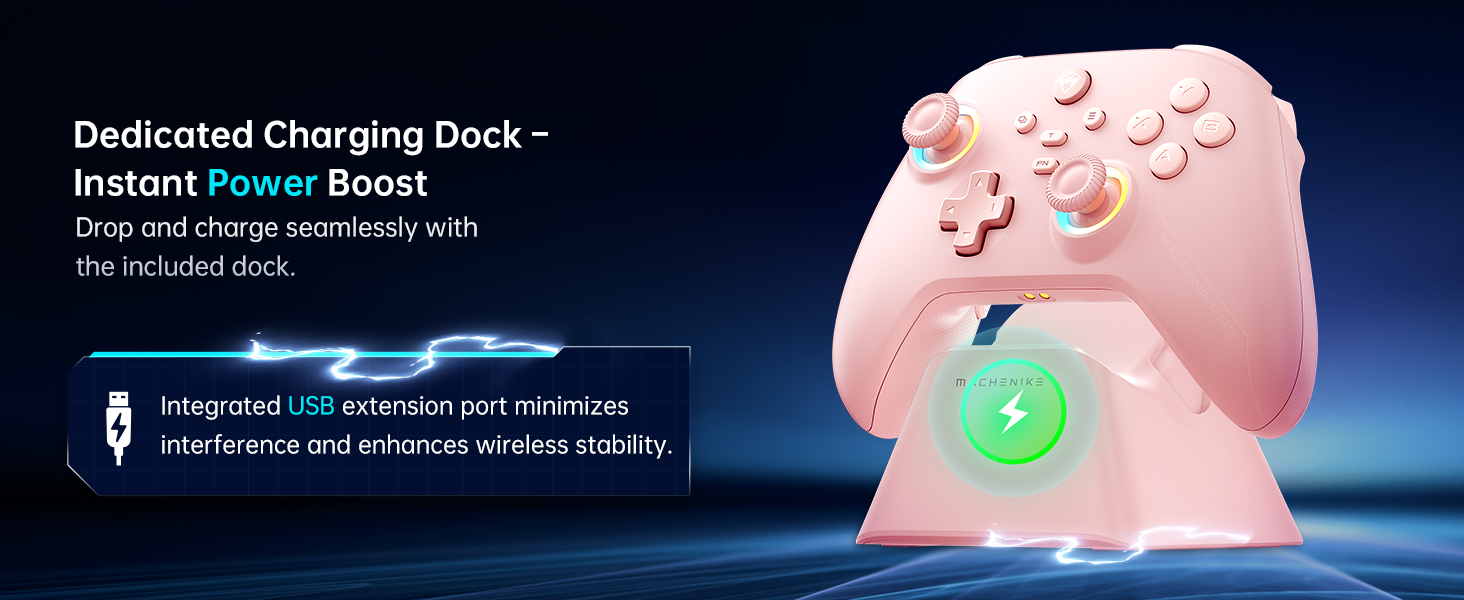
Figure 5.5: Dual-Ring Dynamic Lighting.
5.4. Eupan Balik Geter
Experience immersive gameplay with 4-level native vibration feedback. Asymmetrical rotor motors replicate in-game actions, providing realistic driving vibrations for racing games and authentic recoil feedback for first-person shooters.
Figure 5.6: 4-Level Native Vibration Feedback.
6. Kalibrasi
To ensure optimal performance and address any potential joystick drift or trigger issues, you can calibrate your controller's joysticks and triggers.
6.1. Joystick Calibration
To calibrate the joysticks:
- Press and hold the B + Back + Home buttons simultaneously. The blue LED will flash, indicating calibration mode.
- Move both joysticks in circles all the way around, making about three full rotations slowly and steadily.
- Once done, press the Start button to save. The controller will power off, indicating successful calibration.
- Reconnect the controller to your device.
6.2. Trigger Calibration
To calibrate the triggers:
- Press and hold the Y + Back + Home buttons simultaneously. The red light will flash, indicating trigger calibration mode.
- Press each trigger normally all the way down three times. Do not press too hard.
- Then press the Start button to save. The controller will power off, indicating successful calibration.
- Reconnect the controller to your device.
Note: When calibrating joysticks or triggers, always use normal, gentle pressure to ensure accurate calibration and avoid abnormal behavior.
Video 6.1: Tutorial on how to calibrate the triggers and joysticks.
7. Pangropéa
To maintain your Machenike G3V2 controller in optimal condition:
- Tetep controller bersih ku ngusap eta ku lawon lemes, garing. Ulah make bahan kimia kasar atawa bahan abrasive.
- Nyimpen controller dina tiis, tempat garing jauh ti sinar panonpoé langsung jeung hawa ekstrim.
- Hindarkeun ngaragragkeun pangendali atanapi nahan kana dampak anu kuat.
- Regularly check the charging port and cables for any signs of damage.
8. Cara ngungkulan
If you encounter issues with your Machenike G3V2 controller, refer to the following common solutions:
- Controller henteu hurung: Ensure the controller is fully charged. Connect it to the charging dock or directly via USB-C cable.
- Masalah sambungan: Verify that the controller is in the correct pairing mode for your device (Switch, PC, iOS, Android). Ensure Bluetooth is enabled on your device. Try re-pairing the controller.
- Joystick drift or inaccurate input: Perform joystick calibration as described in Section 6.1.
- Trigger issues: Perform trigger calibration as described in Section 6.2.
- Tombol teu ngaréspon: Ensure the controller is properly connected and charged. If using custom mappings, check the Keylinker 2.0 app settings.
- Back buttons not working as expected: Clear existing assignments and re-record macros as shown in Video 5.1.
- Lampu RGB teu jalan: Check the controller's settings via the Keylinker 2.0 app for lighting customization options.
For further assistance, please contact Machenike customer support.
9. Spésifikasi
| Nomer modél | G3V2 (PE-Upgrade) |
| Diménsi | 3.94 x 2.76 x 5.91 inci |
| Item Beurat | 1.12 pon |
| Batré | 1 Lithium Polymer battery (1000mAh), included |
| Konektipitas | Bluetooth, 2.4G (with Dual-Core Receiver), Wired |
| Kasaluyuan | Switch/Switch 2, iOS, Android, Windows PC (Not compatible with Xbox, PlayStation, or GeForce Now) |
| Joysticks | Dual Hall-Effect, Infinitely Adjustable (40-80gf) |
| Pemicu | Dual Hall-Effect, Contactless, 255 Levels |
| Laju Polling | 1000Hz |
| Tombol Programmable | 2 (M1, M2) with up to 32 actions |
| Produsén | Machenike |
| Tanggal Kahiji Sadia | 27 Méi 2025 |
10. Jaminan & Dukungan
For warranty information, technical support, or any inquiries regarding your Machenike G3V2 controller, please contact the seller, Machenike US STORE, directly through your purchase platform. Keep your proof of purchase for warranty claims.
You can visit the official Machenike Store for more information: Machenike Store


