Bubuka
Thank you for choosing the acer OMR241 Ergonomic Wireless Vertical Mouse. This mouse is designed to provide a comfortable and efficient user experience, reducing wrist and arm strain during prolonged use. Its vertical design promotes a natural hand posture, and the wireless connectivity ensures a clutter-free workspace. This manual provides detailed instructions for setting up, operating, maintaining, and troubleshooting your new mouse.
Disetél
1. Eusi Paket
- acer OMR241 Ergonomic Wireless Vertical Mouse
- USB-A panarima
- Kabel Ngecas USB
- Manual pamaké
2. Locating the USB-A Receiver
The USB-A receiver is conveniently stored within the mouse itself, typically in a compartment on the underside. Gently open the compartment to retrieve the receiver.

The USB-A receiver is located in a dedicated slot on the bottom of the mouse for secure storage and easy access.
3. Nyambungkeun Mouse
- Take out the USB-A receiver from its storage slot on the mouse.
- Insert the USB-A receiver into an available USB-A port on your computer, laptop, or other compatible device.
- Turn on your mouse using the power switch located on the underside. The mouse will automatically connect to the receiver.

Visual guide for connecting the USB-A receiver to your device and powering on the mouse.
4. Ngecas Mouse
The mouse is equipped with a rechargeable 300mAh lithium battery. When the battery is low, the LED indicator may flash. Use the provided USB charging cable to recharge the mouse.
- Connect the USB-C end of the charging cable to the USB-C charging port on the front of the mouse.
- Sambungkeun tungtung kabel ngecas USB-A kana sumber daya USB (contona, port USB komputer, adaptor témbok USB).
- A full charge typically takes approximately 1.5 hours and can last up to a month depending on usage.
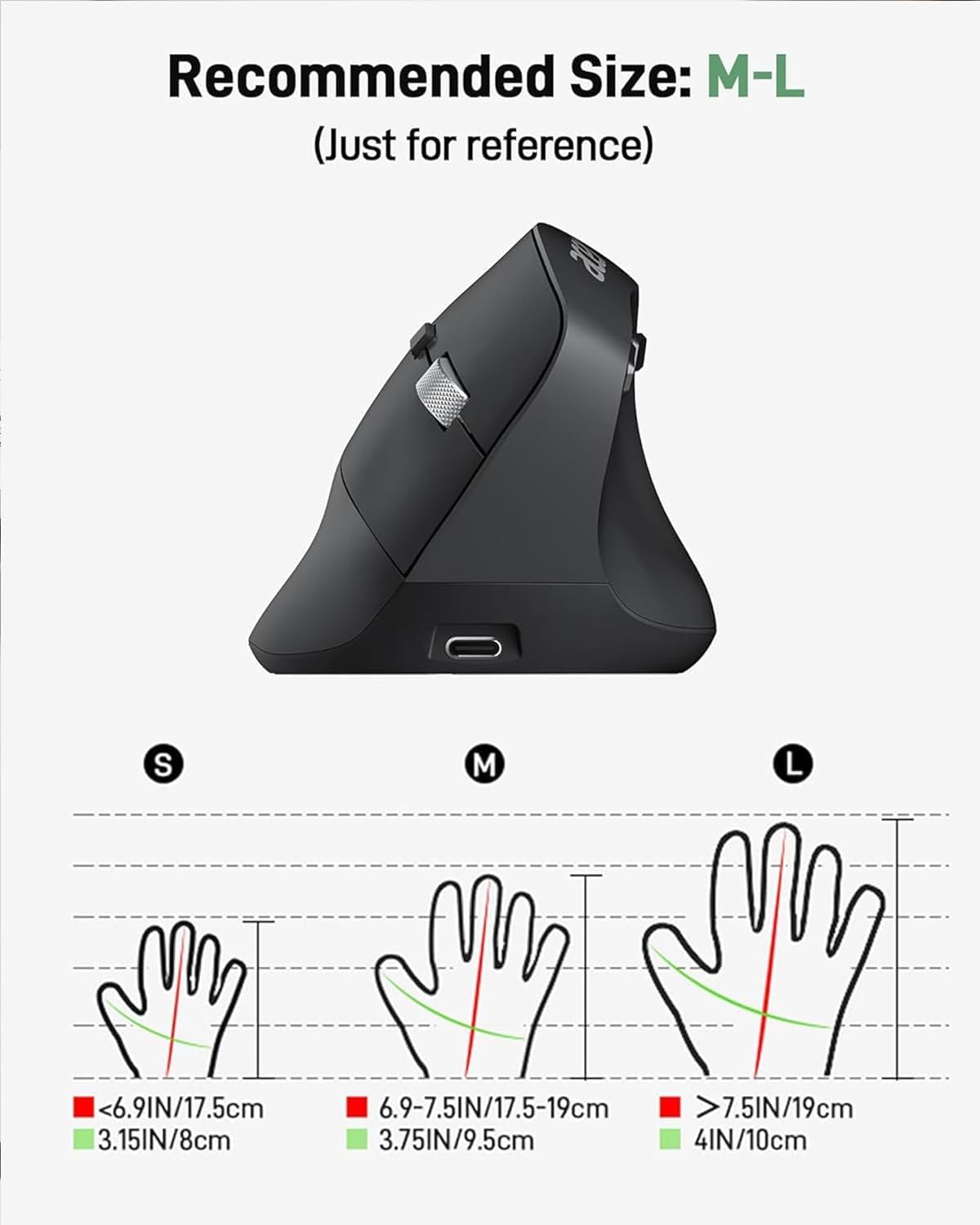
The mouse features a USB-C charging port for convenient recharging.
Parentah Operasi
1. Tombol Pedaran
Familiarize yourself with the various buttons and their functions:

Diwincik view of the mouse with all buttons and features clearly labeled.
- Tombol kénca: Fungsi klik standar.
- Tombol katuhu: Fungsi klik katuhu standar.
- Gulung kabayang: Gulung ka luhur/handap, jeung fungsi-klik tengah.
- Tombol Penyesuaian DPI: Ngaganti setélan DPI (1000/1200/1600).
- Tombol Maju: Navigates ka hareup web browser atawa file penjelajah.
- Tombol Mundur: Navigates ka tukang web browser atawa file penjelajah.
- Saklar kakuatan: Turns the mouse On or Off.
- Indikator LED: Shows connection status and battery level.
2. Adjustment DPI
The mouse offers three adjustable DPI levels (1000/1200/1600) to suit your preference and task requirements. Press the DPI adjustment button, located near the scroll wheel, to cycle through the settings. Each press will change the cursor sensitivity.

Adjust cursor sensitivity by pressing the DPI button to switch between 1000, 1200, and 1600 DPI.
3. Forward and Backward Buttons
The dedicated forward and backward buttons on the side of the mouse allow for quick navigation through web pages and folders, enhancing your workflow efficiency.

Utilize the forward and backward buttons for efficient navigation.
4. Desain ergonomis
The 57° vertical design of the mouse promotes a natural handshake position, reducing pronation of the forearm and wrist. This design aims to minimize muscle activity and discomfort during extended periods of use.

The 57° ergonomic design helps reduce wrist and arm pressure for greater comfort.
Pangropéa
1. beberesih
Pikeun ngajaga kinerja sareng kabersihan anu optimal, bersihkeun beurit anjeun sacara rutin:
- Pegatkeun sambungan beurit tina alat anjeun teras pareuman.
- Make kaen nu lemes, teu aya lint rada dampku cai atawa solusi beberesih hampang pikeun ngusap beungeut beurit.
- Ulah nganggo bahan kimia, abrasif, atanapi pangleyur anu kasar.
- Pikeun sénsor optik, anggo kapas garing pikeun miceun lebu atanapi kokotor sacara lalaunan.
2. Kaperawatan batré
Pikeun manjangkeun umur batré anu tiasa dicas deui:
- Hindarkeun sering-sering ngeusi batre.
- Charge the mouse when the low battery indicator appears.
- Upami nyimpen beurit kanggo waktos anu lami, eusian batréna dugi ka sakitar 50% sateuacan disimpen sareng eusian deui unggal sababaraha bulan.
3. Panyimpenan
Store the mouse in a cool, dry place away from direct sunlight and extreme temperatures. When transporting, ensure the USB-A receiver is securely stored in its compartment to prevent loss.
Pamérésan masalah
| Masalah | Mungkin Cukang lantaranana | Solusi |
|---|---|---|
| Beurit teu ngabales | Mouse is off or battery is low. USB receiver not properly connected. | Turn on the mouse and ensure it has sufficient charge. Reinsert the USB receiver into a different USB port. |
| Gerakan kursor henteu teratur atanapi laun | Low battery. DPI setting is too low. Dirty optical sensor. | Charge the mouse. Press the DPI button to increase sensitivity. Clean the optical sensor. |
| Tombol maju/mundur teu jalan dina Mac | Watesan sistem operasi. | The side buttons may not be fully functional on macOS without additional software or customization. This is a known compatibility aspect. |
| Mouse sering pegat sambungan | Distance from receiver too far. Interference. Low battery. | Ensure the mouse is within 32 feet (10 meters) of the receiver. Move away from other wireless devices. Charge the mouse. |
| Mouse teu ngecas | Kabel lepat atanapi sumber listrik. | Try a different USB charging cable or a different USB power source. |
spésifikasi
| Fitur | Rincian |
|---|---|
| Nomer modél | OMR241 |
| Dimensi produk | 4.3 x 3.1 x 0.1 inci |
| Item Beurat | 5.1 ons |
| Téhnologi konektipitas | Nirkabel 2.4GHz (Panarima USB-A) |
| Setélan DPI | 1000 / 1200 / 1600 |
| Kancing | 6 (Kénca, Katuhu, Roda Gulung, DPI, Maju, Mundur) |
| Batré | 300mAh Rechargeable Lithium Batre (kaasup) |
| Port ngecas | USB-C |
| Detéksi Gerakan | Optik |
| Fitur husus | Ergonomic Design, Vertical Orientation, Rechargeable |
Kasaluyuan
The acer OMR241 mouse is compatible with a wide range of operating systems and devices:
- Windows (PC, Laptop)
- macOS (iMac, MacBook Pro/Air)
- Linux
- Chrome OS
The mouse offers universal compatibility across various operating systems and devices.
Garansi sareng Rojongan
For warranty information, technical support, or service inquiries, please refer to the warranty card included in your product packaging or visit the official acer support websitus. Simpen resi pameseran anjeun salaku bukti pameseran pikeun klaim garansi.
Pituduh Pidéo
Tonton pidéo resmi ieu pikeun tampilan visualview of the acer Ergonomic Wireless Mouse, demonstrating its features and usage.


