1. Bubuka
This manual provides essential information for setting up, operating, and maintaining your Sceptre 24-inch Gaming Monitor (E248W-FW100T Series). Please read this manual thoroughly before using the product to ensure optimal performance and safety.
Fitur konci:
- Immersive 24-inch Display: Experience captivating visuals with slim bezels for an expanded viewwewengkon.
- Smooth 100Hz Refresh Rate: Enjoy fluid and responsive graphics, reducing choppiness in fast-paced content.
- 1ms Blur Reduction (BR): Enhances gaming performance with rapid response times.
- AMD FreeSync™ Technology: Synchronizes the monitor's refresh rate with your graphics card for tear-free gameplay.
- Shift Biru-Cahaya: Reduces harmful blue light emissions to alleviate eye strain during extended use.
- Speaker terpadu: Built-in speakers provide audio without requiring external devices.
- Konektipitas serbaguna: Includes 2x HDMI, 1x DisplayPort (DP), and VGA inputs for broad compatibility.
Official Sceptre brand video showcasing the monitor's versatility for work, creation, gaming, and streaming.
2. Setélan
2.1 Ngabongkar jeung Majelis
Carefully remove the monitor and all components from the packaging. Assemble the stand according to the instructions provided in the quick start guide. Ensure the monitor is placed on a stable, flat surface.
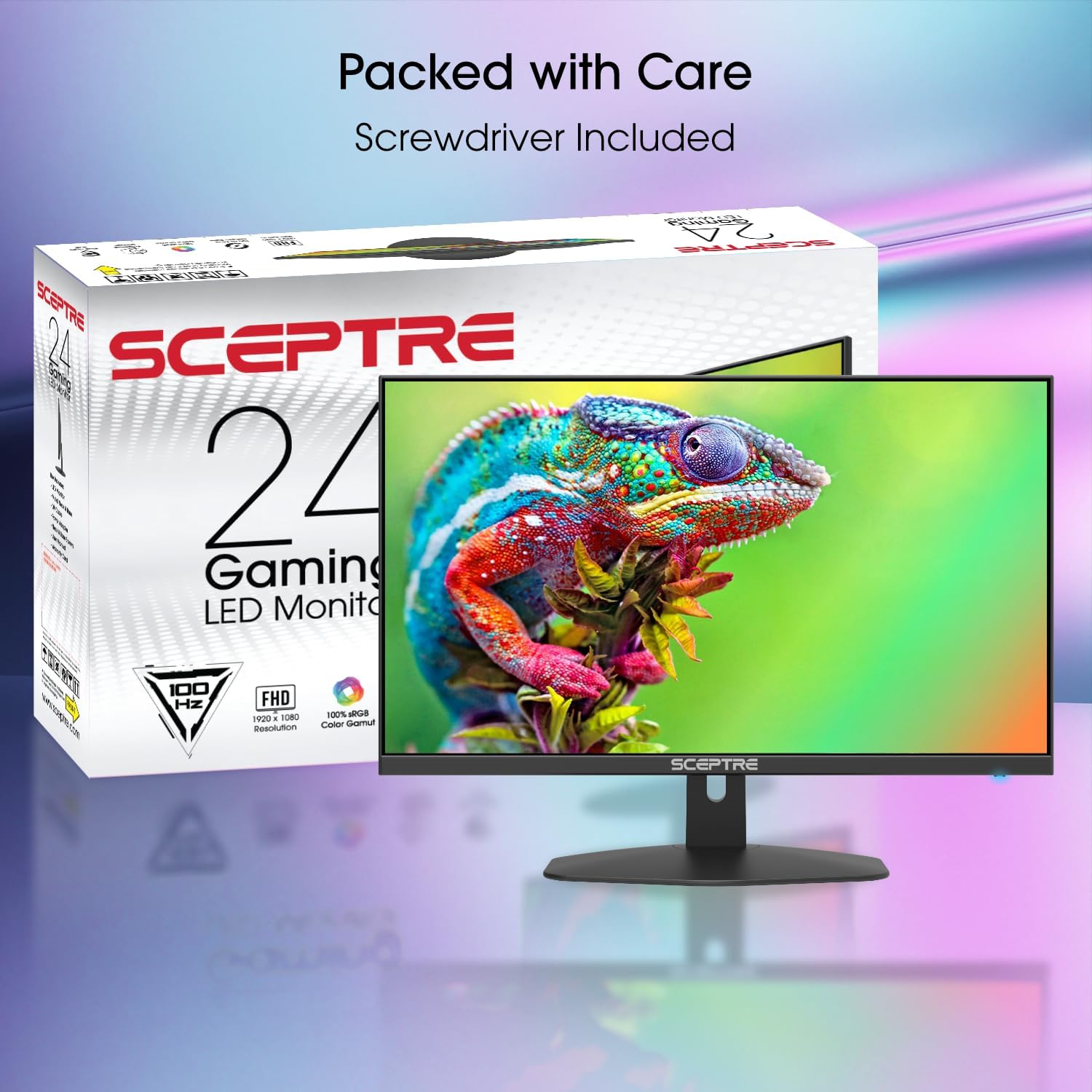
The Sceptre 24-inch Gaming Monitor alongside its retail packaging, indicating included accessories.
2.2 Nyambungkeun Kabel
Connect the power cable to the monitor and a power outlet. Use the appropriate video cable (HDMI or DisplayPort recommended for optimal performance) to connect your computer or gaming console to the monitor. The monitor also supports VGA connections. For audio, use the Audio In port if connecting via VGA, or the Audio Out port for external speakers/headphones.

Hiji sisi view highlighting the monitor's thin profile and stand, useful for understanding placement and cable management.
Detailed user demonstration of the Sceptre 24-inch monitor, including a view of the rear ports (HDMI, VGA, Audio In/Out), control buttons, and a sound test of the integrated speakers.
3. Ngoperasikeun Monitor
3.1 Daya Hurung/Pareuman
Press the power button located on the back of the monitor to turn it on or off. The power indicator light will illuminate when the monitor is active.
3.2 Pamilihan Input
Use the input selection button (often labeled 'E' or an arrow icon) on the back of the monitor to cycle through available input sources (HDMI1, HDMI2, DP, VGA). The monitor will automatically detect an active signal.
3.3 Menu dina layar (OSD).
Access the OSD menu by pressing the 'M' button on the back of the monitor. Use the up/down arrow buttons to navigate through menu options and the 'E' button to select. Adjust settings such as brightness, contrast, color temperature, and input source.
3.4 Kontrol Audio
The monitor features integrated speakers. Volume controls are typically integrated into the OSD menu or accessible via dedicated up/down buttons on the back of the monitor. For external audio, connect headphones or speakers to the Audio Out port.
pamaké ulangview demonstrating two Sceptre 24-inch monitors in a dual setup, highlighting their slim design and suitability for multi-monitor configurations.
pamaké ulangview mintonkeuncasing the Sceptre 24-inch monitor in a home office environment, emphasizing screen size, picture quality, and lightweight design for monitor stands.
4. Pangropéa
4.1 Ngabersihan Monitor
Pikeun ngabersihkeun layar, usap lembut nganggo kaen anu lemes sareng teu aya serat. Pikeun tanda pengkuh, enteng dampen the cloth with water or a mild, non-abrasive screen cleaner. Avoid using harsh chemicals or abrasive materials that could damage the screen surface. Ensure the monitor is powered off and unplugged before cleaning.
4.2 Perawatan Umum
Avoid placing heavy objects on the monitor or its cables. Keep the monitor away from direct sunlight, heat sources, and excessive moisture. Ensure proper ventilation around the monitor to prevent overheating.
5. Cara ngungkulan
If you encounter issues with your monitor, refer to the following common solutions. For more detailed troubleshooting or persistent problems, please contact Sceptre customer support.
- Henteu aya kakuatan: Pastikeun kabel daya disambungkeun sacara aman ka monitor sareng stop kontak listrik anu tiasa dianggo. Pariksa lamun lampu indikator daya hurung.
- Henteu aya sinyal: Verify that the video cable is correctly connected to both the monitor and your source device (PC, console). Ensure the correct input source is selected on the monitor.
- Gambar Kedip-kedip/Distorsi: Check cable connections. Adjust the refresh rate settings on your computer. Ensure your graphics card drivers are up to date.
- Henteu aya sora: Confirm the volume is not muted or set too low on both the monitor and your source device. If using external speakers/headphones, ensure they are properly connected to the Audio Out port.
6. Spésifikasi
| Fitur | Spésifikasi |
|---|---|
| Nomer modél | E248W-FW100T.A1 |
| Ukuran layar | 24 inci |
| Resolusi | 1920 x 1080 (FHD 1080p) |
| Resolusi layar Max | 1920 x 1080 piksel |
| Refresh Laju | 100Hz |
| Waktu Tanggapan | 1ms BR (Blur Reduction) |
| Rasio Aspék | 16:9 |
| Beungeut layar | Matte |
| Konektipitas | 2x HDMI, 1x DisplayPort, 1x VGA, Audio In, Audio Out |
| Speaker Integrasi | Sumuhun |
| Fitur husus | AMD FreeSync™, Blue-Light Shift, Edgeless Design |
| Ukuran produk (L x W x H) | 7.6 x 21.3 x 17.2 inci |
| Item Beurat | 9.98 pon |
7. Garansi jeung Rojongan
Sceptre monitors are designed for reliability and performance. For information regarding your product's warranty, please refer to the warranty card included in your product packaging or visit the official Sceptre website. If you require technical assistance or have questions not covered in this manual, please contact Sceptre customer support for further assistance.


