1. Bubuka
The Hitron CODA56 is a Multi-Gigabit DOCSIS 3.1 Cable Modem designed to deliver high-speed internet access. This modem supports internet plans up to 2.5 Gbps, making it suitable for demanding online activities such as 4K streaming, online gaming, and video conferencing. It utilizes DOCSIS 3.1 technology for enhanced performance and efficiency. Please note that the CODA56 is a modem only and does not include built-in WiFi or routing capabilities; a separate WiFi router is required.
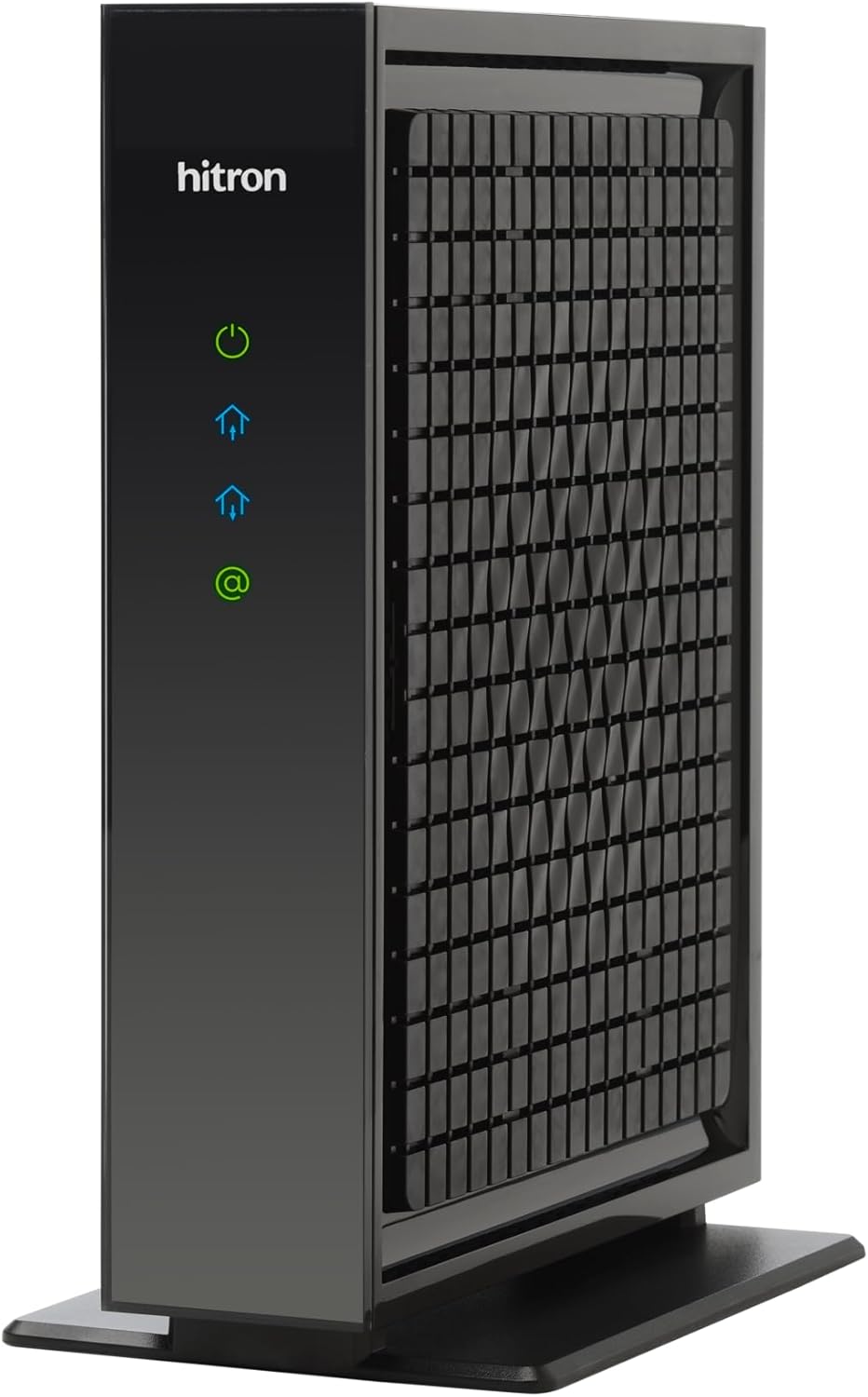
Hareupeun view of the Hitron CODA56 modem, showcasing its sleek black design and LED indicators for power, internet activity, and connection status.
2. Eusi Paket
Verify that all items are present in your CODA56 modem package:
- Hitron CODA56 DOCSIS 3.1 Cable Modem
- Sasayogian tanaga
- 2.5 Gbps Ethernet Cable
- Kabel koaks

An illustration detailing the components included with the Hitron CODA56 modem, such as the modem itself, power supply, Ethernet cable, and coax cable. It also lists necessary additional items like a separate WiFi router and cable internet service.
3. Setup jeung Instalasi
3.1 Daptar pariksa Pra-Pamasangan
- Cable Internet Service: Ensure you have an active cable internet subscription (DOCSIS). This modem is not compatible with fiber, DSL, satellite, or fixed wireless internet.
- Compatible Internet Plan: The CODA56 is designed for internet plans 1 Gbps and faster. Confirm your plan with your Internet Service Provider (ISP).
- Separate WiFi Router: A separate WiFi router or mesh system is required as this modem does not have built-in WiFi. For full 2.5 Gbps performance, your router should have a 2.5 Gbps Ethernet WAN/LAN port.
- ISP Compatibility: Confirm that your ISP (e.g., Xfinity, Spectrum, Cox) supports the Hitron CODA56 modem.
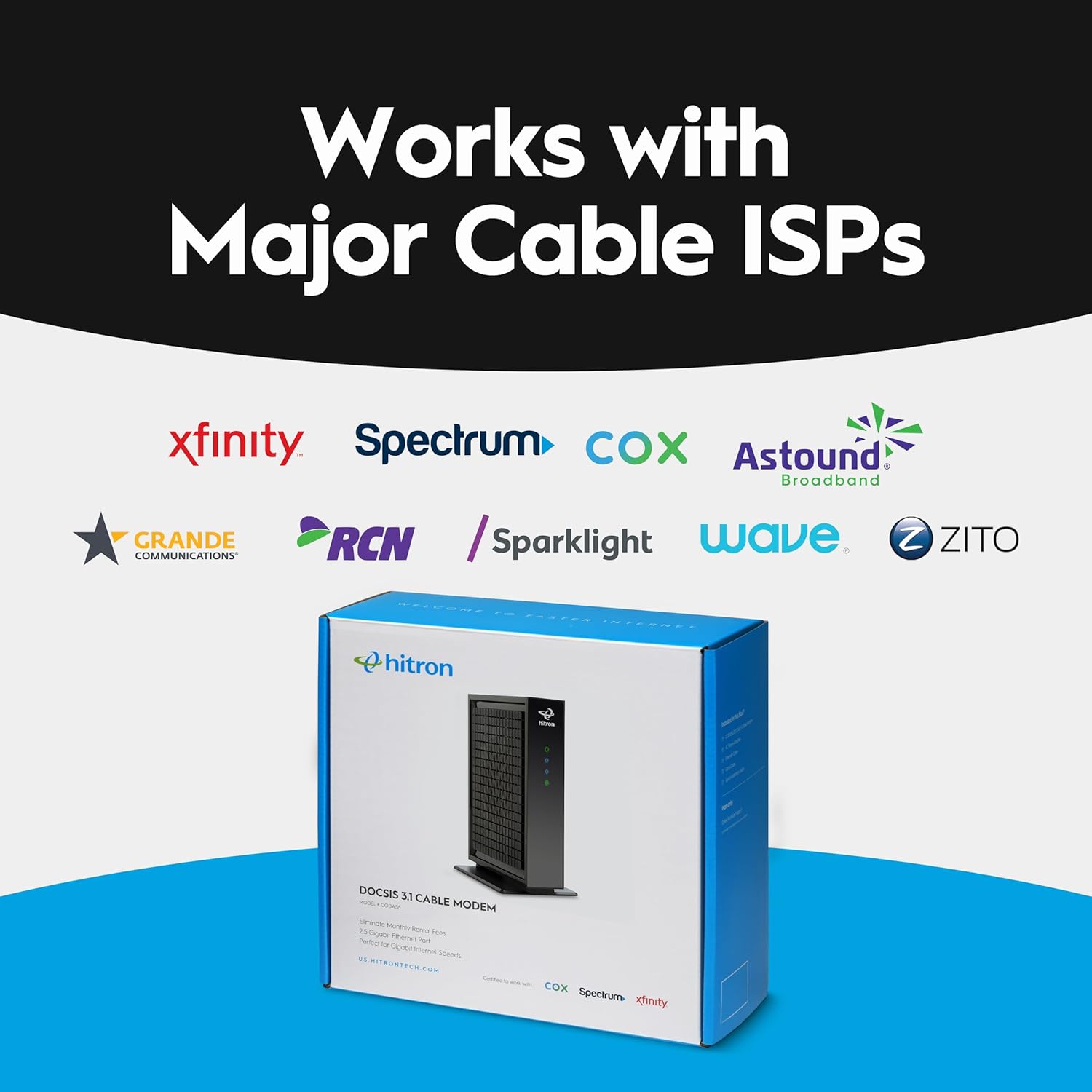
An image displaying the logos of various major cable internet service providers, including Xfinity, Spectrum, Cox, Astound Broadband, Grande Communications, RCN, Sparklight, Wave, and Zito, indicating compatibility with the Hitron CODA56 modem.
3.2 Léngkah Sambungan
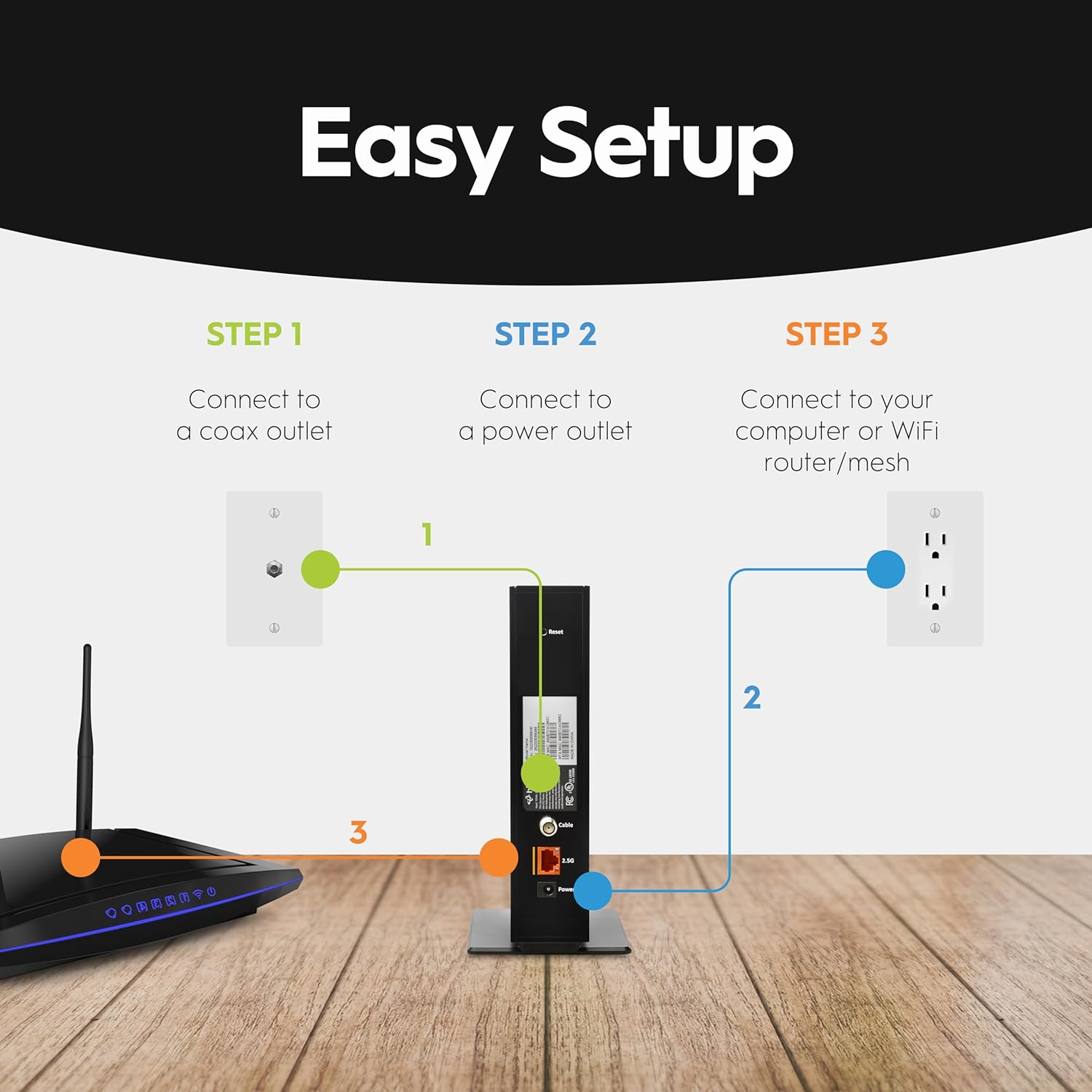
- Connect Coax Cable: Connect one end of the supplied coax cable to the cable wall outlet and the other end to the 'Cable' port on the back of your CODA56 modem. Ensure the connection is finger-tight.
- Sambungkeun kabel Ethernet: Connect one end of the supplied Ethernet cable to the 2.5 Gbps Ethernet port on the back of your CODA56 modem and the other end to the WAN (Internet) port of your WiFi router. If connecting directly to a computer, use the Ethernet cable to connect the modem to your computer's Ethernet port.
- Sambungkeun Adaptor Daya: Connect the power adapter to the 'Power' port on the back of your CODA56 modem and then plug the adapter into a power outlet. The modem will begin its startup sequence.

A visual guide illustrating the three simple steps for setting up the Hitron CODA56 modem: connecting to a coax outlet, connecting to a power outlet, and connecting to a WiFi router or computer.

An illustration demonstrating how the Hitron CODA56 modem connects to a separate WiFi router or mesh system via an Ethernet cable, highlighting the need for a 2.5 Gbps Ethernet port on the router for optimal performance.
3.3 Aktivasina Modem
Saatos nyambungkeun modem, anjeun kedah ngaktipkeunana nganggo Panyadia Layanan Internét (ISP) anjeun. Prosés aktivasina biasana ngalibatkeun:
- Contacting your ISP: Call your ISP's customer support line.
- Providing Modem Information: You will need to provide the MAC address (CM MAC) and Serial Number (S/N) of your CODA56 modem, which are usually found on a label on the bottom or back of the device.
- Following ISP Instructions: Your ISP will guide you through the activation process, which may include registering the modem on their network and configuring your service.
4. Operation and LED Indicators
The CODA56 modem features several LED indicators on the front panel that provide information about its operational status:
| Indikator LED | Status | Katerangan |
|---|---|---|
| Kakuatan (⏻) | Héjo padet | Modemna dihurungkeun. |
| Downstream (⌂) | Biru Padet | DOCSIS 3.1 downstream channel is locked. |
| Héjo padet | DOCSIS 3.0 downstream channel is locked. | |
| Upstream (⌃) | Biru Padet | DOCSIS 3.1 upstream channel is locked. |
| Héjo padet | DOCSIS 3.0 upstream channel is locked. | |
| Internet (@) | Héjo padet | The modem is online and connected to the internet. |
| Kedip-kedip Héjo | Data keur dikirimkeun atawa narima. |
Once the Internet LED is solid green, your modem is successfully connected to the internet. You can then connect your devices to your separate WiFi router to access the network.
5. Pangropéa
5.1 Perawatan Umum
- panempatan: Simpen modem di tempat anu ventilasina saé, jauh tina sinar panonpoé langsung, sumber panas, sareng kalembaban. Pastikeun aliran hawa di sakitar alat cekap.
- beberesih: Use a soft, dry cloth to clean the modem's exterior. Avoid using liquid or aerosol cleaners, as they may damage the device.
- Siklus kakuatan: If you experience connectivity issues, try power cycling the modem by unplugging the power adapter for 10-15 seconds and then plugging it back in.
5.2 Apdet firmware
Firmware updates for the Hitron CODA56 modem are managed and pushed by your Internet Service Provider (ISP). You do not need to manually update the firmware. Ensure your modem remains powered on and connected to the cable network to receive automatic updates.
6. Cara ngungkulan
If you encounter issues with your Hitron CODA56 modem, refer to the following common troubleshooting steps:
- Henteu aya kakuatan: If the Power LED is off, ensure the power adapter is securely connected to the modem and a working electrical outlet. Try a different outlet.
- Henteu aya sambungan internét:
- Check all cable connections (coax, Ethernet, power) to ensure they are secure.
- Verify that the Downstream, Upstream, and Internet LEDs are solid green or blue (for DOCSIS 3.1). If they are blinking or off, there might be an issue with your cable signal or ISP service.
- Power cycle the modem and your router.
- Contact your ISP to confirm service status and modem activation.
- Laju Internet Lambat:
- Pastikeun paket internet anjeun ngadukung kecepatan anu dipiharep.
- Confirm your router has a 2.5 Gbps Ethernet port to fully utilize the modem's capabilities.
- Test speeds with a wired connection directly to the modem (after disconnecting your router and restarting the modem) to rule out router or WiFi issues.
- Hubungi ISP anjeun upami kecepatan tetep konsisten di handap rencana langganan anjeun.
- Modem Overheating: Ensure the modem is placed in a well-ventilated area and not covered. Excessive heat can affect performance and longevity.
7. Spésifikasi
| Fitur | Rincian |
|---|---|
| Modél | CODA56 |
| Standar DOCSIS | 3.1 (kompatibel sareng 3.0) |
| Kagancangan Internét Maksimum | Nepi ka 2.5 Gbps |
| Port Ethernet | 1 x 2.5 Gigabit Ethernet |
| Ukuran (L x W x H) | 7 x 1.77 x 8.13 inci |
| Item Beurat | 1.02 pon |
| ISP anu cocog | Xfinity, Spectrum, Cox, Charter Spectrum, Cox Gigablast, Cable One Sparklight, Zito Media |
| Téhnologi konektipitas | Ethernet |
| Alat nu cocog | Router, Personal Computer, Laptop, Gaming Console |
A graphic illustrating the performance advantage of DOCSIS 3.1 technology, indicating it is up to 10 times faster than the older DOCSIS 3.0 standard, which the Hitron CODA56 modem utilizes.
8. Garansi jeung Rojongan
Hitron provides comprehensive support for its products. The CODA56 modem includes warranty coverage and technical support 7 days per week. For specific warranty terms, product registration, or technical assistance, please refer to the official Hitron websitus atanapi ngahubungan rojongan customer maranéhanana langsung.

An image depicting the Hitron CODA56 modem alongside a piggy bank, suggesting that purchasing this modem can lead to savings by eliminating monthly rental fees from internet service providers. Users are advised to check with their provider regarding current rental fees.
9. Video produk
Henteu aya pidéo produk resmi ti anu ngajual anu sayogi pikeun dipasang dina manual ieu.


