1. Bubuka
This manual provides comprehensive instructions for the WiMiUS K13 4K Google TV Projector. Designed for a superior visual experience, this projector integrates advanced features for both entertainment and professional use. Key functionalities include native 1080p resolution with 4K support, 1500 ANSI lumens brightness, automatic focus and keystone correction, and an integrated Google TV system for seamless access to a wide range of applications.
Mangga baca manual ieu kalawan saksama sateuacan ngoperasikeun alat ieu pikeun mastikeun panggunaan anu leres sareng pikeun ngamaksimalkeun kinerja sareng umur panjangna.
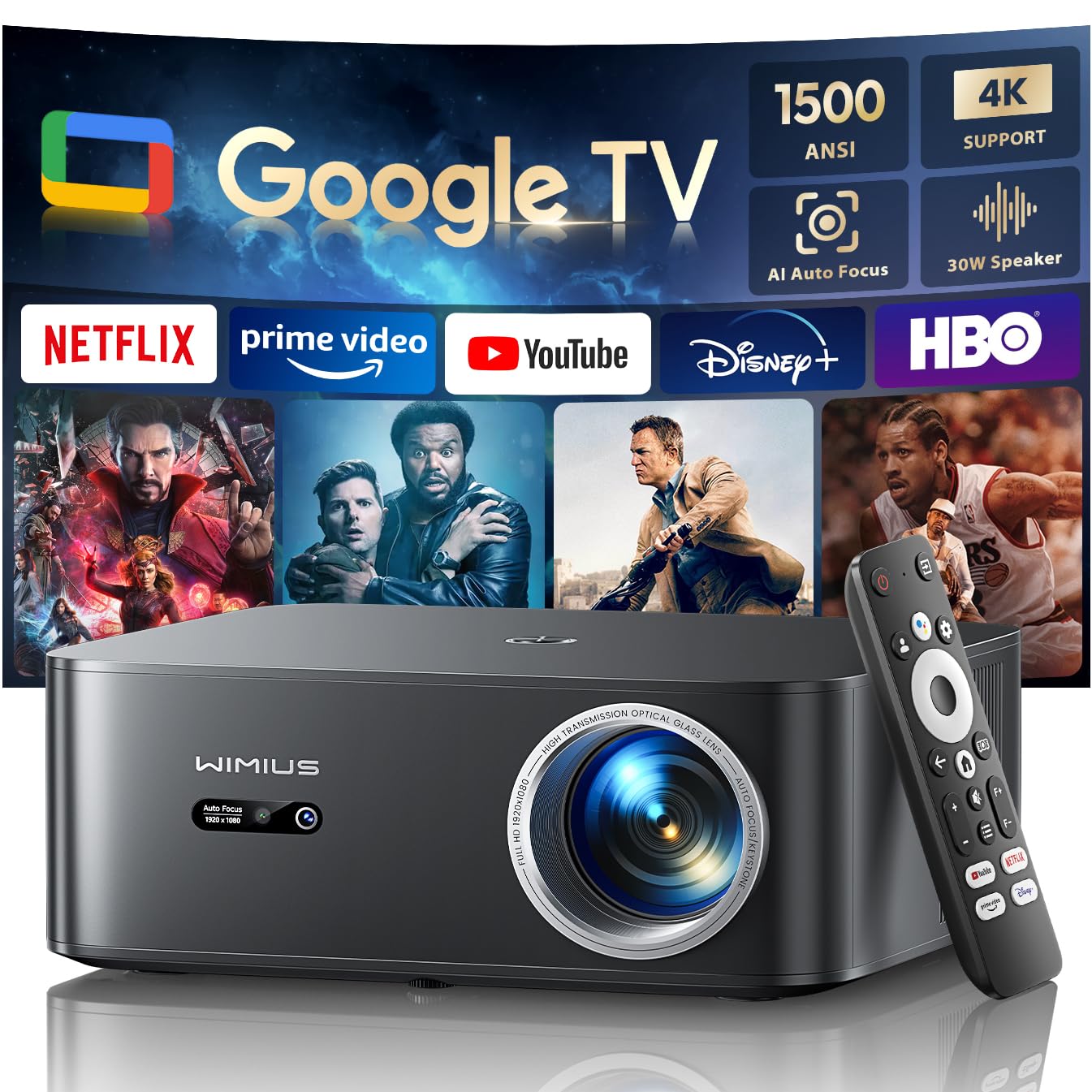
Figure 1: WiMiUS K13 4K Google TV Projector
2. Setup Guide
2.1 Ngabongkar jeung Eusi Pakét
Sacara saksama miceun sadaya komponén tina bungkusan. Pastikeun yén sadaya item aya:
- WiMiUS K13 Projector
- Remote Control (batré AAA teu kaasup)
- Kabel Daya
- Kabel HDMI
- Manual pamaké
2.2 Nempatkeun
Position the projector on a stable, flat surface. For optimal image quality, ensure the projector lens is perpendicular to the projection surface. Recommended projection distance is 2.5 to 3 meters for a large screen size.
- Pamasangan Tabletop: Place the projector on a table or stand.
- Pasang siling/Dinding: The projector features M5 screw holes for compatible ceiling or wall mounts. Ensure the mount is securely installed and can support the projector's weight.
- Pamasangan tripod: The K13 projector does not have dedicated tripod mounting holes. Use a tripod equipped with a tray to support the projector.
2.3 Sambungan Daya
Connect the power cable to the projector's power input port, then plug the other end into a power outlet. The power indicator light will illuminate.
2.4 Mimiti Power-on jeung Setup Dasar
Press the power button on the projector or remote control to turn on the device. Upon first use, follow the on-screen prompts to:
- Pilih basa anu anjeun pikaresep.
- Connect to a Wi-Fi network (2.4G or 5G) for internet access.
- Log in with your Google account to access Google TV features and applications.
2.5 Fokus Otomatis sareng Koreksi Keystone
The WiMiUS K13 projector is equipped with automatic focus and keystone correction. After powering on or moving the projector, it will automatically adjust the image to achieve a clear, rectangular display. Manual adjustments are also available in the settings menu if needed.
3. Parentah Operasi
3.1 Remote Control and Google Voice Assistant
Use the provided remote control to navigate the Google TV interface. The remote includes dedicated buttons for popular streaming services like Netflix, Prime Video, YouTube, and Disney+. Utilize the integrated Google Voice Assistant by pressing the microphone button on the remote and speaking commands to search for content, adjust volume, or launch applications.
3.2 Google TV and Application Usage
The projector runs on an officially certified Android 11.0 Google TV system, providing access to over 10,000 applications from the Google Play Store. Navigate through the home screen to find installed apps or download new ones. Ensure a stable internet connection for optimal streaming performance.
3.3 Layar pangeunteungan
The projector supports wireless screen mirroring from various devices:
- AirPlay (alat iOS): Connect your iOS device and the projector to the same Wi-Fi network. Select the AirPlay option on your iOS device and choose the projector from the list of available devices.
- Miracast (alat Android/Windows): Enable Miracast or Screen Mirroring on your Android or Windows device. Select the projector from the detected devices.
3.4 Nyambungkeun Alat éksternal
The WiMiUS K13 offers multiple connectivity options:
- Port HDMI: Connect gaming consoles, laptops, Blu-ray players, or other HDMI-enabled devices. Select the corresponding HDMI input from the projector's source menu.
- Port USB: Selapkeun USB drive pikeun muterkeun media files (videos, photos, documents like PPT, Excel, Word).
- Kaluaran Audio 3.5mm: Connect external headphones or speakers via the audio jack.
3.5 Kaluaran Audio
The projector features integrated 20W speakers for clear audio. For enhanced sound, you can connect external audio systems:
- Bluetooth 5.2: Pasangkeun sareng spiker Bluetooth atanapi headphone kanggo audio nirkabel.
- HDMI ARC: Connect to a soundbar or AV receiver that supports HDMI ARC for simplified audio setup and control.
3.6 Fungsi zum
Adjust the screen size from 50% to 100% using the digital zoom function in the settings menu. This allows you to resize the image without physically moving the projector.

Figure 2: Outdoor movie experience with the WiMiUS K13 Projector

Figure 3: Outdoor sports viewing with the WiMiUS K13 Projector
4. Pangropéa
4.1 beberesih lénsa
Gently clean the projector lens with a soft, lint-free cloth or a lens cleaning brush. Avoid using abrasive materials or harsh chemicals, which can damage the lens coating.
4.2 Ventilation Care
Ensure the projector's ventilation openings are clear and unobstructed to prevent overheating. Regularly check for dust accumulation and clean as necessary using a soft brush or compressed air.
4.3 Panyimpenan
When not in use for extended periods, store the projector in a cool, dry, and dust-free environment. Use the original packaging or a protective case to prevent damage.
5. Cara ngungkulan
If you encounter issues with your WiMiUS K13 projector, refer to the following common problems and solutions:
| Masalah | Mungkin Cukang lantaranana | Solusi |
|---|---|---|
| Taya gambar ditémbongkeun | Kabel listrik pegat, sumber input salah, alat teu dihurungkeun. | Check power connection, ensure projector is on, select correct HDMI/USB input. |
| Gambar kabur | Out of focus, lens dirty, projector moved. | Allow auto-focus to adjust, clean the lens, manually adjust focus if needed. |
| Gambar distorsi (bentuk trapesium) | Projector teu jejeg layar. | Allow auto-keystone correction to adjust, manually adjust keystone in settings. |
| Taya sora | Volume too low, incorrect audio output selected, external device audio issue. | Increase volume, check audio output settings (internal, Bluetooth, HDMI ARC), verify external device audio. |
| Teu bisa nyambung ka Wi-Fi/Bluetooth | Sandi salah, di luar jangkauan, masalah jaringan. | Verify password, move closer to router/device, restart projector and router/device. |
| Kadali jauh teu ngabales | Batré lemah, kahalangan, remote teu dipasangkeun. | Ganti batréna, cabut nu ngahalangan, pasang deui remote upami diperyogikeun. |
6. Spésifikasi
Detailed technical specifications for the WiMiUS K13 Projector:
| Fitur | Rincian |
|---|---|
| merek | WiMiUS |
| Nomer Modél Item | K13 |
| Warna | Hideung |
| Jenis produk | Projector portabel |
| Resolusi tampilan | 1920 x 1080 (Native Full HD) |
| Resolusi tampilan maksimum | 4096 x 2160 piksel (Rojongan 4K) |
| Tipe tampilan | LCD |
| Caang | 1500 ANSI Lumens |
| Téhnologi konektipitas | HDMI, USB, 3.5mm Audio, Wi-Fi (6), Bluetooth (5.2) |
| Fitur husus | Digital Keystone Correction, Built-in Speaker, Auto Focus, Built-in Wi-Fi, Google TV |
| Alat nu cocog | Tablet, Laptop, Game Console, Speaker, Smartphone, Television |
| Pamakéan Produk anu Disarankeun | Home Cinema, Video Games, Professional, Education |
| Dimensi produk | 28L x 24.2W x 10.8H séntiméter |
| Faktor Bentuk | Portabel |
| Tipe Pamasangan | Table Mount (M5 screw holes for ceiling/wall mount) |
7. Garansi jeung Rojongan
WiMiUS is committed to providing excellent customer service and support for your K13 projector:
- Palayanan palanggan: 24/7 support is available for any inquiries or assistance you may need.
- Kawijakan ngabalikeun duit: Enjoy a 1-year refund policy from the date of purchase.
- Jangkauan Perbaikan: The projector is covered by a 3-year repair warranty.
- Bantosan Téknis: Dukungan téknis salami hirup disayogikeun pikeun produk anjeun.
For any questions or support requests regarding your WiMiUS K13 projector, please contact our customer service team via email. We are dedicated to providing a prompt and satisfactory solution.