1. Bubuka
This manual provides essential information for the safe and efficient operation of your OMTech AF 60W CO2 Laser Engraver. This versatile machine is designed for precision cutting and engraving across a wide range of materials, including wood, glass, acrylic, leather, and cardboard. Key features include a 28"x20" working area, autofocus, air assist, and 4-way pass-through capabilities for larger projects. The laser operates at Class 2 with 0.874 mW output power.
Gambar 1: Leuwihview of the OMTech AF 60W CO2 Laser Engraver's main features.
2. Émbaran Kasalametan
Your OMTech AF 60W CO2 Laser Engraver is a Class 2 laser product. Adherence to safety guidelines is paramount to prevent injury and ensure proper machine function.
- Perlindungan panon: Always wear appropriate laser safety glasses when operating the machine, even with the flame-resistant observation window.
- Ventilasi: Ensure the efficient exhaust system is properly connected and functioning to direct hazardous debris and fumes away from the engraving surface and into your ventilation system. Operating without adequate ventilation can be harmful.
- Kasalametan seuneu: Keep a fire extinguisher nearby. Never leave the machine unattended during operation, especially when cutting flammable materials.
- Stopan Darurat: Biasakeun diri anjeun sareng lokasi sareng operasi tombol eureun darurat.
- Kasaluyuan bahan: Only engrave or cut materials approved for CO2 lasers. Avoid materials that produce toxic fumes or are highly reflective. Refer to the material compatibility table in the Operating section.

Figure 2: The flame-resistant window allows for safe observation during the engraving process.
3. Setélan
Proper setup is crucial for optimal performance and safety. Follow these steps to prepare your laser engraver for use:
- Unpacking sareng Penempatan: Carefully unpack the machine. Place it on a stable, level surface in a well-ventilated area, away from flammable materials.
- Connect Exhaust System: Attach the provided exhaust hose to the machine's exhaust port and route it to an external vent or a dedicated fume extractor.
- Sambungkeun Bantuan Udara: Connect the air assist pump to the designated port on the machine. Air assist helps to clear debris and reduce scorching during operation.
- Connect Water Chiller: Connect the water chiller (or pump) to the laser tube's inlet and outlet ports. Ensure the chiller is filled with distilled water and operating correctly to maintain the laser tube's temperature.
- Sambungan Daya: Sambungkeun mesin ka outlet listrik grounded.
- Pamasangan parangkat lunak: Install the necessary software (RDWorks, LightBurn, CorelDRAW, AutoCAD) on your computer and connect it to the laser engraver via USB or Ethernet.
- Initial Alignment & Focus: While machines are often pre-aligned, it is recommended to verify mirror alignment and focal length according to the detailed instructions in the full user manual. The autofocus function will assist with setting the correct focal distance.

Figure 3: The OMTech AF 60W Laser Engraver ready for setup.
4. Parentah Operasi
Operating your OMTech laser engraver involves a few key steps to ensure precise and successful results.
4.1 Powering On and Control Panel
- Turn on the main power switch, then the laser power switch.
- Use the digital control panel to navigate menus, load files, tur saluyukeun setelan.

Figure 4: The digital control panel for easy operation and software compatibility.
4.2 Loading Materials and Autofocus
- Place your material on the appropriate workbed (honeycomb for cutting, blade for engraving). The machine features dual engraving beds.
- Utilize the autofocus function by pressing the dedicated button. This automatically sets the correct focal distance for your material, ensuring sharp and clean results.

Figure 5: The rapid autofocus feature eliminates manual adjustments.
4.3 Setting Parameters and 4-Way Pass-Through
- Adjust laser power and engraving/cutting speed in your software (RDWorks, LightBurn, etc.) based on the material and desired outcome. The maximum engraving speed is 600 mm/s.
- For oversized projects, utilize the 4-way pass-through doors. This allows you to feed longer or wider materials through the machine, expanding your working area beyond the 28"x20" bed.
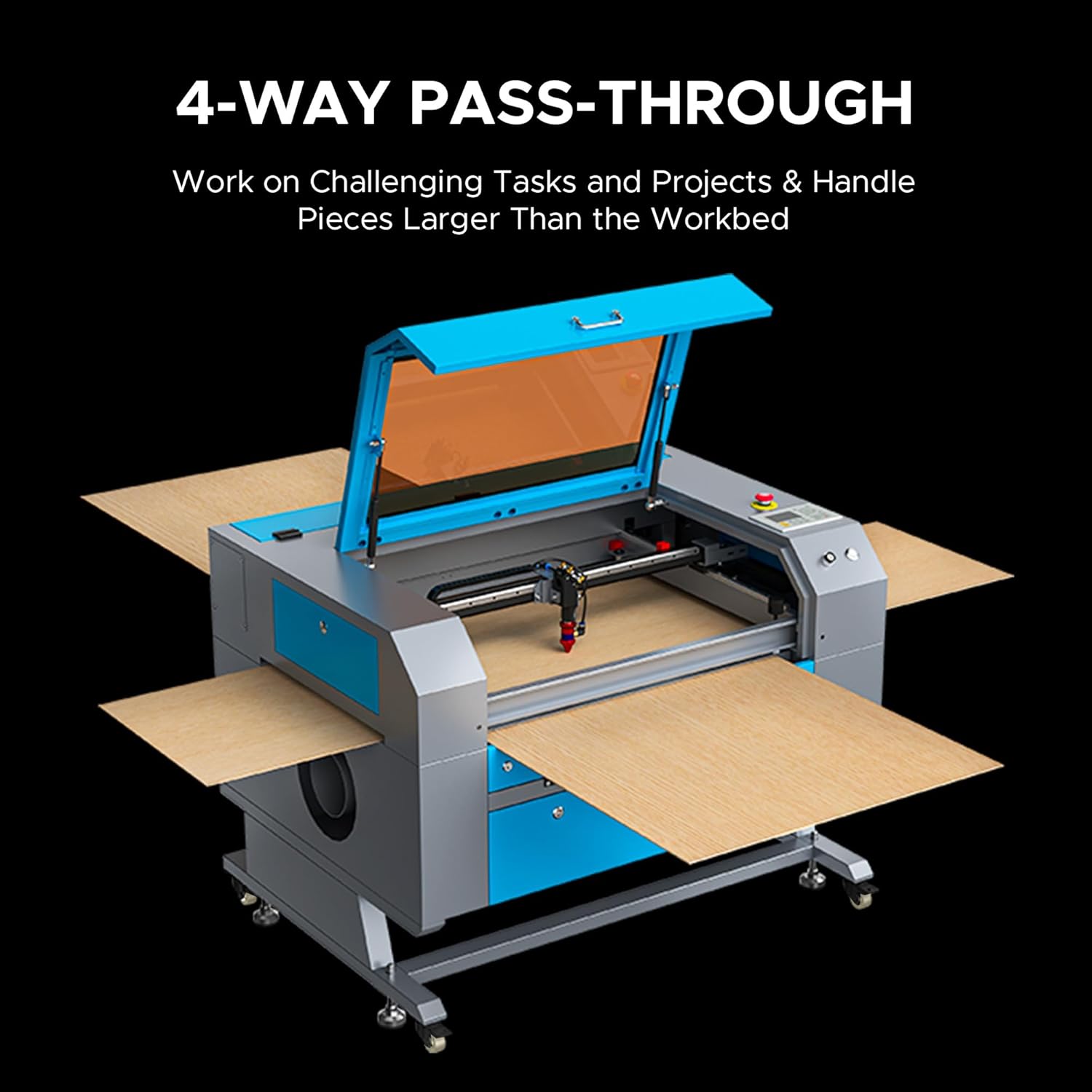
Figure 6: The 4-way pass-through feature for handling large materials.
4.4 Bahan kasaluyuan
The OMTech AF 60W CO2 Laser Engraver is compatible with a variety of materials for both engraving and cutting. Refer to the table below for common materials:

Figure 7: Material compatibility chart for engraving and cutting.
Video 1: Hiji leuwihview of the OMTech Laser Engraver, demonstrating its use for various projects and materials. This video is provided by OMTech Direct.
5. Pangropéa
Regular maintenance ensures the longevity and consistent performance of your laser engraver.
- Ngabersihan Area Kerja: Regularly clean the honeycomb and blade workbeds to remove debris and residue from cutting and engraving. This prevents buildup that can affect material placement and laser performance.
- Pembersihan Optik: Periodically clean the laser lens and mirrors with appropriate optical cleaning solutions and wipes to maintain laser beam quality and power.
- Laser Tube Maintenance: Monitor the laser tube's performance. The high-performance 60W DC tube runs strong for up to 1,000 hours, and up to 12,000 hours when used efficiently at lower settings. Replacement is straightforward if needed.
- Pangropéa Pendingin Cai: Ensure the water chiller is clean and filled with distilled water. Regularly check for proper water flow and temperature.
- Exhaust System Check: Inspect the exhaust fan and ducting for blockages or leaks to ensure efficient fume extraction.
6. Cara ngungkulan
If you encounter issues with your OMTech laser engraver, consider the following common troubleshooting steps:
- Kualitas Potongan/Ukiran Goréng: Check laser power and speed settings for the specific material. Verify lens and mirror cleanliness and alignment. Ensure the material is flat and properly focused.
- Laser Teu Tembak: Confirm all safety interlocks (lid closed, water flow sensor) are engaged. Check the laser power supply and tube connections.
- Mesin teu ngabales: Verify power connections and software communication. Restart the machine and computer.
- Haseup / Haseup kaleuleuwihan: Inspect the exhaust system for blockages or fan malfunction. Ensure proper ventilation is established.
For more detailed troubleshooting or persistent issues, refer to the comprehensive user manual or contact OMTech customer support.
Video 2: A ulangview from 'Laser Guys from OMTech' discussing their experience with OMTech lasers, including setup and operation tips. This video is provided by OMTech Direct.
7. Spésifikasi
| Fitur | Rincian |
|---|---|
| Nomer modél | SH-G570 |
| Produsén | OMTech |
| Kelas laser | Class 2 (0.874 mW output power) |
| Dipeunteun Power | 60W |
| Max. Laju ukiran | 600 mm/s |
| Wewengkon Gawé | 28" x 20" |
| Max. Kedalaman Pemotongan (Kayu) | Nepi ka 0.4" |
| Max. Cutting Depth (Acrylic) | Nepi ka 0.8" |
| Laser tube Kahirupan | Up to 1,000 hours (up to 12,000 hours with efficient use) |
| Beurat Mesin | 249.1 lb. |
| Side/Side Pass Size | 19.7" x 0.8" |
| Front/Back Pass Size | 31.5" x 3.9" |
| Dimensi Mesin | 47.2" x 34.3" x 36.6" |
| Kasaluyuan software | RDWorks, LightBurn, CorelDRAW, AutoCAD |

Figure 8: Detailed specifications of the OMTech AF 60W Laser Engraver.
8. Garansi jeung Rojongan
OMTech is committed to providing excellent customer service and support for your laser engraver.
- Garansi: Mangga tingal dokuméntasi pameseran Anjeun pikeun detil jaminan husus.
- Bantosan Téknis: Benefit from U.S.-based technical support to resolve any issues you encounter.
- Palayanan palanggan: Access 24/7 online customer service for assistance.
- Support Duration: The product includes two-year support.
Pikeun pitulung salajengna, buka di OMTech Store atanapi ngahubungi tim dukunganana sacara langsung.