Bubuka
This manual provides essential instructions for setting up, operating, and maintaining your Epson EcoTank L1270 WiFi printer. Please read this guide thoroughly to ensure proper use and to maximize the performance and longevity of your device. The Epson EcoTank L1270 is an inkjet printer designed for efficient printing with a rechargeable ink tank system and Wi-Fi connectivity.
1. Setélan
1.1 Ngabongkar bungkusan Printer
Kaluarkeun printer tina bungkusna kalawan ati-ati. Pastikeun sadaya pita pelindung sareng bahan parantos dicabut tina bagian luar sareng jero printer. Simpen bahan bungkusna kanggo transportasi atanapi panyimpenan ka hareup.
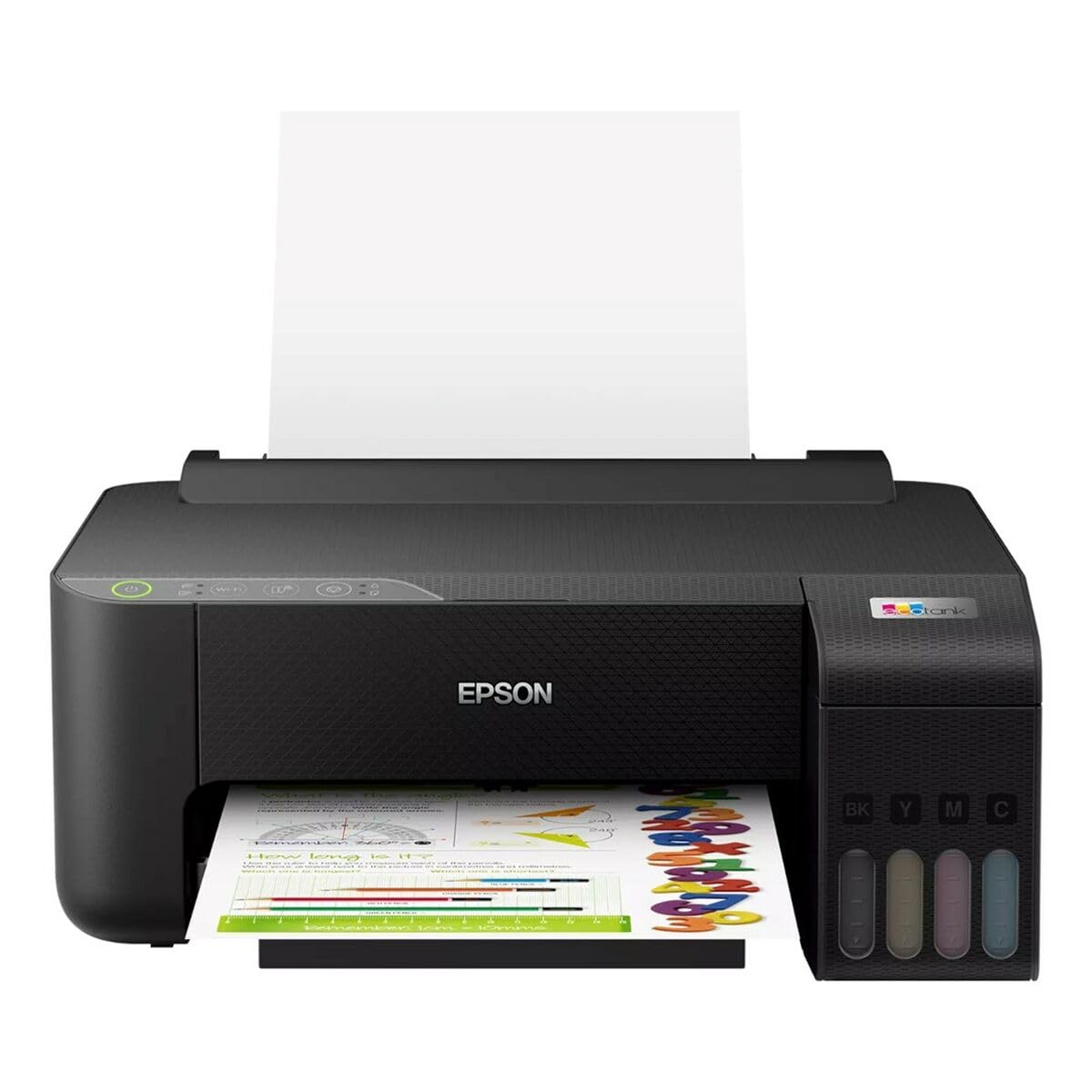
Image 1.1: Epson EcoTank L1270 WiFi Printer. This image shows the printer ready for initial setup after unpacking.
1.2 Ngeusian Tangki Tinta
The EcoTank L1270 uses a refillable ink tank system. Follow these steps to fill the ink tanks:
- Open the ink tank unit cover on the printer.
- Uncap the ink bottle for the corresponding color. Each bottle is keyed to fit only the correct tank.
- Lebetkeun botol tinta kana liang pangisi. Tinta bakal otomatis ngeusian tangki. Ulah dipencet botolna.
- Sakali tank pinuh, piceun botol jeung recap eta. Tutup panutup unit tanki tinta.
- Ngulang pikeun sakabéh kelir.
Catetan: Use only genuine Epson ink bottles to prevent damage and ensure optimal print quality.
1.3 Sambungan Daya
Connect the power cord to the printer and then to a wall outlet. Press the power button to turn on the printer. The printer will perform an initial setup process, which may take a few minutes.
1.4 Parangkat Lunak sareng Pamasangan Supir
To use your printer, you need to install the necessary drivers and software on your computer. Visit the official Epson support website for the EcoTank L1270 model to download the latest drivers and utilities. Follow the on-screen instructions provided by the installer.
- Pindah ka Rojongan Epson.
- Milarian pikeun "EcoTank L1270".
- Download and run the recommended driver package.
1.5 Setup Wi-Fi
The Epson EcoTank L1270 supports Wi-Fi connectivity. You can connect the printer to your wireless network using one of the following methods:
- Using the Printer's Control Panel: Navigate to the Wi-Fi settings on the printer's control panel, select your network, and enter the password.
- Using EpsonNet Setup: If installed, use the EpsonNet Setup utility on your computer to configure the wireless connection.
- WPS (Wi-Fi Protected Setup): If your router supports WPS, press the WPS button on your router, then follow the instructions on the printer's control panel to establish a connection.
2. Ngoperasikeun Printer
2.1 Loading Paper
Load paper into the rear paper feeder. Ensure the paper guides are adjusted to the width of the paper. The printer supports various paper types and sizes, up to A4.
- Fan the paper stack before loading to prevent misfeeds.
- Do not overload the paper feeder; refer to the maximum capacity (100 sheets for plain paper).
2.2 Nyitak Dokumén
Pikeun nyetak dokumén tina komputer anjeun:
- Buka dokumén anu anjeun hoyong cetak.
- Pilih "Cetak" tina ménu aplikasi (contona, File > Citak).
- Pilih "Epson EcoTank L1270" salaku printer anjeun.
- Saluyukeun setélan citak sapertos ukuran kertas, kualitas citak, sareng jumlah salinan.
- Pencét "Citak".
2.3 Duplex Printing (Two-Sided Printing)
The EcoTank L1270 supports manual duplex printing. To print on both sides of the paper:
- In your print settings, select the option for "Manual Duplex Printing" or "Print on Both Sides".
- Cetak heula kaca-kaca nu nomer ganjil.
- When prompted, reload the printed pages into the paper feeder according to the on-screen instructions to print the even-numbered pages on the reverse side.
3. Pangropéa
3.1 Mariksa Tingkat Tinta
Visually inspect the ink tanks on the front of the printer to check current ink levels. The tanks are transparent, allowing for easy monitoring. Refill ink when levels are low to avoid running out during a print job.
3.2 Ngeusian deui Tangki Tinta
When an ink tank is low, purchase genuine Epson replacement ink bottles. Follow the same procedure as described in Section 1.2 "Filling the Ink Tanks".
3.3 Ngabersihan Print Head
If print quality declines (e.g., missing lines, faded colors), perform a print head cleaning. This can be done through the printer's utility software on your computer or via the printer's control panel. Refer to the software's help guide for detailed steps.
3.4 Paper Path beberesih
If you experience paper jams or streaks on prints, the paper path may need cleaning. Consult the printer's software utility or the online manual for instructions on how to perform a paper path cleaning.
4. Cara ngungkulan
Bagian ieu ngabahas masalah umum anu anjeun tingali sareng printer Epson EcoTank L1270 anjeun.
4.1 Printer Not Printing / Blank Pages
- Pariksa tingkat tinta: Ensure all ink tanks have sufficient ink.
- Print Head Clogged: Perform a print head cleaning (see Section 3.3).
- Paper Loaded Correctly: Verify paper is loaded properly and not jammed.
- Pamasangan supir: Ensure printer drivers are correctly installed and up to date. Reinstall if necessary.
4.2 Masalah Sambungan Wi-Fi
- Router Range: Pastikeun printer aya dina jangkauan router Wi-Fi anjeun.
- Sandi jaringan: Double-check that the correct Wi-Fi password has been entered.
- Balikan deui Alat: Try restarting your printer, computer, and Wi-Fi router.
- Reconfigure Wi-Fi: Attempt to set up the Wi-Fi connection again (see Section 1.5).
4.3 Kualitas Print Miskin
- Print Head beberesih: Laksanakeun beberesih sirah cetak sareng pamariksaan nozzle.
- Jenis kertas: Ensure you are using the correct paper type for your print settings.
- Ink Quality: Use genuine Epson inks for best results.
For more complex issues, refer to the comprehensive online manual on the Epson support websitus atanapi hubungi dukungan palanggan Epson.
5. Spésifikasi
| Fitur | Rincian |
|---|---|
| merek | Epson |
| Ngaran modél | EcoTank L1270 WiFi |
| Téhnologi percetakan | Inkjet |
| Konektipitas | Wifi |
| Resolusi Cetak Maks (Warna) | 5760 x 1440 dpi |
| Resolusi Print Max (Hideung & Bodas) | 5760 dpi |
| Laju Cetak Maks (Monokrom) | 15 Kaca per menit |
| Kapasitas Kertas Maks. | 100 sheets (plain paper) |
| Percetakan duplex | Leres (Manual) |
| Fitur husus | Tangki Tinta anu tiasa dicas ulang |
| Ukuran (L x W x H) | 26P x 42,5l x 46H cm (approx.) |
6. Émbaran jaminan
The Epson EcoTank L1270 WiFi printer comes with a limited warranty. For specific terms, conditions, and duration of your warranty, please refer to the warranty documentation included with your product or visit the official Epson support websitus. Simpen bukti pameseran anjeun pikeun klaim garansi.
7. Rojongan
For further assistance, technical support, or to download the latest drivers and manuals, please visit the official Epson support websitus:
Anjeun oge bisa manggihan sumberdaya mantuan sarta FAQs on maranéhna websitus.