
1. Produk Langkungview
The Tuya WiFi Doorbell Camera is a smart video doorbell designed for home security, offering 1080P Full HD resolution and a 170° wide-angle view. It supports multiple power options and integrates with smart home ecosystems like Alexa and Google Assistant. This manual provides essential information for setup, operation, and maintenance of your new doorbell camera.
Fitur konci:
- 1080P Full HD Video with 170° Wide View Sudut.
- Dual Power Supply: Supports 12V-24V AC wired power and battery power with USB charging.
- Intelligent Voice Control: Compatible with Alexa and Google Assistant.
- PIR Motion Detection with instant APP push notifications.
- Two-Way Audio for real-time communication with visitors.
- Clear Night Vision for monitoring day and night.
- Support for Max 64G SD Card (Not Included) and Cloud Storage.
- IP55 Weather Resistant design.
- Indoor chime support with adjustable volume and multiple ringtones.

Figure 1: Tuya WiFi Doorbell Camera and its components, including the main doorbell unit, two rechargeable batteries, a MicroSD card, and the indoor chime unit.
2. Product Features in Detail
2.1. 170° Wide Angle Lens
The doorbell camera features a 170° wide-angle lens, providing an expansive view of your doorstep. This wide field of view helps reduce blind spots, ensuring comprehensive coverage for enhanced home security.

Figure 2: The 170-degree wide-angle lens captures a broad area, enhancing surveillance coverage.
2.2. Deteksi Gerak PIR
Equipped with a highly sensitive PIR (Passive Infrared) motion sensor, the doorbell detects movement in its vicinity. Upon detection, the doorbell instantly wakes up and sends an alert notification to your mobile application, helping you stay informed of any activity at your door.
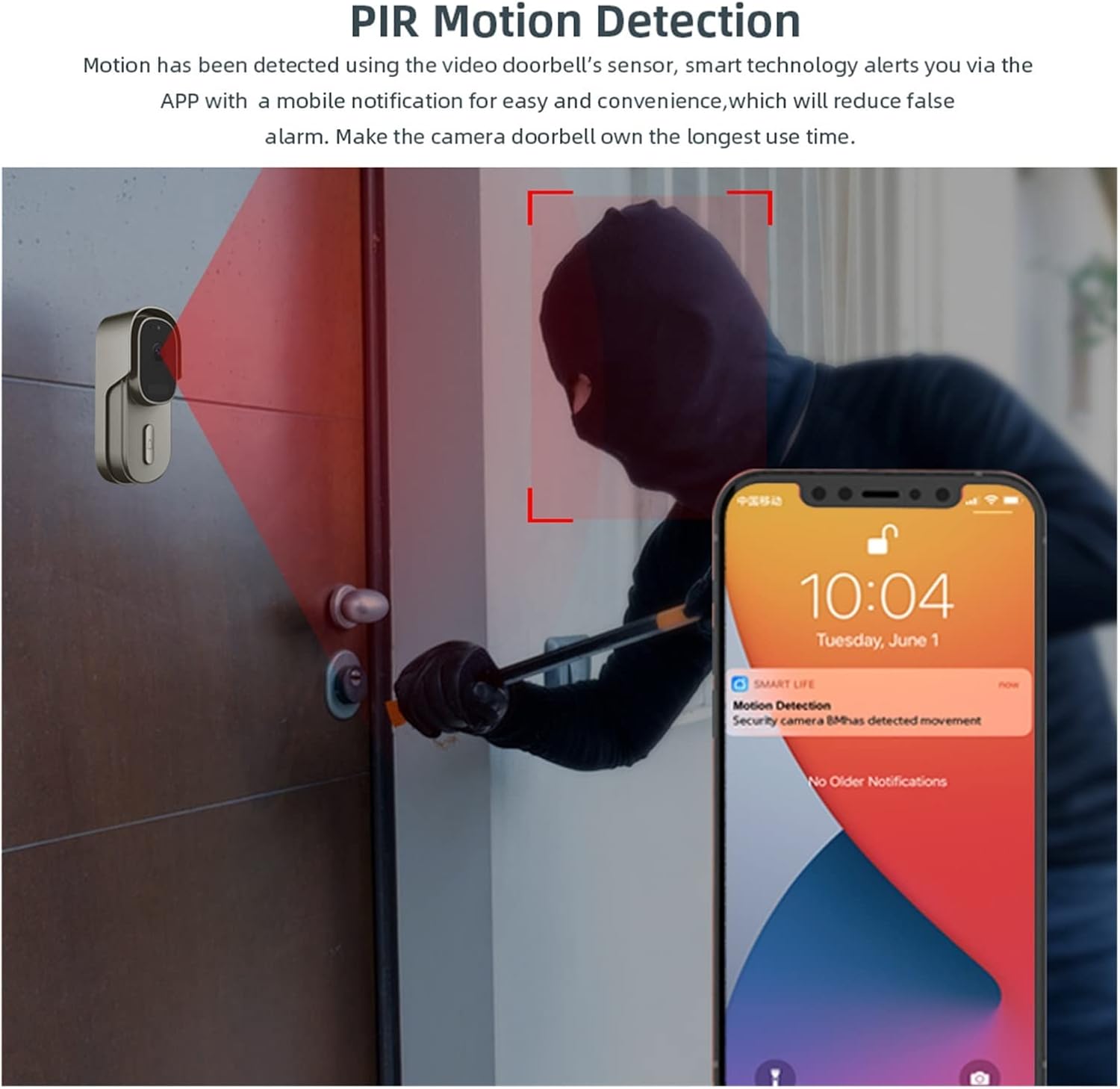
Figure 3: PIR Motion Detection alerts you to activity, pushing notifications directly to your smartphone.
2.3. Information Push & Remote Video Calls
When a visitor presses the doorbell button, the mobile application automatically pushes a message to your phone. This allows you to receive notifications and initiate remote video calls with the visitor, even without opening the door.

Figure 4: Instant notifications and remote video call capability when the doorbell is pressed.
2.4. Intelligent Voice Control Integration
The doorbell camera is compatible with Amazon Alexa and Google Assistant. When someone presses the doorbell, your smart speaker or display will announce "Someone press the doorbell." You can also command your smart display, such as "Hey Alexa, show me front door," to view a live feed from the doorbell.

Figure 5: Seamless integration with smart home voice assistants for convenient monitoring.
2.5. Dual Power Supply Option
This wireless video doorbell offers flexible power options. It can be powered by 12V-24V AC hard-wired connections or by rechargeable batteries. Note that while AC power can maintain operation, it does not charge the battery; battery charging is done via a USB cable. The device also features a low battery alert system that sends a notification to your app when the battery level is low, reminding you to recharge or replace the batteries.
2.6. IP55 Weather Resistant
The doorbell is designed with an IP55 weather resistance rating, ensuring reliable performance and crystal-clear image quality even in challenging weather conditions, including rain and dust.
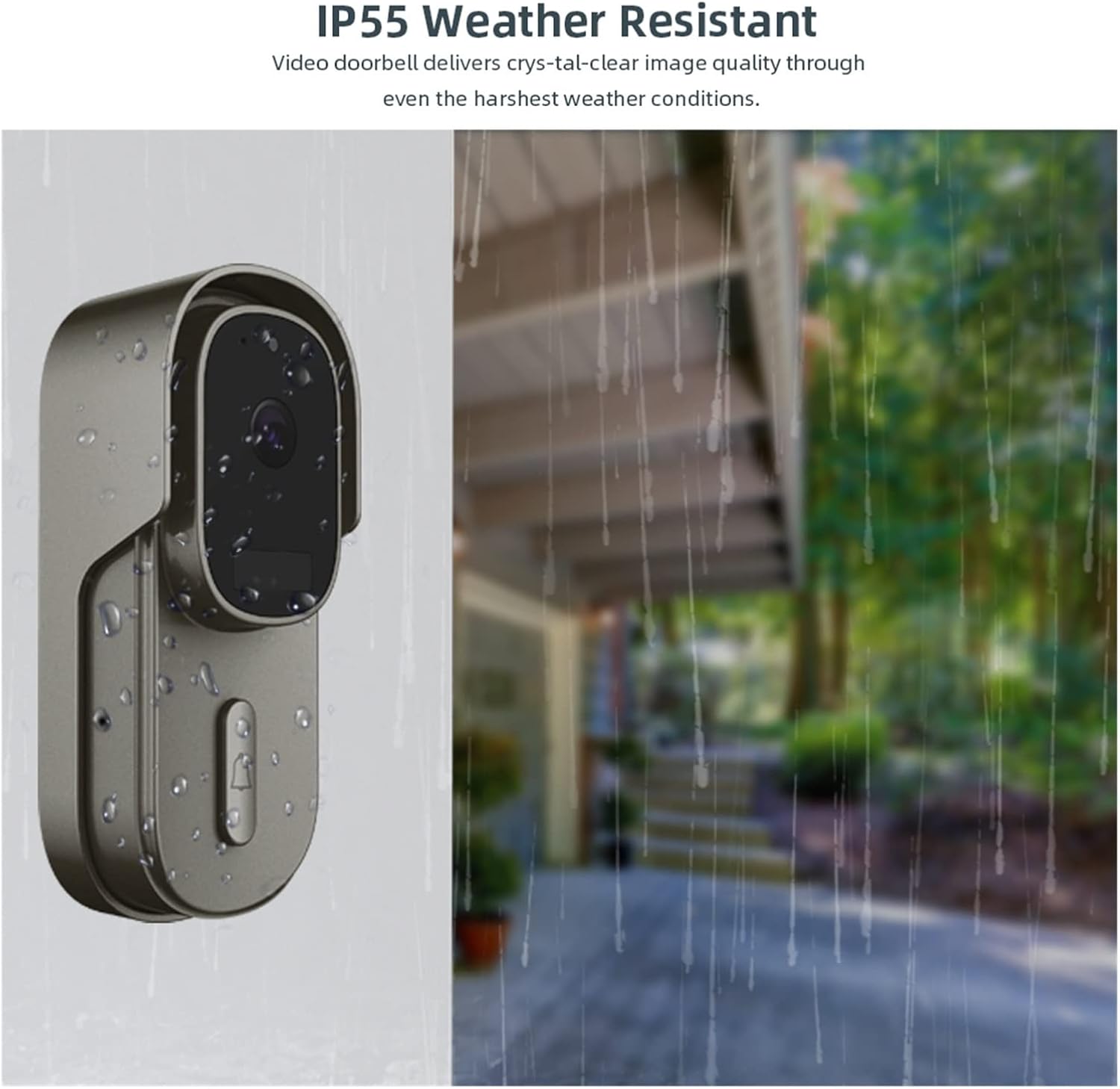
Figure 6: The IP55 rating ensures durability and performance in various weather conditions.
3. Setup Guide
3.1. Sateuacan Instalasi
- Ensure your home WiFi network is 2.4GHz. The doorbell does not support 5GHz WiFi.
- Charge the doorbell batteries fully using a USB cable before initial use, even if planning to hardwire.
- Download the "Smart Life" or "TuyaSmart" app from Google Play Store or Apple App Store.
- Ensure your mobile device is connected to the 2.4GHz WiFi network you intend to connect the doorbell to.
3.2. App Setup and Device Pairing
- Open the "Smart Life" or "TuyaSmart" app and register/log in to your account.
- Ketok ikon "+" di pojok katuhu luhur pikeun nambahkeun alat.
- Select "Security & Video Surveillance" and then "Smart Doorbell" or "Video Doorbell".
- Follow the on-screen instructions to put the doorbell into pairing mode (usually by pressing and holding a button until an indicator light flashes).
- Enter your 2.4GHz WiFi network password when prompted.
- Scan the QR code displayed on your phone with the doorbell camera. Hold the phone approximately 15-20 cm (6-8 inches) from the doorbell lens.
- Wait for the doorbell to connect to the network. Once connected, you will hear a confirmation sound, and the device will appear in your app.
- Rename the doorbell for easy identification (e.g., "Front Doorbell").
3.3. Instalasi fisik
- Choose a suitable mounting location near your front door, ensuring a clear view and good WiFi signal strength.
- If using hardwired power (12V-24V AC), ensure power is off at the breaker before connecting wires. Connect the existing doorbell wires to the terminals on the back of the doorbell camera.
- Mount the doorbell bracket to the wall using the provided screws and anchors.
- Attach the doorbell unit to the mounted bracket, ensuring it is securely fastened.
- If using battery power, insert the charged batteries into the doorbell unit.
- Turn on the power at the breaker if hardwired.
4. Parentah Operasi
4.1. Hirup View sareng Audio Dua Arah
- Open the "Smart Life" or "TuyaSmart" app and select your doorbell device.
- Pencét langsung view to see real-time video from your doorbell.
- To speak with a visitor, tap the microphone icon in the app. Speak clearly into your phone. Tap again to mute.
- To listen to the visitor, ensure the speaker icon in the app is enabled.
4.2. Responding to Doorbell Presses and Motion Alerts
- When someone presses the doorbell or motion is detected, you will receive a push notification on your smartphone.
- Tap the notification to immediately open the app and view siaran langsung atanapi acara anu direkam.
- Ti live view, you can initiate two-way audio communication.
4.3. Wawasan Peuting
The doorbell camera automatically switches to night vision mode in low-light conditions, providing clear black-and-white video footage to ensure continuous monitoring even in complete darkness.
4.4. Rekaman Video jeung Playback
- The doorbell supports local storage via a MicroSD card (up to 64GB, not included) and cloud storage (subscription may be required).
- Recorded events (motion detection, doorbell presses) are stored automatically.
- Ka view recordings, navigate to the "Playback" or "Cloud Storage" section within the app for your doorbell device.
- Select the date and time to review dirékam footage.
5. Pangropéa
- beberesih: Usap lénsa kaméra sareng bagian luar bel panto sacara berkala nganggo kaén anu lemesamp lawon pikeun miceun lebu sareng noda. Entong nganggo bahan kimia anu keras atanapi pembersih anu abrasif.
- Manajemén batré: If using battery power, ensure batteries are charged when the low battery alert is received. For optimal battery life, avoid extreme temperatures.
- Pembaruan firmware: Check the app regularly for firmware updates. Keeping your doorbell's firmware up-to-date ensures optimal performance and security.
- Sambungan WiFi: Ensure your doorbell remains within a strong WiFi signal range. Poor signal can affect performance and battery life.
6. Cara ngungkulan
| Masalah | Mungkin Cukang lantaranana | Solusi |
|---|---|---|
| Doorbell not connecting to WiFi. | Incorrect WiFi password; 5GHz WiFi network; doorbell too far from router; weak signal. |
|
| Taya bewara push. | App notification settings disabled; phone's notification settings disabled; doorbell offline. |
|
| Kualitas video goréng atanapi lag. | Weak WiFi signal; network congestion. |
|
| Doorbell turns off after 15 seconds. | Doorbell button held for too long. |
|
If you encounter issues not listed here or require further assistance, please contact customer support for detailed information.
7. Spésifikasi
| Fitur | Rincian |
|---|---|
| Resolusi | 1920*1080P HD lengkep |
| View Sudut | 170 ° Wide Angle |
| Sasayogian tanaga | DC/AC 12V-24V (wired), Battery Powered, USB Charging |
| Panyimpenan | Max 64G SD Card (Not Include), Cloud Storage |
| Kasaluyuan Aplikasi | Smart Life, TuyaSmart |
| Asisten sora | Amazon Alexa, Asisten Google |
| Résistansi Cuaca | IP55 |
| Produsén | YUD5DAS |
| Negara asal | Cina |
8. Garansi jeung Rojongan
This product is covered by a standard manufacturer's warranty. For specific warranty terms and conditions, please refer to the documentation included with your purchase or contact the seller directly.
For technical support, troubleshooting assistance, or any inquiries regarding your Tuya WiFi Doorbell Camera, please contact the seller or manufacturer through the platform where you purchased the product. They will provide detailed information and support.