1. Bubuka
Thank you for choosing the Acer B277UD6b monitor. This manual provides essential information for setting up, operating, and maintaining your monitor. Please read this manual thoroughly before using the product to ensure proper installation and optimal performance. Keep this manual for future reference.

Gambar 1.1: Hareupeun view of the Acer B277UD6b monitor, showcasing desain ramping na aréa tampilan.
2. Émbaran Kasalametan
Observe the following safety precautions to prevent damage to the monitor and ensure your safety:
- Ulah nempatkeun monitor dina karanjang, stand, atawa meja nu teu stabil.
- Entong meungpeung lawang angin.
- Do not use near water or in high humidity environments.
- Anggo ngan ukur kabel daya sareng adaptor anu disayogikeun ku produsén.
- Rujuk sadayana jasa ka tanaga jasa anu mumpuni.
- Unplug the monitor from the wall outlet before cleaning.
3. Eusi Paket
Pastikeun yén sadaya item aya dina pakét anjeun. Upami aya barang anu leungit atanapi rusak, hubungi pangecér anjeun.
- Acer B277UD6b Monitor
- Stand Monitor (Dasar sareng Beuheung)
- Power Cord (AC-In C14)
- Kabel DisplayPort
- Kabel HDMI
- VGA Kabel
- Manual pamaké sarta Dokuméntasi
4. Setélan
4.1. Ngarakit Monitor Stand
- Taliti cabut monitor jeung nangtung komponén tina bungkusan.
- Pasang beuheung nangtung ka panel monitor. Pastikeun éta ngaklik aman kana tempatna atanapi dipasang ku sekrup upami disayogikeun.
- Attach the stand base to the stand neck. Tighten the thumb screw or screws at the bottom of the base to secure it.
- Teundeun monitor dirakit dina stabil, permukaan datar.

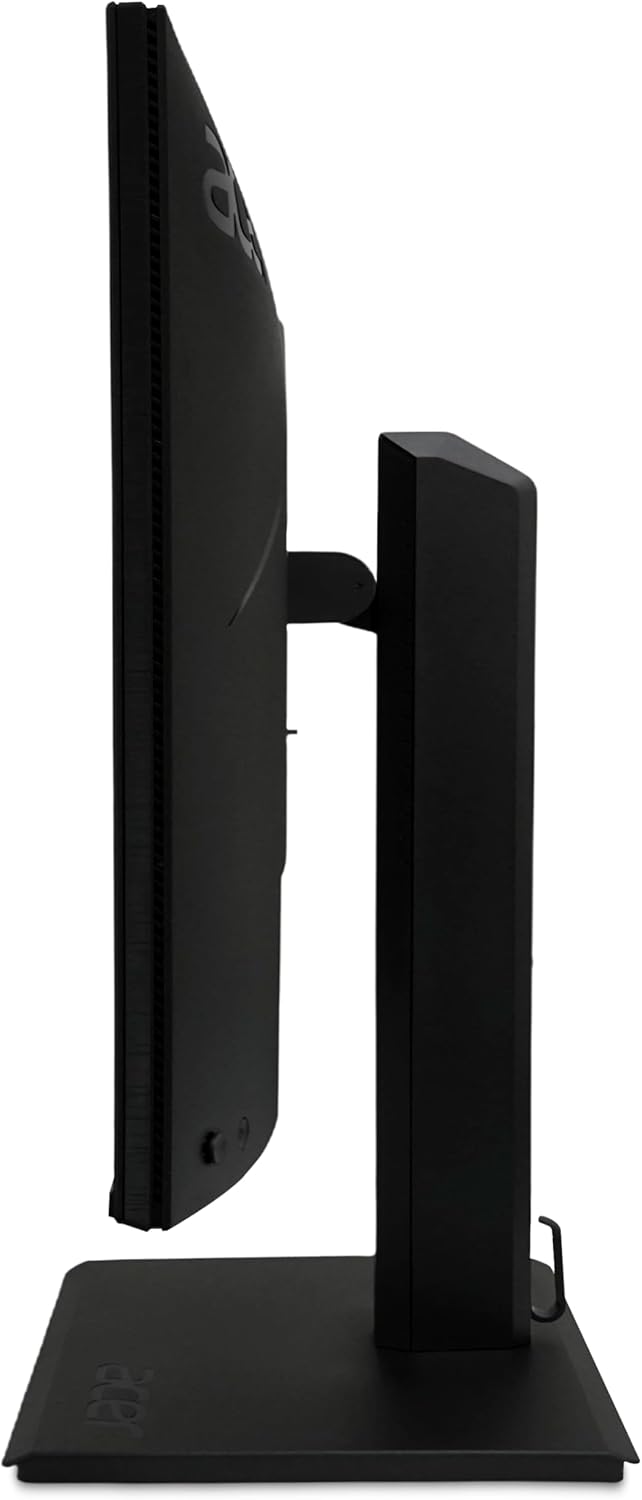
Gambar 4.1: Sisi view of the Acer B277UD6b monitor, illustrating its profile and stand attachment point.
4.2. Nyambungkeun Monitor
Sambungkeun monitor ka komputer sareng sumber daya nganggo kabel anu cocog.
- Sambungan Daya: Connect the power cord to the AC-In C14 port on the monitor and then to a wall outlet.
- Sambungan Video: Pilih salah sahiji sambungan vidéo ieu:
- DisplayPort: Sambungkeun hiji tungtung kabel DisplayPort kana input DisplayPort monitor sareng tungtung anu sanésna kana output DisplayPort komputer anjeun.
- HDMI: Connect one end of the HDMI cable to the monitor's HDMI 1.4 input and the other end to your computer's HDMI output.
- VGA: Connect one end of the VGA cable to the monitor's VGA input and the other end to your computer's VGA output.
- Pastikeun sadaya sambungan aman.
Gambar 4.2: Balik view of the Acer B277UD6b monitor, highlighting the various input ports including DisplayPort, HDMI, VGA, and AC-In.
5. Parentah Operasi
5.1. Powering on / Pareum
Press the power button, usually located on the bottom right or back of the monitor, to turn the monitor on or off. The power indicator light will illuminate when the monitor is on.
5.2. Menu dina Layar (OSD).
The OSD menu allows you to adjust various monitor settings such as brightness, contrast, color, input source, and more. Access the OSD menu using the buttons located on the monitor (typically on the back or bottom edge).
- Press an OSD button to activate the menu.
- Use the navigation buttons (up/down/left/right or joystick) to browse through menu options.
- Pencét tombol pilih/lebetkeun pikeun mastikeun pilihan atanapi lebetkeun sub-menu.
- Pencét tombol kaluar pikeun nutup menu OSD.
5.3. Pamilihan Sumber Input
If you have multiple devices connected to the monitor, you can switch between input sources using the OSD menu or a dedicated input select button.
6. Pangropéa
6.1. Ngabersihan Monitor
To clean the monitor, ensure it is powered off and unplugged from the power outlet.
- layar: Ngusap layar nganggo kaén anu lembut sareng teu aya serat. Pikeun tanda pengkuh, enteng dampBilas lawon ku cai atanapi pembersih layar anu henteu ngandung amonia sareng henteu ngandung alkohol. Ulah nyemprotkeun pembersih langsung kana layar.
- Casing: Make kaen nu lemes tur garing pikeun ngusap monitor casing. Ngahindarkeun cleaners abrasive.
6.2. Panyimpenan
If storing the monitor for an extended period, disconnect all cables and pack it in its original packaging to protect it from dust and physical damage.
7. Cara ngungkulan
Upami anjeun mendakan masalah sareng monitor anjeun, tingali léngkah-léngkah ngungkulan umum ieu:
| Masalah | Solusi anu mungkin |
|---|---|
| Henteu aya gambar dina layar | Ensure the power cable is securely connected. Check if the monitor is powered on. Verify the video cable is connected to both the monitor and the computer. Select the correct input source via the OSD menu. |
| Gambar buram atanapi menyimpang | Check the video cable connection. Ensure the display resolution and refresh rate are set correctly in your computer's display settings (2560x1440 at 120Hz recommended). |
| Teu aya sora (upami aya) | Check audio cable connections (if external speakers are used). Adjust volume settings on the monitor and computer. |
| Ngawas kedip-kedip | Ensure the video cable is securely connected. Try a different video cable or port. Update your graphics card drivers. |
8. Spésifikasi
Detailed technical specifications for the Acer B277UD6b monitor:
- Ngaran modél: Vero B277UD6bmiiprczx
- runtuyan: B277UD6b
- Ukuran layar: 27 inci (68.6 cm)
- Resolusi: 2560 x 1440 (QHD)
- Rasio Aspék: 16:9
- Laju Refresh: 120 Hz
- Waktu ngaréspon: 1 Milidetik
- Rojongan Warna: 8 bits (16.7 million colors, 6 bits + 2 bits FRC)
- Permukaan tampilan: Anti-glare (Antirreflectores), Hardness 3H
- Konektipitas:
- 1x DisplayPort 1.2 (supports 75Hz@1920x1080)
- 1x HDMI 1.4 (supports 75Hz@1920x1080)
- 1x VGA (supports 60Hz@1920x1080)
- 1x AC-In C14 (Power Connection)
- Ukuran (W x D x H): 57.1 x 61.1 x 36.5 cm
- beurat: 8 kg
- warna: Hideung
9. Garansi jeung Rojongan
Kanggo inpormasi garansi sareng dukungan téknis, mangga tingal kartu garansi anu kalebet dina produk anjeun atanapi kunjungan dukungan resmi Acer website. You may need your product's serial number and proof of purchase when contacting support.
Rojongan Acer Websitus: www.acer.com/support


