
1. Bubuka
The BAOFENG CH340 USB Programming Cable is designed to facilitate the programming of various Baofeng and compatible two-way radios. This cable allows users to connect their radio to a computer for efficient management of frequency lists, settings, and other radio parameters using compatible software.
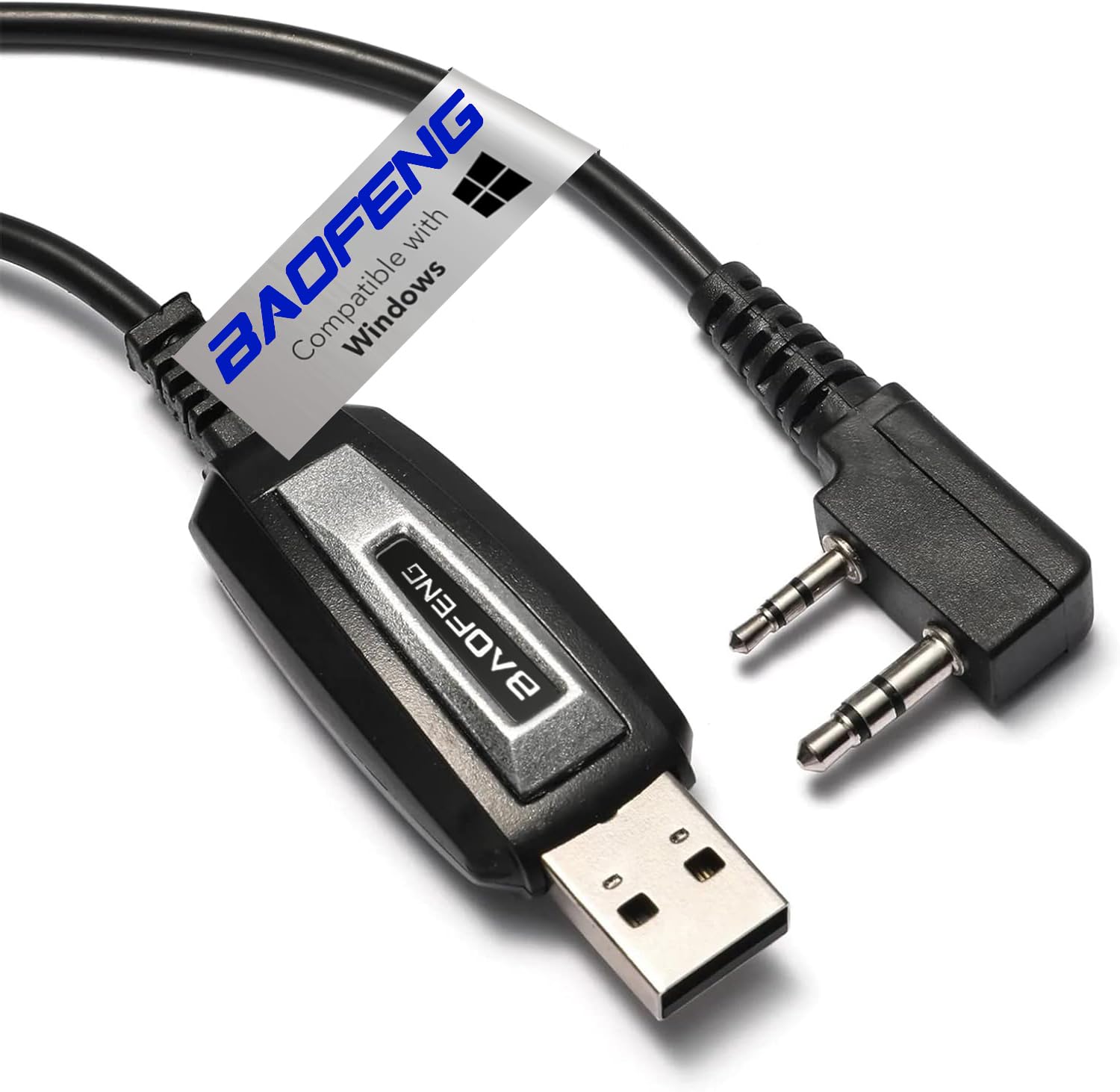
Image 1.1: BAOFENG CH340 USB Programming Cable connected to a two-way radio.
2. Setup Guide
2.1. Pamasangan supir
The programming cable utilizes a CH340 chip, which requires specific drivers for your computer to recognize it. These drivers are typically compatible with Windows operating systems (Windows 7, 8, 10, and 11), including 64-bit systems. It is recommended to download the latest drivers from the official Baofeng website or the CH340 chip manufacturer's websitus pikeun mastikeun fungsionalitas ditangtoskeun.
- Download the appropriate CH340 driver for your operating system.
- Jalankeun pamasang sareng turutan paréntah dina layar pikeun ngarengsekeun pamasangan.
- Balikan deui komputer upami dipenta.
2.2. Programming Software Installation
To program your radio, you will need compatible software. CHIRP is a widely used, free, open-source programming tool that supports a large number of radio manufacturers and models, including Baofeng. Alternatively, official Baofeng programming software may be available.
- Download your preferred programming software (e.g., CHIRP) from its official source.
- Install the software by following the provided instructions.
2.3. Nyambungkeun Cable
Follow these steps to connect your radio to your computer using the programming cable:
- Ensure your radio is dipareuman.
- Connect the 2-pin connector of the programming cable firmly into the earphone/microphone jack on the side of your radio. Ensure it clicks into place for a secure connection.
- Hurungkeun radio Anjeun.
- Connect the USB-A end of the programming cable to an available USB port on your computer.

Image 2.1: Close-up of the 2-pin connector for the radio.

Image 2.2: The BAOFENG CH340 USB Programming Cable with USB-A connector.
Video 2.1: This video demonstrates the process of connecting and using a Baofeng programming cable with a radio and computer software.
3. Parentah Operasi
Once the cable is connected and drivers are installed, you can use your programming software to manage your radio's settings.
- Open your programming software (e.g., CHIRP).
- In the software, navigate to the radio communication settings. You will typically need to select the correct COM port that corresponds to your USB programming cable. (If the port is not visible, ensure drivers are correctly installed and the cable is connected.)
- Select your radio's vendor (e.g., Baofeng) and model (e.g., UV-5R Mini) from the dropdown menus in the software.
- Pilih pilihan pikeun "Download from radio" to read the current frequency list and settings from your device.
- Edit the frequencies, channel names, and other parameters as desired within the software's interface.
- Once modifications are complete, select "Upload to radio" to write the new settings to your device. The radio will typically restart after a successful upload.
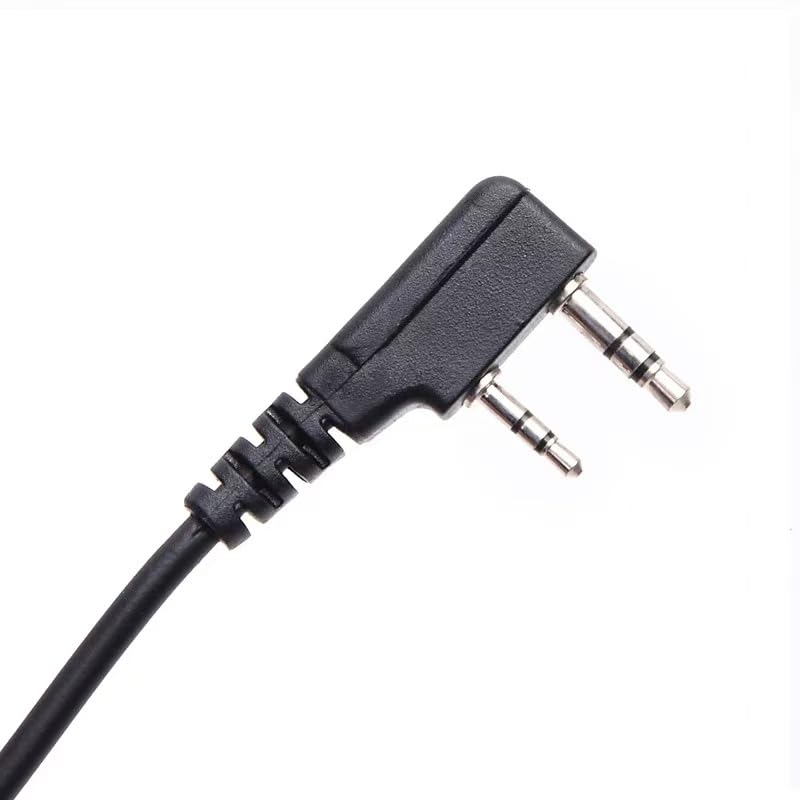
Image 3.1: The programming cable alongside a quick start guide, indicating software usage.
4. Compatible Radios
The BAOFENG CH340 USB Programming Cable is compatible with a wide range of two-way radios featuring a 2-pin microphone/earphone port. This includes, but is not limited to, the following models:
- BAOFENG: BF-F8HP/BF-F8HP(Pro), BF-F8GP, GM-15Pro, GM-21, 5RM, 5RX, M-5R, UV-5G PLUS, K5PLUS, UV-5R Mini, UV-5R series, UV-82 series, BF-888S, UV-26, UV-32, UV-21R, UV-82HP, UV-S9 PLUS, AR-152, UV-17R
- TIDRADIO: TD-H3, TD-H3 Plus, TD-H5, TD-H6, TD-H8, TD-M8s, TD-V2, TD-UV5R
- Quansheng: UV-K5, UV-K6
- Retevis: RT22, RT22S, RT21, H777, RT68, RT17, RT15, RT46, RT19, RT27, H777S
5. Pangropéa
To ensure the longevity and reliable performance of your programming cable, follow these simple maintenance guidelines:
- Simpen kabel dina tempat anu tiis sareng garing jauh tina sinar panonpoé langsung sareng suhu anu ekstrim.
- Avoid bending or kinking the cable sharply, as this can damage the internal wires.
- Do not pull on the cable itself when disconnecting; always grasp the connector ends.
- Tetep panyambungna beresih jeung bebas tina lebu atawa lebu.
6. Cara ngungkulan
If you encounter issues while using the programming cable, consider the following troubleshooting steps:
- Kabel Teu Katenjo ku Komputer:
- Ensure the CH340 drivers are correctly installed. You may need to reinstall them or update them to the latest version.
- Coba sambungkeun kabel ka port USB béda dina komputer Anjeun.
- Pareuman terus hurungkeun deui komputer anjeun saatos pamasangan supir.
- Software Not Detecting Radio:
- Verify that the 2-pin connector is fully and securely inserted into the radio's port.
- Confirm that the radio is dihurungkeun before attempting to connect with the software.
- In the programming software, ensure the correct COM port, radio vendor, and model are selected.
- Check the radio's volume setting; some software may require the radio's volume to be at a certain level (e.g., 20% or higher) for proper communication.
- Kasalahan Pemrograman:
- Ensure you are using the correct programming software version for your specific radio model.
- Always download the existing radio configuration before making changes, to create a backup.
7. Spésifikasi
| Fitur | Rincian |
|---|---|
| merek | BAOFENG |
| Modél | CH340 |
| Tipe Kabel | USB |
| Alat nu cocog | Laptop, Komputer Pribadi |
| Fitur husus | CH340 Programming Chip |
| Panyambung Génder | Jalu-ka-Jalu |
| Number of Pins (Radio Connector) | 2 |
| Pamakéan jero rohangan / outdoor | jero rohangan |
| Warna | Hideung |
8. Garansi jeung Rojongan
This BAOFENG CH340 USB Programming Cable comes with a 30-day no-questions-asked warranty for complete peace of mind. For any questions or to utilize the warranty, please feel free to contact our customer service team. We are committed to providing high-quality after-sales service.
For a smooth return or support process, please have your purchase details readily available.