1. Bubuka
The Trust Vaiya Wireless Multi-Device Keyboard is designed for versatile use across various operating systems and devices. It offers both 2.4 GHz wireless and Bluetooth connectivity, allowing you to connect up to four devices simultaneously. This manual provides instructions for setup, operation, maintenance, and troubleshooting to ensure optimal performance of your keyboard.
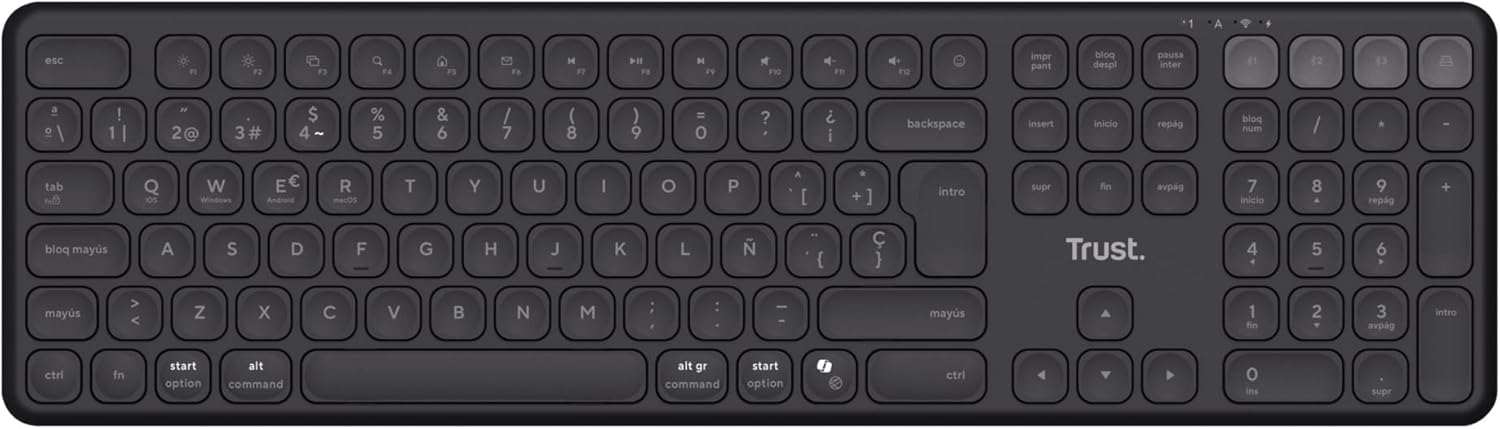
Gambar 1.1: Luhur-handap view of the Trust Vaiya Wireless Multi-Device Keyboard.
2. Naon dina Box
Please check the contents of your package. It should include the following items:
- Trust Vaiya Wireless Multi-Device Keyboard
- USB Micro-Receiver (for 2.4 GHz connection)
- Kabel Ngecas USB
- Manual pangguna (dokumén ieu)

Image 2.1: Packaging of the Trust Vaiya Wireless Multi-Device Keyboard, showing the keyboard and included accessories.
3. Setélan
3.1. Connecting via 2.4 GHz USB Receiver
- Locate the USB micro-receiver. It may be stored in a compartment on the keyboard.
- Plug the USB micro-receiver into an available USB port on your computer or device.
- Hurungkeun kibor nganggo saklar daya, biasana ayana di sisi atanapi tukang.
- The keyboard should automatically connect to your device via the 2.4 GHz connection. The indicator light for the 2.4 GHz channel (often labeled '1' or with a USB icon) will illuminate.
3.2. Nyambungkeun via Bluetooth
The keyboard supports up to three Bluetooth connections (channels 2, 3, and 4).
- Hurungkeun kibor.
- Pencét jeung tahan tombol Bluetooth channel key (e.g., F2, F3, or F4, often marked with a Bluetooth icon or numbers 2, 3, 4) for approximately 3-5 seconds until the corresponding indicator light starts blinking rapidly. This indicates the keyboard is in pairing mode.
- On your device (PC, laptop, tablet, smartphone), go to the Bluetooth settings.
- Milarian pikeun new devices. The keyboard should appear as "Trust Vaiya" or a similar name.
- Select the keyboard to pair. If prompted, enter the pairing code displayed on your screen.
- Once paired, the indicator light will stop blinking and remain solid for a few seconds, then turn off to save power. The keyboard is now connected.
- Repeat these steps for additional Bluetooth devices using different Bluetooth channel keys.
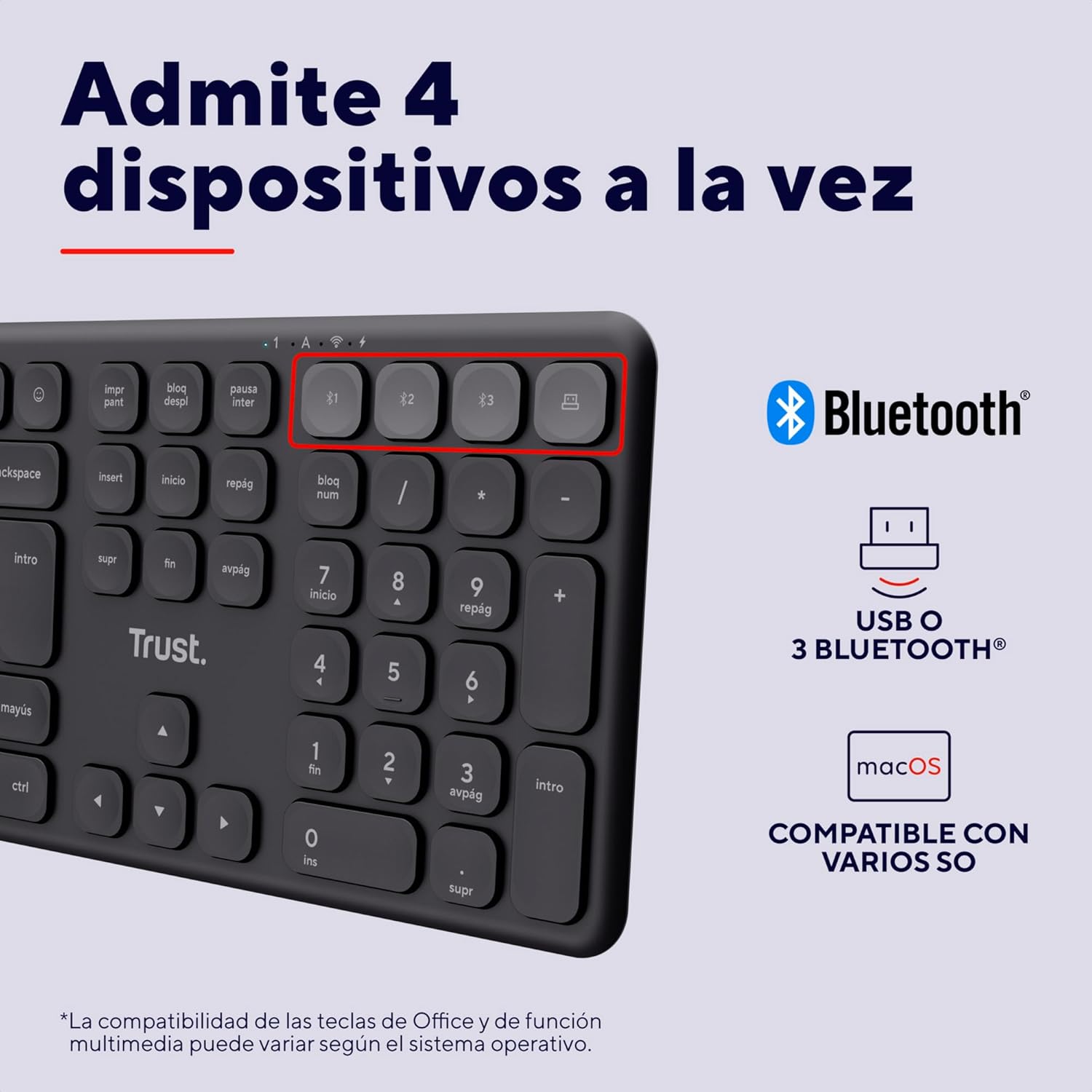
Image 3.1: Close-up of the device switching keys on the Trust Vaiya keyboard.
4. Parentah Operasi
4.1. Ngalihkeun Antara Alat
To switch between connected devices, simply press the corresponding channel key (F1 for 2.4 GHz, F2, F3, or F4 for Bluetooth). The keyboard will connect to the selected device within a few seconds.
4.2. Konci Multimedia
The keyboard features 12 multimedia keys (F1-F12) that provide quick access to functions such as volume control, media playback, and more. These functions are typically accessed by pressing the konci Fn simultaneously with the desired multimedia key. The specific functionality may vary depending on your operating system.
4.3. Batré jeung Ngecas
The Trust Vaiya keyboard is equipped with a rechargeable battery. When the battery is low, an indicator light on the keyboard will signal the need for charging.
- Connect the provided USB charging cable to the charging port on the keyboard and to a USB power source (e.g., computer USB port, USB wall adapter).
- Lampu indikator ngecas bakal hurung nalika ngecas sareng pareum nalika dicas pinuh.
- The keyboard can be used while it is charging.
- Ngecas pinuh nyadiakeun umur batre dugi ka 6 bulan, gumantung kana panggunaan.

Image 4.1: Charging the Trust Vaiya Wireless Keyboard.
4.4. Kasaluyuan System Operasi
The Trust Vaiya keyboard is compatible with a wide range of operating systems, including:
- Windows
- ios
- iPadOS
- macOS
- Android
- Chrome OS
Some key functions, particularly multimedia keys, may behave differently across various operating systems. Refer to your device's operating system documentation for specific key mapping details.

Image 4.2: The keyboard is compatible with multiple operating systems.
5. Pangropéa
- beberesih: Anggo lawon anu lemes sareng garing pikeun ngabersihkeun kibor. Pikeun kokotor anu bandel, radaampen lawon ku cai atawa solusi beberesih hampang. Hindarkeun bahan kimia anu kasar atanapi bahan abrasive.
- Panyimpenan: Simpen kibor di tempat anu tiis sareng garing jauh tina sinar panonpoé langsung sareng suhu anu ekstrim.
- Perawatan batré: Pikeun manjangkeun umur batre, ulah sering-sering ngosongkeun batre kibor. Cas sacara rutin, sanaos henteu dianggo terus-terusan.
6. Cara ngungkulan
| Masalah | Solusi |
|---|---|
| Keyboard not connecting via 2.4 GHz |
|
| Kibor teu nyambung via Bluetooth |
|
| Keys are not responding or typing incorrectly |
|
| hirup batré pondok |
|
7. Spésifikasi
| Fitur | Rincian |
|---|---|
| Nomer modél | 25635 |
| Téhnologi konektipitas | Bluetooth, 2.4 GHz RF |
| Jumlah Alat nu Dirojong | Up to 4 (1x 2.4 GHz, 3x Bluetooth) |
| Tata perenah kibor | Full-size QWERTY Spanish with Numpad |
| Jenis konci | Low-profile Scissor-type keys |
| Konci Multimedia | 12 (Fn-enabled) |
| Jenis Batré | Rechargeable Lithium-ion (500 mAh) |
| Kahirupan batré | Nepi ka 6 bulan (panggunaan has) |
| Port ngecas | USB-C (kaasup kabel) |
| Sistem Operasi cocog | Windows, iOS, iPadOS, macOS, Android, Chrome OS |
| Ukuran (L x W x H) | 44.4 x 12.9 x 1.8 cm |
| Beurat | 560 g |
| Bahan | 55% Plastik Daur Ulang |
| Warna | Hideung |
8. Produk Langkungview Video
Video 8.1: Hiji acara video produk resmicasing the features and multi-device capabilities of the Trust Vaiya Wireless Keyboard. The video demonstrates switching between devices, typing experience, and the keyboard's design.
9. Garansi jeung Rojongan
Trust products come with a manufacturer's warranty. For detailed warranty information, please refer to the warranty card included with your product or visit the official Trust website. For technical support, troubleshooting assistance, or to inquire about replacement parts, please contact Trust customer service through their official channels.
Dukungan Online: Visit the Trust support page for FAQs and further assistance.
Inpormasi kontak: Refer to the product packaging or the Trust websitus pikeun wincik kontak nu paling up-to-date.