Bubuka
This manual provides comprehensive instructions for the setup, operation, and maintenance of your MONTECH Heritage PRO mATX Gaming Chassis. Designed with a unique blend of leather and metal, this compact case offers robust support for high-performance components while maintaining a portable and stylish form factor.
fitur konci ngawengku:
- Portable suitcase-style leather handle for convenient mobility.
- Elegant leather and metal fusion with a timeless aesthetic design.
- Supports high-performance components including RTX 40 Series GPUs, ATX PSU, and 360mm AIO liquid cooling.
- Includes 4 x 120mm fans for optimal airflow.
- Additional headphone hanger for added convenience.
Produk Leuwihview
Familiarize yourself with the various components and features of your Heritage PRO chassis.

Gambar 1: Gemblengna view of the MONTECH Heritage PRO chassis, showcasing its unique leather handle and compact design.

Gambar 2: Front I/O panel featuring power button, reset button, headset audio jack, USB-A 5Gb/s ports, and a Type-C 20Gb/s port.
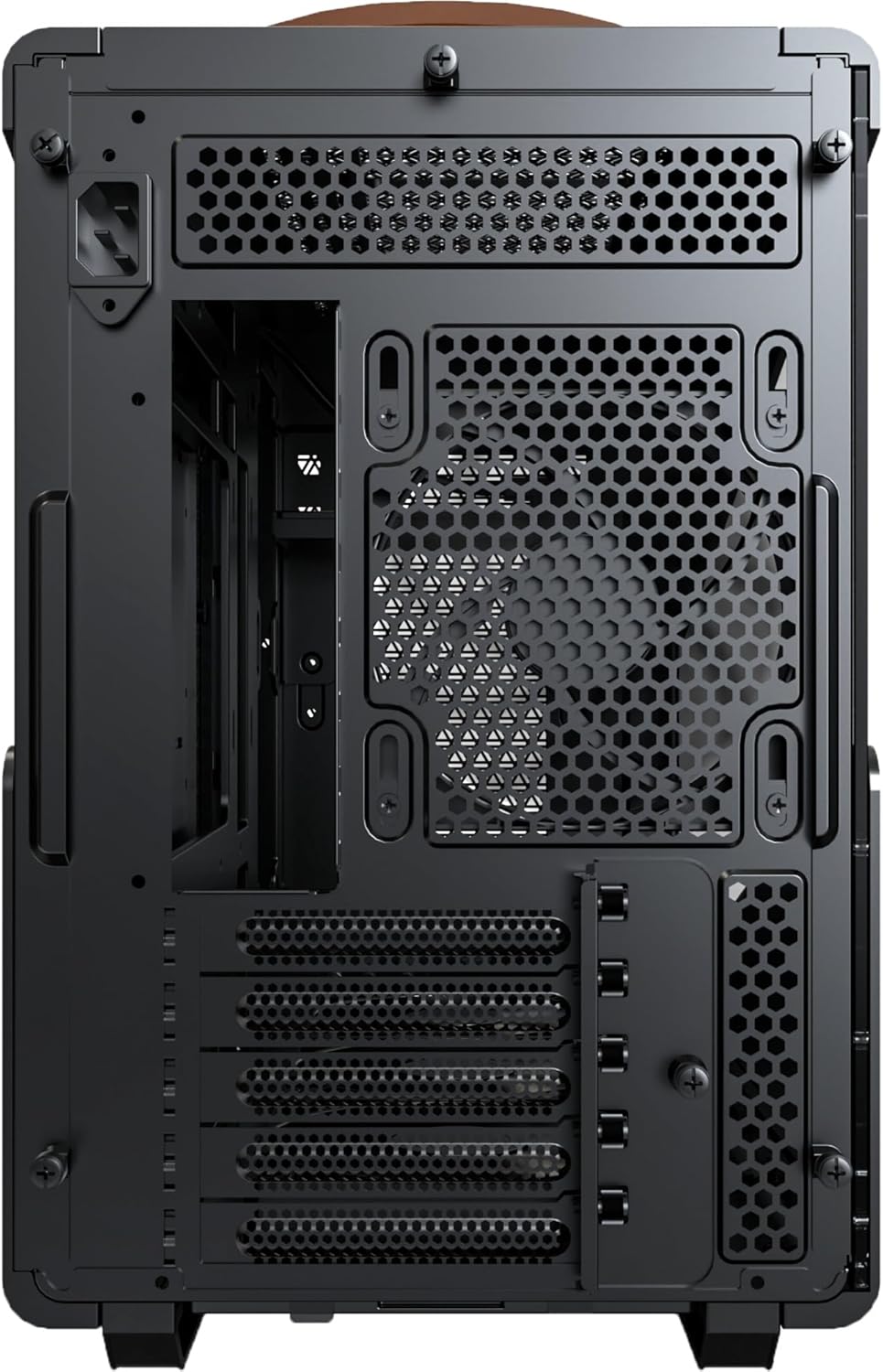
Gambar 3: Rear panel layout, including motherboard I/O cutout, expansion slots, and power supply mounting area.

Gambar 4: The durable leather handle is engineered to support up to 40KG, facilitating easy transport of your system.
Guide Setup
Follow these steps to assemble your computer components within the Heritage PRO chassis.
1. Nyiapkeun Chassis
Before installation, ensure the chassis is placed on a stable, flat surface. Remove the side panels by unscrewing the thumb screws at the rear of the case and gently sliding them off.
2. Pamasangan motherboard
Si Heritage PRO supports Micro-ATX and Mini-ITX motherboards. Align your motherboard with the standoffs inside the chassis. Secure the motherboard using the provided screws. Ensure the I/O shield is properly seated in the rear opening.
3. Pamasangan Power Supply Unit (PSU).
This chassis supports ATX PSUs. Install your power supply into the designated bottom mount area. Secure it with screws from the rear of the chassis. Route the necessary power cables through the cable management cutouts.
4. Pamasangan Unit Pangolah Grafik (GPU).
Si Heritage PRO can accommodate GPUs up to 400mm in length, supporting RTX 40 Series GPUs. Remove the necessary PCIe slot covers at the rear. Insert your GPU into the PCIe slot on the motherboard and secure it with screws.
5. Pamasangan Sistim cooling
The chassis includes 4 x 120mm fans for optimal airflow. Additional cooling options include support for a 360mm AIO liquid cooler. Install fans and radiators in their respective mounting positions (front, top, rear, or bottom) as per your cooling configuration.

Gambar 5: Internal layout showing component compatibility: Micro-ATX/Mini-ITX motherboards, 160mm ATX PSU, 400mm GPU, and 360mm AIO support.
6. Panyimpenan Girang Instalasi
Install your 2.5-inch SSDs or 3.5-inch HDDs into the designated drive bays. Secure them with the appropriate screws.
7. Manajemén kabel
Mangpaatkeun potongan rute kabel sareng titik pangiket di tukangeun baki motherboard pikeun ngatur kabel. Ieu ningkatkeun aliran hawa sareng estetika.
8. Reassembling the Chassis
Once all components are installed and cables are managed, carefully reattach the side panels and secure them with the thumb screws.
Parentah Operasi
After successful assembly, connect your peripherals and power cable to the system. Press the power button on the front I/O panel to turn on your computer. The system status indicator will illuminate.
To power off, initiate a shutdown from your operating system. For a forced shutdown, press and hold the power button for several seconds.
Pangropéa
Regular maintenance helps ensure optimal performance and longevity of your chassis.
- Saringan debu: Si Heritage PRO features magnetic dust filters. Regularly remove and clean these filters to prevent dust buildup and maintain optimal airflow. Gently brush or rinse them with water (ensure they are completely dry before reinstallation).
- Bersihan Luar: Wipe the exterior surfaces, including the leather and metal parts, with a soft, dry cloth. For stubborn marks on metal, a slightly damp lawon bisa dipaké, dituturkeun ku drying langsung. Hindarkeun bahan kimia anu kasar atanapi pembersih abrasive.
- beberesih internal: Periodically use compressed air to clear dust from internal components and fans. Ensure the system is powered off and unplugged before performing internal cleaning.
Pamérésan masalah
Bagian ieu ngabahas masalah umum anu anjeun tingali.
| Masalah | Mungkin Cukang lantaranana | Solusi |
|---|---|---|
| Sistem henteu hurung. | Kabel kakuatan leupas, PSU lepat, sambungan panel hareup salah. |
|
| Fans teu spinning. | Loose fan connections, fan controller issues, faulty fans. |
|
| Komponen anu kaleuleuwihi panas. | Poor airflow, dust buildup, incorrect fan orientation. |
|
spésifikasi
Detailed technical specifications for the MONTECH Heritage PRO mATX Gaming Chassis.
| Fitur | Rincian |
|---|---|
| merek | Montech |
| Ngaran modél | HeritagePro-B |
| Jenis Kasus | Pertengahan Menara |
| Motherboard kasaluyuan | Mikro ATX, Mini ITX |
| Bahan | Leather, Metal |
| Warna | Brown (for this specific model) |
| Item Beurat | 13.23 pon (6.0 kg) |
| Ukuran produk (L x W x H) | 18.9 x 9.25 x 14.49 inci (48.0 x 23.5 x 36.8 cm) |
| Power Supply ningkatna Tipe | Gunung handap |
| Métode Cooling | Cai, Udara |
| Kipas anu tos dipasang | 4 kipas 120mm |
| Max GPU Panjangna | 400 mm |
| Max Panjang PSU | 160mm (ATX PSU) |
| Rojongan Radiator AIO | Nepi ka 360mm |
| Port I / O payun | Power Button, Reset Button, Headset Audio Jack (1), USB-A 5Gb/s (2), Type-C 20Gb/s (1) |
Garansi sareng Rojongan
For detailed warranty information and technical support, please refer to the official Montech websitus atanapi ngahubungan layanan palanggan maranéhanana langsung. Simpen bukti pameseran anjeun pikeun klaim garansi.
Official Montech Websitus: www.montechpc.com