1. Bubuka
This manual provides detailed instructions for the setup, operation, maintenance, and troubleshooting of your Keychron Q6 HE QMK Wireless Custom Mechanical Keyboard. Please read this guide thoroughly to ensure optimal performance and longevity of your device.
The Keychron Q6 HE is a full-size layout wireless QMK custom keyboard featuring Hall Effect Gateron 2.0 magnetic switches, offering advanced customization and a premium typing experience.
2. Eusi Paket
Pastikeun yén sadaya item aya dina pakét anjeun:
- Keychron Q6 HE Keyboard
- PCB kibor
- Kasus
- Plat Aluminium
- Keycaps (Mac & Windows compatible)
- USB-C ka USB-C Cable
- USB-A kana adaptor USB-C
- Pindah Puller
- Keycap Puller
- Manual pamaké

Image: Keychron Q6 HE keyboard with included accessories, showcasing the full package contents.
3. Setélan
3.1 Sambungan Awal
The Keychron Q6 HE supports three connection modes: 2.4 GHz Wireless, Bluetooth 5.1, and Wired (USB-C).
3.1.1 Sambungan kabel
- Sambungkeun kabel USB-C anu disayogikeun kana port USB-C kibor.
- Sambungkeun tungtung kabel anu sanésna kana port USB komputer anjeun.
- Pastikeun saklar modeu di tukang kibor disetel ka modeu 'Kabel'.
- Kibor bakal otomatis dikenal ku sistem operasi anjeun.
3.1.2 Sambungan Nirkabel 2.4 GHz
- Locate the 2.4 GHz receiver (dongle) included with your keyboard.
- Plug the 2.4 GHz receiver into an available USB port on your computer.
- Setel saklar modeu di tukang kibor ka modeu '2.4G'.
- The keyboard should automatically connect to the receiver. If not, press and hold the 'Fn' + '4' keys for 4 seconds to initiate pairing.
3.1.3 Sambungan Bluetooth
- Set the mode switch on the back of the keyboard to 'Bluetooth' mode.
- Pikeun asup ka modeu pairing, pencét terus tahan 'Fn' + '1' (pikeun alat 1), 'Fn' + '2' (pikeun alat 2), atanapi 'Fn' + '3' (pikeun alat 3) salami 4 detik dugi ka lampu indikator kedip-kedip gancang.
- On your computer, smartphone, or tablet, enable Bluetooth and search for 'Keychron Q6 HE'.
- Pilih kibor anu bade dipasangkeun. Lampu indikator bakal eureun kedip-kedip saatos nyambung.
- You can switch between paired Bluetooth devices by pressing 'Fn' + '1', 'Fn' + '2', or 'Fn' + '3' briefly.
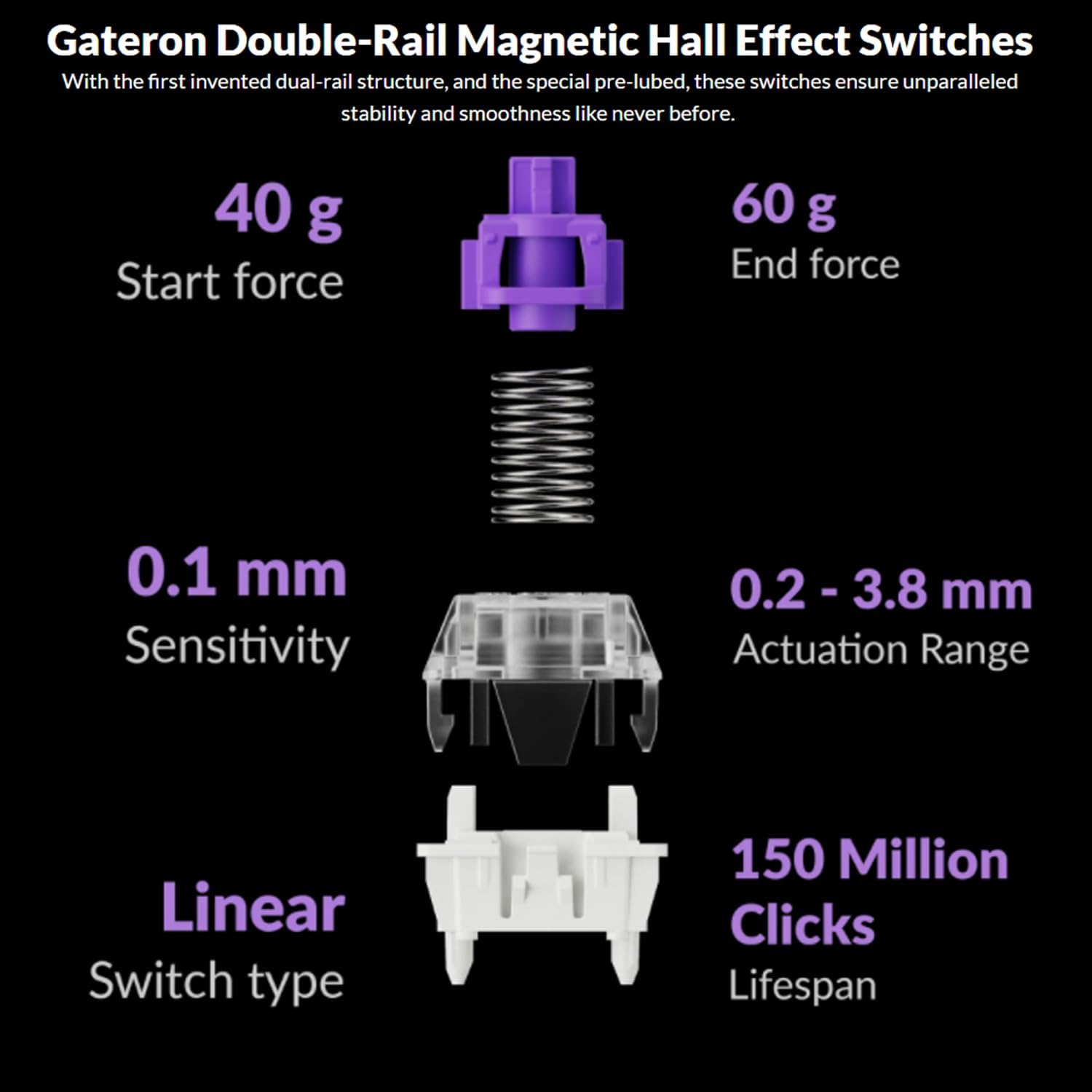
Image: The Keychron Q6 HE keyboard connected to a computer and a tablet, demonstrating its multi-device connectivity.
3.2 Operating System Pindah
The keyboard has a switch to toggle between Mac and Windows layouts. Ensure this switch, located on the back of the keyboard, is set to your current operating system for correct key mapping.
3.3 Ngecas Batré
The keyboard is equipped with a 4000 mAh Lithium Ion battery. Connect the USB-C cable to the keyboard and a power source (computer USB port or USB wall adapter) to charge. The charging indicator light will show the charging status.
4. Parentah Operasi
4.1 Fungsi Konci Dasar
The Q6 HE features a standard 100% layout. All keys function as labeled. Use the 'Fn' key in combination with other keys for secondary functions (e.g., media controls, backlight adjustments).
4.2 kenop Programmable
The rotary knob on the top right of the keyboard is programmable. By default, it controls volume (rotate) and media play/pause (press). Its functions can be customized using the Keychron Launcher web aplikasi.
4.3 Gateron Magnetic Hall Effect Switches
The Q6 HE utilizes Gateron Double-Rail Magnetic Hall Effect Switches, which allow for dynamic customization of key behavior.

Image: Diagram illustrating the adjustable actuation points of the magnetic switches, ranging from 0.5mm to 3.5mm.
4.3.1 Adjustable Actuation Points
The actuation point (the distance a key needs to travel to register a press) can be adjusted from 0.1 mm to 3.8 mm using the Keychron Launcher web app. This allows for personalized typing and gaming sensitivity.
4.3.2 Rapid Trigger
Rapid Trigger functionality allows a key to reactivate instantly upon reset, without needing to return to its original position. This feature is highly beneficial for competitive gaming and can be configured via the Keychron Launcher.

Image: Detailed breakdown of Gateron Double-Rail Magnetic Hall Effect Switches, showing components and specifications like start force, end force, sensitivity, actuation range, switch type, and lifespan.
4.4 Lampu latar RGB
The keyboard features south-facing RGB LED lights. You can cycle through various lighting effects and adjust brightness using 'Fn' key combinations or through the Keychron Launcher web aplikasi.
4.5 Keychron Launcher Web App
The Keychron Launcher is a web-based application for advanced customization. It allows you to:
- Remap konci
- Adjust actuation points for magnetic switches
- Create personalized macro commands
- Set shortcuts and key combinations
- Customize RGB lighting effects

Gambar: Cuplikan layar Keychron Launcher web app interface, showing options for key remapping, actuation point adjustment, and macro creation.
5. Pangropéa
5.1 Ngabersihan kibor
Pikeun ngabersihan kibor anjeun:
- Cabut sambungan kibor tina sadaya sumber daya sareng alat.
- Make kaen nu lemes, teu aya lint rada dampdikumbah ku cai atawa larutan pembersih anu hampang pikeun ngusap tutup tombol jeung wadahna.
- Pikeun beberesih anu langkung jero, anggo penarik keycap anu disayogikeun pikeun nyabut keycap sareng bersihan handapeunna nganggo udara anu dikomprés atanapi sikat alit.
- Hindarkeun nyemprot cairan langsung kana kibor.
5.2 Panas-Swappable switch
The Q6 HE features hot-swappable magnetic switches, allowing you to replace individual switches without soldering.

Gambar: Deukeut view of the Keychron Q6 HE keyboard with several keycaps and switches removed, highlighting the hot-swappable magnetic switch design.
5.2.1 Ngaganti Saklar
- Use the switch puller to carefully remove the desired switch. Grip the switch firmly and pull straight up.
- Align pin tina switch anyar jeung liang on PCB nu.
- Gently press the new switch into place until it clicks. Ensure it is seated correctly and not bent.
5.3 Perawatan Batré
Pikeun manjangkeun umur batre:
- Hindarkeun sering-sering ngeusi batre.
- Simpen kibor di tempat anu tiis sareng garing upami henteu dianggo kanggo waktos anu lami.
- Ulah ngalaan keyboard kana suhu ekstrim.
6. Cara ngungkulan
6.1 Kibor Teu Ngabales
- Mode Kabel: Pastikeun kabel USB-C nyambung pageuh kana kibor sareng komputer. Cobi port atanapi kabel USB anu sanés.
- Modeu 2.4 GHz: Verify the 2.4 GHz receiver is plugged in and the keyboard is set to '2.4G' mode. Re-pair by holding 'Fn' + '4' for 4 seconds.
- Mode Bluetooth: Check if Bluetooth is enabled on your device and the keyboard is paired. Re-pair if necessary by holding 'Fn' + '1/2/3' for 4 seconds.
- Batré: Ensure the keyboard battery is charged. Connect it to a power source.
6.2 Keys Not Registering or Double Typing
- Titik aktuasi: Adjust the actuation point for the affected keys using the Keychron Launcher. A higher actuation point (e.g., 2.0mm or 3.0mm) can help prevent accidental presses or double typing.
- Masalah switch: If a specific key consistently malfunctions, the magnetic switch might be faulty. Consider replacing the hot-swappable switch.
- Firmware: Ensure your keyboard firmware is up to date via the Keychron Launcher.
6.3 Masalah lampu tukang RGB
- Caang: Adjust backlight brightness using 'Fn' key combinations.
- Balukar: Cycle through different RGB effects using 'Fn' key combinations.
- Parangkat lunak: Use the Keychron Launcher to customize and troubleshoot RGB settings.
7. Spésifikasi
| Nomer modél | Q6H-P1 |
| merek | Keychron |
| Téhnologi konektipitas | 2.4 GHz Nirkabel, Bluetooth 5.1, USB-C Kabel |
| Katerangan kibor | Full-size, Ergonomic |
| Fitur husus | Hall Effect Magnetic Switches, Programmable Knob, Large Battery Capacity, Hot-Swappable |
| Alat nu cocog | PC, Mac, Smartphone, Tablet, Gaming Console |
| Lampu tukang kibor | RGB (ngahareup ka kidul) |
| Bahan | 6063 Aluminum (Case) |
| Batré | 4000 mAh Lithium Ion (kaasup) |
| Item Beurat | 6.49 pon (kira-kira 2.94 kg) |
| Ukuran Paket | 19 x 8.5 x 3 inci |

Image: An exploded diagram showing the internal layers and components of the Keychron Q6 HE keyboard, including keycaps, knob, magnetic switches, top case, sound absorbing foam, gaskets, plate, PCB, latex bottom pad, bottom case PET film, bottom case acoustic foam, battery, and silicone gaskets.
8. Émbaran jaminan
Keychron products typically come with a limited manufacturer's warranty. For specific warranty terms, conditions, and duration, please refer to the official Keychron websitus atanapi kartu garansi anu kalebet sareng produk anjeun. Simpen bukti pameseran anjeun pikeun klaim garansi.
9. Rojongan
For further assistance, technical support, or to download the latest firmware and software, please visit the official Keychron websitus:
You can also visit the Keychron store on Amazon for product information and customer service:


