Bubuka
This manual provides essential information for the setup, operation, maintenance, and troubleshooting of your Onn 22 inch 1080P 100 Hz FHD LED Monitor. Please read this guide thoroughly before using the product to ensure optimal performance and safety.
The Onn 22 inch FHD LED Monitor is designed for a variety of applications, offering a vivid 1920x1080 resolution, a 100Hz refresh rate, and a 6.5ms response time for efficient performance. Its slim profile and T-shaped base are ideal for saving desk space.
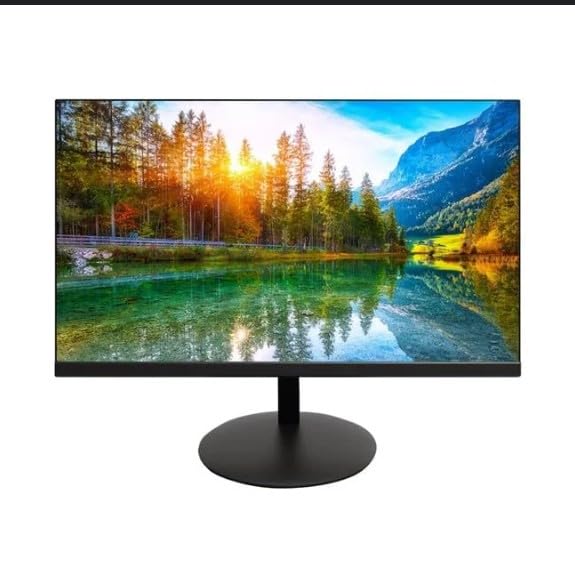
The image shows the Onn 22 inch FHD LED Monitor, highlighting its 100Hz refresh rate and 1080p resolution. The monitor features a slim design and a T-shaped base.
Parentah Setup
- Ngabongkar bungkusan: Carefully remove the monitor and all accessories from the packaging. Ensure all components are present: monitor, T-shaped base, HDMI cable, and power adapter.
- Ngumpulkeun Stand: Attach the T-shaped base to the monitor. The design is screw-less for easy assembly. Ensure it is securely fastened.
- Nyambungkeun ka Alat:
The monitor supports both HDMI and VGA inputs. Connect the provided HDMI cable from your computer's HDMI output to the HDMI IN port on the monitor. Alternatively, use a VGA cable for VGA input.

This image displays the rear panel of the Onn monitor, illustrating the available input ports: HDMI IN, VGA IN, and the DC 12V power input. These ports are essential for connecting the monitor to a computer or other devices.
- Sambungan Daya: Connect the power adapter to the DC 12V input port on the monitor, then plug the adapter into a power outlet.
- Nyaluyukeun Monitor: The monitor is capable of swivel, tilt, rotation, and height adjustment. Adjust the screen to your preferred viewsudut pikeun kanyamanan ergonomis.
- Setup Monitor Ganda: This monitor is suitable for a fully functioning dual monitor setup. Connect a second monitor using the appropriate cables and configure your operating system's display settings.
Parentah Operasi
- Hurungkeun/Pareuman: Press the power button, usually located on the bottom or back of the monitor, to turn it on or off.
- Pilihan Input: If the monitor does not automatically detect the input source, use the On-Screen Display (OSD) menu buttons to manually select between HDMI and VGA inputs.
- Napigasi Menu OSD: Use the physical buttons on the monitor (typically on the back or bottom edge) to navigate the OSD menu. This allows you to adjust settings such as brightness, contrast, color temperature, and input source.
- Résolusi sareng Laju Refresh: The monitor supports a native resolution of 1920x1080 at a 100Hz refresh rate. Ensure your computer's display settings are configured to these specifications for the best visual experience.
- Singkronisasi adaptif: The monitor features Adaptive Sync for gaming, which helps to reduce screen tearing and stuttering. Ensure this feature is enabled in your graphics card settings if supported.
Pangropéa
- Ngabersihan layar: Ngusap layar nganggo kaén anu lembut sareng teu aya serat. Pikeun tanda pengkuh, enteng dampen the cloth with water or a non-abrasive, monitor-specific cleaning solution. Avoid spraying liquids directly onto the screen.
- Ngabersihan Casing: Anggo kaén anu lemes sareng garing pikeun ngabersihan monitor casing. Do not use strong detergents or solvents, as they may damage the finish.
- Ventilasi: Pastikeun bukaan ventilasi monitor teu diblokir pikeun nyegah overheating.
- Panyimpenan: Upami henteu dianggo salami lami, simpen monitor di tempat anu tiis sareng garing, jauh tina sinar panonpoé langsung sareng suhu anu ekstrim.
Pamérésan masalah
- Henteu aya kakuatan:
- Pariksa naha kabel daya disambungkeun sacara aman ka monitor sareng stopkontak.
- Pastikeun yén stop kontak listrik berpungsi leres.
- Henteu aya sinyal:
- Ensure the video cable (HDMI or VGA) is firmly connected to both the monitor and the computer.
- Select the correct input source using the monitor's OSD menu.
- Pariksa naha komputer anjeun hurung sareng henteu dina modeu sare.
- Flickering Screen or Poor Image Quality:
- Pariksa kabel video pikeun karuksakan atawa sambungan leupas.
- Adjust the resolution and refresh rate settings on your computer to match the monitor's specifications (1920x1080, 100Hz).
- Setel deui setélan monitor ka setélan pabrik ngalangkungan menu OSD.
- Tombol Teu Ngabales:
- Unplug the monitor from the power outlet, wait for 30 seconds, and then plug it back in.
Upami masalah masih aya, mangga tingali inpormasi dukungan anu disayogikeun dina bagian "Dukungan sareng Garansi".
spésifikasi
| merek | Onn |
| Nomer modél | 100140681 |
| Ngaran modél | OTTO |
| Ukuran layar | 21.5 inci |
| Tipe tampilan | LED, LCD |
| Resolusi | 1920 x 1080 (FHD 1080p) |
| Refresh Laju | 100 Hz |
| Waktu Tanggapan | 6.5 Milidetik |
| Panganteur Hardware | HDMI, VGA |
| Fitur husus | adjustment jangkungna |
| Viewdina Angle | 160 darajat |
| Rasio Aspék | 16:9 |
| Dimensi produk | 49.2 x 20 x 37.2 cm; 3.24 kg |
Rojongan sarta Garansi
For technical support, product inquiries, or warranty information, please visit the official Onn support websitus atanapi ngahubungan layanan palanggan maranéhna.
- Rojongan resmi Websitus: onnsupport.ca
- Garansi: Specific warranty details may vary by region and purchase date. Please refer to the documentation included with your product or visit the support websitus pikeun inpo jaminan panganyarna.


