
Bubuka
This manual provides essential information for the proper setup, operation, maintenance, and troubleshooting of your KTC H27T27 27-inch WQHD IPS Flat Monitor. Please read this manual thoroughly before using the product to ensure optimal performance and safety.
The KTC H27T27 monitor features a 27-inch WQHD (2560x1440) IPS panel with a 100Hz refresh rate, designed to deliver clear and detailed images with smooth motion. It includes FreeSync technology for enhanced visual fluidity during dynamic content. The IPS panel ensures vivid colors and wide viewdina sudut.

Figure 1: KTC H27T27 27-inch WQHD IPS Flat Monitor Front View
Disetél
1. Ngabongkar bungkusan
Carefully remove all components from the packaging. Ensure all items listed in the packing list are present and undamaged. Retain the original packaging for future transport or service needs.
2. Nangtung Majelis
- Teundeun monitor nyanghareupan handap dina permukaan lemes, beresih pikeun nyegah goresan.
- Ngagantelkeun dasar nangtung kana beuheung nangtung ngagunakeun screws disadiakeun.
- Align the assembled stand with the mounting slot on the back of the monitor and secure it firmly.
3. Pemasangan VESA (Opsional)
The monitor supports VESA 100x100mm mounting. If using a VESA mount, remove the stand and attach the VESA compatible bracket to the monitor's rear panel using appropriate screws.
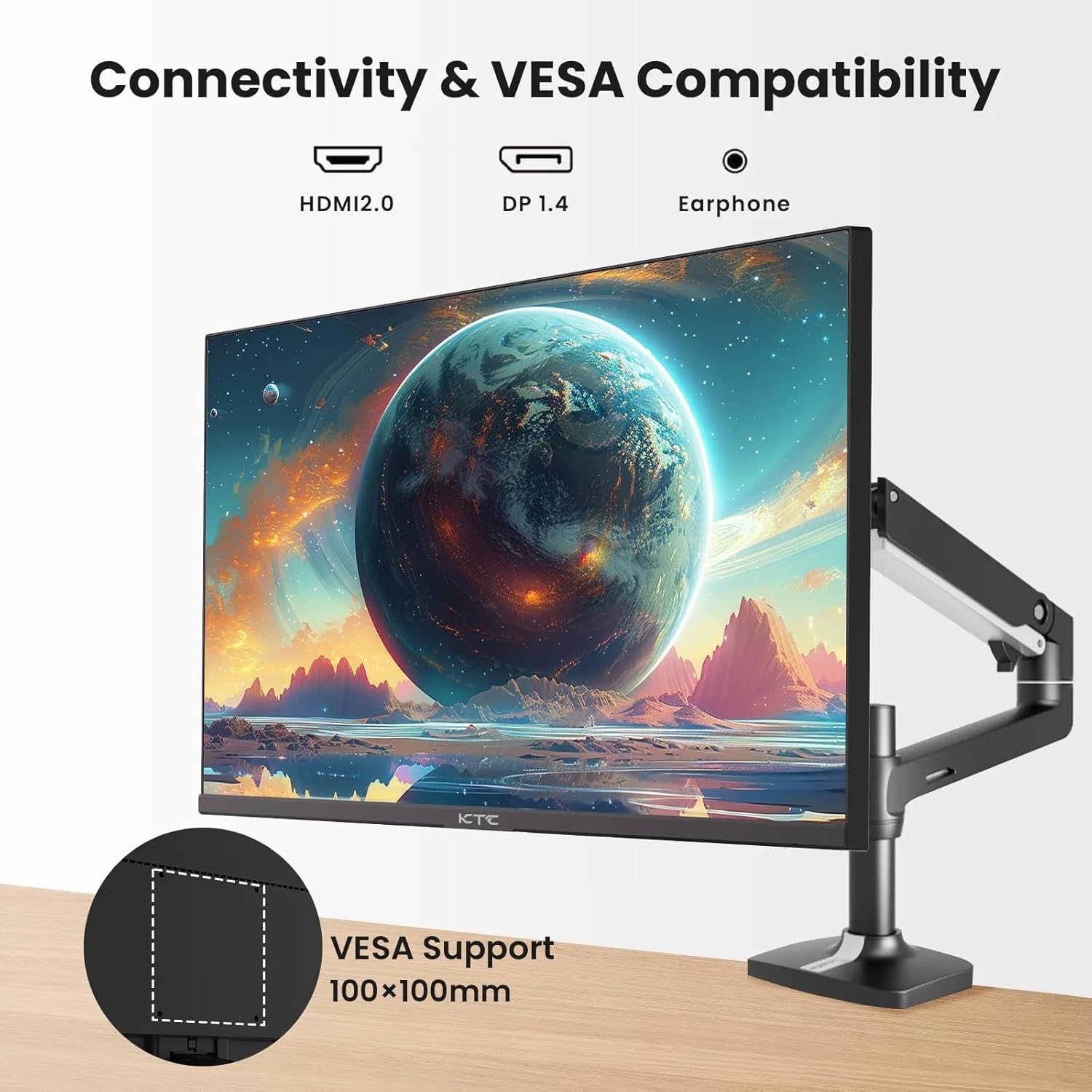
Figure 2: VESA Compatibility and Connectivity Ports
4. Nyambungkeun Kabel
Sambungkeun kabel nu diperlukeun ka monitor jeung komputer Anjeun atawa alat sejenna. Pastikeun sadaya sambungan aman.
- Kakuatan Kabel: Connect the power adapter to the monitor's DC input port, then plug the power cable into a power outlet.
- Kabel Video: Connect either an HDMI cable (HDMI 2.0) or a DisplayPort cable (DP 1.4) from your computer's graphics card to the corresponding input port on the monitor.
- Kaluaran Audio: If desired, connect headphones or external speakers to the 3.5mm audio output jack.

Gambar 3: Port Input Monitor
5. Mimiti Power-On
Press the power button on the monitor. The power indicator light will illuminate. If no image appears, ensure your computer is powered on and the correct input source is selected on the monitor.
Ngoperasikeun
1. Daya Hurung / Pareum
Press the power button located on the monitor to turn it on or off. The power indicator will show the monitor's status.
2. Menu dina Layar (OSD).
Menu OSD ngidinan Anjeun pikeun nyaluyukeun setelan monitor. Anggo tombol kontrol (biasana aya dina tonggong atanapi handapeun monitor) pikeun nganapigasi ménu.
- Pencét hiji tombol pikeun ngaktipkeun menu OSD.
- Use the navigation buttons to move through menu options.
- Press a selection button to enter a sub-menu or confirm a setting.
- Press an exit button to close the OSD menu.
3. Nyaluyukeun Setélan
Common adjustable settings include:
- Caang/Kontras: Saluyukeun luminance sadayana sareng bédana antara daérah terang sareng poék.
- Setélan warna: Modify color temperature, gamma, and individual RGB values.
- Sumber Input: Manually select between HDMI 1, HDMI 2, or DisplayPort inputs.
- Modeu Gambar: Select predefined display modes (e.g., Standard, Game, Movie).
4. Refresh Laju
The KTC H27T27 supports a 100Hz refresh rate, providing smoother motion compared to standard 60Hz displays. Ensure your graphics card and operating system are configured to output at 100Hz for the best experience.

Figure 4: 100Hz Refresh Rate Benefit
5. FreeSync Technology
This monitor is compatible with AMD FreeSync technology, which synchronizes the monitor's refresh rate with your graphics card's frame rate. This helps eliminate screen tearing and stuttering for a smoother gaming and video experience. Ensure FreeSync is enabled in both the monitor's OSD menu and your graphics card's control panel.
Figure 5: FreeSync Technology in Action
Pangropéa
1. Ngabersihan Layar
- Pareuman monitor sareng cabut kabel listrik.
- Ngusap layar nganggo kaén anu lembut sareng teu aya serat.
- Pikeun tanda pengkuh, enteng dampen lawon ku cai atawa cleaner layar husus (ulah menyemprot langsung kana layar).
- Ulah nganggo pembersih abrasif, alkohol, atanapi larutan anu ngandung amonia, sabab ieu tiasa ngaruksak permukaan layar.
2. Kaperawatan Umum
- Keep the monitor away from direct sunlight, excessive heat, and humidity.
- Pastikeun ventilasi nyukupan sabudeureun monitor pikeun nyegah overheating.
- Hindarkeun nempatkeun barang beurat dina monitor atanapi kabelna.
Pamérésan masalah
Upami anjeun mendakan masalah sareng monitor anjeun, tingal masalah sareng solusi umum ieu:
- Henteu aya kakuatan:
- Ensure the power cable is securely connected to both the monitor and the power outlet.
- Pastikeun stop kontakna tiasa dianggo. - Henteu aya sinyal:
- Check that the video cable (HDMI or DisplayPort) is securely connected to both the monitor and your computer.
- Ensure your computer is powered on and not in sleep mode.
- Select the correct input source via the monitor's OSD menu. - Gambar kedip-kedip atanapi menyimpang:
- Pariksa kabel vidéo naha aya karusakan atanapi sambungan anu leupas.
- Adjust the refresh rate settings on your computer.
- Disable or enable FreeSync in the OSD menu and graphics card settings to test. - kelir salah:
- Reset color settings to factory defaults in the OSD menu.
- Adjust color temperature or individual RGB values.
Lamun masalah persists sanggeus nyobian solusi ieu, mangga ngahubungan rojongan customer.
spésifikasi
| Fitur | Spésifikasi |
|---|---|
| merek | CTC |
| Nomer modél | H27T27 |
| Ukuran layar | 27 inci |
| Resolusi | 2560 x 1440 (WQHD) |
| Refresh Laju | 100 Hz |
| Tipe tampilan | IPS |
| Waktu Tanggapan | 7 Milidetik |
| Sync adaptif | FreeSync |
| Konektipitas | 2x HDMI 2.0, 1x DisplayPort 1.4, 1x 3.5mm Audio Out |
| Rasio Aspék | 1.78:1 |
| Beungeut layar | Matte |
| Ukuran barang (D x W x H) | 1.85 "D x 24.25" W x 14.33" H |
| Item Beurat | 4 kg |
Garansi sareng Rojongan
Émbaran jaminan
This KTC monitor is covered by a manufacturer's warranty. Please refer to the warranty card included in your product packaging for specific terms, conditions, and duration of coverage. Keep your purchase receipt as proof of purchase for warranty claims.
Rojongan Palanggan
For technical assistance, warranty service, or any product-related inquiries, please contact KTC customer support. Contact details can typically be found on the official KTC websitus atanapi dina kartu jaminan.
When contacting support, please have your monitor's model number (H27T27) and serial number ready.