Produk Leuwihview
The TECKNET TK-KB005 Bluetooth Keyboard offers versatile connectivity and ergonomic design for enhanced productivity across multiple devices. It features a full-size layout with quiet scissor-switch keys, a rechargeable battery, and the ability to switch seamlessly between up to four devices.

Gambar: Hareupeun view of the TECKNET Bluetooth Keyboard in Silver&Grey, showcasing its full-size layout and slim design.
Naon dina Box
- 1 x Multi-device Tablet Keyboard (TECKNET TK-KB005)
- 1 x Manual Pamaké
- 1 x Kabel Ngecas USB-C
- 1 x 2.4G USB Receiver (stored in the keyboard's back compartment)
Guide Setup
1. Ngecas Awal
Before first use, ensure the keyboard is fully charged. Connect the provided USB-C cable to the charging port on the keyboard and to a USB power source. A red indicator light will show it's charging, turning green when fully charged.
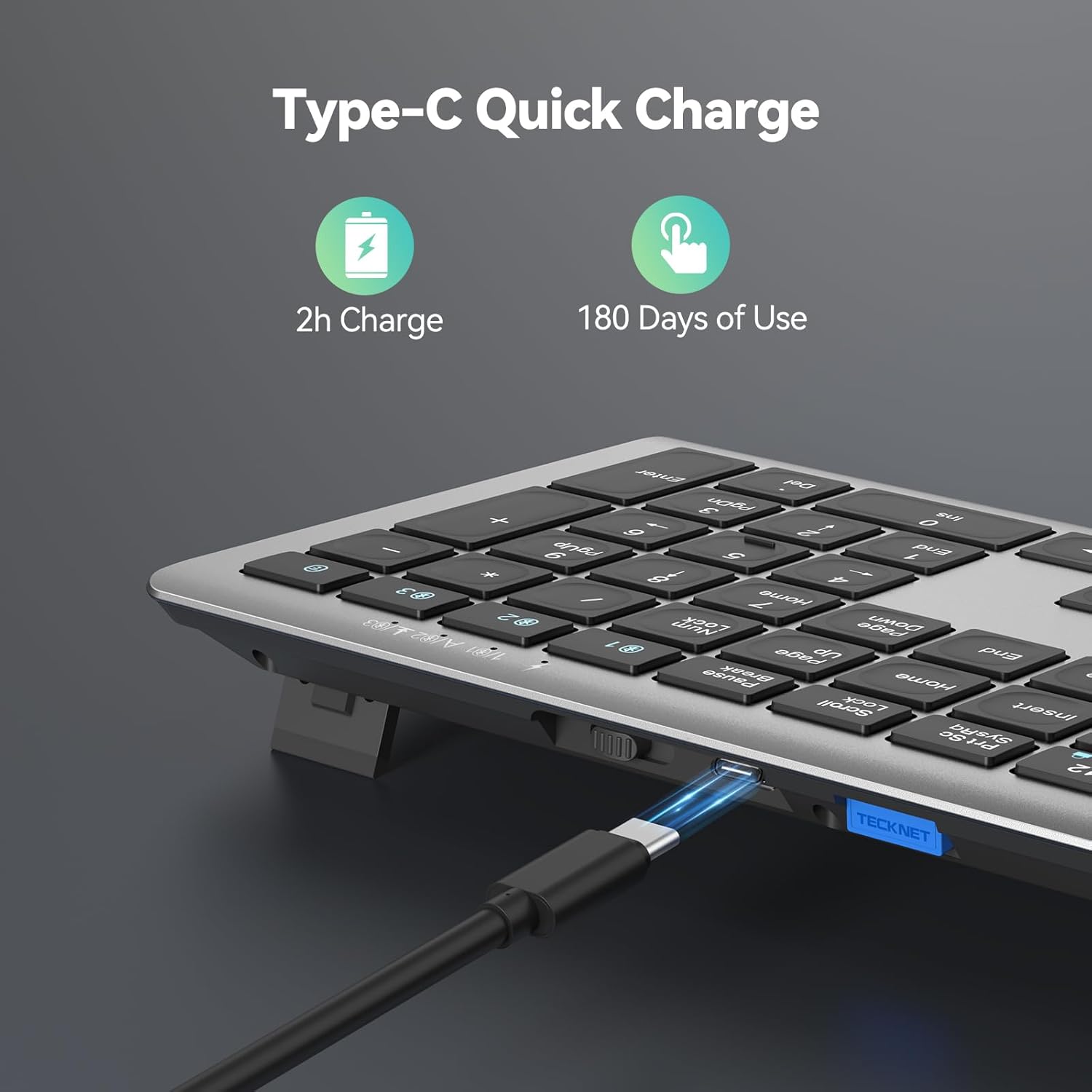
Image: Close-up of the keyboard's side showing the USB-C charging port with a cable inserted. Text indicates "2h Charge" and "180 Days of Use".

Image: Diagram showing the 500mAh rechargeable lithium battery capacity and features like auto-sleep and power saving.
2. 2.4G Wireless Connection
- Locate the 2.4G USB receiver stored in the back compartment of the keyboard.
- Plug the USB receiver into an available USB-A port on your computer or device.
- Turn on the keyboard using the ON/OFF switch located on the back.
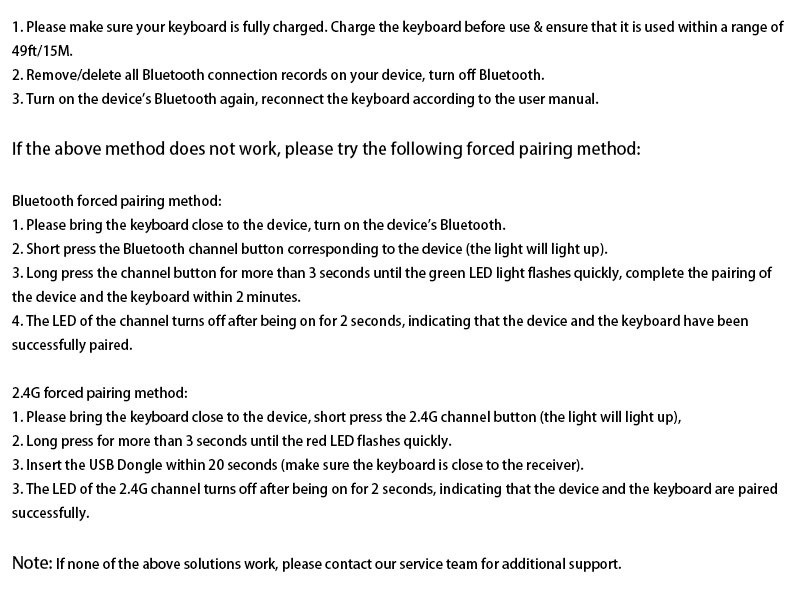
- Short press the 2.4G channel button (usually indicated by a wireless icon or '0' on the keyboard). The indicator light will flash.
- The keyboard should automatically connect to your device. The indicator light will turn off after a successful connection.

Gambar: Tukangeun view of the keyboard showing the adjustable support buckles, power switch, USB-C charging port, and the slot for the 2.4G USB receiver.
Video: Official TECKNET video demonstrating the 2.4G wireless connection process, including removing the USB receiver and plugging it into a device.
3. Sambungan Bluetooth (BT1, BT2, BT3)
The keyboard supports up to three Bluetooth connections, allowing you to switch between devices easily.
- Hurungkeun keyboard nganggo saklar ON/OFF.
- Long press one of the Bluetooth channel buttons (BT1, BT2, or BT3) for more than 3 seconds until the corresponding indicator light flashes quickly. This puts the keyboard in pairing mode.
- On your device (PC, laptop, tablet, smartphone, Smart TV), go to Bluetooth settings and search for new devices.
- Select "TK-KB005" from the list of available devices to pair.
- Once successfully paired, the indicator light on the keyboard will turn off.

Image: Diagram illustrating the keyboard's ability to connect to four different devices simultaneously (tablet, phone, laptop, desktop) via 2.4G and Bluetooth modes.
Video: Official TECKNET video demonstrating the multi-device switching capability of the keyboard, highlighting seamless transitions between connected devices.
4. System Switching (FN + Q/W/E)
Due to differences in operating systems, key functions may vary. Use the following shortcuts to optimize keyboard compatibility:
- Pikeun alat Android: Pencét Fn + Q
- Pikeun alat Windows: Pencét Fn + W
- Pikeun alat iOS: Pencét Fn + E
Note: Generally, the system will automatically switch in Bluetooth mode. If some keys cannot be used, please use the above shortcut keys to switch systems.
Parentah Operasi
1. Konci Multimedia
The keyboard features 12 multimedia keys (F1-F12) that enhance productivity. These keys provide quick access to functions like volume control, media playback, and more. Refer to the key labels for specific functions.
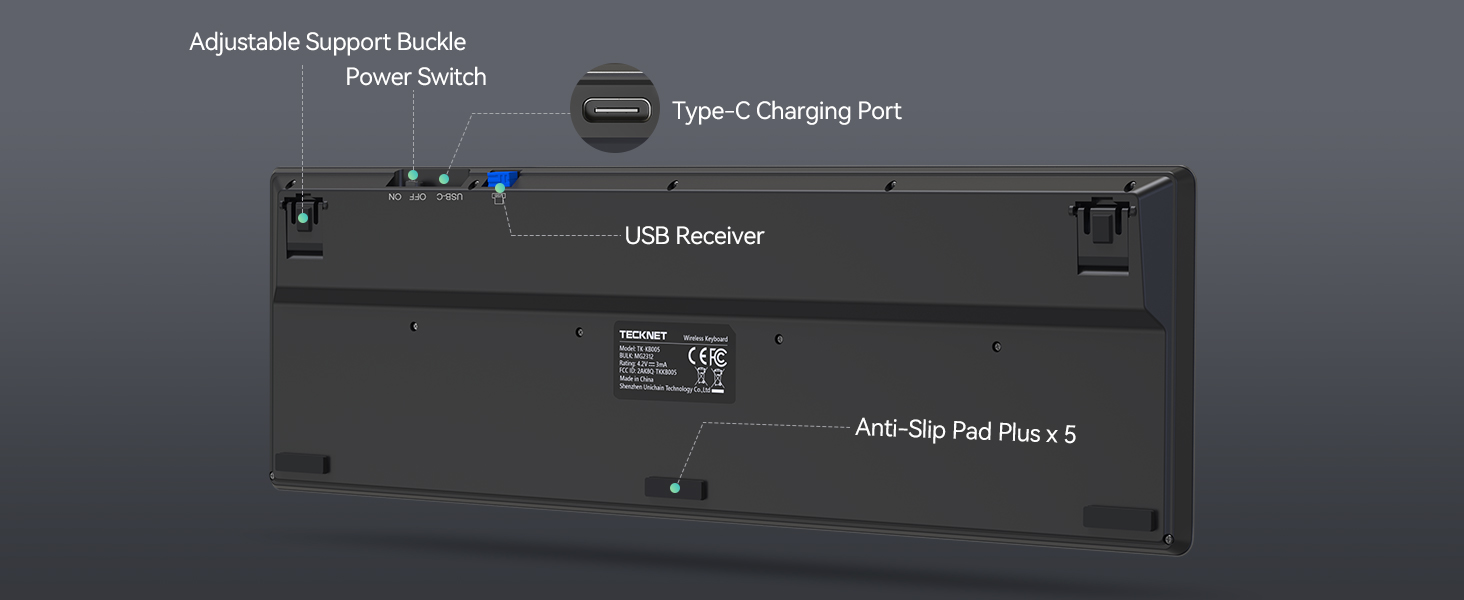
Image: Close-up of the keyboard highlighting the multimedia keys (F1-F12) and their functions.
2. Pangadeg anu tiasa disaluyukeun
For optimal typing comfort, the keyboard includes adjustable support feet on the back. Flip these stands out to customize the tilt angle between 3° - 7° to suit your preference. Five extended non-slip pads ensure stability.
Gambar: Sisi view of the keyboard showing the adjustable support stand extended, indicating ergonomic comfort.
3. Power Saving and Auto-Sleep
To conserve battery life, the keyboard automatically enters sleep mode after 30 minutes of inactivity. It wakes up instantly with any key press, ensuring no delays in your work.
Pangropéa
Keep the keyboard clean by wiping it with a soft, dry cloth. Avoid using harsh chemicals or abrasive materials. Ensure the USB-C charging port is free of dust and debris.
For optimal battery longevity, avoid fully discharging the keyboard frequently. Charge it when the low battery indicator (red LED4 flash) appears.
Pamérésan masalah
| Masalah | Solusi |
|---|---|
| Kibor teu nyambung/pasangkeun. |
|
| Keys not functioning correctly (e.g., swapped WIN/ALT). |
|
| Keyboard signal interference. |
|
| Batré gancang boros. |
|
spésifikasi
| Fitur | Rincian |
|---|---|
| Dimensi produk | 17.13 x 5.12 x 0.57 inci |
| Item Beurat | 1.29 pon |
| Nomer modél | TK-KB005 |
| Batré | 1 batré Litium Ion diperlukeun (kaasup) |
| Téhnologi konektipitas | Bluetooth, 2.4G USB-A |
| Jumlah konci | 110 |
| Fitur husus | 12 Multimedia Keys, Ergonomic, 90% Noise Reduction, Low-Profile Key, Rechargeable |
| Alat nu cocog | Laptop, Smart TV, PC, Tablet, iPad, Smartphone |
Garansi sareng Rojongan
TECKNET offers up to 3 years of support for this product (registration may be required). If you encounter any problems when using the keyboard, please contact TECKNET's professional customer service team for assistance.
Contact information can typically be found on the TECKNET official websitus atawa ngaliwatan platform pameseran Anjeun.


