1. Bubuka
This manual provides detailed instructions for the setup, operation, and maintenance of your ECHTPower Wireless Switch Controller. Please read this manual thoroughly before using the product to ensure proper functionality and to maximize your gaming experience. This controller is designed for use with Nintendo Switch, PC, iOS, and Android devices.

Image 1.1: ECHTPower Wireless Switch Controller in purple. This image displays the front view of the controller, highlighting its ergonomic design and button layout.
2. Produk Langkungview
2.1 Eusi pakét
- Kontroler Saklar Nirkabel ECHTPower
- Kabel Ngecas USB-C
- Manual pangguna (dokumén ieu)
2.2 Layout controller
Familiarize yourself with the buttons and features of your controller:

Gambar 2.1: Hareupeun view of the ECHTPower Wireless Switch Controller. This image shows the left and right analog sticks, D-pad, A/B/X/Y buttons, Home button, Capture button, Plus/Minus buttons, and shoulder buttons.
- Stick Analog kénca: For movement and camera control. Features Hall Effect technology for precision.
- Tongkat Analog Kanan: For camera control and aiming. Features Hall Effect technology for precision.
- D-Pad: Input arah.
- Tombol A/B/X/Y: Tombol aksi.
- Tombol L/R: Kancing taktak.
- Pemicu ZL/ZR: Pemicu analog.
- Tombol HOME: Balik deui ka layar utama sistem.
- Tombol CAPTURE: Takes screenshots or records video clips.
- +/- Tombol: Mimitian/Pilih fungsi.
- Tombol M: Macro/Customization button (refer to advanced settings for programming).
- Indikator LED: Player number and charging status.

Gambar 2.2: Deukeut view of the Hall Effect joystick. This image highlights the advanced sensor technology used in the analog sticks for enhanced durability and drift-free performance.
The controller features Hall Effect joysticks, which utilize electromagnetic induction for precise, drift-free control and extended lifespan compared to traditional potentiometers.
3. Setup jeung Connection
3.1 Ngecas Controller
Before first use, fully charge the controller. Connect the supplied USB-C cable to the controller's charging port and the other end to a USB power source (e.g., console, PC, USB wall adapter). The LED indicators will show charging status and turn off when fully charged.
3.2 Nyambungkeun ka Nintendo Switch
- Tina Menu HOME, pilih "Controllers" > "Robah Cepengan/Pesenan".
- On the next screen, press and hold the SYNC button on the top of the ECHTPower controller for a few seconds until the player LEDs begin to flash.
- Sakali dipasangkeun, pamuter LED (s) anu saluyu sareng nomer pengendali bakal tetep hurung.
Note: The SYNC button is usually a small, recessed button on the top edge of the controller.
3.3 Nyambungkeun ka PC (Windows)
Kontroler ieu ngadukung sambungan kabel sareng nirkabel ka PC.
3.3.1 Sambungan kabel
- Connect the controller to your PC using the USB-C cable.
- PC kedah otomatis ngadeteksi sareng masang panggerak anu diperyogikeun.
- The controller will be recognized as an XInput device.
3.3.2 Sambungan Nirkabel (Bluetooth)
- Pastikeun PC Anjeun tos Bluetooth diaktipkeun.
- Go to "Settings" > "Devices" > "Bluetooth & other devices" and select "Add Bluetooth or other device".
- Choose "Bluetooth".
- Press and hold the SYNC button on the controller until the LEDs flash rapidly.
- Select the "Pro Controller" or similar device name from the list on your PC.
- Once paired, the controller LEDs will stop flashing and remain lit.
3.4 Nyambungkeun ka ios / Alat Android

Image 3.1: The ECHTPower Wireless Switch Controller shown alongside various devices, including a tablet, smartphone, and laptop, illustrating its multi-device compatibility.
- Aktipkeun Bluetooth dina alat ios atanapi Android anjeun.
- Buka setélan Bluetooth teras milarian alat énggal.
- Press and hold the SYNC button on the controller until the LEDs flash rapidly.
- Select the "Pro Controller" or similar device name from the list on your mobile device.
- Once paired, the controller LEDs will stop flashing and remain lit.
Compatibility may vary with specific games and applications on mobile platforms.
4. Parentah Operasi
4.1 Kadali Dasar
The controller functions similarly to standard gaming controllers. Refer to the in-game instructions for specific button mappings.
- Tongkat analog: Used for movement, camera control, and menu navigation.
- D-Pad: Used for directional input, often for menu navigation or specific game actions.
- Tombol A/B/X/Y: Primary action buttons, typically for jumping, attacking, interacting, etc.
- L/R/ZL/ZR Buttons: Used for various in-game actions such as aiming, shooting, or special abilities.
- Tombol HOME: Returns to the console's home screen or main menu.
- Tombol CAPTURE: Captures screenshots or video clips (Nintendo Switch specific).
- +/- Tombol: Often used for pausing games, opening menus, or selecting options.
4.2 Advanced Features (Hall Effect Joysticks)
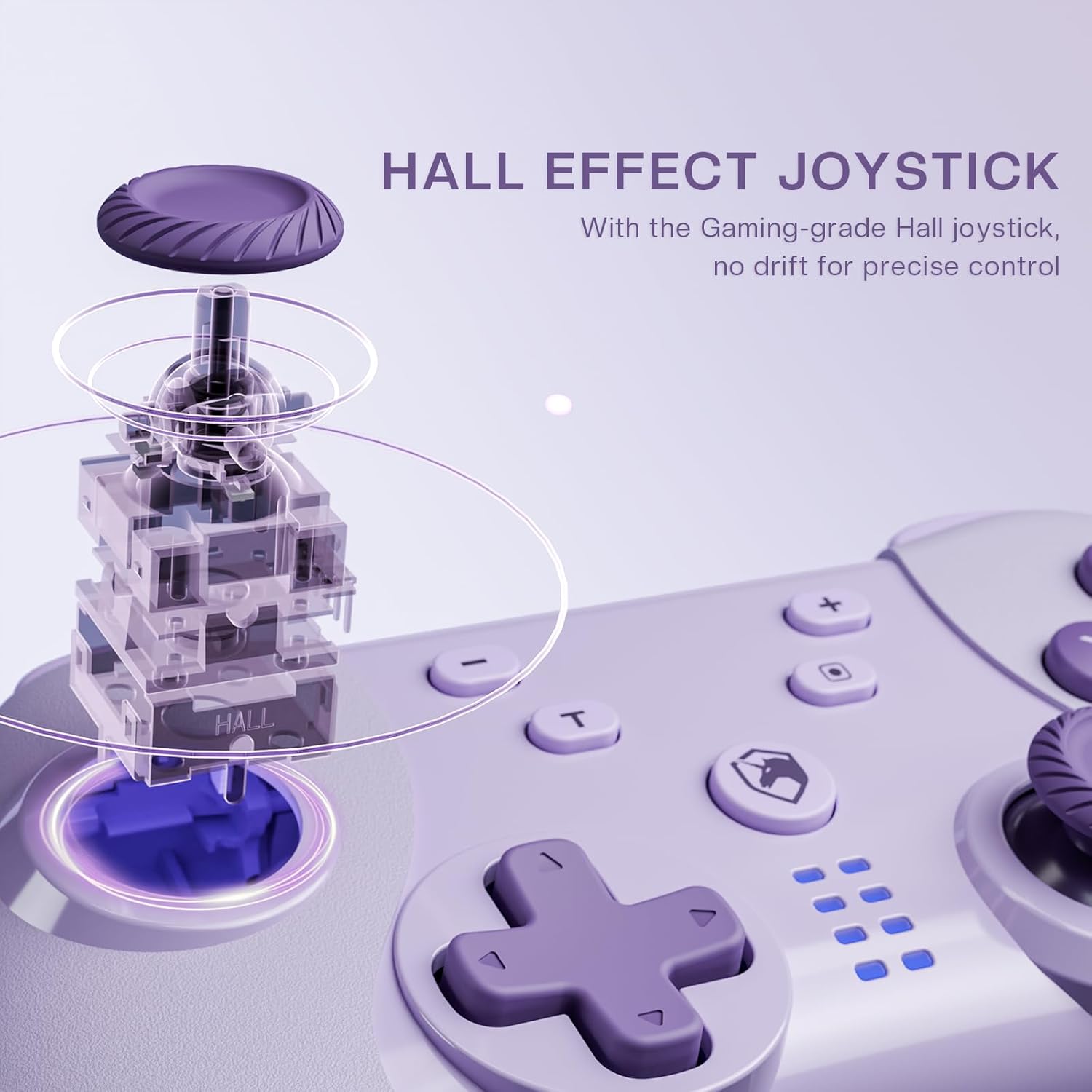
Image 4.1: Diagram illustrating the internal mechanism of a Hall Effect joystick. This image demonstrates how magnetic fields are used for position detection, contributing to drift-free and precise control.
The Hall Effect joysticks provide enhanced precision and durability. This technology uses magnetic fields instead of physical contact, virtually eliminating stick drift and extending the lifespan of the joysticks. No special operation is required; simply enjoy the improved responsiveness and accuracy.
4.3 Macro Function (M Button)
The 'M' button can be programmed for macro functions. Refer to the ECHTPower official website or advanced user guides for detailed instructions on how to program and utilize macro functions for specific gaming scenarios.
5. Pangropéa
- beberesih: Anggo lawon anu lemes sareng garing pikeun ngabersihkeun controller. Entong nganggo bahan kimia anu keras atanapi bahan anu kasar.
- Panyimpenan: Nyimpen controller dina tiis, tempat garing jauh ti sinar panonpoé langsung jeung hawa ekstrim.
- Perawatan batré: Pikeun manjangkeun umur batre, ulah pinuh discharging controller remen. Ngeusi batre rutin, sanajan teu dipaké pikeun période nambahan.
- Hindarkeun tetes: Nangtayungan controller tina tetes jeung dampak, nu bisa ngaruksak komponén internal.
6. Cara ngungkulan
| Masalah | Mungkin Cukang lantaranana | Solusi |
|---|---|---|
| Controller teu hurung. | batré lemah. | Charge the controller using the USB-C cable. |
| Teu tiasa nyambung ka alat. | Not in pairing mode; Bluetooth interference; device's Bluetooth off. | Ensure controller is in pairing mode (flashing LEDs). Check device's Bluetooth settings. Try restarting both controller and device. |
| Input lag atanapi pegat sambungan. | Distance from device; low battery; wireless interference. | Move closer to the device. Charge the controller. Reduce other wireless devices nearby. |
| Joystick drift. | Rare with Hall Effect, but possible calibration issue or extreme wear. | Try recalibrating the joysticks through your device's settings (e.g., Nintendo Switch system settings). If issue persists, contact support. |
7. Spésifikasi
- model: Wireless Switch Controller
- Konektipitas: Bluetooth Wireless, USB-C Wired
- Kasaluyuan: Nintendo Switch, PC (Windows), iOS, Android
- Téhnologi Joystick: Balé Pangaruh
- Sumber Daya: Diwangun-di Batré Rechargeable
- Port ngecas: USB-C
- ASIN: B0DNN1BP4F
8. Garansi jeung Rojongan
ECHTPower products come with a standard manufacturer's warranty. For specific warranty terms and conditions, please refer to the warranty card included with your product or visit the official ECHTPower websitus.
If you encounter any issues or have questions not covered in this manual, please contact ECHTPower customer support:
- Websitus: ECHTPower Official Store on Amazon
- Surélék: Tingali kana bungkusan produk atanapi resmi websitus pikeun email kontak.


