1. Bubuka
Thank you for choosing the vretti P83 Portable Thermal Printer. This device offers a convenient, inkless printing solution for various documents, compatible with multiple operating systems and paper sizes. Its compact and lightweight design makes it ideal for use in diverse environments, from offices and schools to travel and home settings. This manual provides detailed instructions to help you set up, operate, and maintain your printer effectively.
2. Eusi Paket
Punten parios yén sadaya barang aya dina pakét anjeun:
- vretti P83 Portable Thermal Printer
- 8.5x11 US Letter Thermal Paper (initial roll)
- Kabel USB-C
- Manual pangguna (dokumén ieu)
3. Produk Langkungview
The vretti P83 printer is designed for ease of use and portability. Familiarize yourself with its main components:

Image: The vretti P83 printer demonstrating its compatibility with different paper sizes, including US Letter, A4, A5, B5, and various millimeter widths (110mm, 80mm, 53mm).

Gambar: A close-up view of the vretti P83 printer highlighting the 'Open Lid Button', 'Power Button', and 'USB Port' for easy identification of key functionalities.
Fitur konci:
- Inkless Thermal Printing: No need for ink cartridges, toner, or ribbons.
- Portabel & Ringan: Weighs approximately 1.39 lbs (0.63 kg), making it easy to carry.
- kasaluyuan luhur: Supports iOS, Android, Windows, Mac OS, Chrome OS, and Linux systems.
- Sababaraha Ukuran Kertas: Compatible with US Letter, A4, A5, B5, and custom widths (53mm, 80mm, 110mm).
- Hirup batré anu panjang: Diwangun-di batré 2600mAh pikeun pamakéan nambahan.
- Resolusi luhur: 304dpi for clear and sharp prints.
4. Setélan
4.1. Ngamuat Kertas
The vretti P83 supports both roll paper and folding paper. Ensure the print side of the paper is facing up.
- Press the left button to open the printer top cover.
- Push both buckles and slide them to the A4 area to adjust for paper width.
- Tear open the roll of paper.
- Place the roll into the paper bin, pull out part of the roll, and close the cover. Ensure the print side is up.
- Tear off any wrinkled part of the paper roll.
- Raise the paper 45°, hold the printer with your other hand, and align the cutter to tear the paper and remove the excess.

Image: The vretti P83 printer displaying how to load both roll paper and folding paper, highlighting its versatility in paper handling.
4.2. Pamasangan supir
To ensure proper functionality, drivers must be installed on your computer. You can install drivers via a USB drive (if included) or by downloading them from the official vretti websitus.
Video: A detailed guide on how to install the printer driver and perform printing on Windows operating systems.
Method 1: Install Drivers from a USB Drive
- Insert the USB drive (if provided with your printer) into your computer.
- Navigate to the USB drive, open the 'Windows' folder.
- Double-click the 'Xlife Driver Installation' executable file tur turutan parentah dina-layar pikeun ngarengsekeun pamasangan.
Method 2: Download Drivers from the Official Websitus
- Buka anjeun web browser and enter the official websitus: vrettitech.com.
- Navigate to the 'Manuals & Drivers Download' section.
- Select the corresponding model (P83/P84/P8621) and your operating system (Windows, Mac, Linux, Chrome OS), then click 'Download'.
- For mobile devices, download the 'Xlife Pro' app from your app store or via the QR code provided on the kaca download.
- Follow the installation prompts to complete the driver setup.
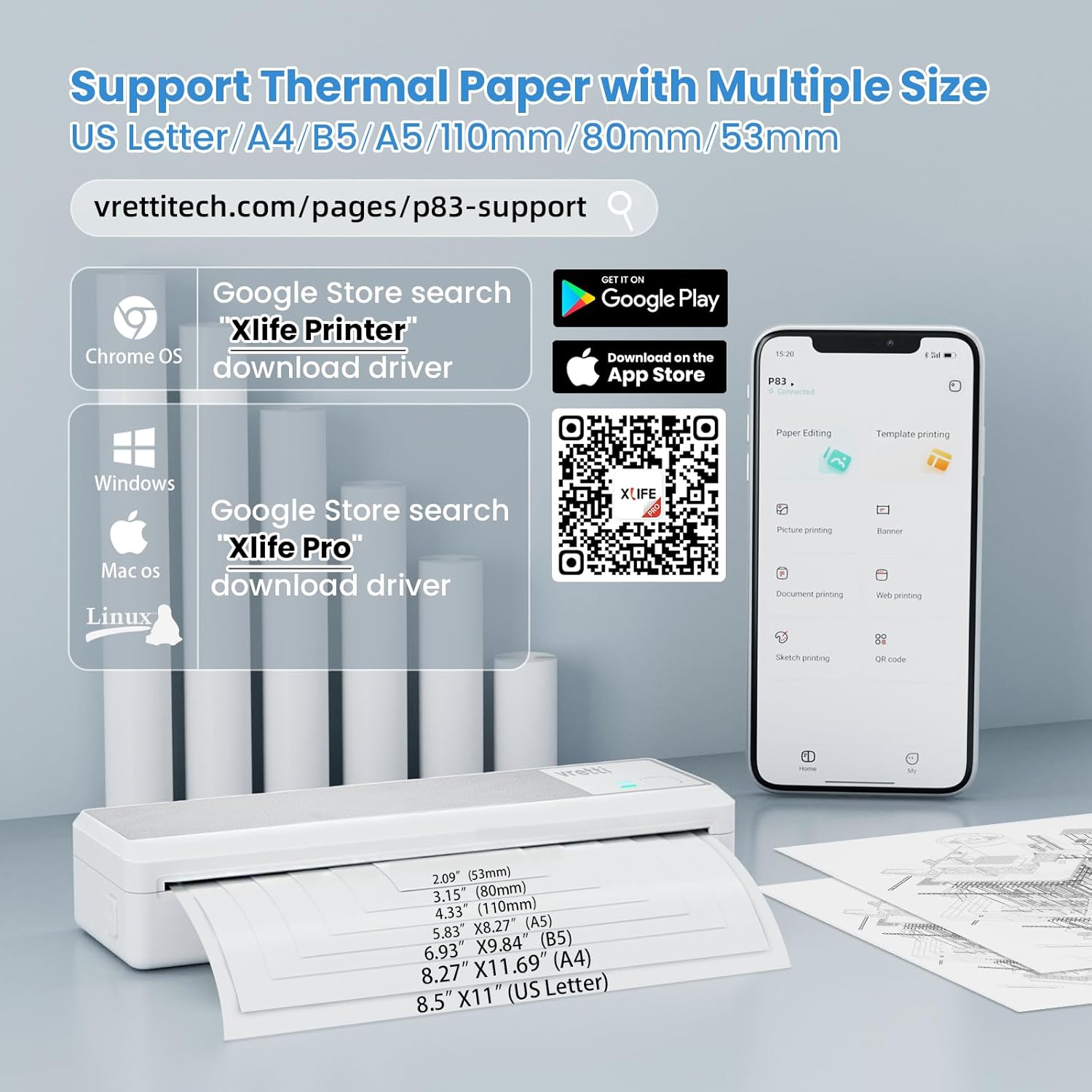
Image: Instructions for downloading the Xlife Printer driver for Chrome OS, Windows, Mac OS, and Linux, along with QR codes for mobile app downloads.
5. Parentah Operasi
5.1. Powering on / Pareum
Press and hold the power button for 3 seconds to turn the printer on or off. The indicator light will illuminate when the printer is on.
5.2. Connecting and Printing via Bluetooth (Mobile Devices)
The vretti P83 supports Bluetooth connectivity for printing from smartphones and tablets.
- Ensure the printer is powered on and within Bluetooth range of your mobile device.
- Download and install the 'Xlife Pro' application from your device's app store.
- Open the 'Xlife Pro' app and search for available Bluetooth devices.
- Select 'P83' from the list to connect.
- Once connected, you can select documents or images within the app and initiate printing.
Video: Sakedapview mintonkeuncasing the portability and wireless printing capabilities of the vretti P83 thermal inkless printer, ideal for travel.
5.3. Connecting and Printing via USB (Laptops/Computers)
For printing from laptops or desktop computers, use a USB connection.
- Pastikeun panggerak printer dipasang dina komputer anjeun (tingali Bagéan 4.2).
- Connect the printer to your computer using the provided USB-C cable. Plug the Type-A end into your computer and the Type-C end into the printer.
- Buka dokumén atanapi gambar anu anjeun hoyong cetak.
- Go to the print option (usually File > Print or Ctrl+P/Cmd+P).
- Select 'Xlife P83' as your printer and adjust any necessary print settings.
- Click 'Print' to begin printing.

Image: A diagram illustrating the various connectivity options for the vretti P83 printer, including Bluetooth for mobile devices and USB for laptops/computers, compatible with iOS, Android, Windows, Mac OS, Linux, and Chrome OS.
6. Pangropéa
Regular maintenance ensures optimal performance and extends the life of your vretti P83 printer.
6.1. Ngabersihan Print Head
The thermal print head should be cleaned periodically to maintain print quality.
- Pareuman printer teras cabut kabel daya.
- Buka panutup printer.
- Gently wipe the thermal print head with a cotton swab lightly dampDipasang dengan isopropil alkohol.
- Ngidinan sirah print nepi ka garing sagemblengna saméméh nutup panutup sarta powering on printer.
6.2. beberesih umum
Wipe the exterior of the printer with a soft, dry cloth. Avoid using abrasive cleaners or solvents.
6.3. Panyimpenan
Store the printer in a cool, dry place away from direct sunlight and extreme temperatures. When not in use for extended periods, ensure the battery is partially charged (around 50%) to preserve battery health.
7. Cara ngungkulan
If you encounter issues with your vretti P83 printer, refer to the following common problems and solutions:
| Masalah | Mungkin Cukang lantaranana | Solusi |
|---|---|---|
| Printer teu hurung | Masalah batré atanapi kakuatan lemah | Charge the printer using the provided USB-C cable. Ensure the power adapter is working. |
| Teu bisa nyambung via Bluetooth | Bluetooth is off, incorrect pairing, or app issue | Ensure Bluetooth is enabled on both devices. Restart the printer and mobile device. Re-pair the devices in the 'Xlife Pro' app. Check app permissions. |
| Poor print quality (faint, streaky) | Print head dirty, incorrect paper, or low battery | Clean the print head (Section 6.1). Ensure you are using thermal paper with the print side up. Charge the printer. |
| Kertas macét | Ngamuat kertas anu teu leres atanapi barang asing | Turn off the printer. Open the cover and carefully remove any jammed paper. Ensure paper is loaded correctly. |
| Printer teu dipikawanoh ku komputer | Driver not installed or USB connection issue | Install or reinstall the printer drivers (Section 4.2). Try a different USB port or cable. Restart the computer and printer. |
8. Spésifikasi
Detailed technical specifications for the vretti P83 Portable Thermal Printer:
- Ukuran produk: 2.7 "D x 10.6" W x 4.7" H (6.86 cm D x 26.92 cm W x 11.94 cm H)
- Beurat barang: 1.39 lbs (0.63 kg)
- Téknologi Percetakan: Termal
- Kaluaran printer: Monokrom
- Laju Cetak Maksimum (Monokrom): 21.5 ppm
- Ukuran Média Maksimum: 8.5 x 11 inci (Huruf AS)
- Ukuran Média anu Dirojong: A4, A5, B5, US Letter, 53mm, 80mm, 110mm
- Kapasitas Lembar Input Max: 50 lembar
- Téknologi konektipitas: Bluetooth, USB
- Batré: 2600mAh (C batteries required for internal power, integrated)
- Resolusi citak: 304dpi
- warna: Bodas-Kébu
- Ngaran modél: P83 inkless portable printer
- UPC: 717813673917

Image: A visual comparison highlighting the superior clarity and detail of 304dpi print resolution (top) compared to 203dpi (bottom).
9. Garansi jeung Rojongan
For warranty information and technical support, please refer to the documentation included with your purchase or visit the official vretti websitus di vrettitech.com. You may also contact vretti customer service directly for assistance with product issues or inquiries.


