
1. Bubuka
Thank you for choosing the Cuifati Bluetooth Transparent Mouse. This device offers dual-mode connectivity (Bluetooth 5.0 and 2.4G USB receiver), RGB backlighting, and a rechargeable design for versatile use with PCs, laptops, and tablets. This manual provides detailed instructions for setup, operation, maintenance, and troubleshooting to ensure optimal performance.
2. Eusi Paket
Punten parios yén sadaya barang aya dina pakét anjeun:
- 1 x Cuifati Bluetooth Transparent Mouse
- 1 x Kabel Ngecas (Tipe-C)
- 1 x Panarima USB (2.4G)
- 1 x Manual Pamaké

Image: Contents of the Cuifati mouse package, including the mouse, Type-C charging cable, and 2.4G USB receiver.
3. Spésifikasi
| Fitur | Rincian |
|---|---|
| Setélan DPI | 800, 1200, 1600 |
| Modeu transmisi | 2.4G Wireless, Bluetooth 5.0 |
| Kapasitas batré | Batré Li-ion 400mAh |
| Ukuran Mouse | Approx. 113.5 x 58 x 25mm (±2mm) |
| Métode ngecas | USB Tipe-C |
| Operasi Voltage | 3.3V-4.2V |
| Operating Current (Light mode) | ≤25mA |
| Operating Current (Non-lighting mode) | ≤8mA |
| 2.4 Syarat System G | Windows XP/7/8/10+, Android 4.4+, OS X 10.5+, Linux Kernel 2.6+2, Chrome OS |
| Sarat Sistim Bluetooth | Windows 8/10, Android 5.0+, OS X 10.10+ (Bluetooth 4.0 and above adapter required) |
| Bahan | PC |
4. Setélan
4.1. Ngecas Mouse
Before first use, fully charge the mouse. Connect the provided Type-C charging cable to the mouse's charging port and the other end to a USB power source (e.g., computer USB port, USB wall adapter). A full charge typically takes 2-3 hours.

Image: The Cuifati mouse being charged via its Type-C port, indicating a 2-3 hour charging time.
4.2. Nyambungkeun via Panarima USB 2.4G
- Locate the USB receiver, usually stored within the mouse's magnetic cover or packaging.
- Colokkeun panarima USB ka port USB nu sadia dina komputer atawa alat Anjeun.
- Turn on the mouse and switch it to 2.4G mode (refer to Section 5.1 for mode switching).
- Beurit kedah otomatis nyambung ka alat anjeun.

Image: The transparent design of the Cuifati mouse, showing the internal components and the USB receiver slot.
4.3. Nyambungkeun via Bluetooth 5.0
- Turn on the mouse and switch it to Bluetooth mode (refer to Section 5.1 for mode switching).
- On your device (PC, laptop, tablet), navigate to the Bluetooth settings.
- Aktipkeun Bluetooth sareng milarian alat anyar.
- Select "Cuifati Mouse" or a similar name from the list of available devices to pair.
- Turutan ajakan dina layar pikeun ngarengsekeun prosés papasangan.
Note: You cannot use Bluetooth mode and 2.4G USB mode simultaneously. Ensure only one mode is active at a time.
5. Parentah Operasi
5.1. Hurung/Pareum sareng Ngaganti Modeu
The mouse features a switch on its underside to power it on/off and select the connection mode. Slide the switch to the desired position for 2.4G or Bluetooth connectivity, or to the 'Off' position to conserve battery.
5.2. Adjustment DPI
The mouse supports three DPI (Dots Per Inch) settings: 800, 1200, and 1600. Press the DPI button (usually located near the scroll wheel or on the underside) to cycle through these settings and adjust cursor sensitivity to your preference.
5.3. RGB Lighting Control
The mouse features various RGB lighting effects. A dedicated lighting switch key, typically on the underside or a side button, allows you to cycle through 11 different lighting modes or turn off the lights completely. This enhances the aesthetic appeal during use.
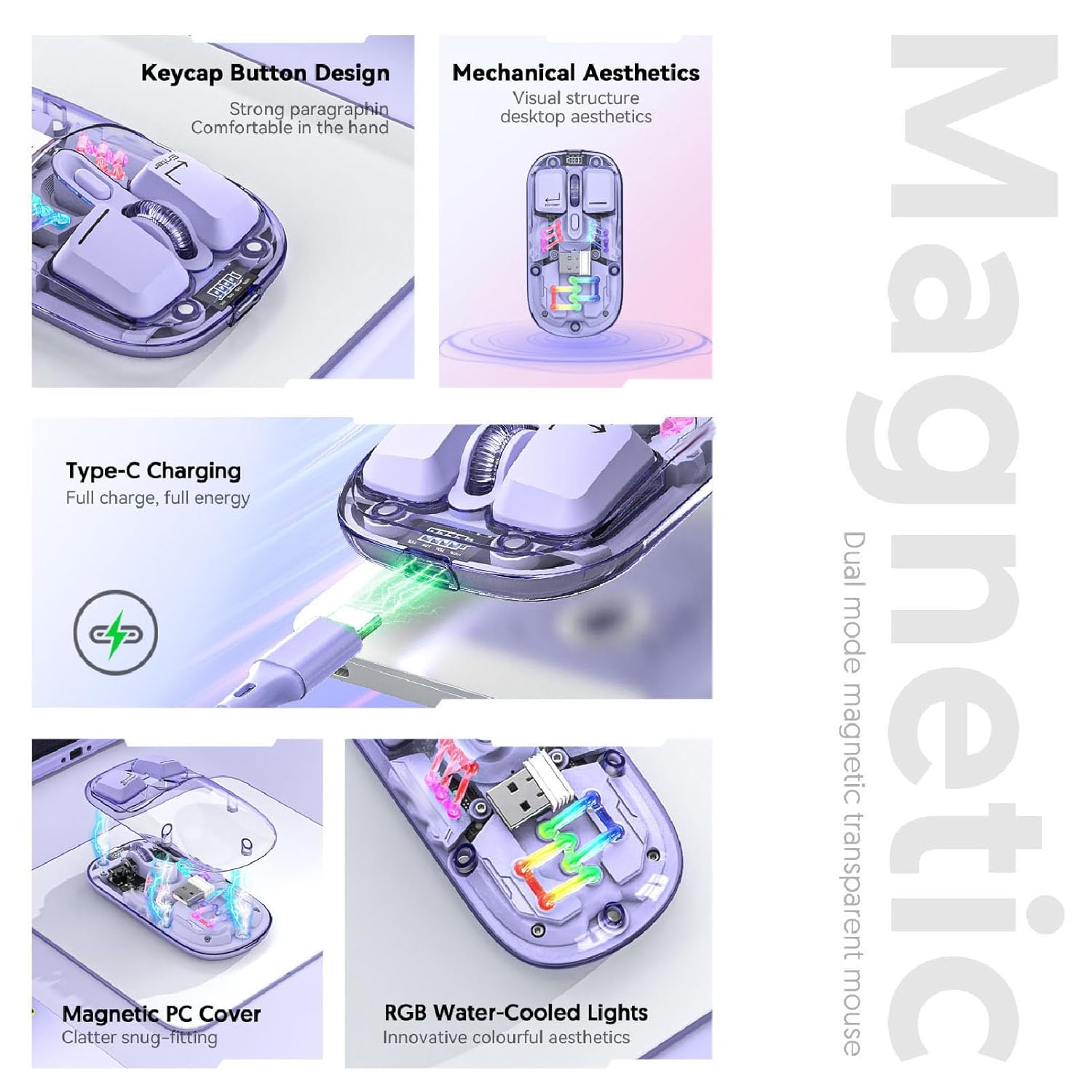
Gambar: Komposit view highlighting the RGB lighting, Type-C charging, and magnetic cover design of the mouse.
5.4. Témbongkeun Level batré
The mouse is equipped with a power display to check the remaining battery level at any time. This display typically uses indicator lights to show the charge status:
- 4 lights on: 100% batré
- 3 lights on: 75% batré
- 2 lights on: 50% batré
- 1 light on: 25% batré

Image: Close-up of the Cuifati mouse's battery level display, illustrating how indicator lights correspond to charge percentage.
5.5. Automatic Energy Saving
To conserve battery life, the mouse features an automatic sleep function:
- Saré ringan: After 60 seconds of no operation, the mouse enters a light sleep state.
- Saré Saré: If no operation occurs for 10 minutes, the mouse enters a deep sleep mode.
- Gugah: To wake the mouse from sleep, simply move it or press any button.
Note: Actual power saving performance may vary based on usage habits.

Image: Visual representation of the mouse's power-saving states: light sleep after 60 seconds, deep sleep after 10 minutes, and how to wake it up.
6. Pangropéa
6.1. beberesih
To maintain the mouse's appearance and functionality, regularly clean its surfaces. Use a soft, dry, lint-free cloth. For stubborn dirt, slightly dampen the cloth with water or a mild, non-abrasive cleaner. Avoid using harsh chemicals or abrasive materials that could damage the transparent shell or internal components.

Image: The Cuifati mouse with its magnetic top cover detached, revealing the internal structure for potential cleaning or maintenance.
6.2. Kaperawatan batré
The built-in Li-ion battery is designed for long-term use. To prolong battery life:
- Hindarkeun sering-sering ngeusi batre.
- Cas beurit nganggo kabel Tipe-C anu disayogikeun.
- Simpen beurit di tempat anu tiis sareng garing upami henteu dianggo salami lami.
7. Cara ngungkulan
If you encounter issues with your Cuifati mouse, please refer to the following common solutions:
- Mouse teu ngabales:
- Pastikeun beurit diaktipkeun.
- Pariksa tingkat batré jeung ngecas lamun perlu.
- Pariksa heula naha modeu sambungan anu leres (2.4G atanapi Bluetooth) parantos dipilih.
- Pikeun 2.4G, pastikeun panarima USB dipasang kalayan pageuh. Cobi port USB anu sanés.
- Pikeun Bluetooth, pastikeun Bluetooth diaktipkeun dina alat anjeun sareng beurit parantos dipasangkeun. Cobi pasangkeun deui.
- Gerakan kursor henteu teratur atanapi laun:
- Ngabersihan sensor optik dina underside beurit.
- Pastikeun anjeun nganggo beurit dina permukaan anu cocog (henteu réfléktif atanapi transparan).
- Adjust the DPI setting (refer to Section 5.2).
- Lampu RGB teu jalan:
- Pastikeun beurit diaktipkeun.
- Press the lighting switch key to cycle through modes or turn them on (refer to Section 5.3).
- Check battery level; low battery might disable lighting.
- Cannot connect via Bluetooth and 2.4G simultaneously:
- This is expected behavior. The mouse is designed to operate in one mode at a time. Switch to the desired mode using the selector switch.
8. Garansi jeung Rojongan
The Cuifati Bluetooth Transparent Mouse comes with a standard manufacturer's warranty. Please refer to the warranty card included in your package or visit the official Cuifati websitus pikeun istilah jeung kaayaan jaminan lengkep.
For technical support, product inquiries, or warranty claims, please contact Cuifati customer service through their official channels. Contact information can typically be found on the product packaging or the manufacturer's websitus.