
DOGNESS F03
DOGNESS 6L Smart Feeder User Manual
Modél: F03
Bubuka
Thank you for choosing the DOGNESS 6L Smart Feeder. This automatic pet feeder is designed to provide convenient and precise feeding for your cat or dog, ensuring they receive their meals on schedule, even when you're away. With its large 6L capacity, smartphone app control, and dual power supply system, the DOGNESS Smart Feeder offers reliability and ease of use for modern pet care. Please read this manual thoroughly before using the product to ensure proper operation and maintenance.
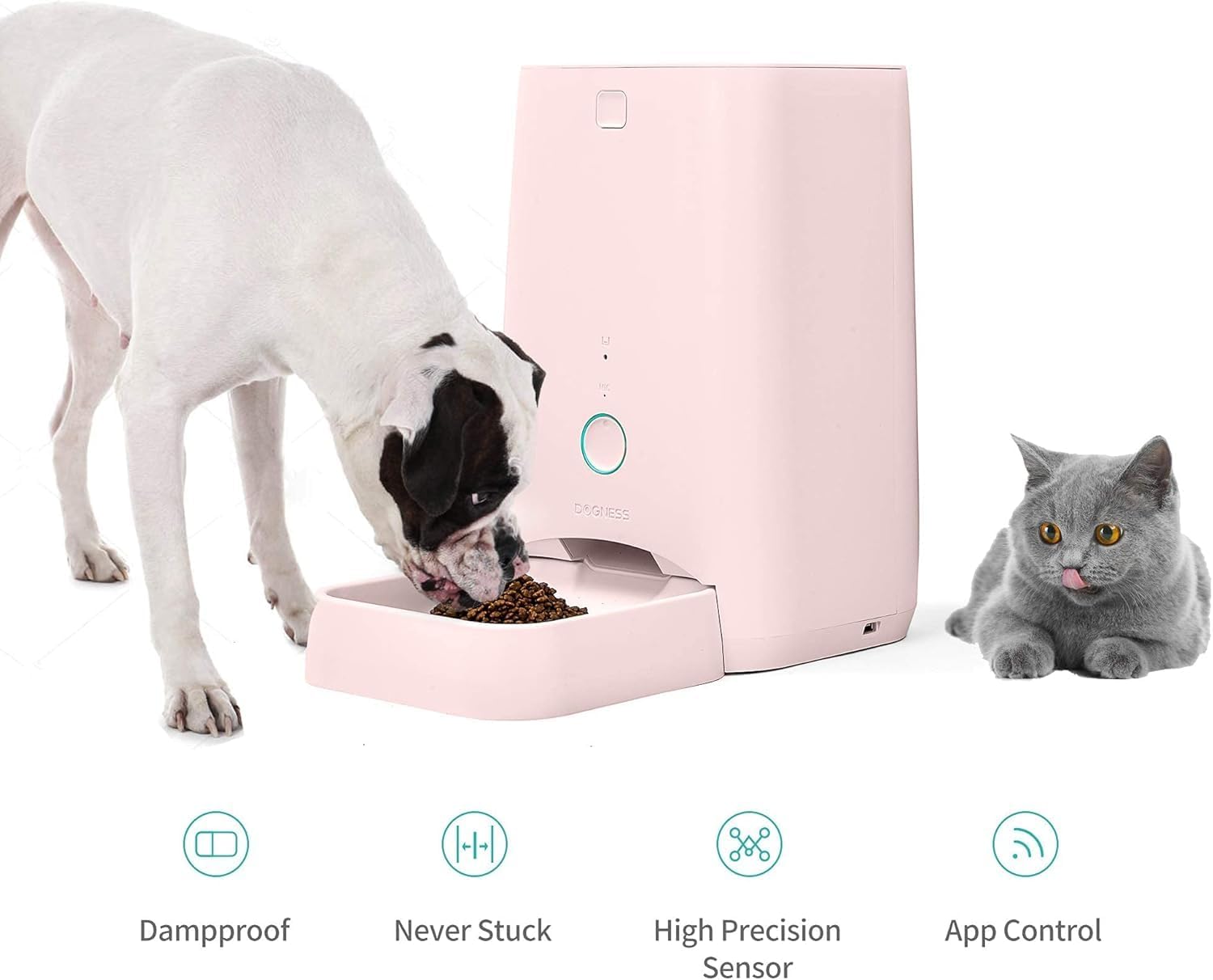
The DOGNESS 6L Smart Feeder, suitable for both dogs and cats, featuring damp-proof design, anti-stuck mechanism, high precision sensor, and convenient app control.
Émbaran Kasalametan
- Always place the feeder on a flat, stable surface to prevent tipping.
- Ulah neuleumkeun unit utama dina cai atawa cairan séjén.
- This product is designed for dry pet food only. Do not use wet food, canned food, or treats.
- Keep out of reach of children and pets when not in use or during assembly.
- Ensure the power adapter cable is not chewed by pets.
- Use only the original power adapter provided with the feeder.
- Cabut colokan feeder sateuacan dibersihkeun.
- Do not attempt to disassemble or repair the feeder yourself. Contact customer support if issues arise.
Eusi pakét
Mangga parios pakét pikeun mastikeun yén sadaya barang aya:
- DOGNESS 6L Smart Feeder Main Unit
- Baki dahareun
- Power Adapter (USB cable and wall adapter)
- Desiccant Bag (pre-installed in some models)
- Manual pangguna (dokumén ieu)
- Two Portion Wheel Sizes (one pre-installed, one spare)
Produk Leuwihview
Familiarize yourself with the components of your DOGNESS Smart Feeder:

Hareupeun view of the DOGNESS 6L Smart Feeder, illustrating the main components including the food hopper lid, indicator lights, manual feed button, and detachable food tray.
- Food Hopper Lid: Top cover for refilling pet food.
- Hopper dahareun: Main storage for dry pet food (6L capacity).
- Panél kontrol: Includes indicator lights and manual feed button.
- Gerai Kadaharan: Where food dispenses into the tray.
- Baki dahareun: Detachable tray for pet to eat from.
- Palabuhan Daya: For connecting the USB power adapter.
- Kompartemen batré: Located at the bottom, for backup D-size batteries (not included).
- Speaker/Mikropon: For voice recording and playback.
Disetél
1. Unpacking na panempatan
Carefully remove all components from the packaging. Place the feeder on a level, dry surface indoors, away from direct sunlight or heat sources. Ensure there is enough space around the feeder for your pet to comfortably access the food tray.
2. Power Supply
Feeder ngadukung catu daya ganda pikeun operasi anu teu kaganggu:
- USB Power: Connect the provided USB cable to the feeder's power port and the wall adapter, then plug into a standard electrical outlet. This is the primary power source.
- Cadangan batré: For emergency power during outages, install 4 D-size batteries (not included) into the battery compartment at the bottom of the feeder. This ensures feeding plans are carried out even without AC power.
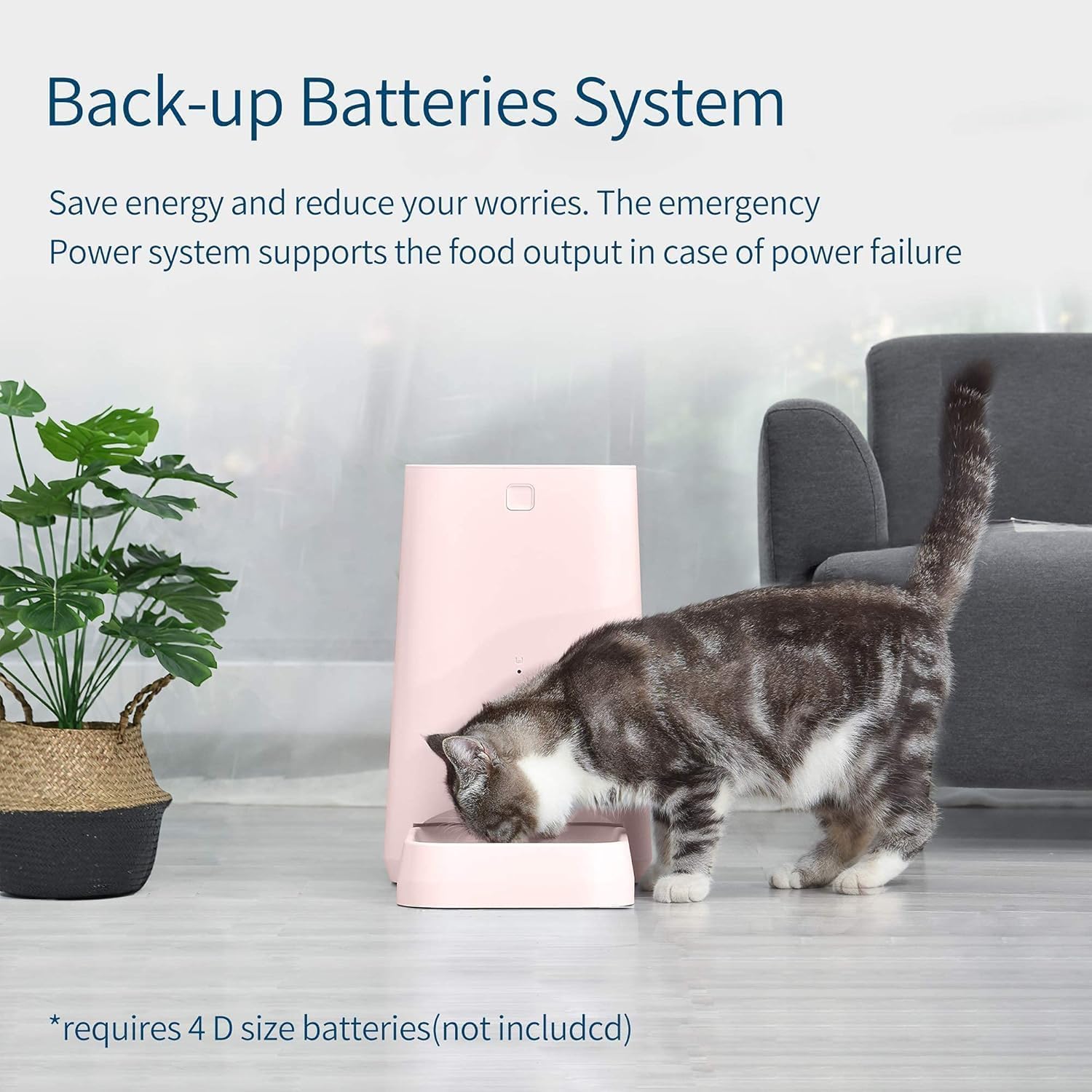
The DOGNESS Smart Feeder features a battery backup system, requiring 4 D-size batteries (not included) to ensure continuous operation during power outages.
3. Food Hopper and Portion Wheel Installation
- Open the food hopper lid.
- If not already installed, place the desired portion wheel into the feeder mechanism. The feeder comes with two sizes suitable for different kibble sizes and pet breeds.
- Fill the food hopper with dry pet food. Ensure the food is not too large to prevent jamming.
- Close the food hopper lid securely to maintain food freshness.
- Attach the food tray to the front of the feeder.
4. Instalasi App sarta Papasangan
The DOGNESS Smart Feeder is controlled via the DOGNESS App, available for iOS and Android devices.
- Download the "DOGNESS" App from the Apple App Store or Google Play Store.
- Ngadaptarkeun akun anyar atanapi log in upami anjeun parantos gaduh.
- Follow the in-app instructions to add your new feeder. This typically involves:
- Ensuring your phone is connected to a 2.4GHz Wi-Fi network.
- Powering on the feeder.
- Resetting the feeder (refer to app for specific button press sequence, usually holding a button until indicator light flashes).
- Entering your Wi-Fi password in the app.
- Waiting for the feeder to connect to your Wi-Fi network.
- Once successfully paired, you can name your feeder and begin setting up feeding schedules.
Parentah Operasi
1. Scheduling Feeds via App
The primary method for controlling your feeder is through the DOGNESS App.

The DOGNESS Smart Feeder allows remote control via its smartphone app, enabling scheduled food dispensing from any location, whether at work, sleeping, or traveling.
- Open the DOGNESS App and select your feeder.
- Buka bagian "Jadwal" atanapi "Rencana Dahar".
- Add a new feeding time:
- Set the desired time for the meal.
- Select the number of portions to dispense (each portion is a specific amount, refer to app for exact weight).
- Choose the days of the week for this schedule to repeat.
- Save the schedule. You can set multiple feeding times throughout the day.
- The feeder will automatically dispense food at the programmed times.
2. Manual Dahar
You can manually dispense food directly from the feeder or through the app.
- Dina feeder: Press the manual feed button (usually a prominent button on the front panel) once to dispense one portion of food. Pressing multiple times will dispense multiple portions.
- Via Aplikasi: In the DOGNESS App, there is typically a "Feed Now" or "Manual Feed" option. You can select the number of portions to dispense immediately.
3. Voice Recording and Playback
Some models allow you to record a short voice message that plays during feeding times.
- Refer to the DOGNESS App for instructions on how to record and enable voice playback. This feature helps to call your pet to their meal.
4. Lampu Indikator
The feeder features indicator lights to communicate its status. Refer to the app or product details for specific light meanings (e.g., solid blue for connected, flashing blue for pairing mode, red for error/low food). The product description mentions "Colorful indicator light effects allow the pet caregivers to customize the setting infinitely and uniquely." This implies some customization, but basic status lights will still exist.
Pangropéa
1. Ngabersihkeun Feeder
Regular cleaning ensures hygiene and proper operation.
- Unplug the feeder from the power outlet and remove any batteries.
- Remove the food tray and food hopper lid.
- Wash the food tray and food hopper lid with mild soap and water. Rinse thoroughly.
- Ngusap unit utama kalayan lemes, damp lawon. Ulah beuleum unit utama dina cai.
- Pastikeun sadaya bagian garing pisan sateuacan dipasang deui sareng dieusi deui ku tuangeun.
2. Food Hopper Refill
The feeder has an insufficient food warning function. When the food level is low, the app will notify you, and an indicator light on the feeder may illuminate. Refill the hopper promptly to ensure continuous feeding.
3. Ngagantian batré
If using battery backup, replace the D-size batteries when the low battery indicator appears or approximately every 6-12 months, depending on usage. Ensure correct polarity when inserting new batteries.
Pamérésan masalah
| Masalah | Mungkin Cukang lantaranana | Solusi |
|---|---|---|
| Panyeuseup teu ngaluarkeun dahareun. |
|
|
| Feeder not connecting to Wi-Fi. |
|
|
| App not controlling feeder. |
|
|
| Food gets stuck. |
|
|
spésifikasi
| Fitur | Rincian |
|---|---|
| merek | ANJING |
| Nomer modél | F03 |
| Kapasitas | 6 liter |
| Diménsi | 17.78 x 17.78 x 30.48 cm |
| Beurat | 3.31 kg |
| Sasayogian tanaga | USB Power Adapter (included), 4 x D-size Batteries (not included) |
| Konektipitas | Wi-Fi (2.4GHz wungkul) |
| Kasaluyuan Aplikasi | iOS and Android (DOGNESS App) |
| Spésiés sasaran | Anjing, Ucing |
| Fitur husus | Food Grade Material, Portion Control, Fresh Lock System, Insufficient Food Warning |
Garansi sareng Rojongan
For warranty information and customer support, please refer to the warranty card included with your product or visit the official DOGNESS website. If you encounter any issues not covered in this manual, please contact DOGNESS customer service for assistance.
Pabrikan: ANJING
Jumlah modél: F03
Ask a question about this manual
Ask about setup, troubleshooting, compatibility, parts, safety, or missing instructions. Manuals+ will review the question and use this page’s manual context to help answer it.