1. Bubuka
The ASUS DC300 Docking Station is a compact device designed to streamline laptop connectivity and enhance productivity. It allows users to connect multiple peripherals, external displays, and power their laptop through a single USB-C cable. This manual provides detailed instructions for setting up, operating, and maintaining your docking station.
2. Produk Langkungview
The ASUS DC300 Docking Station offers extensive connectivity options in a sleek, durable design. Its metal construction ensures longevity and a sophisticated appearance that blends seamlessly into any workspace. Key features include support for multiple displays, high-speed data transfer ports, and pass-through charging capabilities.
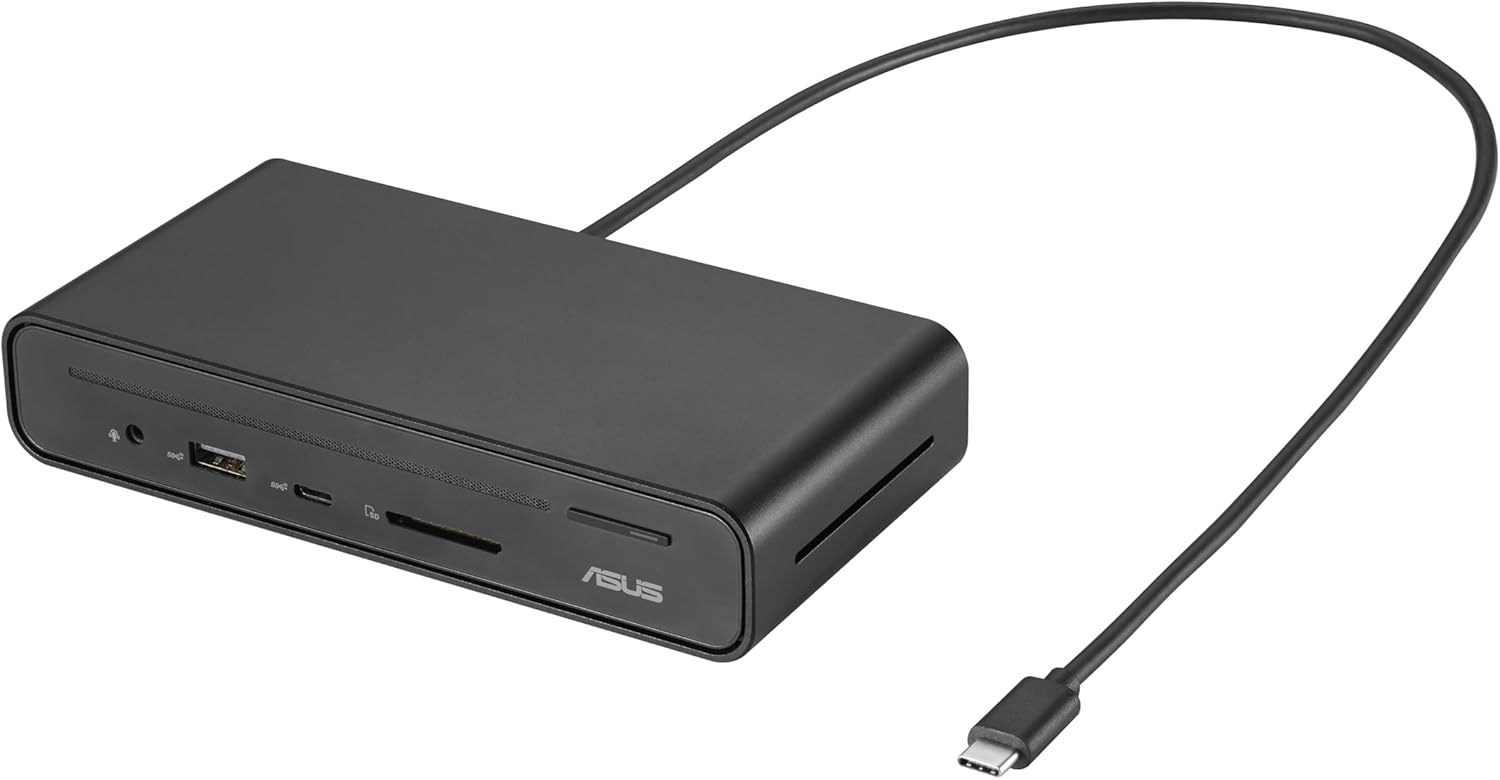
Figure 2.1: ASUS DC300 Docking Station with attached USB-C cable.
3. Eusi Paket
Pastikeun sadaya item aya dina bungkusan:
- ASUS DC300 Docking Station
- USB Type-C Cable (braided)
- Magnetic Base with Adhesive
- Manual pangguna (dokumén ieu)
4. Physical Components and Port Layout
The docking station features a variety of ports for comprehensive connectivity. Familiarize yourself with the port layout for optimal use.
4.1 Front Panel Ports
- 1x USB Type-C Port (10 Gbps): Pikeun mindahkeun data-speed tinggi.
- 1x USB Type-A Port (10 Gbps): Pikeun mindahkeun data-speed tinggi.
- Pamaca Kartu SD: Pikeun maca kartu memori SD baku.
- Pamaca Kartu MicroSD: For reading MicroSD memory cards.
- 3.5mm Audio Jack: Pikeun nyambungkeun headphone atawa alat audio éksternal.
- Tombol Daya: Pikeun nganonaktipkeun / mareuman stasiun docking.

Gambar 4.1: Hareupeun view of the docking station with accessible high-speed data and media card ports.
4.2 palabuhan Panel pungkur
- 2x HDMI Ports (4K@60Hz): Pikeun nyambungkeun tampilan éksternal.
- 2x DisplayPort (4K@60Hz): Pikeun nyambungkeun tampilan éksternal.
- 1x USB Type-C PD Port (100W): For power delivery to your laptop and pass-through charging.
- 1x USB Type-A Port (10 Gbps): Pikeun mindahkeun data-speed tinggi.
- 1x USB Type-A Port (480 Mbps): For connecting peripherals like keyboard/mouse dongles.
- 1x Port Ethernet Gigabit: Pikeun sambungan jaringan kabel anu stabil.

Gambar 4.2: Tukangeun view of the docking station with various display, power, and network ports.
5. Setup Guide
Follow these steps to set up your ASUS DC300 Docking Station:
- Posisi dok: Place the docking station on a flat, stable surface. You may use the included magnetic base to secure it to your desk. Ensure the adhesive is applied to a suitable surface if you intend to use it permanently.
- Nyambung ka Laptop: Connect the braided USB Type-C cable from the docking station's "To Laptop" port (rear panel) to your laptop's USB Type-C port.
- Sambungkeun Daya (Opsional tapi Disarankeun): For optimal performance, especially with multiple displays and charging, connect your laptop's USB Type-C power adapter to the docking station's "USB Type-C PD" port (rear panel). This enables pass-through charging for your laptop.
- Sambungkeun Pintonan: Use HDMI or DisplayPort cables to connect your external monitors to the corresponding ports on the rear panel of the docking station.
- Sambungkeun Periferal: Plug in your mouse, keyboard, external drives, or other USB devices to the available USB Type-A or USB Type-C ports on the front or rear panels.
- Nyambung ka Jaringan (Opsional): For a stable wired internet connection, connect an Ethernet cable to the Gigabit Ethernet port on the rear panel.
- Daya Hurung: Press the power button on the front panel to turn on the docking station. The digital LED display will illuminate, showing the status of connected ports.
6. Parentah Operasi
6.1 Modeu Paparan
Stasion dok ngadukung rupa-rupa konfigurasi tampilan:
- Sistem Windows: Supports single, dual, and triple external displays in extended or mirrored modes. Resolutions up to 4K@60Hz are supported for single/dual displays, and 4K@30Hz for triple displays.
- Sistem Mac OS: Supports single and dual external displays. Triple display is not supported in extended mode; displays will be mirrored.

Gambar 6.1: Kelample of a triple monitor setup with the ASUS DC300 Docking Station.
6.2 Mindahkeun Data
Utilize the high-speed USB ports for quick data transfer:
- USB 3.2 Gen 2 Ports (10 Gbps): Ideal pikeun mindahkeun barang ageung files to/from external SSDs or other high-speed devices.
- SD/MicroSD Card Readers: For fast transfer of photos and videos from memory cards.
6.3 One-Click Screen Lock
The power button on the top of the docking station also functions as a screen lock button:
- Windows: Press the button once to instantly lock your displays.
- MacOS: Press the button twice to lock your displays.
7. Pangropéa sarta perawatan
- Keep the docking station in a clean, dry environment.
- Hindarkeun ngalaan alat ka suhu anu ekstrim atanapi sinar panonpoé langsung.
- Clean the surface with a soft, dry cloth. Do not use liquid cleaners.
- Ensure cables are properly connected and not under strain to prevent damage.
8. Cara ngungkulan
Upami anjeun mendakan masalah, tingal solusi umum ieu:
- Unstable LAN Connection: If the LAN connection is unstable or disconnects, especially after sleep mode, try disabling and re-enabling the network driver in your operating system settings.
- Power Button Not Functioning: Ensure the docking station is properly connected to your laptop and, if applicable, to a power source.
- Layar kedip-kedip: Check all display cable connections. Ensure your display drivers are up to date. Verify that your monitor and cable support the selected resolution and refresh rate.
- Henteu aya kaluaran tampilan: Confirm that your laptop's USB-C port supports video output (DisplayPort Alt Mode). Ensure all display cables are securely connected. Check your display settings in your operating system.
- Masalah ngecas: Ensure your laptop's power adapter is connected to the docking station's USB Type-C PD port. Verify that your laptop supports USB-C power delivery.
9. Spésifikasi
| Fitur | Rincian |
|---|---|
| Nomer modél | 90XB08CN-BDS000 |
| Dimensi produk | 3.66 x 3.27 x 0.98 inci |
| Item Beurat | 1.1 pon |
| Téhnologi konektipitas | Dikabel |
| Kamampuh Ngecas | Yes (up to 100W via USB-C PD) |
| Rojongan tampilan | 3 Displays Supported (4K resolution) |
| Palabuhan HDMI | 2 (4K@60Hz) |
| DisplayPort | 2 (4K@60Hz) |
| Total palabuhan USB | 4 (2x USB 3.2 Gen 2 Type-A, 1x USB 3.2 Gen 2 Type-C, 1x USB 2.0 Type-A) |
| Ethernet | Gigabit Ethernet |
| Mémori Card Reader | SD, MicroSD |
| Alat nu cocog | Expertbook (and other USB-C compatible laptops) |
10. Garansi jeung Rojongan
For warranty information and customer support, please refer to the official ASUS website or contact their customer service directly. The product typically comes with a manufacturer's warranty. Please retain your proof of purchase for warranty claims.
Dukungan ASUS: https://www.asus.com/support/


