1. Bubuka
Thank you for choosing the TECKNET Wireless Gaming Mouse. This manual provides detailed instructions on how to set up, operate, and maintain your new gaming mouse, ensuring optimal performance and longevity. Please read this manual thoroughly before using the product.
2. Produk Langkungview
2.1 Eusi pakét
- TECKNET Wireless Gaming Mouse
- Panarima USB
- Kabel Ngecas USB
- Manual pamaké
2.2 Komponen Beurit
Familiarize yourself with the various parts of your TECKNET Wireless Gaming Mouse:

Image: The TECKNET Wireless Gaming Mouse, showcasing its ergonomic design and the included USB receiver.
- Tombol Pencét kénca
- Tombol Klik katuhu
- Gulung kabayang / Tombol Pencét Tengah
- Tombol Siklus DPI
- Tombol Maju (Sisi)
- Tombol Mundur (Sisi)
- Jalur Lampu RGB
- USB Charging Port (Front)
- Power Switch (Bottom)
- Slot Panyimpenan Panarima USB (Handap)
3. Setélan
3.1 Ngecas Awal
Before first use, it is recommended to fully charge the mouse. Connect the provided USB charging cable to the mouse's charging port and the other end to a USB power source (e.g., computer USB port, USB wall adapter). The RGB lighting may indicate charging status.
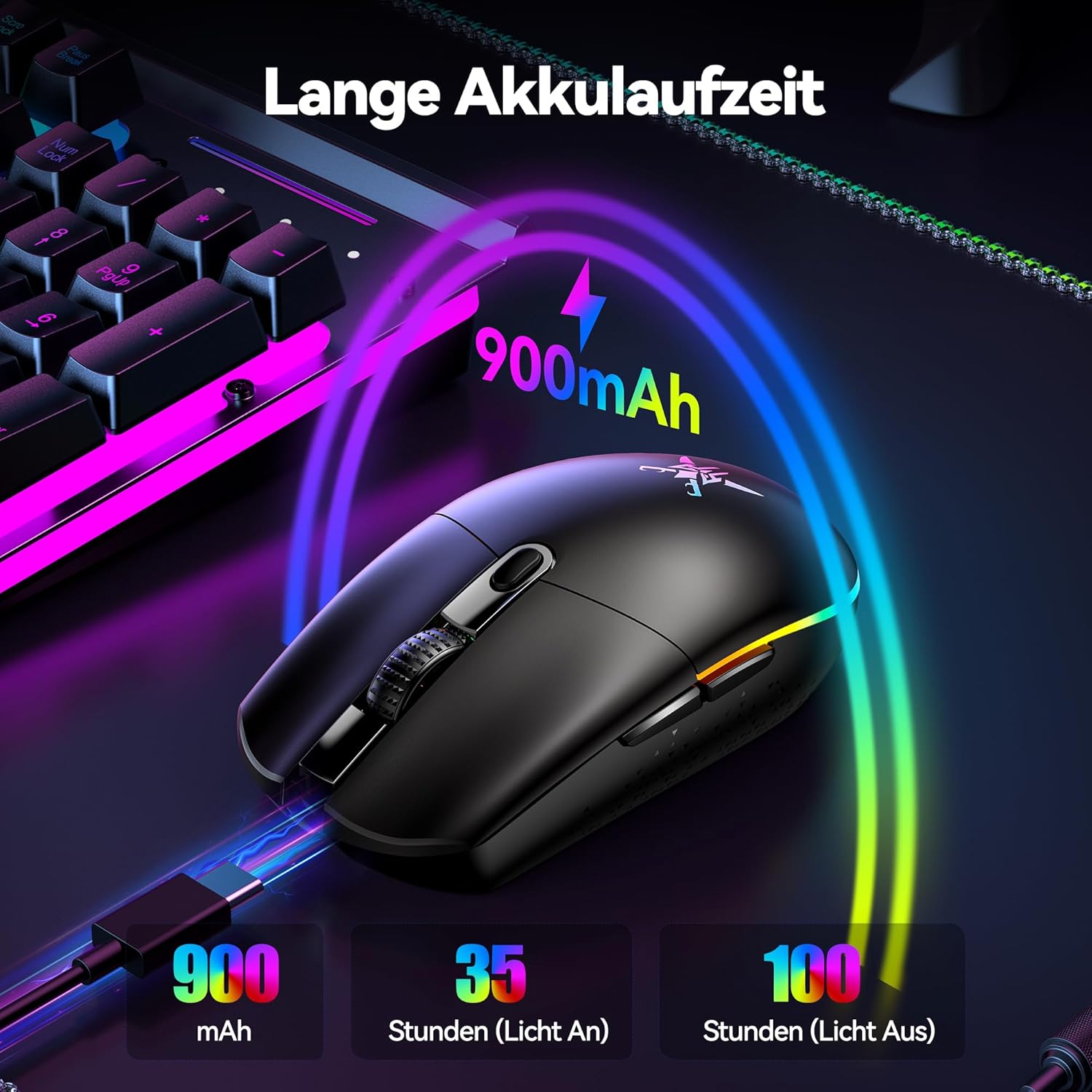
Image: The mouse connected via USB cable for charging, illustrating its 900mAh battery capacity and estimated battery life of 35 hours with lights on and 100 hours with lights off.
3.2 Nyambungkeun Mouse
The TECKNET Wireless Gaming Mouse supports both 2.4GHz wireless and wired connections.
3.2.1 2.4GHz Sambungan Wireless
- Cabut panarima USB tina slot panyimpenanna di handapeun beurit.
- Colokkeun panarima USB ka port USB nu sadia dina komputer Anjeun.
- Hurungkeun beurit nganggo saklar kakuatan anu aya di handap.
- The mouse will automatically connect to the receiver. Your computer should recognize the device without needing additional drivers.

Image: A visual representation of the mouse connected wirelessly to a laptop via its USB receiver, demonstrating a stable connection range of up to 10 meters (32.8 feet).
3.2.2 Sambungan kabel
To use the mouse in wired mode, simply connect the USB charging cable from the mouse to a USB port on your computer. The mouse will function as a wired mouse and charge simultaneously.
4. Parentah Operasi
4.1 DPI adjustment
The mouse features an adjustable DPI (Dots Per Inch) setting, allowing you to change cursor sensitivity on the fly. Press the DPI cycle button (usually located behind the scroll wheel) to cycle through different DPI levels. Each level is often indicated by a specific RGB light color.
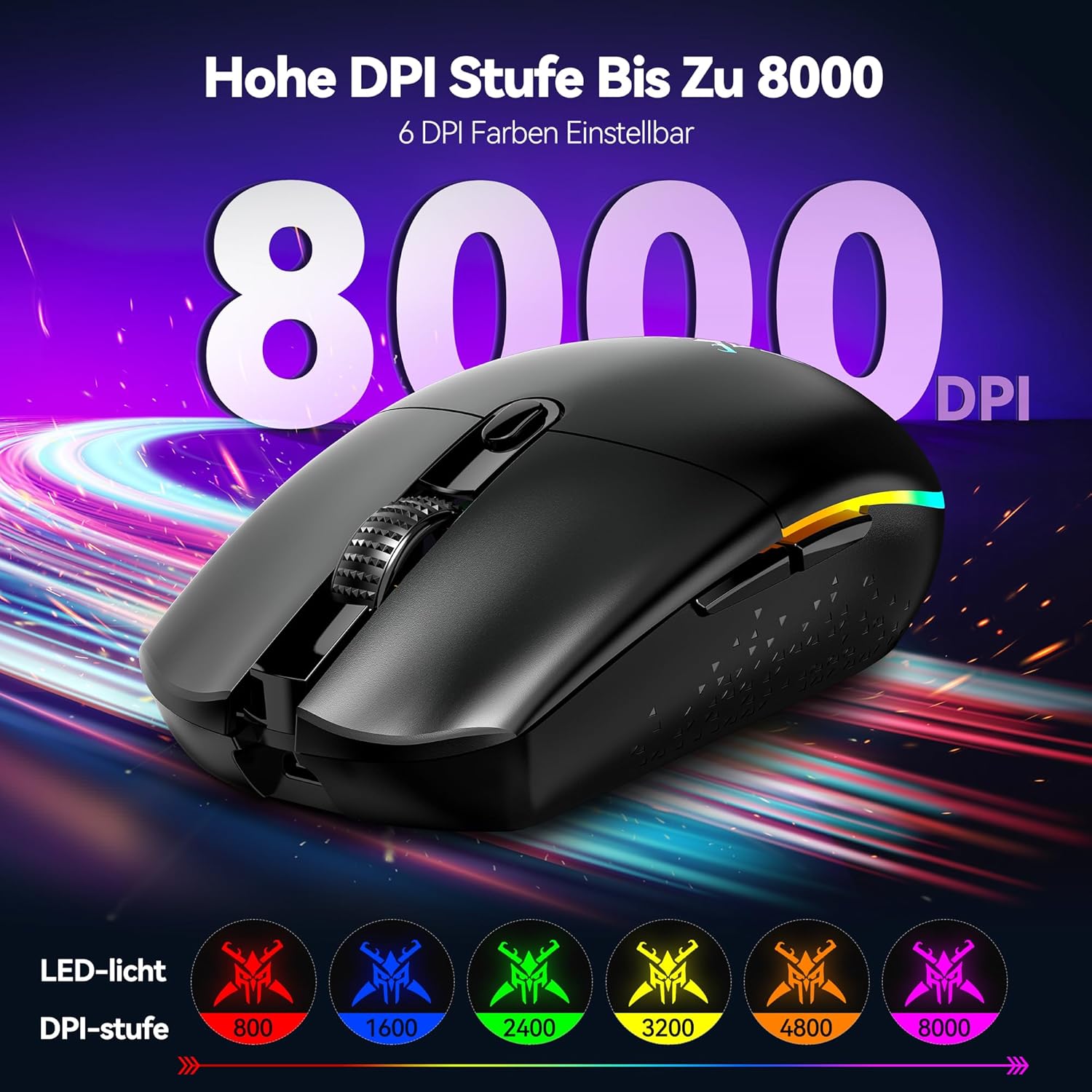
Image: The mouse highlighting its 8000 DPI capability, with six distinct DPI levels (800, 1600, 2400, 3200, 4800, 8000) each associated with a unique LED light color for easy identification.
4.2 Kontrol cahaya RGB
The mouse is equipped with customizable RGB lighting. You can typically cycle through different lighting modes or turn the lighting on/off using a dedicated button or through the software.

Image: The mouse displaying its vibrant RGB lighting, indicating 6 different lighting modes and a switch to toggle the lights on or off.
4.3 Tombol anu tiasa diprogram
The TECKNET Wireless Gaming Mouse features programmable buttons for enhanced gaming and productivity. These buttons can be customized using the dedicated driver software.

Image: A screenshot of the TECKNET driver software interface, showing how to customize the mouse's programmable buttons (Left Click, Right Click, Middle Click, Forward, Backward) and adjust settings like response time. Note: The driver is compatible only with Windows systems.
Catetan: The driver software for programmable buttons is compatible only with Windows operating systems.
5. Ngecas sareng Umur Batré
The mouse is equipped with a 900mAh rechargeable battery. When the battery is low, the RGB lighting may flash or change color to indicate the need for charging. Connect the mouse to a USB power source using the provided cable to recharge.
- Kapasitas batré: 900 mah
- Estimated Battery Life (Lights On): Nepi ka 35 jam
- Estimated Battery Life (Lights Off): Nepi ka 100 jam
6. Pangropéa
6.1 beberesih
Pikeun ngabersihan beurit anjeun, paké kaén anu lembut sareng garing. Keur kokotor bandel, rada dampen the cloth with water or a mild cleaning solution. Avoid using harsh chemicals or abrasive materials, as these can damage the mouse's surface.
6.2 Panyimpenan
When not in use for extended periods, store the mouse in a cool, dry place. Ensure the USB receiver is securely stored in its designated slot on the mouse's bottom to prevent loss.
7. Cara ngungkulan
| Masalah | Solusi anu mungkin |
|---|---|
| Beurit teu ngaréspon (Nirkabel) |
|
| Kursor beurit teu menentu atawa luncat-luncat |
|
| Lampu RGB teu jalan |
|
| Tombol anu tiasa diprogram henteu tiasa dianggo |
|
8. Spésifikasi
- model: TK-GM001
- Konektipitas: 2.4GHz Wireless, Wired (USB)
- Tingkat DPI: 800 / 1600 / 2400 / 3200 / 4800 / 8000 (Adjustable)
- Tombol: 6 Tombol anu tiasa diprogram
- Batré: 900mAh bisa dicas deui
- beurat: Kira-kira 72 gram
- ukuran: 11.6 x 6.4 x 0.1 cm (L x W x H)
- Lampu RGB: Yes, with multiple modes
- Kasaluyuan: Windows (for software), Mac (basic functions)
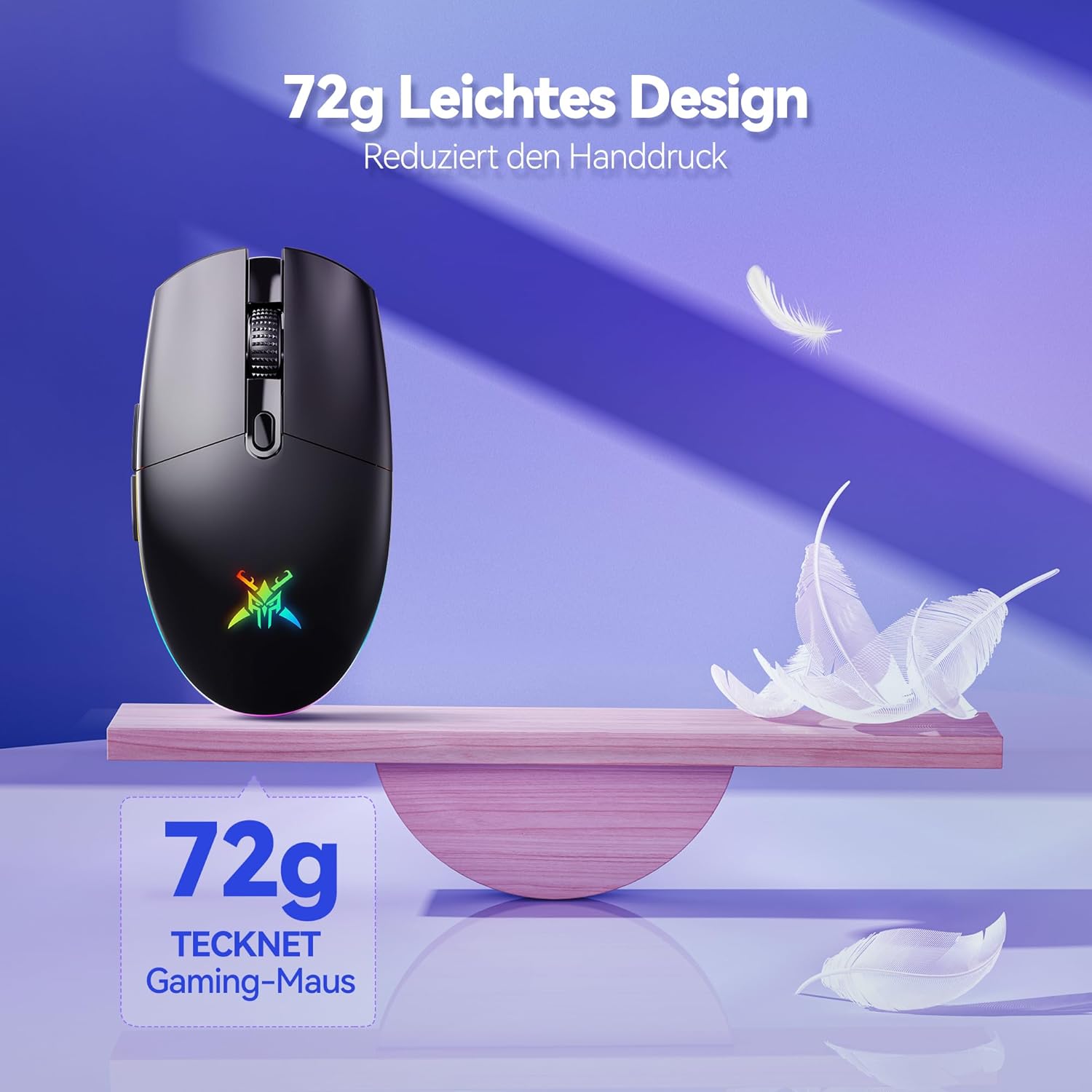
Image: The TECKNET Gaming Mouse highlighting its lightweight design, weighing approximately 72 grams, which contributes to reduced hand pressure during use.
9. Garansi jeung Rojongan
TECKNET products are designed for reliability and performance. For warranty information or technical support, please refer to the warranty card included with your product or visit the official TECKNET websitus. Simpen resi pameseran anjeun salaku bukti pameseran pikeun klaim garansi.
For further assistance, you may contact TECKNET customer service through their official channels.


