1. Bubuka
The Camiysn Moon104 is a versatile 104-key wireless RGB mechanical keyboard designed for various computing environments. It offers triple-mode connectivity, including 2.4GHz wireless, Bluetooth, and USB-C wired options, providing flexibility for different devices and usage scenarios. Featuring low-profile brown mechanical switches, the keyboard delivers a responsive and tactile typing experience with reduced noise. Its ergonomic design aims to minimize wrist fatigue during extended use, and the adjustable RGB backlighting allows for personalization of the visual experience.

Image 1.1: Camiysn Moon104 Wireless RGB Mechanical Keyboard, showcasing its full layout and design.
2. Eusi Paket
Punten parios yén sadaya barang anu didaptarkeun di handap kalebet kana pakét anjeun:
- Camiysn Moon104 Wireless RGB Mechanical Keyboard
- USB-C ka USB-A Cable
- 2.4GHz USB Panarima
- Alat Puller Keycap
- Additional Red Keycaps (for customization)
- Manual pangguna (dokumén ieu)

Image 2.1: Contents of the Camiysn Moon104 keyboard package, including the keyboard, cable, keycap puller, and extra keycaps.
3. Setélan
3.1 Powering on / Pareum
Locate the power toggle switch on the keyboard. Slide it to the 'ON' position to power on the keyboard. Slide it to 'OFF' to power off the keyboard and conserve battery.
3.2 Modeu sambungan
The Camiysn Moon104 keyboard supports three connection modes: 2.4GHz wireless, Bluetooth, and USB-C wired.

Image 3.1: Visual representation of the three connection modes available on the Camiysn Moon104 keyboard.
3.2.1 2.4GHz Sambungan Wireless
- Insert the 2.4GHz USB receiver into an available USB port on your computer or device.
- Pastikeun saklar daya kibor dina kaayaan ON.
- Pencét panjang fn+4 keys for 3 seconds to enter 2.4GHz pairing mode. The indicator light will flash, then remain solid once connected.
3.2.2 Sambungan Bluetooth
Kibor tiasa nyambung ka tilu alat Bluetooth.
- Pastikeun saklar daya kibor dina kaayaan ON.
- Pencét lila fn+1, fn+2, atawa fn+3 for 3 seconds to enter Bluetooth pairing mode for the corresponding slot. The indicator light will flash rapidly.
- Dina alat anjeun (komputer, tablet, smartphone), aktipkeun Bluetooth sareng milarian alat anyar.
- Select "Camiysn Moon104" (or similar name) from the list of available devices to pair. The indicator light will become solid once connected.
- To switch between paired Bluetooth devices, short press fn+1, fn+2, atawa fn+3.
3.2.3 Sambungan Kabel USB-C
- Sambungkeun hiji tungtung kabel USB-C anu disadiakeun ka port USB-C kibor.
- Sambungkeun tungtung kabel USB-C anu sanésna kana port USB anu sayogi dina komputer atanapi alat anjeun.
- Ensure the keyboard's power switch is in the 'OFF' position for wired mode. The keyboard will automatically switch to wired mode.

Image 3.2: The Camiysn Moon104 keyboard demonstrating its ability to connect to a laptop, monitor, and tablet using its three distinct connection modes.
4. Parentah Operasi
4.1 Kadali lampu tukang
The Camiysn Moon104 keyboard features adjustable RGB backlighting. Use the following Fn key combinations to control the lighting effects:

Image 4.1: A guide to Fn key combinations for adjusting the RGB backlight effects and colors.
- Fn + Ins: Switch between various backlight effects.
- Fn + Del: Select backlight color (for static color modes).
- Fn + ↑ (Up Arrow): Increase backlight luminance.
- Fn + ↓ (Down Arrow): Decrease backlight luminance.
- Fn + ← (Left Arrow): Decrease backlight circulation speed.
- Fn + → (Right Arrow): Increase backlight circulation speed.
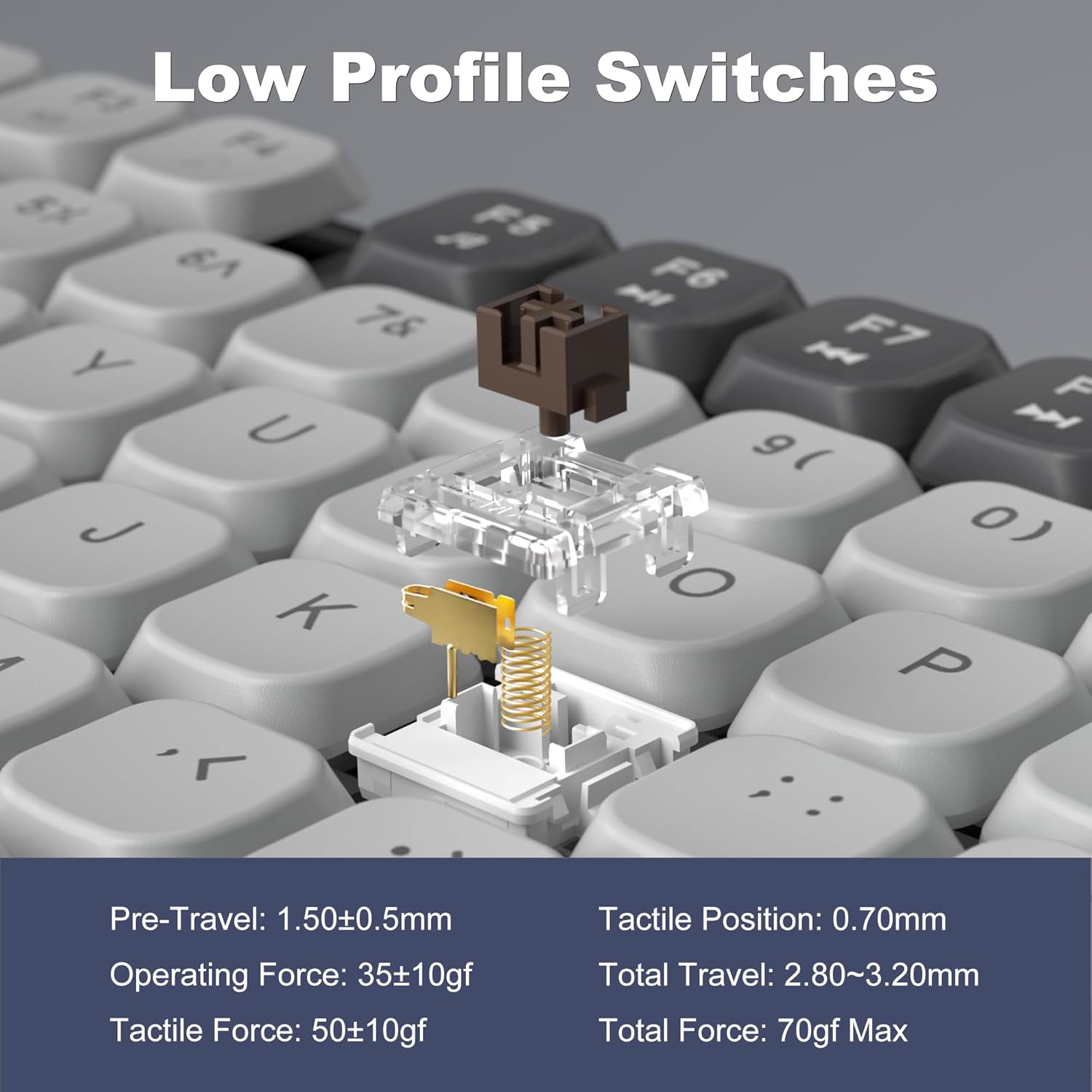
Image 4.2: The Camiysn Moon104 keyboard illuminated with its customizable RGB backlighting.
4.2 Desain ergonomic
The keyboard features adjustable tilting feet on the underside. Extend these feet to adjust the typing angle for improved comfort and to reduce wrist strain during prolonged use.

Image 4.3: Detail of the keyboard's ergonomic design, highlighting the adjustable feet for comfortable typing angles.
4.3 Low-Profile Brown Tactile Switches
The Moon104 keyboard is equipped with low-profile brown tactile mechanical switches. These switches are characterized by a noticeable bump in the middle of the keypress, providing tactile feedback without the loud click of blue switches. They offer a balance between typing and gaming performance, with a relatively quiet operation compared to other mechanical switch types.

Image 4.4: Detailed specifications and force curve for the low-profile brown tactile switches used in the Moon104 keyboard.
4.4 N-Key Rollover
The keyboard supports N-key rollover, meaning that every keypress is registered independently, regardless of how many keys are pressed simultaneously. This feature is beneficial for fast typists and gamers, ensuring accuracy and preventing ghosting or missed inputs.
4.5 Kasaluyuan
The Camiysn Moon104 keyboard is compatible with a wide range of operating systems, including:
- Windows (Win2000, Win XP, Win ME, Vista, Win7, Win8, Win10)
- Android
- Linux
- Mac OS
The keyboard is plug-and-play, requiring no additional drivers for basic functionality.

Image 4.5: The keyboard's automatic recognition feature for both Windows and Mac operating systems.
5. Pangropéa
5.1 Ngabersihan kibor
Pikeun ngajaga penampilan sareng fungsionalitas keyboard:
- Pegatkeun sambungan keyboard tina sadaya alat sateuacan beberesih.
- Make kaen nu lemes, teu aya lint rada dampdikumbah ku cai atawa solusi beberesih hampang pikeun ngusap keycaps na beungeut cai.
- Pikeun lebu jeung lebu antara kenop, make hawa dikomprés atawa sikat leutik.
- Hindarkeun nganggo bahan kimia anu kasar, pembersih abrasive, atanapi kalembaban anu kaleuleuwihan, sabab ieu tiasa ngaruksak keyboard.
5.2 Ngeusi batre
The keyboard has a built-in rechargeable battery. When the battery is low, the indicator light may flash. Connect the keyboard to a USB power source using the provided USB-C cable to charge. The indicator light will typically show charging status and turn off or change color when fully charged.
6. Cara ngungkulan
If you encounter issues with your Camiysn Moon104 keyboard, please refer to the following common solutions:
- Keyboard teu ngabales:
Ensure the keyboard is powered on. Check the connection mode (2.4GHz, Bluetooth, or wired) and ensure it matches your device's connection. For wireless modes, ensure the battery is charged. For wired mode, ensure the USB-C cable is securely connected and the power switch is OFF. - 2.4GHz wireless connection issues:
Ensure the USB receiver is properly inserted. Try plugging the receiver into a different USB port. Re-enter pairing mode by long pressing fn+4 salila 3 detik. - Masalah sambungan Bluetooth:
Ensure Bluetooth is enabled on your device. Delete previous pairings for the keyboard on your device and attempt to pair again. Try a different Bluetooth slot (Fn + 1/2/3). Ensure the keyboard is not too far from the device. - Lampu tukang teu jalan atanapi macét:
Check backlight luminance with Fn + ↑. Try cycling through effects with Fn + Ins. Some users have reported that pressing Fn + PrintScreen can resolve backlight issues. - Volume control keys (Fn+F10/F11/F12) not working:
Please note that while some keyboards may feature these key combinations, the Camiysn Moon104 keyboard may not support dedicated multimedia volume control functions as indicated by user feedback. Volume control may need to be managed directly through your operating system. - Keys feeling sticky or inconsistent:
Ensure no debris is lodged under the keycaps. Use the provided keycap puller to carefully remove the keycap and clean the switch area.
7. Spésifikasi
| Nomer modél | Moon104 |
| Téhnologi konektipitas | Bluetooth, Nirkabel 2.4GHz, Kabel USB-C |
| Katerangan kibor | Mechanical (Low-Profile Brown Tactile Switches) |
| Lampu tukang kibor | RGB |
| Alat nu cocog | Laptop, PC, Smart TV, Tablet (Windows, Android, Linux, Mac OS) |
| Bahan | palastik |
| Item Beurat | 2.31 pon (kira-kira 1.05 kg) |
| Ukuran Paket | 18.15 x 7.2 x 1.73 inci (kira-kira 46.1 x 18.3 x 4.4 cm) |
8. Garansi jeung Rojongan
For warranty information and technical support, please refer to the documentation provided at the time of purchase or visit the official Camiysn websitus. Sarat jeung kaayaan jaminan husus bisa rupa-rupa dumasar wewengkon sarta pangecér.


