
1. Bubuka
This manual provides detailed instructions for the installation, operation, and maintenance of your Foscam FI9911W Outdoor WiFi Bullet Camera. Please read this manual thoroughly before using the product to ensure proper setup and functionality. The Foscam FI9911W is designed for outdoor surveillance, offering high-quality video monitoring and robust features for enhanced security.
2. Produk Langkungview
2.1 Fitur konci
- Résolusi 3MP: Nyayogikeun pidéo anu jelas sareng lengkeptage.
- 94 ° Lega View sudut: Provides extensive coverage of the monitored area.
- Konektipitas WiFi: Enables flexible placement and wireless data transmission.
- Infrabeureum Night Vision: Offers visibility up to 20 meters in low-light or no-light conditions.
- IP66 Peunteun Weatherproof: Certified for outdoor use, resistant to dust and powerful water jets.
- Komprési Pidéo H.264+: Optimizes storage space and bandwidth usage while maintaining video quality.
- Deteksi gerak: Configurable motion detection with instant alerts via SMS or email, including recorded images.
- Kadali jauh: Access and manage the camera remotely via a dedicated application on PC or smartphone.
- WiFi Relay Function: Can extend the WiFi signal for other devices in your surveillance system.
- Kompatibilitas NVR: Fully compatible with Foscam NVRs, such as the FN8108W, for expanded surveillance systems.
2.2 Komponén kaméra
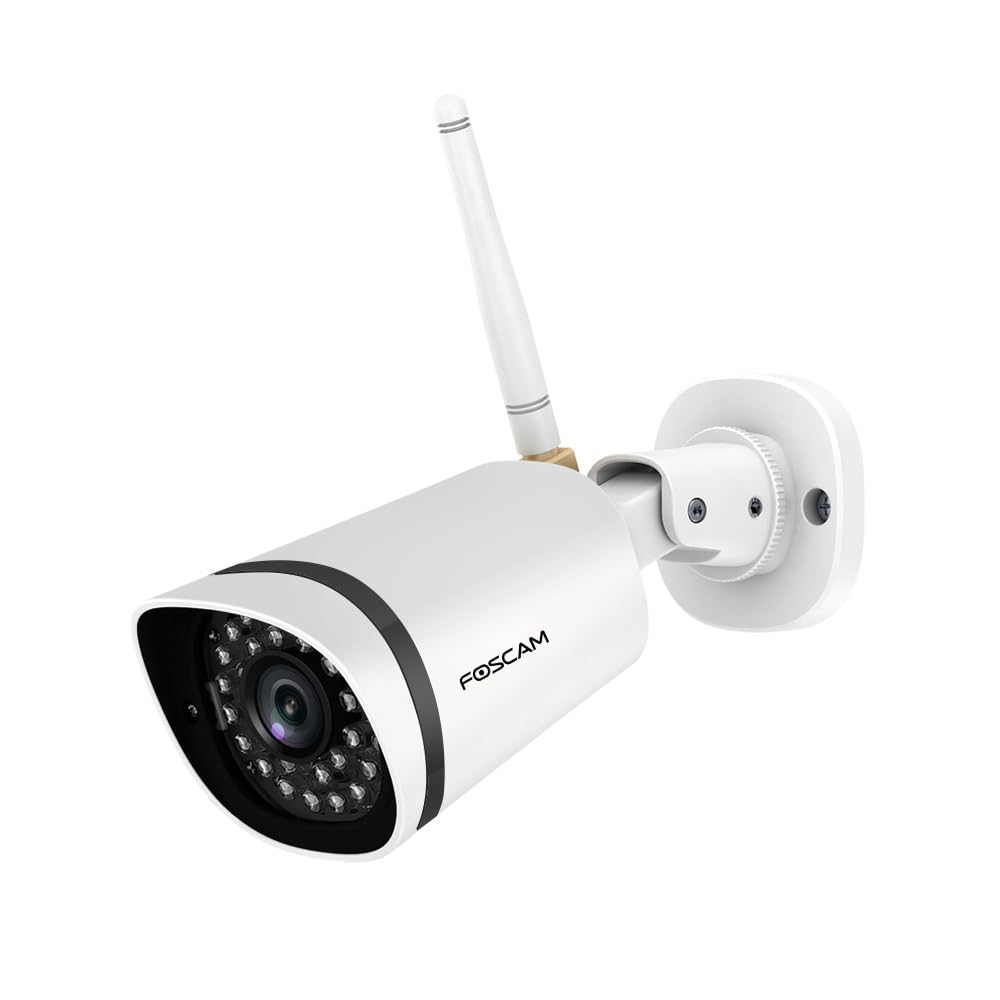
Gambar 1: Foscam FI9911W Outdoor WiFi Bullet Camera. This image displays the white bullet-style camera with its lens and infrared LEDs at the front, the Foscam logo on the side, a WiFi antenna extending upwards, and the adjustable mounting bracket at the rear.
The Foscam FI9911W camera consists of a durable, weatherproof housing designed for outdoor installation. Key visible components include the camera lens surrounded by infrared LEDs for night vision, a detachable WiFi antenna for wireless connectivity, and an adjustable mounting bracket for secure positioning. The camera also features internal components for video processing, network communication, and power input.
3. Setélan
Follow these steps to set up your Foscam FI9911W camera:
- Buka bungkus kaméra: Carefully remove all components from the packaging. Verify that all accessories are present.
- Pasang Antenna: Screw the WiFi antenna securely onto the designated port on the camera body.
- Sambungan Daya: Connect the power adapter to the camera's power input port and then plug it into a power outlet. The camera will power on and initiate its startup sequence.
- Network Connection (Initial Setup):
- Wired Connection (Recommended for initial setup): For the first-time setup, it is recommended to connect the camera to your router using an Ethernet cable.
- Sambungan nirkabel: After initial setup via wired connection, you can configure the camera to connect to your WiFi network wirelessly through the Foscam app or web panganteur.
- Download Foscam App: Download the official Foscam app from your smartphone's app store (iOS App Store or Google Play Store).
- Tambahkeun kaméra ka App: Open the Foscam app, create an account if you don't have one, and follow the in-app instructions to add your FI9911W camera. This typically involves scanning a QR code on the camera or manually entering its ID.
- Configure WiFi (if applicable): If you initially connected via Ethernet, use the app to configure the camera's WiFi settings to connect to your home network. Once configured, you can disconnect the Ethernet cable.
- Pamasangan fisik: Choose a suitable outdoor location for mounting. Ensure the area provides a clear view and is within range of your WiFi signal. Use the provided mounting screws and template to securely attach the camera to a wall or ceiling. Adjust the camera's angle using the mounting bracket for optimal coverage.
- NVR Integration (Optional): If you are integrating the camera with a Foscam NVR (e.g., FN8108W), refer to your NVR's manual for instructions on adding IP cameras to the system. The FI9911W can be added as an additional camera to expand your surveillance coverage.
4. Parentah Operasi
4.1 Hirup View and Remote Access
Access live video feeds and recorded footage from your Foscam FI9911W camera using the Foscam app on your smartphone or through the web interface on a PC. Ensure your device has an active internet connection.
- Aplikasi smartphone: Buka aplikasi Foscam, pilih kaméra anjeun tina daptar alat, teras ketok pikeun view the live stream. You can also access playback of recorded events.
- PC Web panganteur: Enter the camera's IP address or Foscam DDNS address into a web browser on your computer. Log in with your credentials to access the camera's full settings and live view.
4.2 Motion Detection Configuration
The camera's intelligent motion detection feature can alert you to activity in monitored areas.
- Setélan aksés: Navigate to the camera settings within the Foscam app or web panganteur.
- Wewengkon Deteksi Gerak: Nangtukeun wewengkon husus dina kaméra urang view dimana deteksi gerakan kedah aktip. Ieu ngabantosan ngirangan alarm palsu ti daérah anu teu aya hubunganana.
- Penyesuaian sensitipitas: Adjust the motion detection sensitivity level to suit your environment. Higher sensitivity detects smaller movements but may lead to more false alarms.
- Alert Methods: Configure how you wish to receive alerts. Options typically include push notifications to your smartphone, email alerts with snapshots, or uploading recorded video to an FTP server.
- Jadwal Ngarekam: Set a schedule for when motion detection should be active and when recordings should occur.
4.3 Visi Peuting
The FI9911W automatically switches to infrared night vision mode in low-light conditions, providing clear black and white video up to 20 meters. Ensure the camera's view is not obstructed by reflective surfaces that could interfere with IR illumination.
4.4 WiFi Relay Function
The camera can function as a WiFi relay, extending the wireless network coverage for other Foscam cameras or devices within your surveillance system. This feature can be configured through the camera's network settings in the Foscam app or web panganteur.
5. Pangropéa
Regular maintenance ensures optimal performance and longevity of your Foscam FI9911W camera.
- beberesih: Périodik ngabersihan lénsa kaméra jeung perumahan ku lemes, damp cloth. Avoid abrasive cleaners or solvents that could damage the surface. Ensure the IR LEDs are free from dust or cobwebs.
- Pamariksaan kabel: Regularly check all cables (power, Ethernet if used) for any signs of wear, damage, or loose connections.
- Pembaruan firmware: Check for and install available firmware updates through the Foscam app or web antarmuka. Apdet firmware sering kalebet paningkatan kinerja, perbaikan bug, sareng paningkatan kaamanan.
- Konektipitas Jaringan: Ensure a stable WiFi connection. If the signal is weak, consider repositioning the camera or using a WiFi extender.
- Kaamanan dipasang: Periodically check that the camera is securely mounted and that the mounting bracket is tight.
6. Cara ngungkulan
This section addresses common issues you might encounter with your Foscam FI9911W camera.
| Masalah | Mungkin Cukang lantaranana | Solusi |
|---|---|---|
| Kaméra teu hurung | Adaptor daya teu nyambung atawa faulty; masalah stop kontak listrik. | Ensure the power adapter is securely connected to the camera and a working power outlet. Test the outlet with another device. |
| Teu tiasa nyambung kana WiFi | Incorrect WiFi password; camera too far from router; WiFi signal interference. | Verify the WiFi password. Move the camera closer to the router or use a WiFi extender. Ensure no strong interference sources are nearby. Try initial setup with an Ethernet cable. |
| Teu aya siaran vidéo langsung | Network connectivity issue; camera offline; app/browser issue. | Check network connection. Restart the camera and your router. Ensure the Foscam app is updated. Try accessing via a different device or web browser. |
| Motion detection alerts not working | Motion detection disabled; incorrect sensitivity; alert settings not configured; network issues. | Verify motion detection is enabled and sensitivity is appropriate. Check alert settings (email, push notifications). Ensure stable internet connection. |
| Kualitas visi wengi goréng | Obstructed IR LEDs; reflective surfaces near camera; dirty lens. | Clear any obstructions from the IR LEDs. Reposition the camera to avoid reflective surfaces. Clean the camera lens. |
7. Spésifikasi
| Fitur | Rincian |
|---|---|
| Nomer modél | FI9911W |
| merek | Foscam |
| Resolusi | 3 Megapixels (3MP) |
| View Sudut | 94° |
| Protokol konektipitas | Wifi |
| Alat nu cocog | Smartphone (via Foscam App) |
| Wengi Sawangan Sawangan | Nepi ka 20 méter (65 suku) |
| Peunteun Weatherproof | IP66 |
| Komprési Video | H.264 + |
| Ukuran produk (L x W x H) | 9.7 x 6.7 x 6.4 cm (3.82 x 2.64 x 2.52 inci) |
| Beurat | 450 gram (0.99 lbs) |
| Batré Diperlukeun | No |
8. Garansi jeung Rojongan
For detailed information regarding warranty coverage, technical support, and customer service for your Foscam FI9911W camera, please refer to the official Foscam websitus atanapi ngahubungan rojongan customer maranéhanana langsung. Simpen resi pameseran anjeun salaku bukti pameseran pikeun klaim garansi.
Foscam Resmi Websitus: www.foscam.com