1. Bubuka
This manual provides detailed instructions for the setup, operation, maintenance, and troubleshooting of your nuphy Halo96 V2 Wireless Keyboard. Please read this manual thoroughly to ensure proper use and to maximize your keyboard's potential.

Gambar 1.1: Luhur-handap view of the nuphy Halo96 V2 Wireless Keyboard, showcasing its 96% layout with black keycaps and accent keys.
2. Eusi Paket
Sateuacan neraskeun, mangga pariksa heula sadaya barang aya dina pakét anjeun:
- nuphy Halo96 V2 Wireless Keyboard
- USB-C ka USB-A Cable
- 2.4GHz Wireless Panarima
- Keycap Puller
- Pindah Puller
- Additional Keycaps (for Mac/Windows compatibility)
- Extra Switches (e.g., Raspberry, Mint, Lemon)
- Manual Pitunjuk (dokumén ieu)
3. Setélan
3.1 Ngecas Awal
The keyboard is equipped with a built-in 4000mAh battery. For optimal performance, it is recommended to fully charge the keyboard before first use.
- Sambungkeun kabel USB-C anu disayogikeun kana port USB-C kibor.
- Connect the other end of the cable to a powered USB-A port on your computer or a wall adapter.
- The keyboard's indicator light will show charging status and turn off when fully charged.
3.2 Pilihan Konektipitas
The Halo96 V2 supports three connection modes: USB-C wired, 2.4GHz wireless, and Bluetooth 5.0. A switch on the side of the keyboard allows you to select the desired mode.

Image 3.1: Diagram illustrating the three connectivity options: USB-C wired, Bluetooth, and 2.4GHz wireless, with corresponding icons.
3.2.1 Sambungan Kabel USB-C
- Ensure the mode switch on the keyboard is set to 'Wired' (usually indicated by a cable icon).
- Connect the USB-C cable from the keyboard to your computer.
- Kibor bakal otomatis dikenal ku sistem operasi anjeun.
3.2.2 2.4GHz Sambungan Wireless
- Insert the 2.4GHz wireless receiver into an available USB-A port on your computer.
- Set the mode switch on the keyboard to '2.4G' (usually indicated by a wireless icon).
- Kiborna kedah nyambung sacara otomatis. Upami henteu, pencét fn+4 pikeun ngamimitian papasangan.
3.2.3 Sambungan Bluetooth
The keyboard supports connecting up to four Bluetooth devices simultaneously.
- Set the mode switch on the keyboard to 'Bluetooth' (usually indicated by a Bluetooth icon).
- Dina komputer atawa alat Anjeun, aktipkeun Bluetooth tur neangan alat anyar.
- Dina kibor, pencét terus tahan fn+1 (for device 1), fn+2 (for device 2), fn+3 (for device 3), or fn+4 (for device 4) for 3-5 seconds until the indicator light flashes rapidly, indicating pairing mode.
- Select 'nuphy Halo96 V2' from the list of available Bluetooth devices on your computer/device.
- Sakali dipasangkeun, lampu indikator bakal eureun kedip-kedip.
3.3 Operating System Pindah
The Halo96 V2 includes a physical switch to toggle between macOS and Windows/Linux modes, ensuring correct key mappings for your operating system. This switch is typically located on the side or back of the keyboard.
4. Operasi
4.1 Fungsi Konci Dasar
The Halo96 V2 features a 96% layout with 99 keys, including a numeric keypad and dedicated arrow keys. Standard alphanumeric and function keys operate as expected.
4.2 Kombinasi Tombol Fungsi (Fn)
The Fn key allows access to secondary functions printed on various keycaps. Common combinations include:
- Fn+F1-F12: Multimedia controls, brightness, etc. (functions may vary by OS).
- Fn + 1/2/3/4: Switch between paired Bluetooth devices.
- Fn + Backlight Key: Cycle through RGB lighting effects.
- Fn + Tombol Panah: Adjust backlight brightness or speed of effects.
4.3 RGB Backlighting (Halolight 2.0)
The Halo96 V2 features advanced RGB backlighting with a semi-transparent bottom case for enhanced light transmission. Lighting effects can be customized directly on the keyboard using Fn key combinations or through the QMK/VIA software.

Gambar 4.1: Leuwihview of key features including Halolight 2.0, 1000Hz polling rate, gasket mount, and hot-swappable switches.
4.4 QMK / VIA Kustomisasi
The Halo96 V2 supports QMK/VIA firmware, allowing for extensive customization of key mappings, macros, and lighting effects. This open-source firmware provides advanced control over your keyboard's functionality.
- Download the VIA software from the official nuphy websitus atanapi gudang VIA GitHub.
- Connect your keyboard via USB-C.
- Launch the VIA software to detect your keyboard and begin customization.
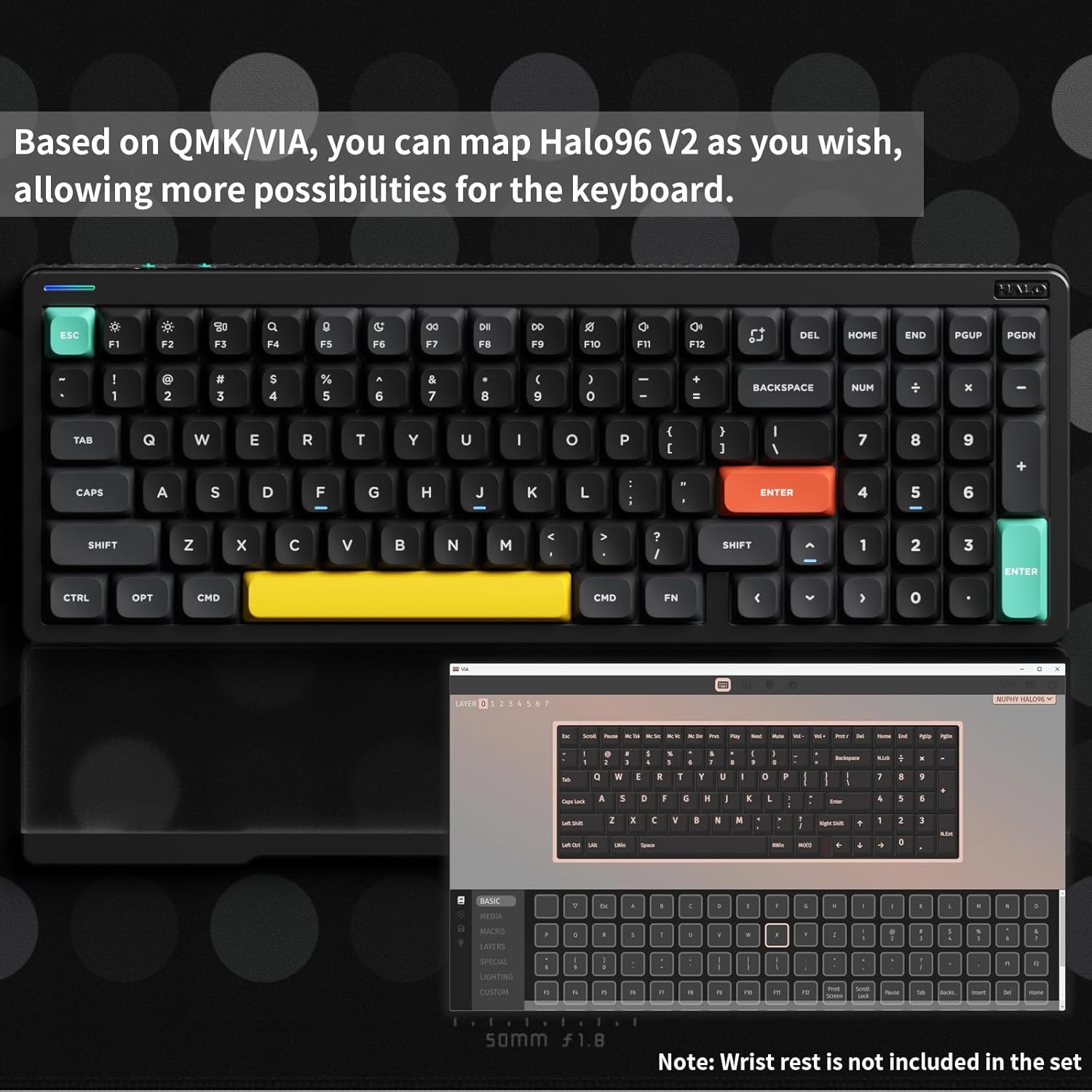
Image 4.2: The QMK/VIA software interface, demonstrating key remapping capabilities for the Halo96 V2.
5. Pangropéa
5.1 beberesih
Pikeun ngajaga penampilan sareng fungsionalitas keyboard anjeun:
- Cabut sambungan kibor tina sadaya sumber daya sateuacan dibersihkeun.
- Anggo kaén anu lemes sareng teu aya serat anu hampang dampened with water or a mild cleaning solution to wipe the keycaps and case.
- Pikeun lebu jeung lebu antara keycaps, make hawa dikomprés atawa sikat leutik.
- Hindarkeun bahan kimia anu kasar atanapi bahan abrasive.
5.2 Panas-Swappable switch
The Halo96 V2 features hot-swappable switches, allowing you to change switches without soldering. This enables customization of typing feel and sound.
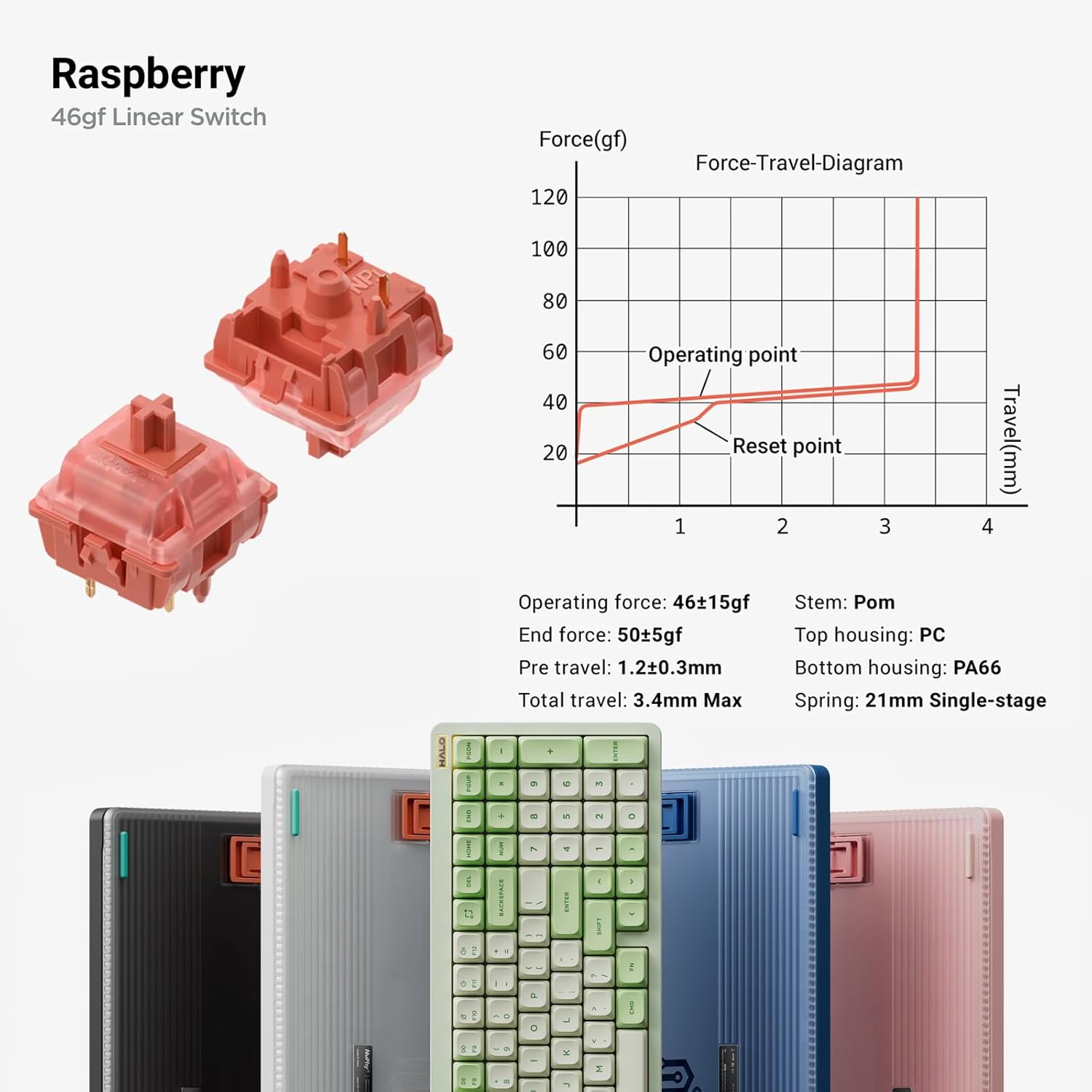
Image 5.1: Detail of Raspberry linear switches and their force-travel characteristics.
5.2.1 Replacing Switches
- Use the provided switch puller to carefully remove the desired switch by gripping its top and bottom tabs and pulling upwards.
- Align the pins of the new switch with the holes on the PCB. Ensure the pins are straight.
- Gently press the new switch into place until it clicks securely. Do not force it.
5.3 Keycap ngagantian
Use the provided keycap puller to remove keycaps. Gently pull upwards on the keycap to detach it. To install a new keycap, align it with the switch stem and press down firmly until it is seated.
6. Cara ngungkulan
6.1 Masalah konektipitas
- Keyboard not connecting via Bluetooth/2.4GHz: Ensure the mode switch is set correctly. Re-initiate pairing mode (Fn + 1/2/3/4 for Bluetooth, fn+4 for 2.4GHz). Try restarting your computer or device.
- Input lag or missed keystrokes in wireless mode: This can sometimes be resolved by updating the keyboard's firmware. Ensure the keyboard is fully charged. Minimize interference from other wireless devices.
- Sambungan kabel teu dipikawanoh: Try a different USB-C cable or USB port on your computer. Ensure the mode switch is set to 'Wired'.
6.2 Apdet firmware
nuphy periodically releases firmware updates to improve performance and address issues. It is recommended to keep your keyboard's firmware up to date.
- Visit the official nuphy support website for the latest firmware and update tools.
- Follow the provided instructions carefully. Typically, this involves connecting the keyboard via USB-C and running a specific updater application.
6.3 Masalah batré
- Kibor teu ngecas: Ensure the USB-C cable is securely connected to both the keyboard and a powered USB port. Try a different cable or power source.
- hirup batré pondok: Reduce RGB lighting brightness or disable effects to conserve power. Ensure the keyboard is fully charged before use.
7. Spésifikasi
| Fitur | Rincian |
|---|---|
| Nomer modél | Halo96 v2 |
| Dimensi produk | 5.31" L x 14.84" W x 0.83" H (135.0 x 377.0 x 21.3 mm) |
| Item Beurat | 1.74 pon (789 gram) |
| Téhnologi konektipitas | Bluetooth 5.0, USB-C, 2.4GHz |
| Alat nu cocog | Laptop, PC, Tablet (macOS/Windows/Linux/Android/iOS) |
| Kapasitas batré | 4000mAh (1 P76 battery included) |
| Fitur husus | Hot-Swappable Switches, RGB Backlit, Gasket Structure, QMK/VIA Support |
| Bahan | Acrylonitrile Butadiene Styrene, Poly |
| Laju Polling | 1000Hz (Wired & 2.4GHz modes) |
8. Garansi jeung Rojongan
For warranty information, technical support, or further assistance, please visit the official nuphy websitus atanapi ngahubungan layanan palanggan maranéhanana langsung. Rincian ngeunaan pendaptaran produk sareng klaim garansi biasana tiasa dipendakan dina halaman dukungan produsén.
Official nuphy websitus: nuphy.com


