1. Produk Langkungview
The Matbip P4 Wireless Controller is designed to enhance your gaming experience across multiple platforms. It features advanced functionalities such as rapid fire, dual vibration, a 6-axis gyro sensor, and a high-precision touchpad. With its ergonomic design and long-lasting battery, it provides comfortable and uninterrupted gameplay.

Gambar 1.1: Hareupeun view of the Matbip P4 Wireless Controller.

Gambar 1.2: Leuwihview of the multifunctional P4 Wireless Controller.
2. Setup jeung kasaluyuan
2.1 Modél cocog
The P4 wireless controller is compatible with a range of devices, including:
- PlayStation 3 (P3)
- PlayStation 4 (P4)
- PlayStation 4 Pro (P4 Pro)
- PlayStation 4 Slim (P4 Slim)
- PC (Windows 7/8/10)
It is also applicable to various P4 system software versions. When connected to a computer with a USB cable, it can be used as a wired controller.
2.2 Papasangan awal
For P4 Connection:
- To initially pair the controller with your P4 console, connect it using a USB cable.
- The light bar on the controller will blink slowly and then turn solid, indicating that pairing is complete.
- After this initial wired pairing, you can disconnect the USB cable. In wireless mode, simply press the Imah button to automatically pair with the console.
Pikeun Sambungan PC:
- To pair with a PC, press and hold the controller's Bagikeun kancing.
- Bari tetep nyekelan teh Bagikeun tombol, pencét éta Imah kancing.
- The light bar will flash rapidly. At this point, you can release the buttons and search for the controller via Bluetooth on your PC.
- Once connected, in wireless mode, pressing the Imah button will automatically pair the controller.
The communication distance with P4, P3, and PC is up to 10 meters, and up to four controllers can be used simultaneously.

Image 2.1: Wireless operation range and compatible devices.
3. Parentah Operasi
3.1 Controller Layout and Basic Functions
The controller features a standard layout with highly responsive buttons and precise analog sticks for optimal control.

Gambar 3.1: Detil view of controller buttons and sticks.
3.2 Turbo Rapid Fire Function
The controller supports a rapid fire (Turbo) function with adjustable speeds. This feature allows for continuous input of a button press, which can be advantageous dina kaulinan tangtu.
- Adjustable speeds: 8 shots/second, 12 shots/second, 20 shots/second.
- To activate and adjust: Press and hold the Bagikeun button, then move the right analog stick up or down to cycle through the Turbo speeds.
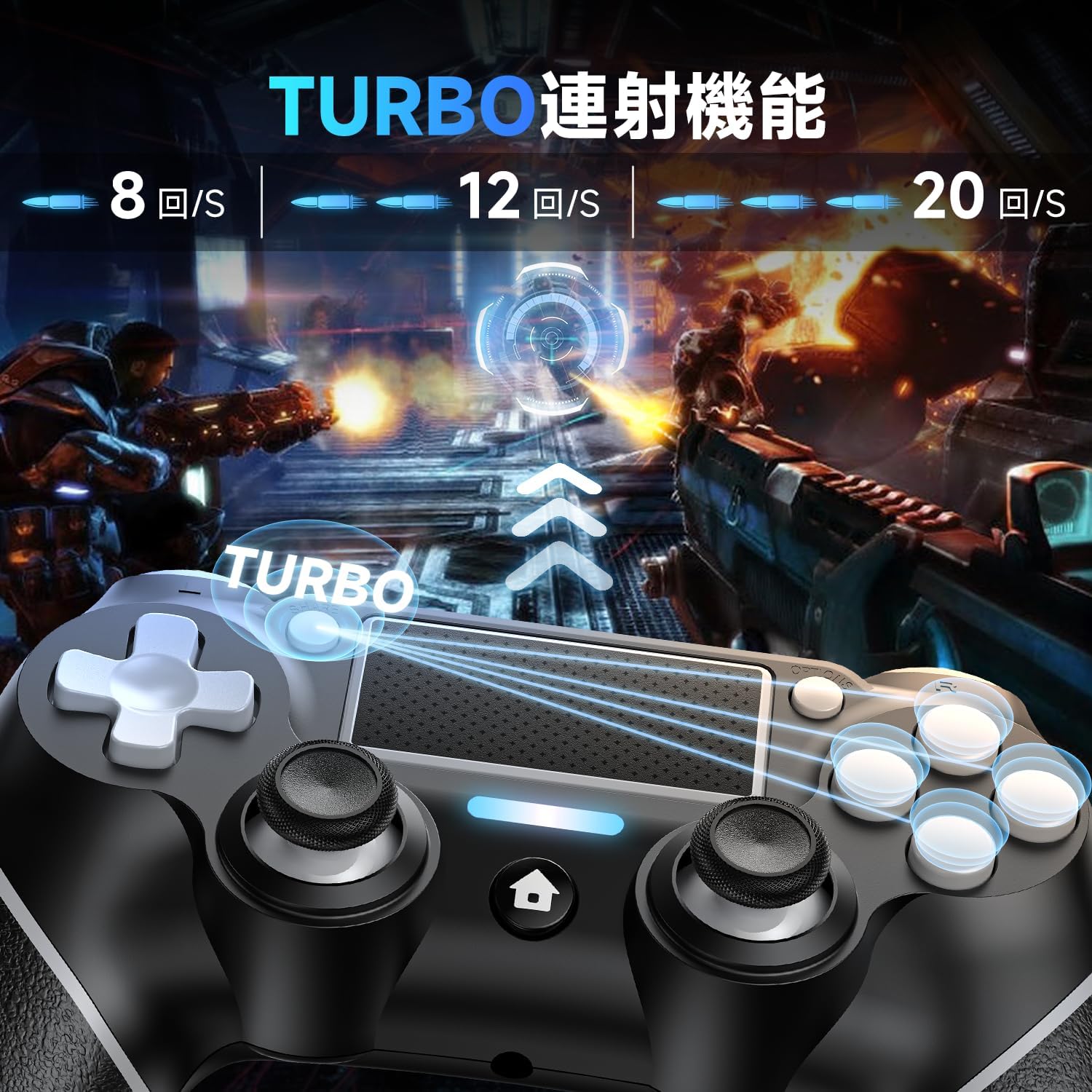
Image 3.2: Visual representation of the Turbo rapid fire function.

Gambar 3.3: Ilustrasi tina 3-stage Turbo function adjustment.
3.3 Dual Vibration Function
Equipped with vibration motors, the controller provides immersive haptic feedback, reacting instantly to in-game events such as impacts or explosions. This enhances the realism of your gaming experience.

Image 3.4: Depiction of the powerful dual vibration function.
3.4 6-Axis Gyro Sensor
The integrated 6-axis gyro sensor allows for precise motion control, enabling intuitive interactions in games that support motion sensing. This includes:
- Directional control recognition
- widang view movement recognition
- Target aiming recognition
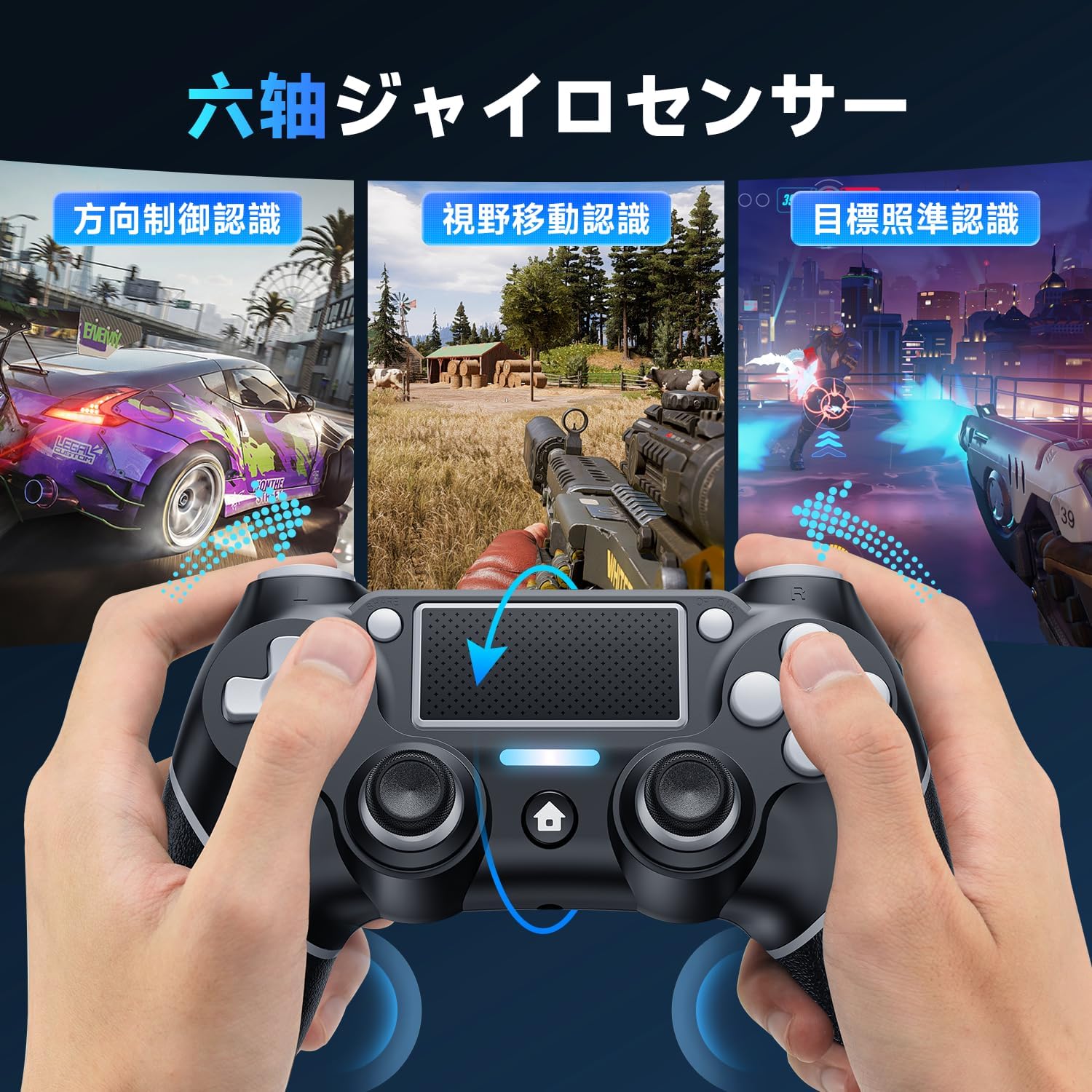
Gambar 3.5: Examples of 6-axis gyro sensor applications in games.

Image 3.6: Visualizing the 6-axis gyro sensor's smooth and fast motion detection.
3.5 High-Precision Touchpad
The integrated touchpad offers additional input methods for compatible games, supporting various gestures for enhanced control.
- Drag gestures
- Slide gestures
- Multi-touch input

Image 3.7: User interacting with the high-precision touchpad.

Gambar 3.8: Examples of touchpad functions including drag, slide, and multi-touch.
3.6 3.5mm Headphone Jack
A 3.5mm headphone jack is provided, allowing you to connect your gaming headset directly to the controller for immersive audio and communication. Please note that this product does not include a built-in speaker.

Image 3.9: Close-up of the 3.5mm headphone jack.

Image 3.10: Location of the 3.5mm headphone jack, Share button, and Reset button.
4. Batré jeung Ngecas
The controller is equipped with a 1000mAh large-capacity rechargeable battery, providing extended gaming sessions.
- A single full charge allows for over 10 hours of continuous gameplay.
- The controller features a low voltage warning function, eliminating the need to constantly check the battery level on your gaming console. This prevents interruptions to your gaming experience due to low power.

Image 4.1: Battery capacity, charging time, and usage time details.
5. Pangropéa
To ensure the longevity and optimal performance of your Matbip P4 Wireless Controller, follow these general maintenance guidelines:
- Tetep controller bersih ku ngusap eta ku lawon lemes, garing.
- Ulah ngalaan controller ka suhu ekstrim, kalembaban, atawa sinar panonpoé langsung.
- Do not drop or subject the controller to strong impacts.
- Nyimpen controller dina tempat anu aman lamun teu dipaké pikeun nyegah karuksakan.
6. Cara ngungkulan
6.1 Masalah Sambungan
If you experience difficulty connecting the controller, try the following:
- Pastikeun yén controller dieusi cukup.
- Verify that Bluetooth is enabled on your console or PC.
- Try re-pairing the controller following the instructions in Section 2.2.
6.2 Resetting the Controller
If the controller becomes unresponsive or exhibits unusual behavior, a reset may resolve the issue.
- Locate the small 2mm reset hole on the back of the controller.
- Using a thin, pointed object (like a straightened paperclip or a needle), gently press the reset button inside the hole.
- Hold the button for a few seconds, then release.
- Attempt to reconnect the controller.
Image 6.1: Location of the reset button on the back of the controller.
7. Spésifikasi
| Fitur | Rincian |
|---|---|
| Nomer modél | AB1 |
| Konektipitas | Wireless Bluetooth, Wired (USB) |
| Kapasitas batré | 1000 mah |
| Playtime kontinyu | Over 10 hours (on full charge) |
| Jarak Komunikasi | Nepi ka 10m |
| Dimensi (Pakét) | 17.2 x 11.7 x 7.1 cm |
| Beurat (Pakét) | 310 g |
| Rentang umur | Sadaya umur |
| Tanggal paleupasan | 28 Séptémber 2024 |
| Sertifikasi | TELEC, CE, FCC, RED, ROHS |
8. Garansi jeung Rojongan
Matbip is committed to providing high-quality products and excellent customer service. We strictly manage the manufacturing and processing of our products, adhering to various certification standards from components to the final product.
- Pamastian kualitas: Each product has a unique code, verified by us before shipment.
- Garansi Sataun: produk hadir kalawan jaminan hiji taun.
- Defect Replacement: In case of initial defects or malfunctions, a new product will be resent without requiring the return of the original item.
- Pulangan Gratis 30 Dinten: Ngarasakeun kawijakan balik bébas 30 poé.
- Unlimited Customer Support: We offer unlimited customer support to assist you with any inquiries or issues.

Image 8.1: Product certifications ensuring quality and safety.


