Bubuka
This manual provides comprehensive instructions for the setup, operation, maintenance, and troubleshooting of your KTC 24.5-inch FHD Gaming Monitor. Designed for an immersive gaming experience, this monitor features a 180Hz refresh rate, 1ms response time, Fast IPS panel, HDR10 support, and FreeSync/G-Sync compatibility. Please read this manual thoroughly before using the product to ensure optimal performance and longevity.

Image: The KTC 24.5-inch FHD Gaming Monitor, showcasing its key features like 180Hz refresh rate, 1ms response time, and Fast IPS technology, with a vibrant gaming scene on its display.
Naon dina Box
Pastikeun yén sadaya komponén aya dina bungkusan:
- MONITOR x 1
- BASE x 1
- Kartu Garansi x 1
- Pituduh Mimiti Gancang (QSG) x 1
- HDMI kabel x 1
- Obeng x 1
- Adaptor x 1
Disetél
1. Perakitan Fisik
Carefully remove the monitor and its components from the packaging. Attach the base to the monitor stand, and then secure the stand to the monitor. Ensure all screws are tightened appropriately. The monitor supports a tilt adjustment range of -5° to 15° for ergonomic viewing.

Image: A visual representation of the monitor's dimensions (24.4 inches wide, 18.7 inches high, 4.5 inches deep) and its adjustable tilt feature, ranging from -5 to 15 degrees.
The monitor is also VESA compatible (100mm x 100mm), allowing for alternative mounting solutions (mount sold separately).
2. Konektipitas
Connect the monitor to your PC, gaming console (Xbox, PS5, Switch), or laptop using the provided HDMI cable or a DisplayPort cable (not included). The monitor features two HDMI ports and one DisplayPort for versatile connectivity.
- Sambungan HDMI: Use the HDMI cable to connect your device to either HDMI 1 or HDMI 2 port on the monitor.
- Sambungan DisplayPort: Use a DisplayPort cable to connect your device to the DP port on the monitor for higher refresh rates and resolutions.
- Sambungan Daya: Connect the power adapter to the monitor's DC input and then to a power outlet.

Image: The back of the KTC monitor, highlighting the 100x100mm VESA mounting pattern and the available input ports: DC power, two HDMI ports, one DisplayPort, and a headphone jack.
Ngoperasikeun
1. Hurung/Pareum sareng Navigasi OSD
Press the power button (usually located on the back or bottom right of the monitor) to turn the monitor on or off. Use the OSD (On-Screen Display) joystick or buttons to navigate the monitor's settings menu. Common OSD options include input selection, picture mode, color adjustments, and gaming features.
2. Performance and Fluidity
Experience smooth gameplay with the monitor's 180Hz refresh rate and 1ms response time. These features minimize motion blur and ghosting, providing a clear and responsive visual experience, especially in fast-paced games.

Image: A visual demonstrating the benefit of a 180Hz refresh rate, showing how it allows gamers to quickly see the next frame for smoother gameplay and faster reactions.

Image: A split image showing the difference between a blurry image and a clear image, emphasizing the Fast IPS 1ms (MPRT) response time for reduced ghosting and improved gaming performance.
3. Fitur kaulinan
- FreeSync/G-Sync Compatibility: Integrated FreeSync and G-Sync technologies eliminate screen tearing, stuttering, and input latency, providing a seamless gaming experience.
- Singkronisasi Aksi Dinamis: With low input lag, players can handle critical moments in real-time. This feature is turned on by default.
- Better Aiming (Crosshairs): The monitor can display a fixed crosshair in the center of the screen to improve shooting accuracy in games.
- Frame Rate Tracking: Display your current FPS (Frames Per Second) in a corner of the screen without needing additional software.

Image: A gaming setup with the KTC monitor, illustrating the benefits of G-SYNC and FreeSync for smooth, uninterrupted gameplay in high-resolution and fast-paced environments.

Image: A gaming scene with a note indicating that Dynamic Action Sync is turned on by default, allowing players to react to critical moments in real-time due to low input lag.

Image: A split screen showing a gaming view with and without the crosshair feature, demonstrating how a fixed crosshair improves shooting accuracy.

Image: A gaming screenshot with an FPS counter displayed in the corner, illustrating the monitor's built-in frame rate tracking feature that does not require separate software.
4. Color and Visual Settings
The monitor offers excellent color reproduction with a 16.7M color gamut, 128% sRGB, and DCI-P3 105% coverage. It features 350cd/m² brightness and 8-bit color depth for accurate and vivid visuals.

Image: A vibrant image on the monitor screen, accompanied by icons representing sRGB 128%, HDR 10, and 350 cd/m² brightness, highlighting the monitor's vivid color capabilities.
Dukungan HDR10: Experience enhanced contrast and color with HDR10 support, bringing out more detail in both bright and dark scenes.
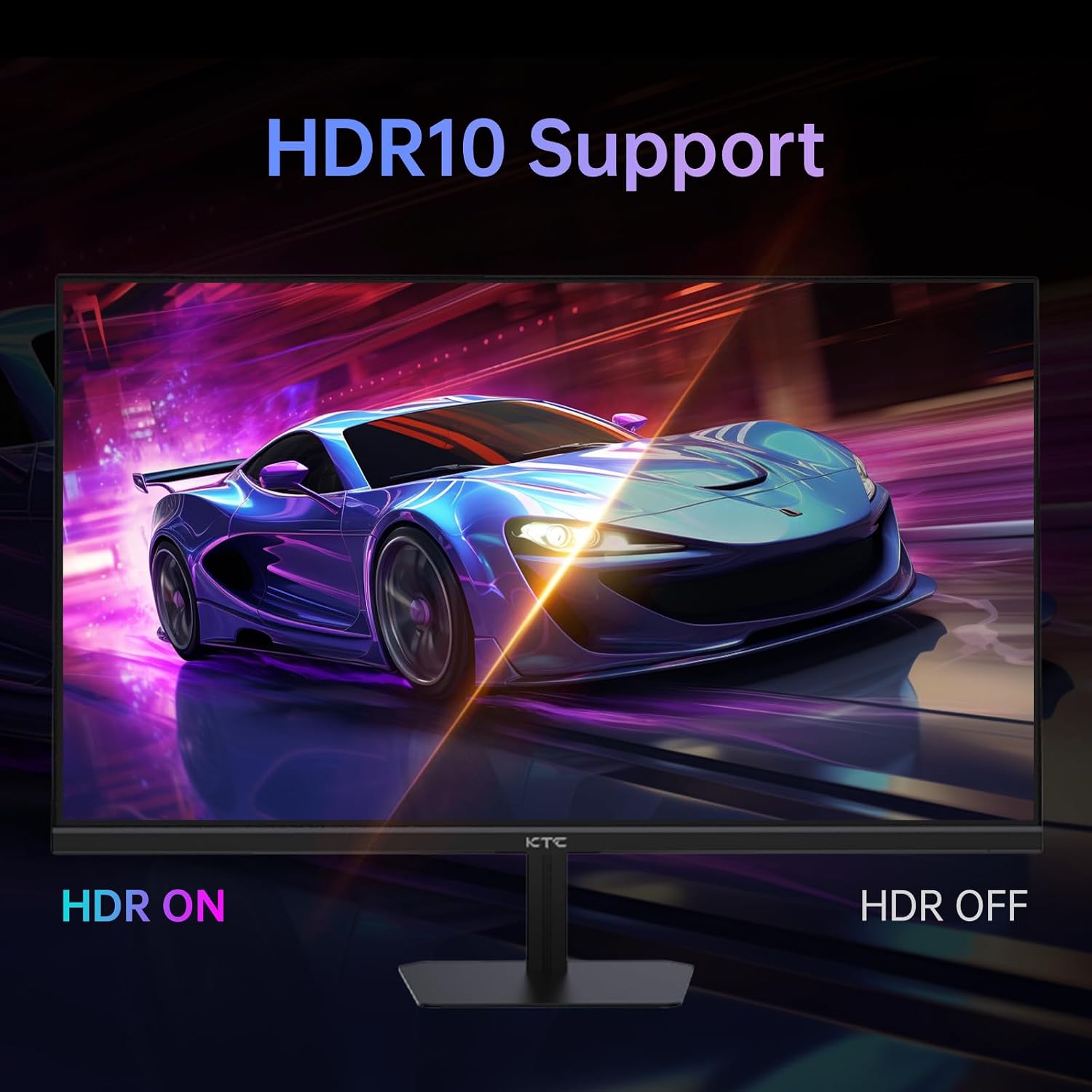
Image: A comparison of a scene with HDR (High Dynamic Range) enabled versus disabled, demonstrating the richer colors and improved contrast provided by HDR10 support.
5. Pelindung Panon
The monitor incorporates Flicker-Free technology and a Blue Light Filter to reduce eye strain during extended use, enhancing comfort and reducing fatigue.

Image: A split image comparing a conventional monitor display with one featuring 'Eye Care' technology, illustrating how the latter reduces flicker and blue light for improved eye comfort.
Pangropéa
To ensure the longevity and optimal performance of your KTC monitor, follow these maintenance guidelines:
- Ngabersihan layar: Ngusap layar nganggo kaén anu lembut sareng teu aya serat. Pikeun tanda nekad, dampen lawon rada ku cai atawa non-abrasive layar cleaner. Ulah make alkohol, amonia, atawa cleaners abrasive.
- Ngabersihan Casing: Anggo kaén anu lembut sareng garing pikeun ngabersihan monitor casing.
- Ventilasi: Pastikeun bukaan ventilasi monitor teu diblokir pikeun nyegah overheating.
- Panyimpenan: Upami henteu dianggo salami lami, simpen monitor di tempat anu tiis sareng garing, jauh tina sinar panonpoé langsung sareng suhu anu ekstrim.
Pamérésan masalah
Upami anjeun mendakan masalah sareng monitor anjeun, tingali léngkah-léngkah ngungkulan umum ieu:
| Masalah | Solusi anu mungkin |
|---|---|
| Henteu aya gambar dina layar | Check power cable connection. Ensure video cable (HDMI/DP) is securely connected to both monitor and source device. Select correct input source via OSD. |
| Gambar buram atanapi menyimpang | Adjust resolution and refresh rate settings on your computer/console. Ensure video cable is not damaged. |
| No sound (if using monitor speakers/headphone out) | Check audio settings on your device and monitor. Ensure volume is not muted. |
| Layar robek atawa gagap | Ensure FreeSync/G-Sync is enabled on both the monitor (via OSD) and your graphics card settings. |
| Monitor teu kadeteksi ku PC | Try a different video port or cable. Update graphics card drivers. Restart both PC and monitor. |
If the problem persists after attempting these solutions, please contact KTC customer support for further assistance.
spésifikasi
| Fitur | Rincian |
|---|---|
| Nomer modél | H25T7 |
| Ukuran layar | 24.5 inci |
| Tipe Panel | IPS gancang |
| Resolusi | 1920 x 1080 (FHD 1080p) |
| Refresh Laju | 180Hz |
| Waktu Tanggapan | 1 ms |
| Rasio Aspék | 16:9 |
| Caang | 350 cd/m² |
| Warna Gamut | 128% sRGB, DCI-P3 105% |
| Jerona Warna | 8-bit |
| Rojongan HDR | HDR10 |
| Sync adaptif | FreeSync / G-Sync Compatible |
| Konektipitas | 2 x HDMI, 1 x DisplayPort |
| Kasaluyuan VESA | 100 mm x 100 mm |
| Adjustment Dengdekkeun | -5 ° ka 15 ° |
| Dimensi produk | 24.4 x 18.7 x 4.5 inci |
| Item Beurat | 9.7 pon |
| Produsén | CTC |
| Negara asal | Cina |
Garansi sareng Rojongan
KTC provides high-quality products and premium services. Your KTC 24.5-inch FHD Gaming Monitor comes with a jasa ngagantian 12-bulan jeung a garansi 3 taun (except for MegPad products which have a 1-year warranty).
For technical support, warranty claims, or any inquiries regarding your product, please contact KTC customer service through the official KTC website or the retailer where you purchased the monitor. Please have your model number (H25T7) and proof of purchase ready when contacting support.


