
1. Bubuka
Thank you for choosing the PRT H11 Bluetooth Label Maker. This compact and versatile device is designed for efficient label printing in various settings, including home, office, and personal organization. With its portable design, USB rechargeability, and compatibility with both iOS and Android devices, the H11 offers a convenient solution for all your labeling needs. This manual provides detailed instructions on setup, operation, maintenance, and troubleshooting to ensure optimal performance and longevity of your label maker.
2. Produk Langkungview
The PRT H11 is a thermal label printer that connects wirelessly via Bluetooth to your smartphone or tablet. It features a sleek, portable design and utilizes self-adhesive label rolls for quick and easy application.

Figure 2.1: The PRT H11 Label Maker, showing its compact design, a roll of labels, and the accompanying mobile application interface.
2.1 Fitur konci
- Desain portabel: Ringan sareng kompak pikeun gampang dibawa.
- Konektipitas Bluetooth: Seamless wireless connection to iOS and Android devices.
- USB Rechargeable: Convenient charging via a standard USB port.
- Pencetakan termal: No ink or toner required, reducing running costs.
- Dedicated Mobile App: Offers extensive customization options for labels.
- Diwangun-di cutter: For clean and precise label cutting.
2.2 Desain sareng Portabilitas
The H11 label maker is designed for ultimate portability, weighing approximately 0.17 kg and measuring 7.8 x 4.2 x 9.9 cm. Its compact size allows it to fit easily into bags or drawers, making it ideal for on-the-go labeling tasks. The device boasts a 203 DPI print resolution, ensuring clear and sharp labels, and a printing speed of 50mm/s for efficient output.

Figure 2.2: The PRT H11 Label Maker's specifications highlighting its lightweight and compact design, improved DPI, and printing speed.
2.3 Fitur inti
The PRT H11 offers a range of features designed for user convenience and efficiency. It is 'linkless' in the sense of not requiring a physical data cable for printing, relying solely on wireless Bluetooth connectivity. The 'one-click' operation simplifies the printing process, and the integrated cutter ensures neat label separation.

Figure 2.3: Key features of the PRT H11, including its wireless operation, simplified one-click printing, and integrated label cutter.
2.4 App Capabilities
The dedicated mobile application for the PRT H11 provides extensive customization options. Users can access over 130 fonts, 100+ templates, and 850+ symbols to create unique and functional labels. The app also supports the generation of QR codes and barcodes, expanding the utility of the label maker for various applications.
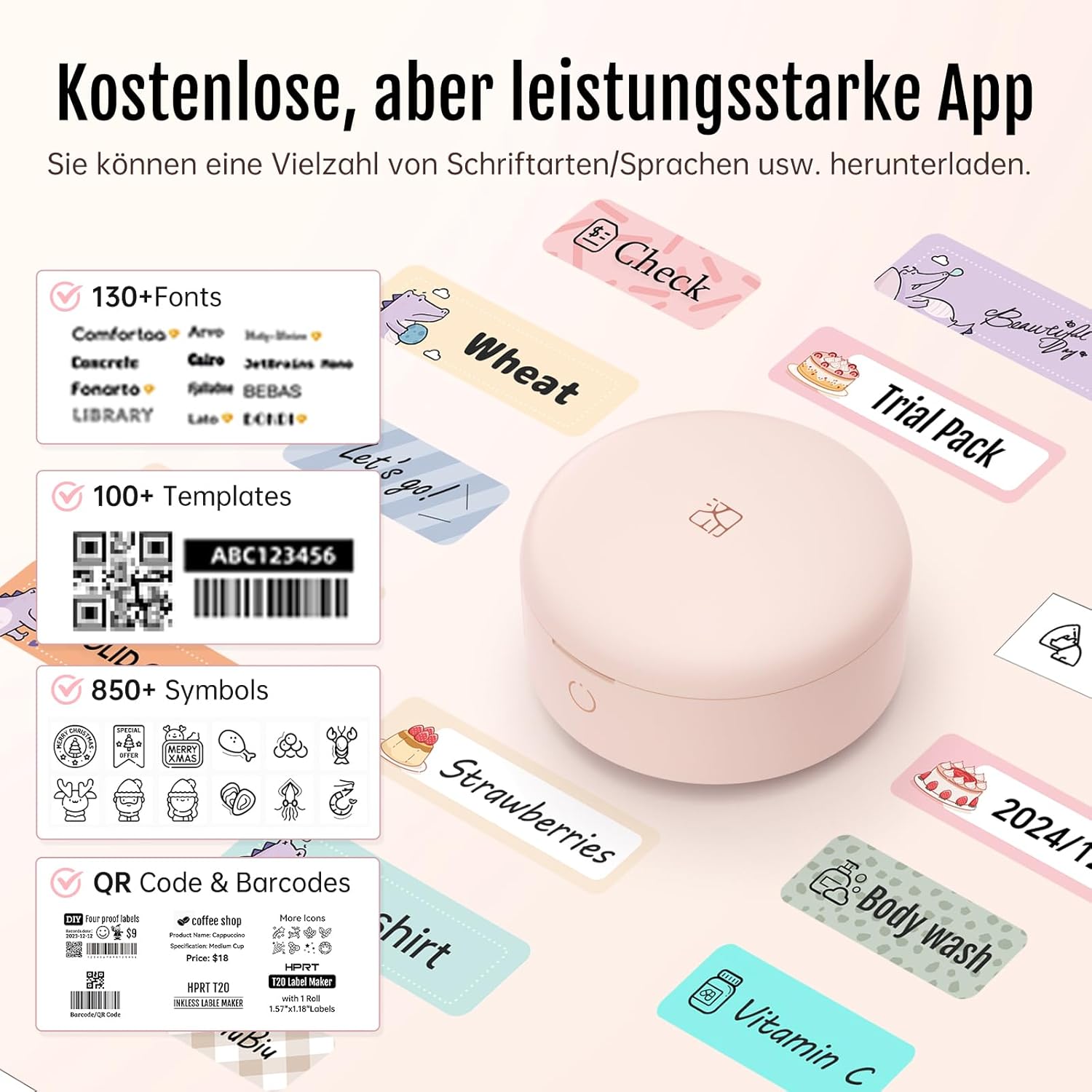
Figure 2.4: The PRT H11 mobile application interface, showcasing its rich library of fonts, templates, symbols, and support for QR codes and barcodes.
3. Setup Guide
3.1 Ngecas Alat
Before first use, fully charge the PRT H11 label maker using the provided USB cable. Connect the cable to the charging port on the device and a standard USB power adapter (not included) or a computer USB port. The indicator light will show charging status and turn off when fully charged.
3.2 Pamasangan Aplikasi
Download the 'HerePrint' app from your device's app store (Apple App Store for iOS or Google Play Store for Android). Milarian pikeun "HerePrint" and install the application.
3.3 Sambungan Bluetooth
To connect your PRT H11 to your mobile device:
- Open Bluetooth: Pastikeun Bluetooth diaktipkeun dina smartphone atanapi tablet anjeun.
- Konfirmasi sambungan: Open the 'HerePrint' app. The app will guide you to connect to the label maker. Select the PRT H11 from the list of available devices.
- Mimitian nganggo: Once connected, the app will indicate that the printer is ready for use.
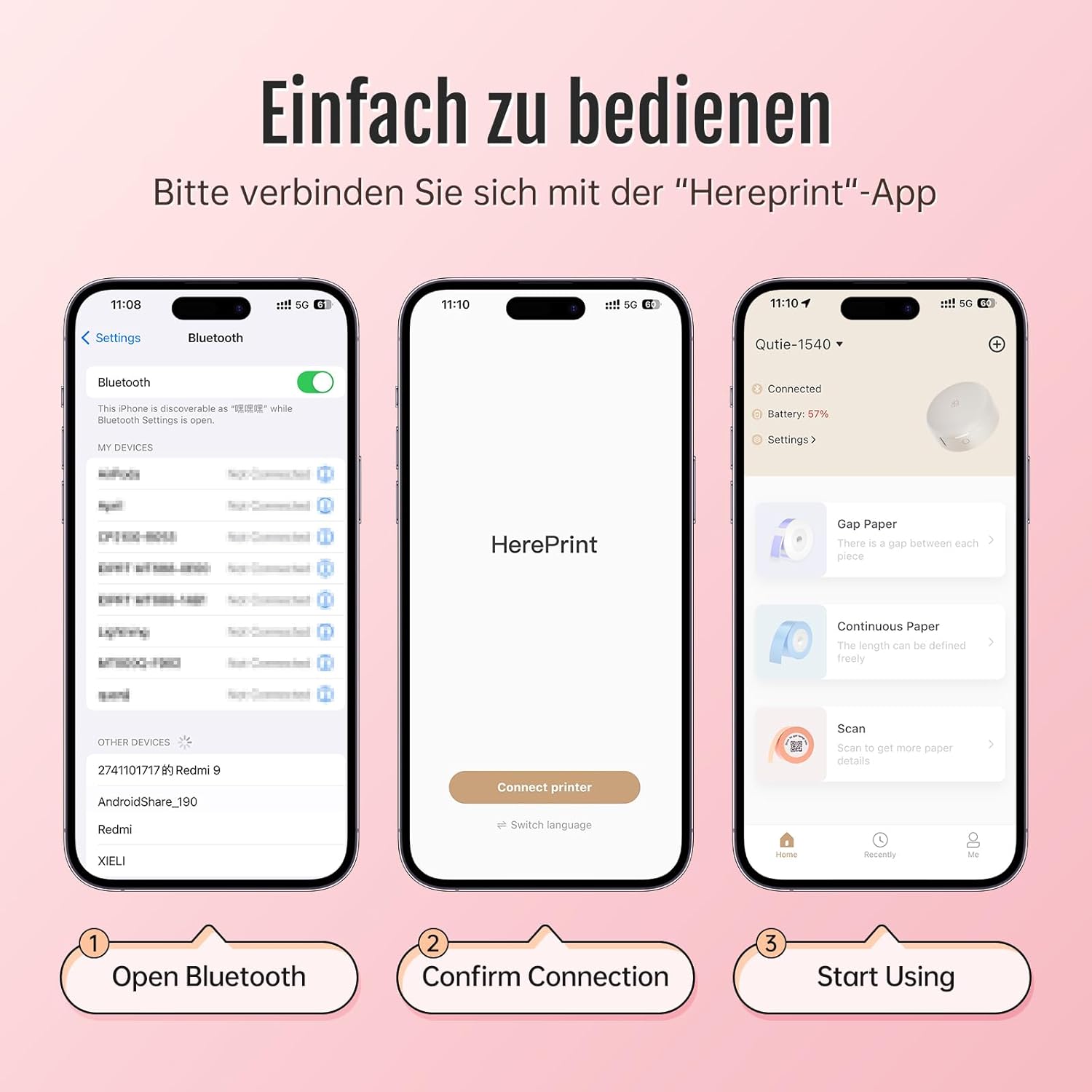
Figure 3.1: Step-by-step guide for connecting the PRT H11 label maker to your mobile device via Bluetooth using the 'HerePrint' app.
3.4 Ngamuat Label
Open the label compartment cover. Insert the label roll with the printing surface facing upwards, ensuring the leading edge of the label paper is aligned with the printer's output slot. Close the cover securely.
4. Parentah Operasi
4.1 Creating Labels in the App
The 'HerePrint' app is your primary interface for designing labels. Within the app, you can:
- Lebetkeun téks: Type in your desired text.
- Select Fonts and Styles: Choose from a wide range of fonts, adjust size, bold, italic, and alignment.
- Add Icons and Symbols: Incorporate various symbols and icons for visual clarity.
- Anggo Citakan: Mangpaatkeun témplat anu parantos dirancang sateuacanna pikeun tugas-tugas panyiri umum.
- Insert Images: Add simple images or logos.
- Generate QR/Barcodes: Create scannable codes for inventory or information.
4.2 Nyitak Label
Once your label design is complete in the app, tap the 'Print' button. The app will send the data to the PRT H11, and the label will be printed. Use the built-in cutter to neatly separate the printed label from the roll.
4.3 Practical Applications
The PRT H11 is versatile for various labeling needs:
- Organisasi Imah: Labeling storage bins, spice jars, files, and personal items.
- Kagunaan Kantor: Organizing documents, cables, and office supplies.
- Retail/Small Business: Pricing, product identification, and inventory management.
- Cosmetics and Personal Care: Labeling homemade products or organizing beauty items.

Gambar 4.1: Kelample of PRT H11 labels used for organizing cosmetic products, demonstrating clarity and versatility.
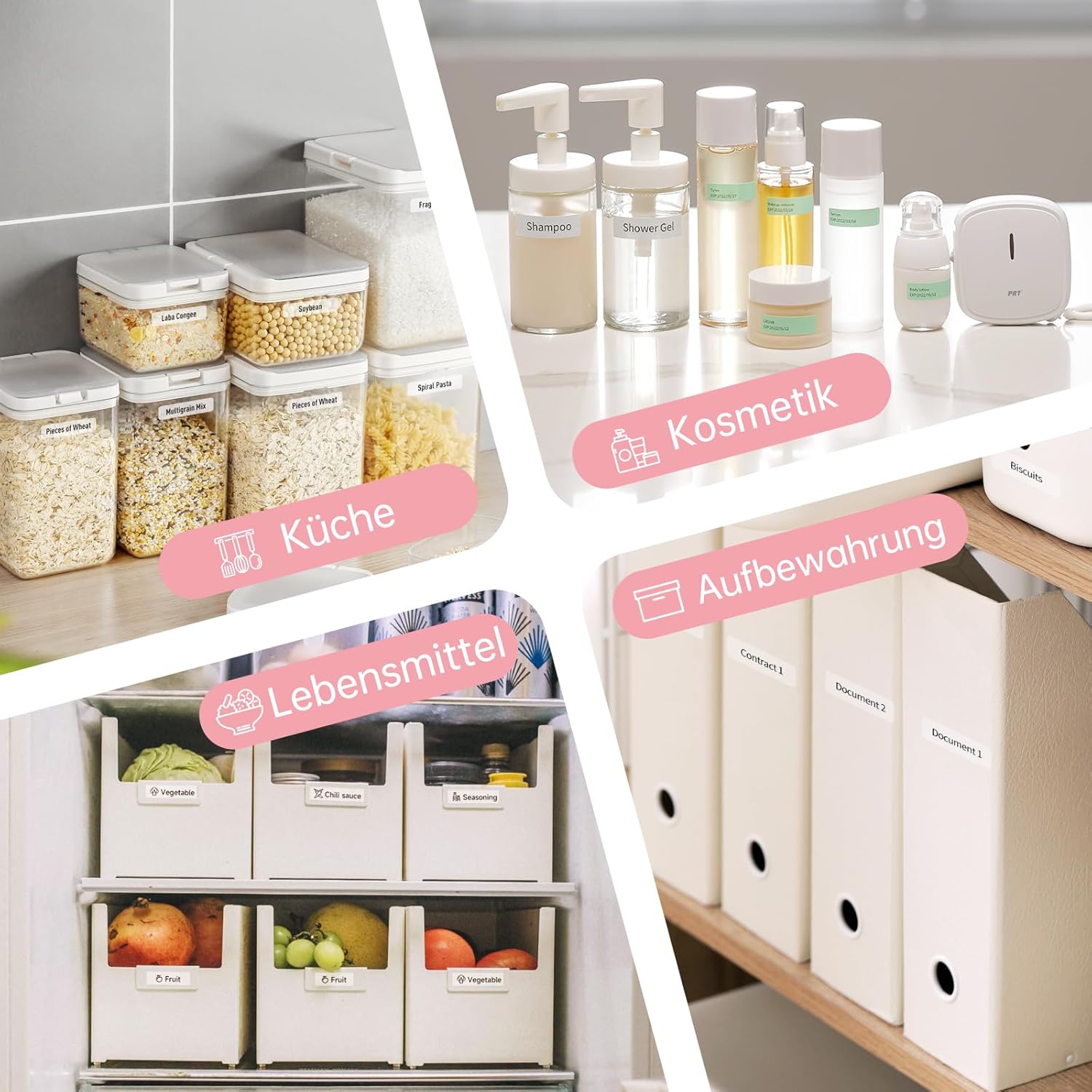
Figure 4.2: Diverse applications of the PRT H11 label maker, including kitchen organization, food labeling, and document storage.
5. Pangropéa
To ensure the longevity and optimal performance of your PRT H11 label maker, follow these maintenance guidelines:
- Ngabersihan Print Head: Bersihkeun sirah cetak termal sacara berkala nganggo lawon anu lemes sareng henteu ngagangguampened with isopropyl alcohol. Ensure the device is turned off and disconnected from power before cleaning. Allow it to dry completely before use.
- Ngabersihan Luar: Wipe the exterior of the device with a soft, dry cloth. Avoid using abrasive cleaners or solvents.
- Panyimpenan: Nyimpen panyipta labél di tempat anu tiis sareng garing jauh tina sinar panonpoé langsung sareng suhu anu ekstrim.
- Perawatan Roll Label: Store label rolls in their original packaging to protect them from dust and moisture.
6. Cara ngungkulan
If you encounter issues with your PRT H11 label maker, refer to the following common problems and solutions:
- Taya Daya/Alat Teu Hurung:
- Ensure the device is fully charged. Connect it to a USB power source and check if the charging indicator light is on.
- Pencét jeung tahan tombol daya pikeun sababaraha detik.
- Teu tiasa nyambung via Bluetooth:
- Pastikeun Bluetooth diaktipkeun dina alat sélulér Anjeun.
- Ensure the label maker is turned on and within range (typically 10 meters).
- Restart both the label maker and your mobile device.
- Forget the device in your phone's Bluetooth settings and try pairing again through the 'HerePrint' app.
- Poor Print Quality/Faint Printing:
- Check if the label roll is inserted correctly with the printing surface facing up.
- Ngabersihan sirah print termal sakumaha ditétélakeun dina bagian Pangropéa.
- Ensure you are using genuine PRT label rolls.
- The label roll might be running out or expired. Replace with a new roll.
- Labels Not Feeding/Paper Jam:
- Open the label compartment and ensure the label roll is properly seated and not tangled.
- Remove any jammed paper carefully.
- Ensure the label roll is not too wide or too narrow for the device.
- App Crashing/Not Responding:
- Pastikeun aplikasi anjeun diropéa kana versi panganyarna.
- Hapus cache aplikasi atanapi pasang deui aplikasi.
- Pastikeun sistem operasi alat sélulér anjeun tos diénggalan.
7. Spésifikasi
| Fitur | Spésifikasi |
|---|---|
| merek | PRT |
| Nomer modél | H11 |
| Téhnologi konektipitas | Bluetooth, USB |
| Téhnologi percetakan | Termal |
| Kaluaran printer | Monokrom |
| Max Monokrom Print Speed | 30 mm/s |
| Dimensi produk | 8P x 8l x 2.9H centimeters (approx. 7.8 x 4.2 x 9.9 cm) |
| Beurat | 0.17 kg |
| Kasaluyuan System Operasi | ios, Android |
| Fitur husus | Portabel |
| Warna | Pink |
| Jenis Média | Labels |
8. Garansi jeung Rojongan
For warranty information and customer support, please refer to the documentation provided with your purchase or contact the retailer where the PRT H11 label maker was acquired. Specific details regarding spare parts availability and software update guarantees are not available in this manual. For further assistance, please reach out to PRT customer service channels.