Bubuka
The Yealink T31W is a fashionable and user-friendly IP phone designed for business environments. It features an extra-large 132x64-pixel graphical LCD with backlight for clear visual experience. This phone supports two VoIP accounts and includes local 5-way conferencing to maximize productivity. With built-in dual-band 2.4G/5G Wi-Fi, the SIP-T31W ensures connectivity with the latest wireless technology. Its adjustable multi-angle stand allows for use in various situations. The T31W also features built-in Power over Ethernet (PoE) and superb high definition (HD) sound quality, offering an excellent voice communications solution.
Fitur konci:
- Includes built-in dual band Wi-Fi and 2.3” graphical LCD with backlight.
- Works exclusively with the Ooma Office phone service.
- Supports desktop and free mobile app for remote work.
- Allows selection of new business numbers or porting existing ones, including toll-free options.
Naon dina Box
- Dasar telepon
- Handset Corded
- Stand/Mounting Bracket
- Pitunjuk Mimitian Gancang & Manual Pamaké
Disetél
Step 1: Ooma Office Service Requirement
This phone requires an active Ooma Office Cloud-Based VoIP Phone Service subscription. It will not function independently or with other VoIP providers. Ensure your Ooma Office account is set up and active before proceeding.

Image: Ooma Office service is a prerequisite for phone operation.
Step 2: Phone Activation
Once your Ooma Office service is active, add the IP phone to your account for activation. Follow the specific instructions provided by Ooma Office for device registration and provisioning. This step links your physical phone to your Ooma Office extension.

Image: The IP phone must be added to your Ooma Office account for activation.
Step 3: Physical Connection
Connect the phone to your network. The T31W supports Power over Ethernet (PoE), allowing it to receive power and network connectivity through a single Ethernet cable from a PoE-enabled switch or router. Alternatively, it can be powered by an external power adapter (sold separately) and connected to a standard network port. Connect the corded handset to the phone base using the coiled cord. The phone also features built-in dual-band Wi-Fi for wireless connectivity, which can be configured after initial power-up.

Image: Connect the phone to your network, either via Ethernet (PoE) or Wi-Fi.
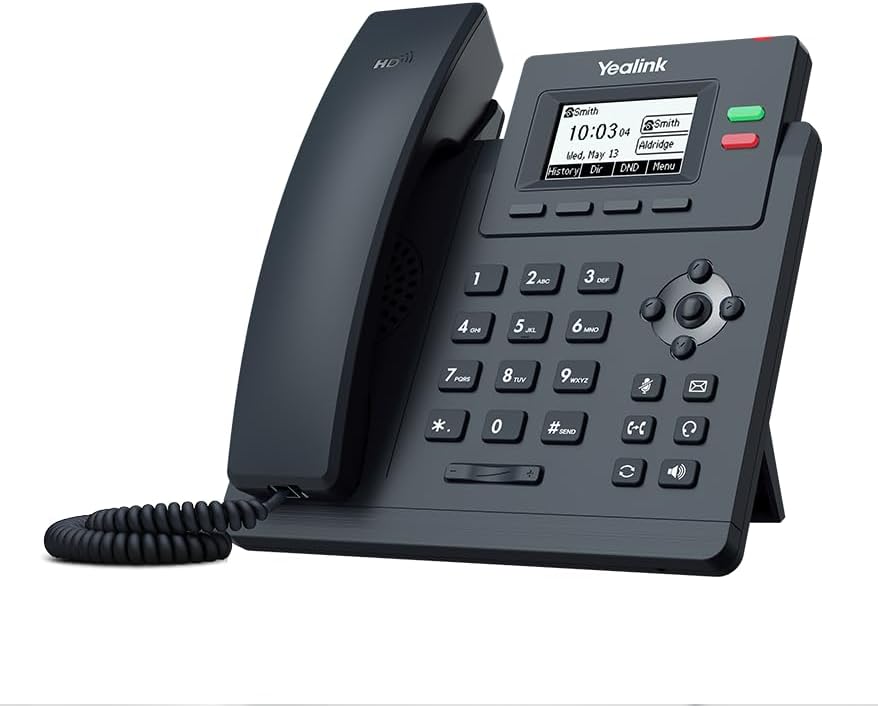
Image: The Yealink T31W IP Phone, ready for use after setup.
Parentah Operasi
Nelepon jeung Narima Telepon
To make a call, lift the handset or press the Speaker button. Dial the desired number using the keypad and press the Dial/Send key. To answer an incoming call, lift the handset or press the Speaker button. To end a call, replace the handset or press the Speaker tombol deui.

Image: The Ooma Office system allows you to make and receive calls using your business number.
Ngagunakeun Wi-Fi
The T31W has built-in dual-band 2.4G/5G Wi-Fi. To configure Wi-Fi, navigate through the phone's menu using the navigation keys and the OK button. Select the Wi-Fi settings, scan for available networks, choose your desired network, and enter the password if required. The phone will then connect wirelessly to your network.
5-Jalan Conferencing
The phone supports local 5-way conferencing. During an active call, press the Konférénsi key. The current call will be put on hold. Dial the number of the new participant and wait for them to answer. Once connected, press the Konférénsi key again to join all parties into a single conference call.
Ooma Office Mobile App
Extend your business phone system to your mobile device with the Ooma Office mobile app. This free app allows you to make and receive calls from your business number, manage voicemails, access contacts, and send messages while on the go. Download the app from your device's app store and log in with your Ooma Office credentials.

Image: Manage your business communications on the go with the Ooma Office mobile app.

Image: The Ooma Office system provides advanced features curated for small businesses.

Image: The virtual receptionist feature greets your customers professionally.
Pangropéa
Perawatan sareng Ngabersihan
To maintain your Yealink T31W IP Phone, clean its surface with a soft, slightly damp cloth. Avoid using abrasive cleaners, solvents, or strong chemicals, as these can damage the phone's finish and internal components. Keep the device away from excessive moisture, direct sunlight, and extreme temperatures to ensure optimal performance and longevity.
Pamérésan masalah
Phone Not Powering On
Ensure the power adapter (if used) is securely connected to both the phone and a working power outlet. If using Power over Ethernet (PoE), verify that the Ethernet cable is connected to a PoE-enabled port on your network switch or router and that the PoE function is active.
Taya Nada Dial
Check your network connectivity. Ensure the Ethernet cable is properly connected or that the Wi-Fi connection is stable. Verify that the phone is properly registered and provisioned with your Ooma Office account. Try restarting the phone by unplugging and re-plugging its power source, and also restart your network equipment (router/modem).
Masalah Konektipitas Wi-Fi
Ensure the Wi-Fi network is within range and the Wi-Fi password entered on the phone is correct. Try restarting the phone and your Wi-Fi router. If wireless issues persist, consider using a wired Ethernet connection for more stable performance.
Masalah Kualitas Telepon
Poor call quality (e.g., choppy audio, echoes) can indicate network issues. Check your internet connection speed and stability. Ensure you have sufficient bandwidth for VoIP calls. If using Wi-Fi, try moving the phone closer to the router or switching to a wired Ethernet connection to rule out wireless interference.
Spésifikasi teknis
| Fitur | Spésifikasi |
|---|---|
| merek | Ooma |
| Nomer modél | T31W |
| Item Beurat | 2.17 pon |
| Dimensi produk | 7.44 x 7.4 x 6.38 inci |
| Warna | kulawu |
| Jenis Bahan | palastik |
| Tipe Telepon | Telepon IP Corded |
| Sumber Daya | Corded Electric / PoE |
| tampilan | 132x64-pixel graphical LCD with backlight |
| Akun VoIP | 2 |
| Kamampuh Telepon Konférénsi | 5-arah konferensi lokal |
| Wifi | Built-in dual-band 2.4G/5G |
| Alat nu cocog | Android, iOS (via Ooma Office app) |
Rojongan sarta Garansi
Rojongan Palanggan
For technical assistance, service-related inquiries, or further information regarding your Ooma Provisioned Yealink T31W IP Phone and Ooma Office service, please contact Ooma Customer Support. You can find comprehensive support resources, frequently asked questions (FAQs), and contact information on the official Ooma websitus.
Nganjang ka Ooma Store on Amazon for more product details and related accessories.
Émbaran jaminan
Refer to the warranty card included with your product packaging for specific warranty terms and conditions. Detailed warranty information may also be available on the official Ooma websitus. Punten tahan bukti pameseran anjeun pikeun klaim garansi.


