Bubuka
The vretti Mini Pocket Printer is a compact, portable thermal printer designed for convenient, inkless printing. It connects via Bluetooth to your iPhone or Android device, allowing you to print photos, notes, labels, and various creative content. Its thermal printing technology eliminates the need for ink cartridges, offering a cost-effective and mess-free printing experience. This manual provides detailed instructions to help you get started and make the most of your new printer.
Eusi pakét
Punten parios yén sadaya barang anu didaptarkeun di handap kalebet kana pakét anjeun:
- 1 x vretti Mini Thermal Pocket Printer
- 1 x Kabel Ngecas USB
- 1 x 57*30mm Thermal Paper Roll
- 1 x Manual Pamaké
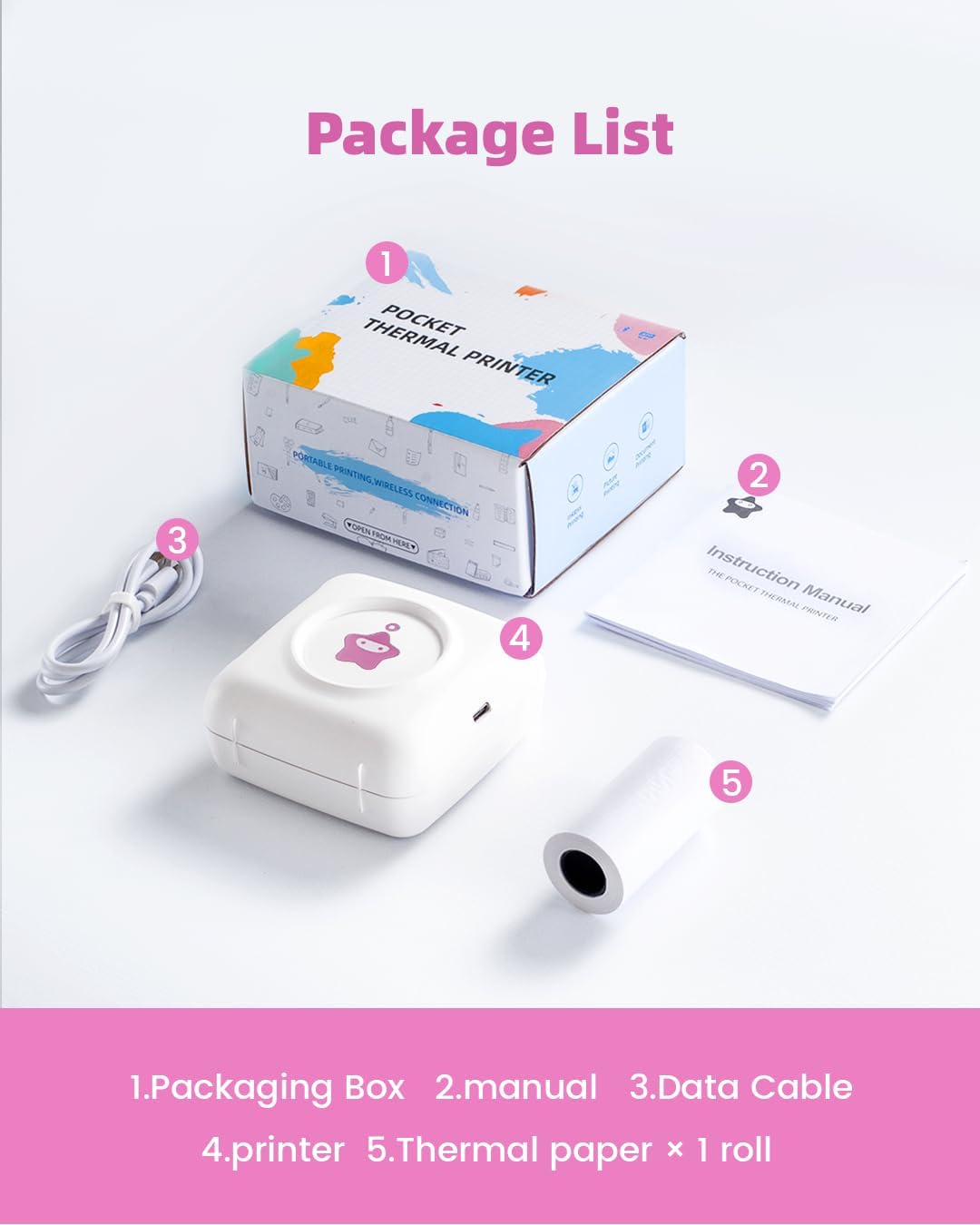
Image: The vretti Mini Pocket Printer and its included accessories.
Guide Setup
1. Ngecas Printer
Before first use, fully charge the printer. Connect the provided USB cable to the printer's charging port and a compatible USB power adapter (not included). The indicator light will show charging status and turn off when fully charged.
2. Installing the Paper Roll
- Buka panutup printer lalaunan.
- Insert the thermal paper roll into the paper compartment, ensuring the printing side of the paper faces the print head.
- Pull a small amount of paper out of the slot and close the cover firmly until it clicks into place.
3. Pamasangan Aplikasi
The vretti Mini Pocket Printer operates with the Xlife Pro application. Download the app from your device's app store:

Image: Xlife Pro App download options.
4. Sambungan Bluetooth
- Pastikeun Bluetooth diaktipkeun dina smartphone Anjeun.
- Turn on the printer by pressing and holding the power button.
- Buka na Xlife Pro aplikasi.
- Within the app, navigate to the connection interface (often indicated by a Bluetooth icon or 'Connect Device').
- Select 'TP2-Y' from the list of available devices to pair. Note: Do not attempt to pair the printer directly from your phone's Bluetooth settings; always connect through the Xlife Pro app.

Image: Printer power, paper installation, and app connection steps.

Image: Correct Bluetooth connection procedure through the Xlife Pro app.
Parentah Operasi
Basic Printing Functions
Once connected, the Xlife Pro app provides various options for printing:
- Nyitak poto: Select images from your gallery to print. The printer produces black and white thermal prints.
- Text & Memo Printing: Type or paste text directly into the app for quick notes, lists, or messages.
- Label & Sticker Creation: Utilize pre-designed templates or create custom labels and stickers.
- DIY & Graffiti: Print outlines of cartoons or designs for coloring, or create your own freehand drawings.

Gambar: Examples of various printing applications.

Image: HD black and white printouts on various paper types.

Image: DIY cartoons for coloring.

Image: Creating custom labels from printed output.
Xlife Pro App Features
The Xlife Pro app offers a rich set of features to enhance your printing experience:
- Creative Templates: Access a wide range of pre-designed templates for notes, lists, journals, and more.
- Editing Tools: Adjust brightness, contrast, and other settings for your prints.
- Percetakan Dokumén: Print text documents directly from your phone.
- QR Code Generation: Create and print QR codes.
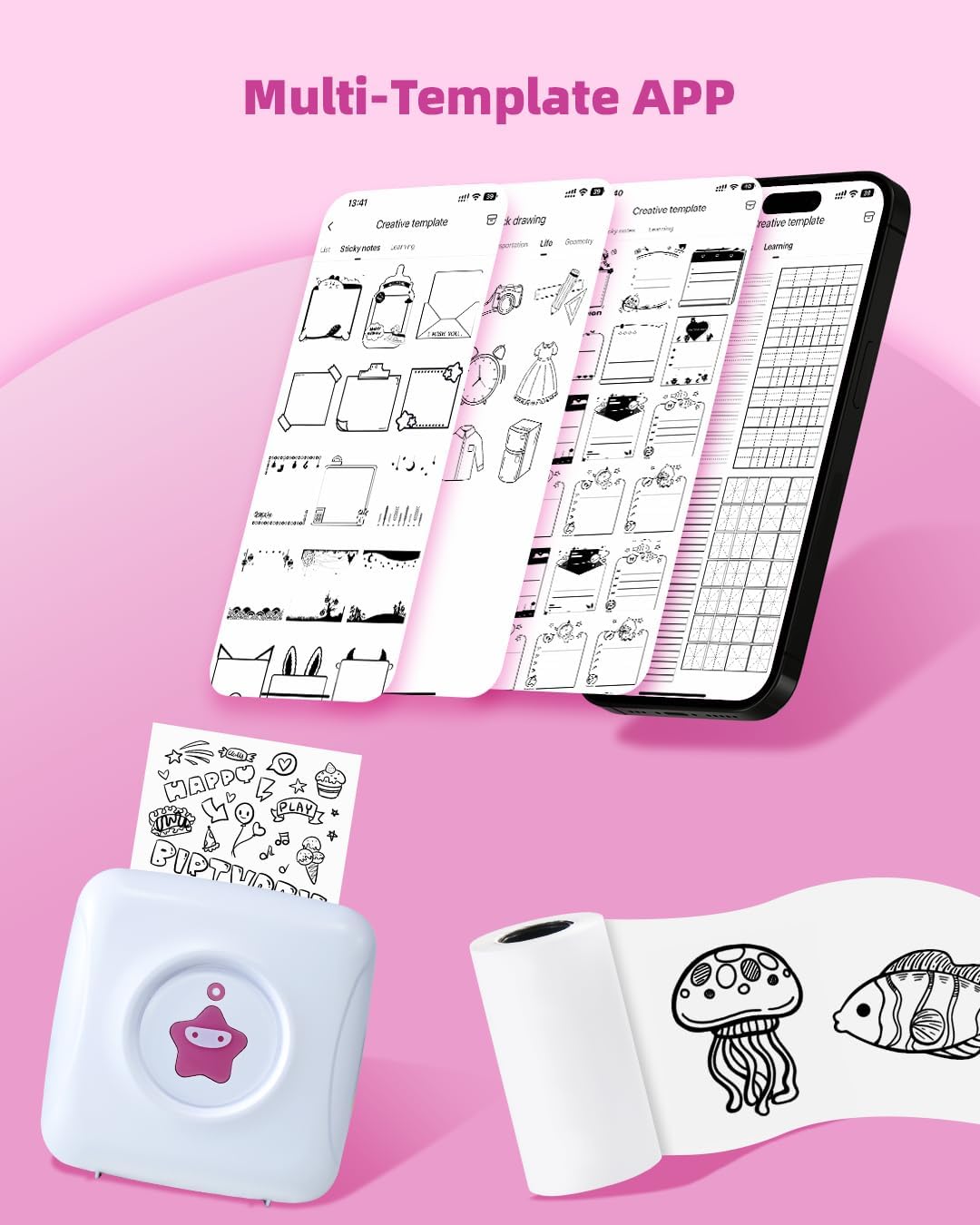
Image: Multi-template options within the Xlife Pro app.

Image: Freely DIY your stickers using app templates.

Image: Customize your own printing for notebooks and crafts.
Pangropéa
Ngabersihan Printer
To ensure optimal print quality and longevity of your printer:
- Pareuman printer sateuacan beberesih.
- Make kaen nu lemes, teu aya lint rada dampened with water or rubbing alcohol to wipe the exterior of the printer.
- Pikeun sirah citak, anggo kapas anu diusap entengampened with rubbing alcohol. Gently wipe the print head surface. Allow it to dry completely before closing the cover and using the printer.
- Do not use harsh chemicals or abrasive materials, as they may damage the printer's surface or internal components.
Panyimpenan kertas
Thermal paper is sensitive to heat and light. Store unused thermal paper rolls in a cool, dry place away from direct sunlight and high temperatures to prevent fading or damage to the paper's coating.
Pamérésan masalah
| Masalah | Mungkin Cukang lantaranana | Solusi |
|---|---|---|
| Printer teu hurung | batré lemah; Tombol daya teu dipencet leres | Charge the printer fully; Press and hold the power button for a few seconds. |
| No print or faint print | Paper installed incorrectly; Low battery; Print head dirty; App settings (brightness) | Reinstall paper with printing side facing up; Charge printer; Clean print head; Adjust print density in the Xlife Pro app. |
| Teu bisa nyambung via Bluetooth | Bluetooth not enabled; Incorrect pairing method; App issue | Ensure Bluetooth is on; Connect via the Xlife Pro app, not phone settings; Restart app/printer/phone. |
| Printer overheats | Continuous printing for extended periods | Allow the printer to cool down for a few minutes before resuming printing. |
| Pixelated or very dark print | Image resolution; App print settings | Use higher resolution images if possible; Adjust print settings (e.g., contrast, darkness) within the Xlife Pro app. |
spésifikasi
| Fitur | Rincian |
|---|---|
| Ngaran modél | TP2-Y |
| Dimensi produk | 3.3 "D x 3.3" W x 1.6" H |
| Item Beurat | 6.6 ons (188 gram) |
| Téhnologi percetakan | Termal |
| Téhnologi konektipitas | Bluetooth |
| Tipe Controller | Android, ios |
| Ukuran Média Maksimum | 2.2 inch (57mm paper roll) |
| Maksimum Hideung Bodas Resolusi Print | 203 dpi |
| Média citak | Thermal Paper (plain) |
| Jenis Batré | 1 batré Litium Ion (kaasup) |
Garansi sareng Rojongan
For information regarding product warranty, returns, or technical support, please refer to the documentation included with your purchase or visit the official vretti brand store or websitus. Sarat garansi khusus tiasa bénten-bénten gumantung kana daérah sareng pangecér.
Anjeun tiasa mendakan langkung seueur inpormasi sareng sumber dukungan dina vretti Amazon Store.


