Bubuka
Thank you for choosing the KTC 34'' Curved Ultrawide Gaming Monitor. This manual provides essential information for setting up, operating, maintaining, and troubleshooting your new monitor. Designed for an immersive gaming experience and efficient productivity, this monitor features a 21:9 aspect ratio, WQHD+ resolution (3440x1440p), a rapid 165Hz refresh rate, and a 1ms MPRT response time. Its 1500R curvature enhances immersion, while Freesync and G-sync compatibility ensure smooth, tear-free visuals. With HDR10 support and comprehensive ergonomic adjustments, the H34S18S is perfect for gamers, students, and office workers seeking high performance and stunning picture quality.
Naon dina Box
- 34 inch ultrawide monitor (x1)
- Dasar (x1)
- Obeng (x1)
- Kabel Daya (x1)
- Adaptor (x1)
- Kartu Garansi (x1)
- QSG (Quick Start Guide) (x1)
- DP Cable (x1)
- Kabel HDMI (x1)

Figure 1: Included accessories and components in the product packaging.
Disetél
Majelis Monitor
To assemble the monitor, attach the base to the monitor stand using the provided screwdriver and screws. Ensure the base is securely fastened to provide stable support for the monitor.

Figure 2: Step-by-step guide for attaching the monitor base to the stand.
Nyambungkeun Alat Anjeun
The KTC H34S18S monitor offers versatile connectivity options:
- DisplayPort (DP1.4 x2): Supports 3440x1440 resolution at 165Hz for high-refresh-rate gaming.
- HDMI (HDMI2.0 x2): Supports 2560x1440 resolution at 100Hz.
- USB2.0 (x1): For firmware upgrades only.
- Soket Earphone (x1): Pikeun kaluaran audio ka headphone atanapi speaker éksternal.
Connect the appropriate cable (DP or HDMI) from your computer or gaming console to the corresponding port on the monitor. Plug the power adapter into the monitor's DC input and then into a power outlet.

Figure 3: Monitor connectivity ports.
Operasi Monitor
Napigasi dina-layar (OSD).
The monitor features a convenient 5-way OSD Navigation Joystick located on the back for easy access to settings. Push the joystick in to confirm selections, and move it up, down, left, or right to navigate through the menus.

Figure 4: OSD Navigation Joystick.
Fitur konci
- Immersive Gaming Experience: The 34-inch VA 1500R curved panel with a 21:9 aspect ratio provides a wider field of view and deeper immersion.

Figure 5: Immersive 21:9 Ultrawide Display.
- Fast & Precise Picture: Enjoy smooth and responsive gameplay with a 1ms MPRT (Moving Picture Response Time) and 165Hz refresh rate, minimizing ghosting and stuttering.
Figure 6: High Refresh Rate and Fast Response Time.
- Kualitas Gambar Anu Endah: Experience superior and realistic visuals with WQHD+ resolution (3440x1440p), 10.7 billion colors, 123% sRGB, 98% DCI-P3, and a high 4000:1 contrast ratio.

Figure 7: True-to-Life Color Reproduction.
- Freesync & G-sync Compatible: Eliminate screen tearing and syncing issues for a smoother gaming experience when paired with compatible graphics cards.

Figure 8: Freesync & G-sync Compatibility.
- HDR10: Experience deeper color vibrancy and enhanced detail with HDR10 support.
- Picture by Picture (PBP) & Picture in Picture (PIP): Display content from multiple sources simultaneously for enhanced multitasking.

Figure 9: Picture by Picture and Picture in Picture Modes.
- Comprehensive Adjustability: Sesuaikeun Anjeun viewing pleasure with 90mm (3.5") height adjustment, -5° to 20° tilt, ±20° swivel, and ±5° pivot.
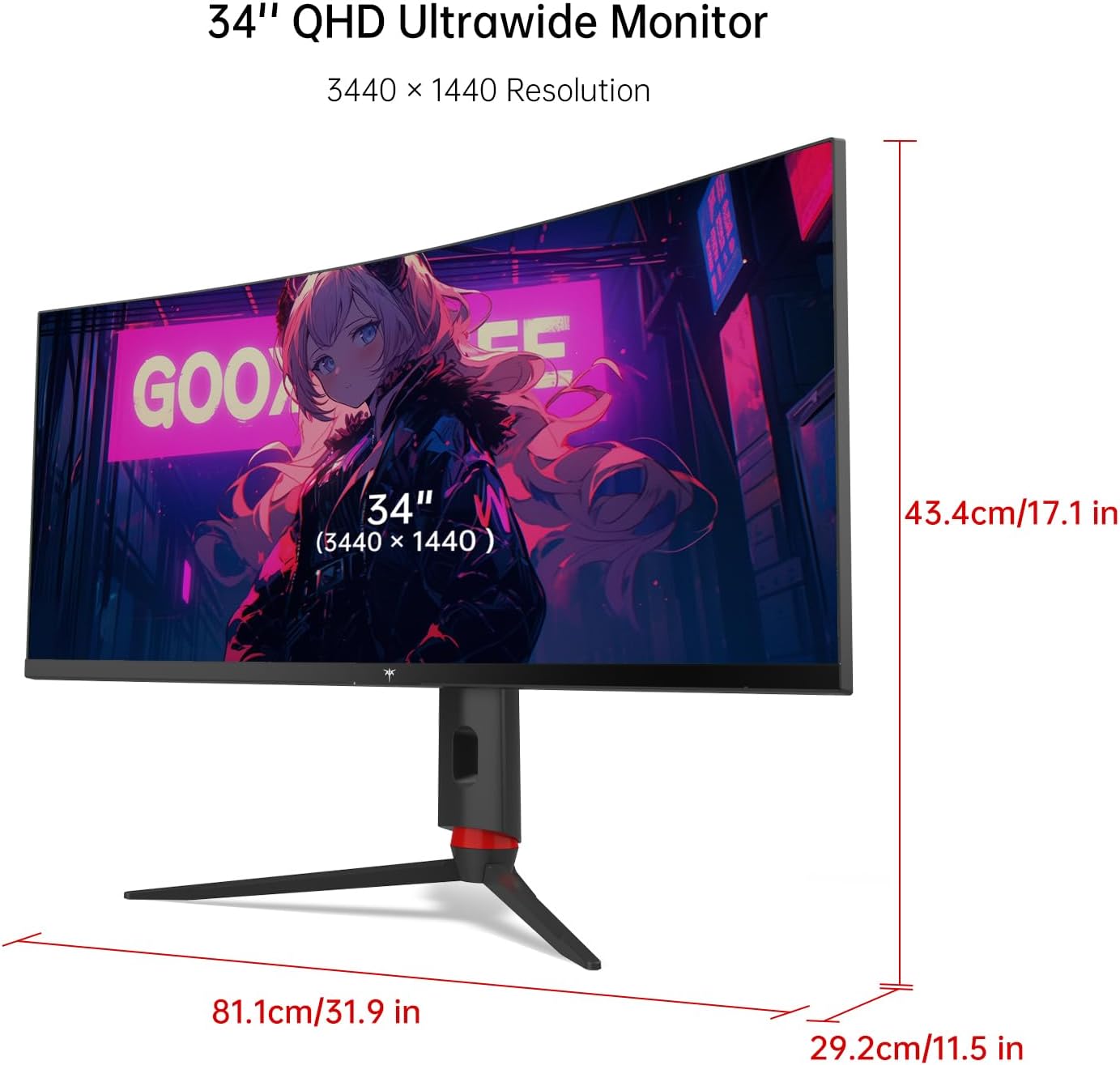
Figure 10: Ergonomic Adjustments.
- Anti sorotan: The anti-glare surface treatment and low reflection reduce eye strain for comfortable extended use.
Video 1: Official KTC H34S18S Ultrawide Curved Gaming Monitor overview, nuduhkeuncasing fitur sarta desain na.
Pangropéa
To ensure the longevity and optimal performance of your KTC monitor, follow these maintenance guidelines:
- Ngabersihan layar: Ngusap layar nganggo kaén anu lembut sareng teu aya serat. Pikeun tanda pengkuh, enteng dampen lawon kalayan cai atawa solusi beberesih layar husus dirancang pikeun monitor. Ulah make bahan kimia kasar atawa bahan abrasive.
- Ngabersihan Casing: Make kaen nu lemes tur garing pikeun ngusap monitor casing. Ulah make cleaners cair langsung dina casing.
- Ventilasi: Pastikeun bukaan ventilasi monitor teu diblokir pikeun nyegah overheating.
- Pareum listrik: Pareuman monitor teras cabut tina stop kontak sateuacan dibersihkeun atanapi upami moal dianggo kanggo waktos anu lami.
Pamérésan masalah
Upami anjeun mendakan masalah sareng monitor anjeun, tingal masalah sareng solusi umum ieu:
- Taya Gambar/Sinyal:
- Pastikeun kabel kakuatan disambungkeun aman ka monitor jeung stop kontak kakuatan.
- Verify that the video cable (DP or HDMI) is correctly connected to both the monitor and your computer/console.
- Pariksa naha sumber input anu leres parantos dipilih dina menu OSD monitor.
- Pareuman terus hurungkeun deui komputer/konsol anjeun.
- Layar kedip-kedip:
- Ensure your video cable is not loose or damaged. Try a different cable if possible.
- Adjust the refresh rate settings on your computer/console.
- Disable Freesync/G-sync temporarily in your graphics card settings to see if the issue persists.
- Menu OSD Teu Ngarespon:
- Pastikeun monitor diaktipkeun.
- Try resetting the monitor to factory settings via the OSD menu if accessible.
- Unplug the monitor from power for 30 seconds, then plug it back in.
- Poor Picture Quality/Colors:
- Atur setélan kacaangan, kontras, sareng warna dina menu OSD.
- Pastikeun supir kartu grafik anjeun parantos diropéa.
- Check if HDR is properly enabled in both monitor and system settings if desired.
spésifikasi
| Fitur | Rincian |
|---|---|
| merek | CTC |
| Nomer modél | H34S18S |
| Ukuran layar | 34 inci |
| Tipe Panel | VA |
| Curvature | 1500R |
| Rasio Aspék | 21:9 |
| Resolusi | 3440 x 1440 (WQHD+) |
| Refresh Laju | 165Hz |
| Waktu Tanggapan | 1 ms MPRT |
| Babandingan Kontras | 4000:1 |
| Warna Gamut | 123% sRGB, 98% DCI-P3 |
| Rojongan HDR | HDR10 |
| Sync adaptif | Freesync & G-sync Compatible |
| Konektipitas | 2x DP1.4, 2x HDMI2.0, 1x USB2.0 (Upgrade Only), Earphone Jack |
| Adjustability | Height (90mm), Tilt (-5°~20°), Swivel (±20°), Pivot (±5°) |
| Gunung VESA | 100 mm x 100 mm |
| Perlakuan permukaan | Anti sorotan |
| Dimensi produk | 11.5 x 31.9 x 17.1 inci |
| Item Beurat | 22.3 pon |
Garansi sareng Rojongan
KTC offers a 3-year warranty on its monitors (excluding MegPad's 1-Yr). For technical support, warranty claims, or any product-related inquiries, please contact KTC customer support. You can find more information and contact details on the official KTC websitus atawa ngaliwatan platform pameseran Anjeun.


