1. Bubuka
This manual provides detailed instructions for the setup, operation, and maintenance of your KTC 32-Inch 2K QHD IPS Monitor, model H32T13. Please read this manual thoroughly before using the monitor to ensure proper functionality and to prevent damage.
The KTC H32T13 monitor features a 32-inch IPS panel with 2K QHD (2560x1440) resolution, a 100Hz refresh rate, and support for FreeSync/G-Sync technologies. It is designed for both office productivity and gaming, offering vibrant colors, wide viewing angles, and eye-care features.
2. Naon dina Box
Pastikeun yén sadaya komponén aya dina bungkusan:
- KTC 32-Inch 2K QHD IPS Monitor (H32T13)
- Stand Monitor (Dasar sareng Beuheung)
- Kabel HDMI
- Kabel listrik
- Adaptor kakuatan
- Obeng
- Manual pangguna (dokumén ieu)

Image: Contents of the KTC H32T13 monitor package.
3. Produk Langkungview
The KTC H32T13 monitor is designed for a superior visual experience. Key features include:
- 32-inch QHD (2560x1440) IPS Panel: Delivers crisp, detailed images with accurate colors and wide viewdina sudut.
- Laju Refresh 100Hz: Provides smoother motion for gaming and fast-paced content.
- FreeSync/G-Sync Compatibility: Reduces screen tearing and stuttering for a fluid gaming experience.
- Rojongan HDR: Enhances contrast and color for more realistic visuals.
- Téknologi Perawatan Mata: Features Flicker-Free and Low Blue Light modes to reduce eye strain during prolonged use.
- Konektipitas serbaguna: Equipped with multiple HDMI 2.0 and DisplayPort 1.4 inputs.
- Desain ergonomis: Offers tilt adjustment and VESA mount compatibility for flexible positioning.
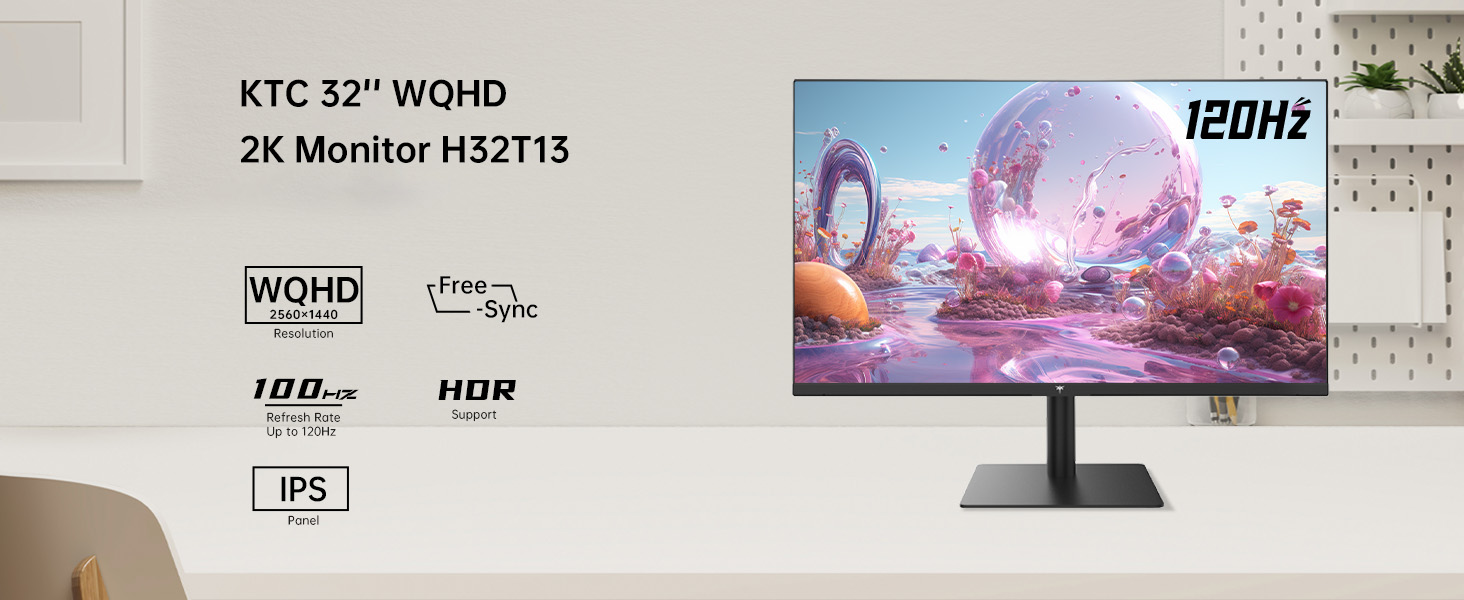
Image: KTC H32T13 monitor showcasing its key display technologies.

Image: The 32-inch screen size of the KTC H32T13 monitor.
4. Setélan
4.1 Ngarakit Stand
- Taliti cabut monitor jeung nangtung komponén tina bungkusan.
- Attach the stand neck to the monitor panel using the provided screws and screwdriver.
- Amankeun dasar nangtung kana beuheung nangtung.
- Teundeun monitor dirakit dina stabil, permukaan datar.
4.2 Pamasangan VESA (Opsional)
The monitor supports VESA 100mm x 100mm mounting. If you wish to use a VESA-compatible arm or wall mount (not included), remove the stand and attach the VESA mount according to its instructions.

Gambar: Tukangeun view of the monitor with VESA 100x100mm mounting points.
4.3 Nyambung kana Komputer
- Pastikeun monitor sareng komputer anjeun dipareuman.
- Connect one end of the provided HDMI cable to an HDMI port on your computer's graphics card.
- Connect the other end of the HDMI cable to one of the HDMI 2.0 ports on the monitor. Alternatively, use a DisplayPort cable to connect to a DP 1.4 port for higher refresh rates and FreeSync/G-Sync functionality.
- Connect the power adapter to the monitor's DC input and then plug the power cord into a power outlet.
- Hurungkeun komputer anjeun, teras hurungkeun monitor.

Image: Monitor connectivity ports (DC, HDMI 1, HDMI 2, DP 1).
5. Parentah Operasi
5.1 Daya Hurung/Pareuman
Pencét tombol daya anu aya dina monitor pikeun ngaktipkeun atanapi mareuman. Lampu indikator daya bakal hurung nalika monitor hurung.
5.2 Pilihan Sumber Input
Use the OSD (On-Screen Display) menu buttons to navigate and select your desired input source (HDMI 1, HDMI 2, or DisplayPort).
5.3 Nyaluyukeun Setélan Tampilan (Menu OSD)
The OSD menu allows you to customize various display settings. Typically, buttons are located on the back or bottom of the monitor. Refer to the quick start guide for specific button functions.
- Caang/Kontras: Saluyukeun luminance sareng rasio kontras sadayana.
- Setélan warna: Modify color temperature, gamma, and individual RGB levels. The monitor supports 1.07 billion colors and 103% sRGB.
- Modeu Gambar: Select from preset modes optimized for different content (e.g., Standard, Game, Movie, Text).
- Laju Refresh: The monitor supports up to 100Hz. Ensure your graphics card settings are configured to match.
- FreeSync/G-Sync: Enable this feature in the OSD menu and your graphics card control panel for adaptive synchronization.
- Eye Care Modes: Activate Flicker-Free and Low Blue Light modes to reduce eye strain.
- HDR: Enable HDR for compatible content and devices.

Image: Monitor displaying enhanced colors and brightness with HDR enabled.

Image: Visual comparison of FreeSync/G-Sync enabled and disabled, demonstrating smoother gameplay.

Image: IPS panel advantages in brightness and color over VA panels.
5.4 Pangaluyuan Fisik
The monitor stand allows for tilt adjustment from -5° to 15° to optimize your viewsudut ing.

Image: Monitor tilt adjustment range and eye care features.
Video: Leuwihview of the KTC 2K IPS Office Monitor, highlighting its features and suitability for office use. This video demonstrates the monitor's visual quality and design.
6. Pangropéa
6.1 Ngabersihan Monitor
- Salawasna pareumkeun monitor sareng cabut kabel listrik sateuacan beberesih.
- Anggo kaén anu lemes sareng teu aya serat anu hampang dampDieusian ku cai atanapi pembersih layar anu hampang sareng henteu abrasive.
- Wipe the screen gently to remove dust and smudges. Avoid applying direct pressure to the screen.
- Ulah nganggo alkohol, pembersih anu ngandung amonia, atanapi bahan anu kasar, sabab ieu tiasa ngaruksak permukaan layar.
- Bersihkeun monitor casing ku lawon anu lemes sareng garing.
6.2 Panyimpenan
If storing the monitor for an extended period, ensure it is powered off, unplugged, and stored in a cool, dry place away from direct sunlight and extreme temperatures. Use the original packaging if available for best protection.
7. Cara ngungkulan
| Masalah | Mungkin Cukang lantaranana | Solusi |
|---|---|---|
| Henteu aya gambar dina layar | Monitor not powered on; Incorrect input source; Loose video cable; Computer in sleep mode. | Ensure power is connected and monitor is on. Select correct input source. Check video cable connections. Wake up computer. |
| Gambar buram atanapi menyimpang | Incorrect resolution; Faulty video cable; Graphics driver issues. | Set display resolution to 2560x1440. Try a different video cable. Update graphics drivers. |
| Layar kedip-kedip atanapi tearing | Refresh rate mismatch; FreeSync/G-Sync not enabled or incompatible. | Ensure refresh rate is set to 100Hz. Enable FreeSync/G-Sync in monitor OSD and graphics card settings. Use DisplayPort for FreeSync/G-Sync. |
| Teu aya sora tina headphone | Headphones not connected properly; Audio output not set to monitor. | Check headphone connection. Set monitor as default audio output in your computer's sound settings. |
| Tombol teu ngabales | OSD lock enabled; Temporary software glitch. | Check if OSD lock is active (refer to quick start guide). Power cycle the monitor. |
8. Spésifikasi
| Fitur | Rincian |
|---|---|
| Nomer modél | H32T13 |
| Ukuran layar | 32 inci |
| Tipe Panel | IPS |
| Resolusi | 2560 x 1440 (QHD Lega 1440p) |
| Rasio Aspék | 16:9 |
| Refresh Laju | 100Hz |
| Caang | 350 Candela (typ.) |
| Warna Gamut | 103% sRGB |
| Jerona Warna | 1.07 Milyar Warna |
| Rojongan HDR | Sumuhun |
| Sync adaptif | FreeSync/G-Sync Compatible |
| Konektipitas | 2x HDMI 2.0, 1x DisplayPort 1.4 |
| Adjustment Dengdekkeun | -5 ° ka 15 ° |
| Gunung VESA | 100 mm x 100 mm |
| Fitur Perawatan Panon | Flicker-Free, Eye Protection Mode (Low Blue Light) |
| Dimensi produk | 5.31 x 32.48 x 21.2 inci |
| Item Beurat | 18.81 pon |
9. Garansi jeung Rojongan
9.1 Émbaran jaminan
KTC products are covered by a limited warranty. Please refer to the warranty card included in your product packaging or visit the official KTC websitus pikeun istilah jeung kaayaan jaminan lengkep. Simpen bukti pameseran anjeun pikeun klaim garansi.
9.2 Rojongan Palanggan
For technical assistance, troubleshooting not covered in this manual, or warranty inquiries, please contact KTC customer support through the following channels:
- Dukungan Online: Visit the KTC official websitus kanggo FAQ, unduhan driver, sareng formulir kontak dukungan.
- Rojongan Email: Refer to your warranty card or the KTC websitus pikeun alamat surélék rojongan luyu.
- Rojongan Amazon: If purchased via Amazon, you can contact the seller directly through your Amazon order history for assistance.
Image: Steps to contact KTC customer support via Amazon.


