
Bubuka
This manual provides comprehensive instructions for the setup, operation, maintenance, and troubleshooting of your ViewSonic Omni VX2416 24-inch FHD IPS Gaming Monitor. Please read this manual thoroughly before using your monitor to ensure proper installation and optimal performance. Keep this manual for future reference.
Parentah Setup
1. Eusi Paket
Pastikeun yén sadaya item aya dina bungkusan:
- ViewSonic Omni VX2416 Monitor
- Kabel Daya
- Kabel HDMI
- Kabel DisplayPort
- Stand Monitor (Dasar sareng Beuheung)
- Gancang Mimitian Guide
2. Ngarakit Monitor Stand
- Taliti teundeun monitor ka handap dina permukaan anu lemes sareng bersih pikeun nyegah goresan.
- Attach the stand neck to the back of the monitor until it clicks into place or is secured with screws (refer to the Quick Start Guide for specific screw details).
- Attach the stand base to the stand neck, ensuring it is firmly secured.

Gambar: Tukangeun view tina ViewSonic VX2416 monitor with the stand fully assembled and attached. This shows the monitor's back panel and the ergonomic stand.
3. Nyambungkeun Kabel
Ensure the monitor and your computer are powered off before making any connections.
- Sambungan Daya: Sambungkeun kabel daya ka input daya monitor terus ka stopkontak.
- Sambungan Video:
- For optimal performance, use the provided DisplayPort cable to connect your computer's DisplayPort output to the monitor's DisplayPort input.
- Alternatively, use the provided HDMI cable to connect your computer's HDMI output to one of the monitor's HDMI inputs.
- Sambungan Audio (Opsional): If you are using external speakers or headphones, connect them to the monitor's audio out port. The monitor also has built-in speakers.

Gambar: Detil view tina ViewSonic VX2416 monitor's rear connectivity panel, showing the power input, HDMI ports, DisplayPort, and audio output.
4. Daya Awal Hurung
- Colokkeun kabel listrik kana stop kontak témbok.
- Pencét tombol daya dina monitor.
- Power on your computer. The monitor should automatically detect the input signal. If not, you may need to manually select the input source using the On-Screen Display (OSD) menu.
Parentah Operasi
1. Menu dina Layar (OSD).
The OSD menu allows you to adjust various monitor settings. Use the buttons located on the bottom right of the monitor to navigate the menu.
- Tombol Daya: Ngahurungkeun / mareuman monitor.
- Tombol Menu: Muka menu OSD.
- Tombol Napigasi: Dipaké pikeun mindahkeun ngaliwatan pilihan menu tur ngaluyukeun nilai.
- Select/Exit Button: Confirms selections or exits the menu.
2. Setélan tampilan
Access the OSD menu to adjust the following display parameters:
- Caang/Kontras: Saluyukeun luminance sadayana sareng bédana antara daérah terang sareng poék.
- Setélan warna: Robah suhu warna, gamma, sareng tingkat RGB individu.
- Pilih Input: Pindah sacara manual antara input HDMI sareng DisplayPort.
- Laju Refresh: Ensure your system is set to 100Hz for optimal gaming performance.
- AMD FreeSync: Enable this feature in the OSD and your graphics card settings for tear-free gaming.
3. Setélan Audio
The monitor includes built-in speakers. Adjust the volume through the OSD menu or your computer's sound settings.
4. Pangaluyuan Ergonomis
The VX2416 monitor stand offers various adjustments for comfortable viewing:
- Penyesuaian Jangkungna: Naékkeun atawa turunkeun monitor ka tingkat panon.
- Penyesuaian Dengdekkeun: Tilt the screen forward or backward to reduce glare and optimize viewsudut ing.
- Penyesuaian puteran: Puterkeun monitor sacara horizontal pikeun ngabagikeun layar anjeun atanapi nyaluyukeun viewdina posisi.
- Potrét Viewing: Rotate the screen 90 degrees for vertical content.
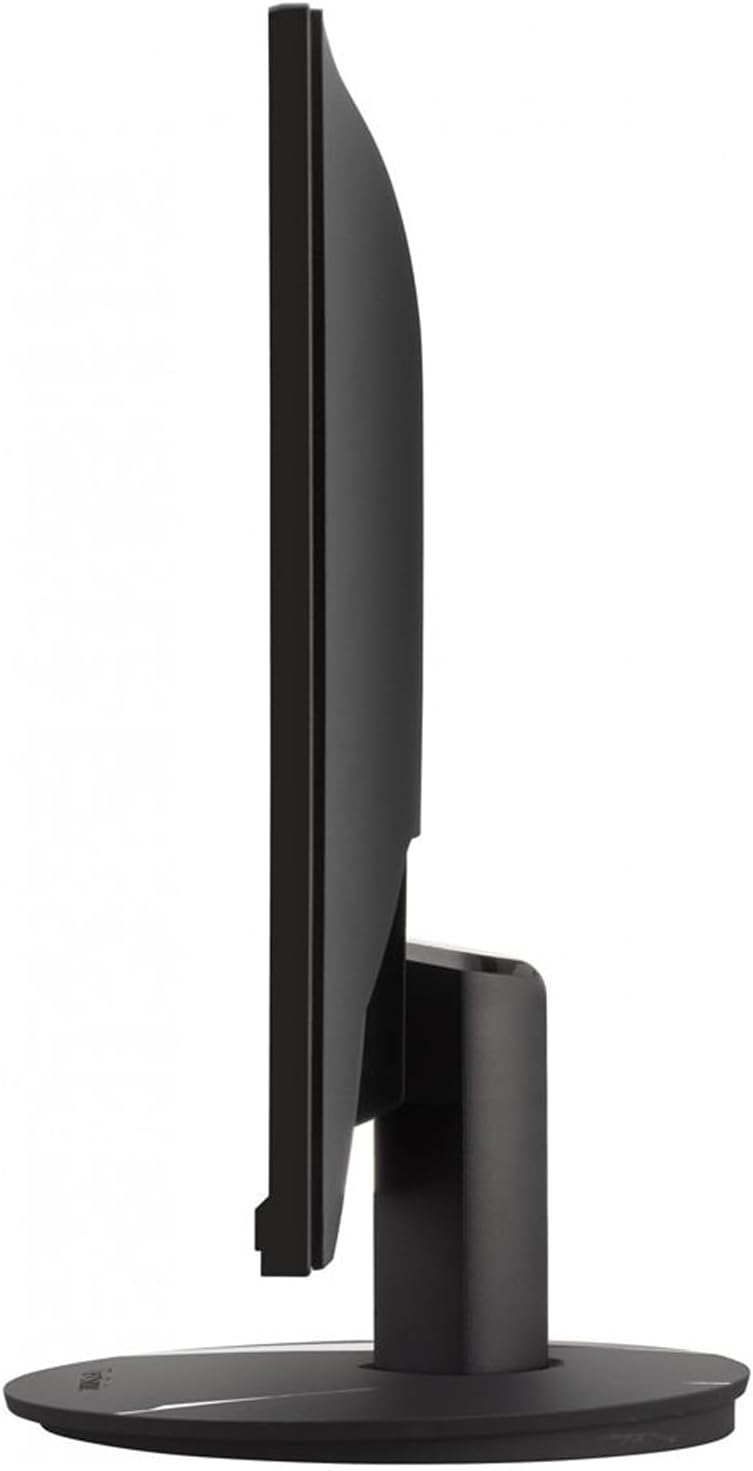
Gambar: Sisi profile tina ViewSonic VX2416 monitor, illustrating its ergonomic stand which allows for height, tilt, and swivel adjustments.
5. Fitur Panon-Kamanusaan sarta Studi
The monitor includes features designed to reduce eye strain during prolonged use:
- Téknologi Tanpa Flicker: Minimizes screen flickering to reduce eye fatigue.
- Filter Cahaya Biru: Reduces harmful blue light emissions. This can be adjusted or enabled/disabled via the OSD menu.
Pangropéa
1. Ngabersihan Monitor
- Salawasna pareumkeun monitor sareng cabut kabel listrik sateuacan beberesih.
- Anggo kaén anu lemes sareng teu aya serat anu hampang dampDieusian ku cai atanapi pembersih layar anu hampang sareng henteu abrasive.
- Ulah menyemprot cleaner langsung kana layar. Larapkeun heula kana lawon.
- Ulah nganggo bénzéna, pangencer, pembersih anu dumasar kana amonia, atanapi bahan abrasif, sabab ieu tiasa ngaruksak permukaan layar.
2. Kaperawatan Umum
- Hindarkeun nempatkeun monitor dina sinar panonpoé langsung atanapi caket sumber panas.
- Pastikeun ventilasi nyukupan sabudeureun monitor.
- Entong meungpeung lawang angin.
- Ulah nepi ka muragkeun atawa ngagebugan monitor kalawan tarik.
Pamérésan masalah
| Masalah | Mungkin Cukang lantaranana | Solusi |
|---|---|---|
| Henteu aya gambar dina layar |
|
|
| Gambar buram atanapi menyimpang |
|
|
| Teu aya sora ti panyatur |
|
|
spésifikasi
| Fitur | Rincian |
|---|---|
| merek | ViewSonic |
| Nomer modél | VX2416 |
| Ukuran layar | 24 inci |
| Resolusi | FHD 1080p (1920 x 1080 piksel) |
| Tipe tampilan | LED IPS |
| Refresh Laju | 100 Hz |
| Waktu Tanggapan | 1 Milidetik |
| Rasio Aspék | 16:9 |
| Caang | 250 Nit |
| Babandingan Kontras | 2000:1 |
| Viewdina Angle | 178 darajat |
| Konektipitas | 2 x HDMI, 1 x DisplayPort, Audio Out |
| Sync adaptif | AMD FreeSync |
| Panyatur | Built-in (2 x 2W) |
| Érgonomi | Height Adjustment, Swivel Adjustment, Tilt Adjustment, Portrait Viewing |
| Fitur Panon-Kamanusaan sarta Studi | Flicker-Free, Blue Light Filter |
| Diménsi (D x W x H) | 12"P x 14"L x 18"T (kalayan dudukan) |
Émbaran jaminan
ViewSonic products are manufactured to the highest standards and deliver high-quality performance. For detailed warranty information specific to your region and product, please refer to the warranty card included in your product packaging or visit the official ViewSonic websitus.
Biasana, ViewSonic monitors come with a limited warranty covering defects in materials and workmanship under normal use. Keep your purchase receipt as proof of purchase for warranty claims.
Rojongan Palanggan
If you encounter any issues that cannot be resolved using the troubleshooting guide, or if you require further assistance, please contact ViewDukungan palanggan Sonic.
- Dukungan Online: Nganjang ka resmi ViewDukungan sonik websitus pikeun FAQs, undeuran supir, sareng inpormasi kontak. www.viewsonic.com/support
- Rojongan Telepon: Refer to your product's Quick Start Guide or the ViewSonic website for regional telephone support numbers.


