1. Bubuka
The Micodus MV66 OBD GPS Locator is a compact and efficient device designed for real-time vehicle tracking. It plugs directly into your vehicle's OBD-II port, providing easy installation without professional technical assistance. This manual provides comprehensive instructions for setting up, operating, and maintaining your MV66 device.
2. Émbaran Kasalametan
- Kasaluyuan kandaraan: Ensure your vehicle has a standard OBD-II port (typically found in vehicles manufactured after 1996).
- SIM Card Handling: Handle the SIM card with care. Do not bend or scratch it. Insert it correctly into the device.
- Sumber Daya: The device draws power from the vehicle's OBD-II port. Ensure the port is clean and free from obstructions.
- Kaayaan Lingkungan: Hindarkeun ngalaan alat ka suhu anu ekstrim, sinar panonpoé langsung kanggo waktos anu berkepanjangan, atanapi kalembaban anu kaleuleuwihan.
- Patuh Hukum: Always use the device in compliance with local laws and regulations regarding vehicle tracking and privacy.
3. Produk Langkungview
The Micodus MV66 is a plug-and-play GPS locator. It features a compact design that integrates seamlessly with your vehicle's onboard diagnostics system.
3.1 Komponén
- Micodus MV66 OBD GPS Locator Unit
- SIM Card (user-provided, Telcel nano chip recommended)
3.2 Fitur Alat
- OBD-II Port Connection
- Langsung Web Ngawaskeun
- Overspeed Waspada
- Geo-pagar
- Integrated Microphone for audio monitoring (functionality may vary by region/carrier)
- Compatible with Micodus App (iOS and Android)

Figure 1: Micodus MV66 OBD GPS Locator with a Telcel SIM card package. The device is a black rectangular unit with a multi-pin connector on one end, designed to plug into a vehicle's OBD-II port. The SIM card package is shown below it.

Gambar 2: A close-up view of the Micodus MV66 OBD GPS Locator's connector end, showing the standard OBD-II pin configuration.
4. Setup jeung Instalasi
4.1 SIM Card Preparation
- Meunangkeun Kartu SIM: The device requires a Nano SIM card. A Telcel Nano SIM chip is recommended.
- Aktipkeun Kartu SIM: Before inserting, activate the SIM card in a mobile phone. Ensure it can send/receive SMS messages and connect to the internet.
- Configure Data Plan: It is recommended to change the data rate to charge per second and maintain a minimum recharge of $50 each month for location services and line maintenance.
- Selapkeun Kartu SIM: Locate the SIM card slot on the MV66 device. Carefully insert the activated Nano SIM card into the slot until it clicks into place. Ensure correct orientation.
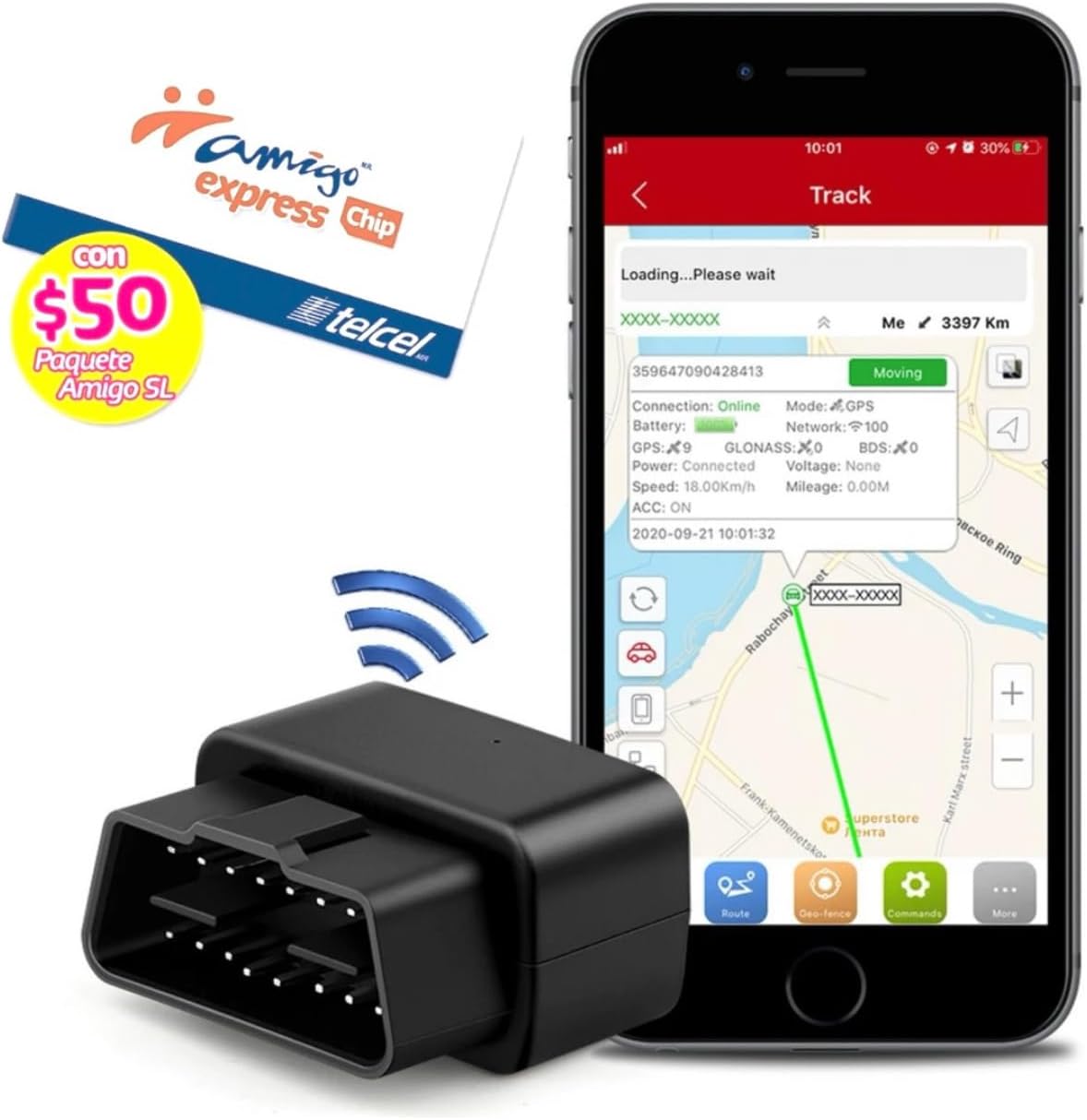
Figure 3: The Micodus MV66 device alongside a smartphone displaying the tracking application interface, with a Telcel SIM card package visible. This illustrates the components needed for operation.
4.2 Pamasangan Alat
- Manggihan OBD-II Port: The OBD-II port is usually located under the dashboard on the driver's side, often near the steering column. Refer to your vehicle's manual if you cannot find it.
- Plug in MV66: Firmly plug the Micodus MV66 device into the vehicle's OBD-II port. It should fit snugly.
- Daya Hurung: Once plugged in, the device will power on automatically, drawing power from the vehicle.
5. Parentah Operasi
5.1 Micodus App Installation and Configuration
- Unduh App: Download the "Micodus" app from the iOS App Store or Google Play Store.
- Ngadaptar/Log: Turutan pitunjuk dina aplikasi pikeun ngadaptar akun anyar atanapi lebet upami anjeun parantos gaduh.
- Tambahkeun Alat: Within the app, add your MV66 device using its unique ID number (usually found on the device itself or its packaging).
- Konpigurasikeun Setélan: Configure desired settings such as real-time tracking frequency, overspeed alerts, and geo-fencing zones.

Figure 4: A smartphone screen showing the Micodus tracking application. The map displays a vehicle's current location and movement history, along with various tracking data points like connection status, battery, speed, and mileage.
5.2 Nyukcruk real-time
Once configured, you can monitor your vehicle's location in real-time via the Micodus app or the web platform. The app displays the vehicle's current position, speed, and historical routes.
5.3 Bewara sareng Peringatan
- Waspada Kaleuleuwihan Laju: Set a maximum speed limit in the app. You will receive an alert if the vehicle exceeds this speed.
- Geo-fencing: Define virtual boundaries on the map. You will be notified when the vehicle enters or exits these predefined areas.
5.4 Fungsi Mikropon
The MV66 includes a microphone that allows for audio monitoring. Please note that the functionality of receiving SMS messages and microphone audio may be affected by cellular service provider policies in certain regions (e.g., Telcel blocking SMS responses). It is recommended to primarily use the app for monitoring.
6. Pangropéa
- Tetep Bersih: Periodically wipe the device with a dry, soft cloth to remove dust.
- Hindarkeun Cairan: Ulah ngalaan alat ka cai atawa cairan séjén.
- Sambungan Aman: Ensure the device remains firmly plugged into the OBD-II port to maintain consistent power and connection.
- SIM Card Balance: Ensure your SIM card maintains an active balance to guarantee continuous service for tracking and communication.
7. Cara ngungkulan
| Masalah | Mungkin Cukang lantaranana | Solusi |
|---|---|---|
| Alat henteu hurung. | Loose connection; OBD-II port issue; vehicle power off. | Ensure the device is firmly plugged in. Check vehicle's ignition status. Test the OBD-II port with another device if possible. |
| No GPS signal/location updates. | Poor satellite reception; SIM card issue; data plan inactive. | Move the vehicle to an open area. Check SIM card insertion. Verify SIM card has active data and balance. Restart the vehicle. |
| SMS commands not working. | Carrier blocking SMS; incorrect command format. | Some carriers may block SMS responses. It is highly recommended to use the Micodus app for all monitoring and configuration. Verify command syntax. |
| Microphone audio unclear or not working. | Environmental noise; carrier restrictions. | Ensure the vehicle interior is quiet. Be aware that audio monitoring functionality can be limited by carrier policies. |
8. Spésifikasi
| Fitur | Rincian |
|---|---|
| Modél | MV66 |
| Diménsi | 50 x 20 x 30 mm |
| Beurat | 100 gram |
| Konektipitas | OBD, Web, App (GSM/GPRS) |
| Aplikasi anu Dirojong | Micodus app (iOS, Android) |
| Alat nu cocog | Smartphone |
| Sumber Daya | Vehicle OBD-II Port |
| Batré | Internal Nonstandard Battery (included) |
| Komponén Kaasup | SIM Card (user-provided) |
9. Garansi jeung Rojongan
For warranty information and technical support, please refer to the official Micodus website or contact their customer service directly. The use of this device is the responsibility of the user. Please note that the response of text messages sometimes does not work because the Telcel provider blocks SMS; it is recommended to always use the app for monitoring.
Pikeun pitulung salajengna, mangga buka: www.micodus.com