Bubuka
Thank you for choosing the Nillkin Keyboard Case for your Samsung Galaxy Tab S9 Plus or S10 Plus 12.4-inch tablet. This manual provides detailed instructions to help you set up, operate, and maintain your new keyboard case, enhancing your tablet experience by transforming it into a versatile laptop-like device.
Naon dina Box
- Kabel USB
- Slide Camera Lens Cover
- 1*Multi-language manuals
- 1*Nillkin for Samsung Galaxy S9 Plus/S10 Plus Keyboard Case
Disetél
1. Ngecas kibor
Before initial use, fully charge the keyboard. Connect the provided USB-C cable to the keyboard's charging port and a power source. The power indicator light will turn red during charging and green when fully charged.
Video: How to connect the Nillkin keyboard cases. This video demonstrates charging the keyboard and connecting it via Bluetooth.
2. Installing Your Tablet
Carefully align your Samsung Galaxy Tab S9 Plus or S10 Plus 12.4-inch tablet with the case. First, tilt the corner of the tablet with the camera into the case, then gently press the remaining corners to secure it in place. Ensure all edges are snug and the tablet is fully seated for optimal protection.

Image: A person installing the tablet into the Nillkin keyboard case, ensuring a secure fit.
Video: Protect tablet with this Nillkin case installed correctly. This video demonstrates the proper way to install the tablet into the protective case.
3. Nyambungkeun via Bluetooth
- Turn on the power switch located on the right side of the keyboard.
- Press the "Fn" and "C" keys simultaneously on the keyboard. The indicator light will start to flash, indicating pairing mode.
- On your Samsung tablet, go to Settings > Connections > Bluetooth and turn Bluetooth ON.
- Select "Bluetooth Keyboard" from the list of available devices to pair.
Video: How to connect the Nillkin keyboard cases. This video demonstrates the Bluetooth pairing process.
Parentah Operasi
1. Fitur Kibor
- Kibor Lampu tukang: The keyboard features 7 backlit colors with 3 adjustable brightness levels. Press the "backlit key" to adjust brightness. Press "Fn" + "Backlit Key" to change the backlight color.
- Tombol Fungsi: A full row of function keys is customized for your tablet, supporting shortcuts for quick editing of documents and presentations.
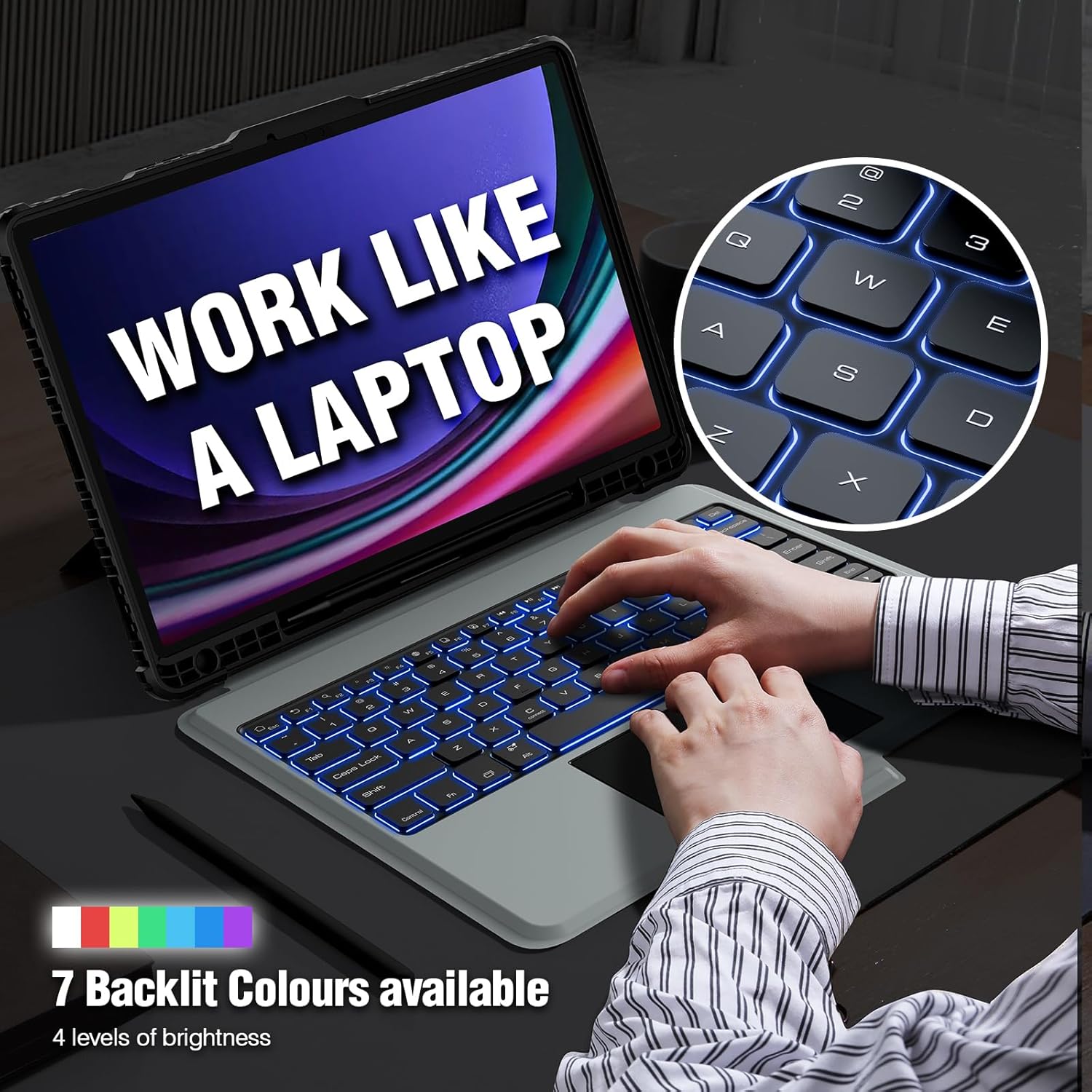
Image: The Nillkin keyboard case showcasing its 7 backlit colors and adjustable brightness levels.
Video: Combined use of the FN key on the keyboard. This video demonstrates how to use the function keys and adjust keyboard backlight settings.
2. Trackpad Multi-Toél
- Kontrol Precision: The built-in precision trackpad allows for quick and easy navigation.
- Gerakan Multi-Toél: Supports full multi-touch gestures such as tap, swipe, scroll, and switching apps.
- Anti-Misoperation Technology: The touchpad automatically disables when typing to prevent accidental input.
- Enable/Disable Trackpad: Press "Fn" + "Left Alt" to enable or disable the trackpad.
- Adjust Trackpad Speed: To adjust pointer speed and scrolling speed, go to Settings > General Management > Mouse and Trackpad. You can also enable "Enhanced Pointer Precision" for better control.
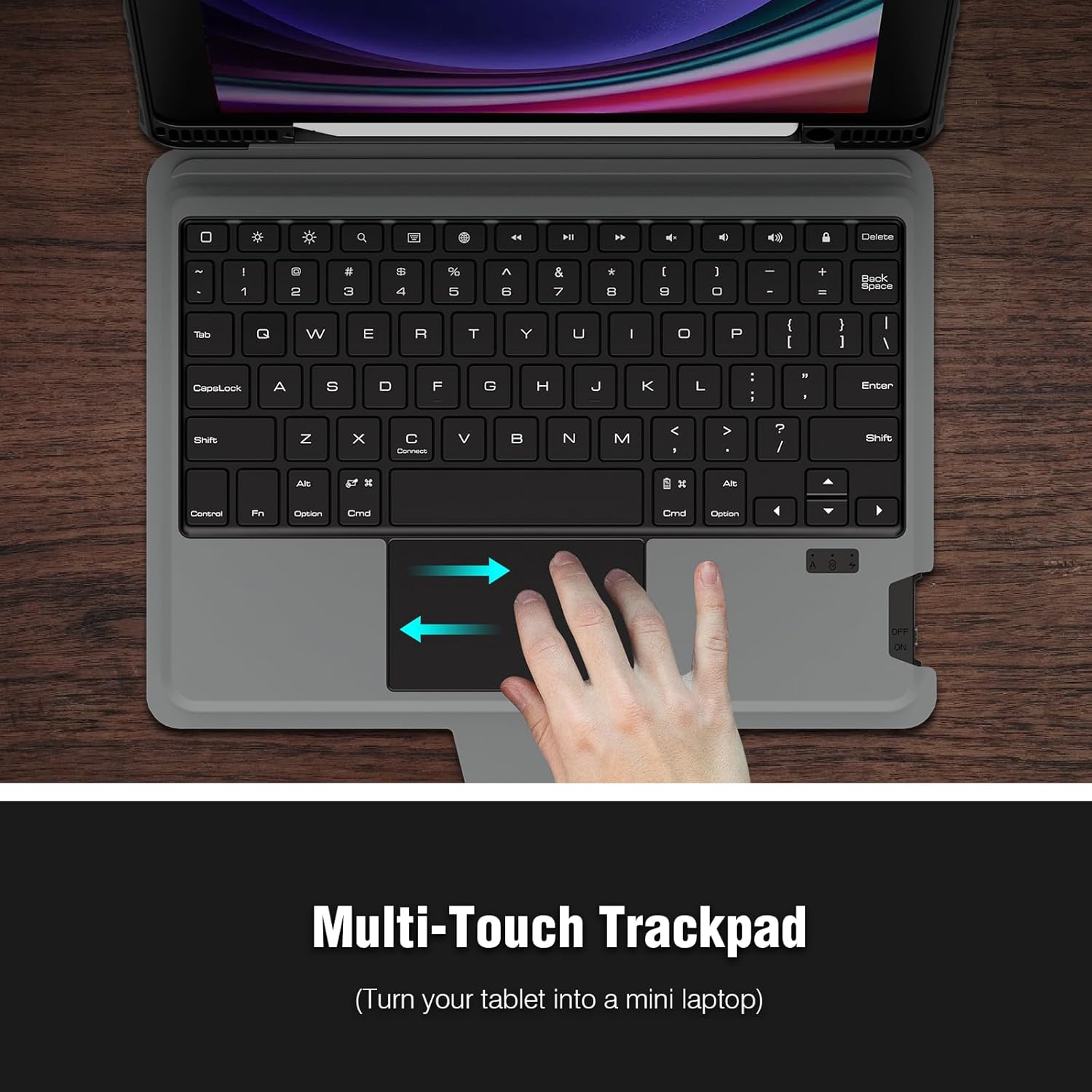
Image: The Nillkin keyboard case highlighting its multi-touch trackpad for enhanced navigation.
Video: Smoothly using the Nillkin keyboard case. This video demonstrates the fluid operation of the trackpad.
Video: To Get A Better Touch Experience. This video guides you on adjusting trackpad settings for optimal performance.
3. Detachable Two-Piece Design
The case features a flexible and detachable two-piece design. You can easily separate the tablet case from the keyboard, allowing you to use the tablet independently with its built-in stand. This is ideal for travel, business, or school when the keyboard is not needed.

Image: The Nillkin keyboard case demonstrating its detachable two-piece design, allowing the tablet to be used separately.
4. Sababaraha Viewdina Angles
The easy-set stand is adjustable from 0-180°, providing stable support for various activities like drawing, writing, or viewing content. This versatility makes it suitable for home, office, or school use.
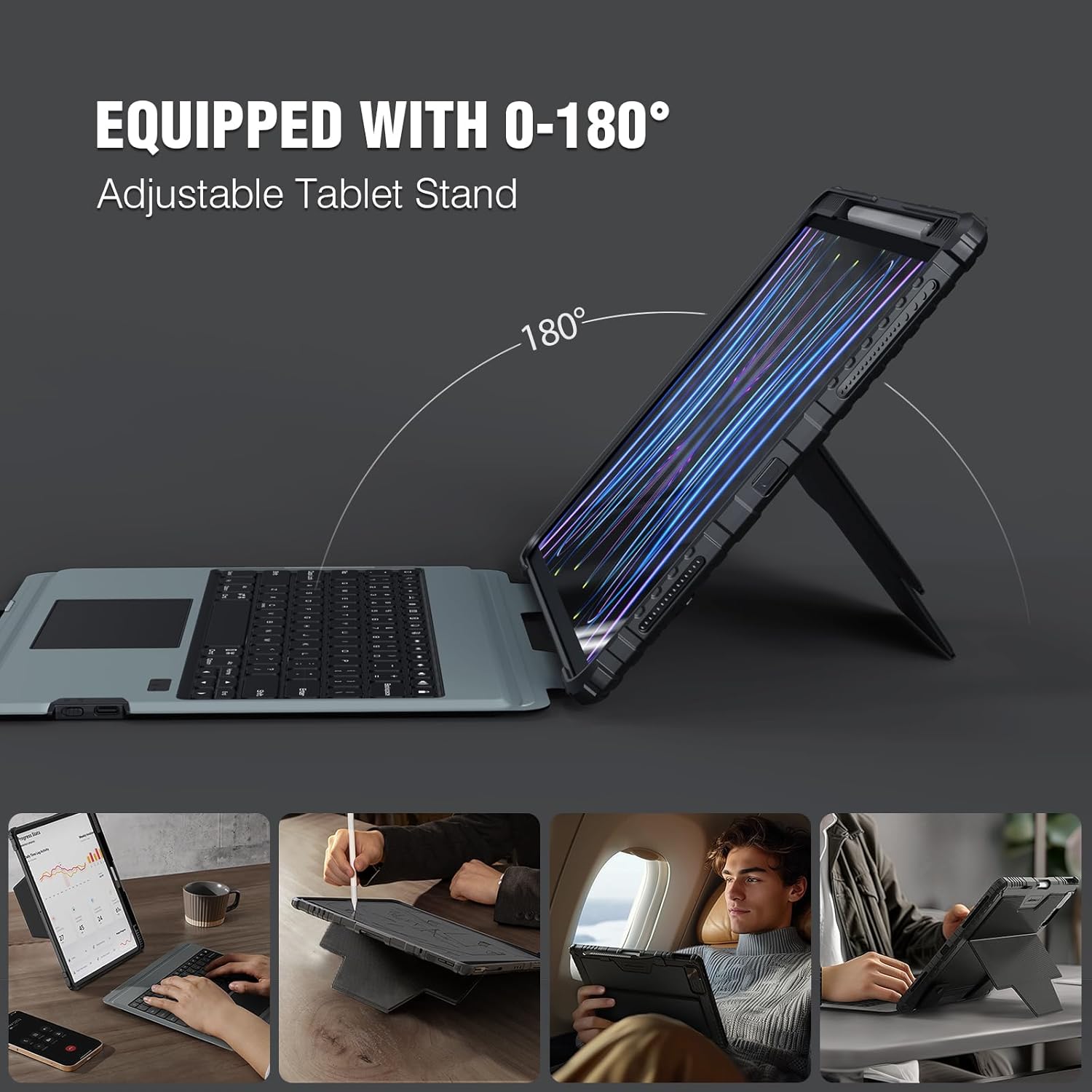
Image: The Nillkin keyboard case adjusted to various viewing angles for different uses.
5. S Pen Holder and Camera Cover
- S Pen Holder: The case features a built-in S Pen holder with magnetic attachment and wireless charging support (S Pen not included).
- Slide Camera Cover: A unique patented sliding camera cover design protects your lens from scratches and ensures your privacy.

Image: Close-up of the Nillkin case showing the integrated S Pen holder.

Image: The Nillkin case featuring its unique slide camera cover for lens protection and privacy.
Pangropéa
To ensure the longevity and optimal performance of your Nillkin Keyboard Case, follow these maintenance guidelines:
- beberesih: Use a soft, dry cloth to wipe the exterior of the case and keyboard. For stubborn dirt, slightly dampBilas lawon ku cai atanapi pembersih anu hampang sareng henteu abrasif. Hindarkeun bahan kimia anu keras.
- Panyimpenan: Upami teu dianggo, simpen wadahna di tempat anu tiis sareng garing, jauh tina sinar panonpoé langsung sareng suhu anu ekstrim.
- Perawatan batré: For optimal battery life, avoid fully discharging the keyboard frequently. Charge it regularly, especially if it will be stored for an extended period.
Pamérésan masalah
If you encounter issues with your Nillkin Keyboard Case, try the following solutions:
- Kibor Teu Nyambung:
- Pastikeun kibor tos dieusi sareng diaktipkeun.
- Verify Bluetooth is enabled on your tablet.
- Re-pair the keyboard by pressing "Fn" + "C" on the keyboard and selecting "Bluetooth Keyboard" in your tablet's Bluetooth settings.
- Pareuman terus hurungkeun deui tablet sareng kibor anjeun.
- Trackpad Teu Ngarespon:
- Ensure the trackpad is enabled by pressing "Fn" + "Left Alt".
- Check trackpad settings in your tablet's General Management > Mouse and Trackpad menu.
- Masalah lampu tukang:
- Press the "backlit key" to cycle through brightness levels.
- Press "Fn" + "Backlit Key" to change colors.
spésifikasi
- Alat anu cocog: Samsung Galaxy Tab S10+ Tablet 2024 12.4", Samsung Galaxy Tab S9+ Tablet 2023 12.4"
- Jumlah modél: Galaxy Tab S10+/S9+ 12.4 Inch Case
- merek: Nillkin
- warna: Hideung
- Beurat barang: 2.31 pon
- Ukuran Paket: 13.43 x 10.91 x 1.38 inci
- Batré: 1 batré Litium Ion diperlukeun (kaasup)
- Kapasitas batré: 500mAh (up to 100 hours continuous use without backlighting, 14 hours with backlighting)
- Port ngecas: Type-C (2-3 hours for full charge)
- Shell Type: Soft (Thickened PC back panel with TPU soft frame)
Garansi sareng Rojongan
For warranty information or further technical support, please refer to the warranty card included in your product packaging or visit the official Nillkin website. You may also contact the seller, Neekin-US, for assistance.


