Bubuka
Gagak ELECROWView 14-inch Portable Monitor Extender is designed to enhance your productivity by providing an additional display for your laptop. This IPS portable monitor features a Full HD 1080p resolution, 60 Hz refresh rate, and a 16:9 aspect ratio, delivering clear and vibrant visuals. Its plug-and-play functionality ensures a straightforward setup, compatible with various operating systems including Windows, Mac, Chrome, Linux, and Android. The monitor supports multiple display modes and offers 230° rotation for versatile viewing angles, making it an ideal solution for professionals, gamers, and anyone requiring expanded screen space on the go.
Naon dina Box
Pastikeun yén sadaya item anu didaptarkeun di handap kalebet kana pakét anjeun:
- 1x GagakView Monitor Portabel
- 1 x Manual Pamaké
- 1x USB-C kana Kabel USB-C
- 1x USB-A ka USB-C Cable
- 1x HDMI-Compatible to Mini HDMI-Compatible Cable
- 1x Power Adapter (5V-2A)
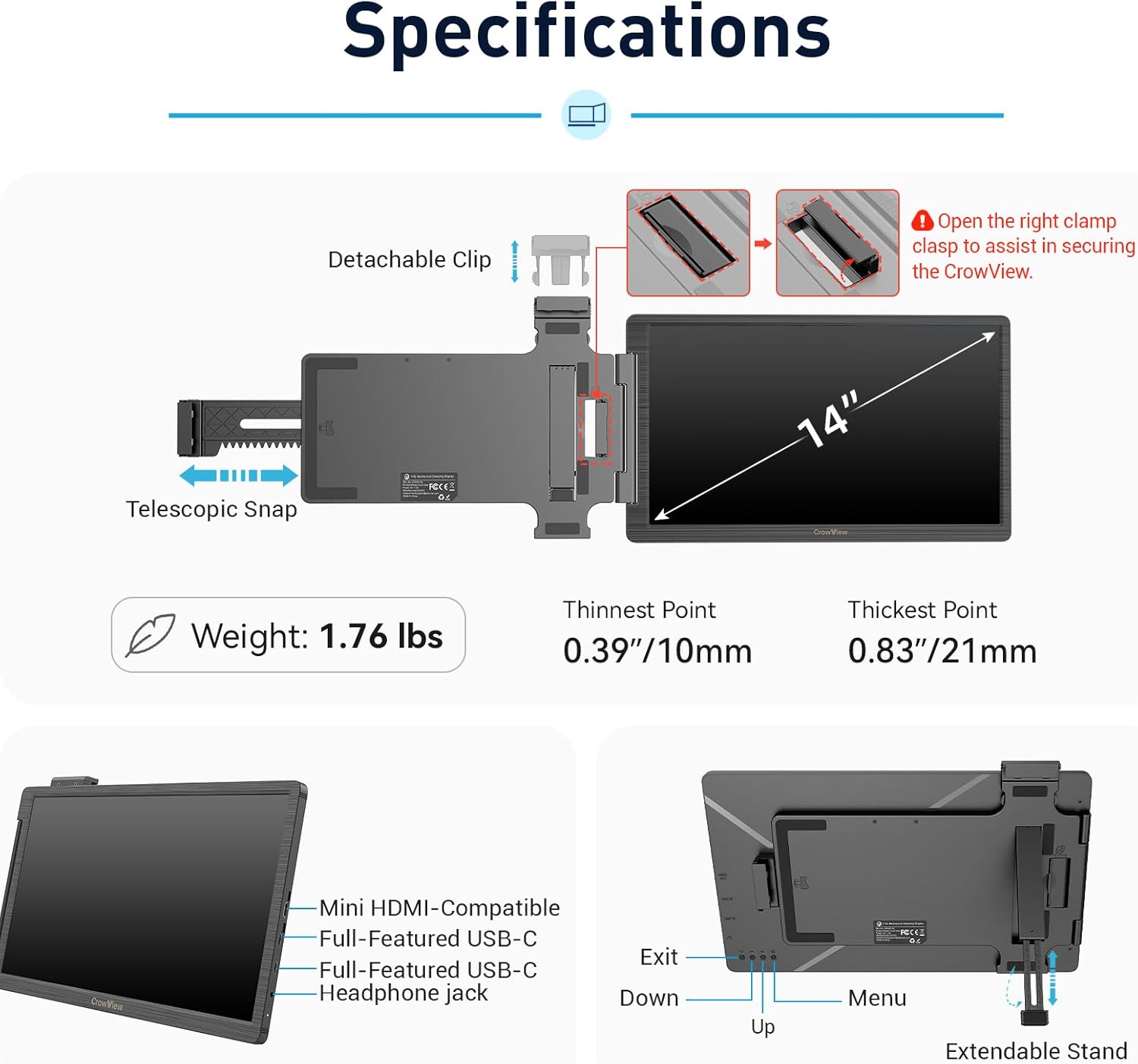
Image: Contents of the CrowView package, showing the monitor, various cables, power adapter, and user manual.
Produk Leuwihview
GagakView monitor extender features a robust design with an adjustable mechanical clamp to securely attach to laptops ranging from 13 to 16.5 inches. It is lightweight and portable, designed for easy transport and quick setup. The monitor includes multiple connectivity options and intuitive controls for ease of use.

Gambar: Detil view of the CrowView monitor, highlighting the Mini HDMI-Compatible port, two Full-Featured USB-C ports, and a headphone jack. Also shown are the control buttons for Exit, Down, Up, and Menu.

Image: Close-up of the CrowView monitor's control buttons, labeled Exit, Down, Up, and Menu, for navigating settings and adjustments.
Parentah Setup
Follow these steps to set up your CrowView portable monitor:
- Unfold and Attach: Tarik kaluar clamp clasp and unfold the CrowView. Clip the monitor onto the top frame of your laptop screen.
- Extend Stand: Open the integrated bracket and extend the support feet to stabilize the monitor.
- Sambungkeun kabel: Choose the appropriate connection method based on your laptop's ports.
Métode Konéksi:
- Sambungan USB-C (Kabel Tunggal): If your laptop supports Thunderbolt 3 or USB 3.1 with full-featured USB-C, use the provided USB-C to USB-C cable. This single cable transmits both power and video signals.
- HDMI and USB-A Connection (Two Cables): For laptops without a full-featured USB-C port, use the mini HDMI-compatible port for video transmission with the provided HDMI to Mini HDMI-Compatible cable. Additionally, connect the USB-A to USB-C cable for power.

Image: Step-by-step diagram illustrating how to unfold the CrowView, clip it onto the laptop, and open the bracket for support.

Image: USB-C Connection. A single USB-C cable connects the laptop to the CrowView monitor, providing both power and signal transmission.
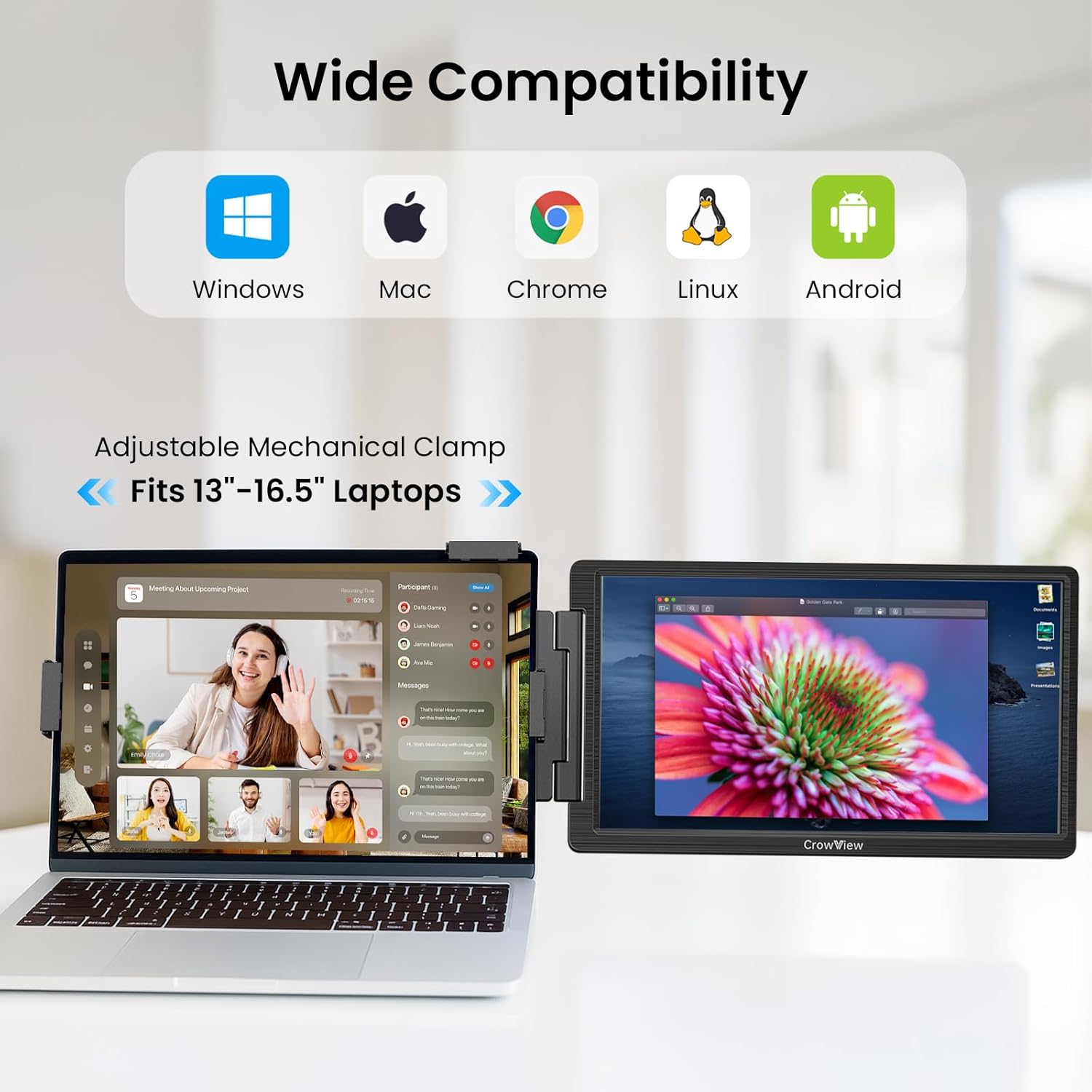
Image: HD Connection and USB-A Powered. The laptop connects to the CrowView monitor using an HDMI to Mini HD cable for video and a USB-A to USB-C cable for power.
Video: This video demonstrates the installation process of the CrowView monitor, showing how to attach it to a laptop and connect the necessary cables for operation.
Parentah Operasi
Once connected, your laptop should automatically detect the CrowView monitor. You can configure display settings through your operating system's display preferences. The monitor features a 230° rotation capability, allowing you to adjust the viewing angle for various scenarios, including presentations or collaborative work.

Image: The CrowView monitor demonstrating its 230° rotation adjustment, allowing for flexible positioning and viewdina sudut.

Image: Flexible Rotation Shaft. This diagram shows the monitor's ability to rotate up to 230 degrees, enabling various orientations for different uses.
Modeu tampilan
GagakView monitor supports multiple display modes to suit your workflow:
- Mode ngalegaan: Expands your desktop workspace across both screens, allowing you to multitask efficiently.
- Mirrored Mode: Duplicates your primary laptop screen onto the CrowView, ideal for presentations or sharing content.
- Modeu Potrét: Allows for customizable vertical arrangements, beneficial for coding, document review, or specific applications.
Image: Multiple Display Modes & 230° Rotation. This image illustrates the Mirror Mode, Extend Mode, and Portrait Mode, along with the monitor's rotation capability.

Image: Extend Mode. A laptop and the CrowView monitor are shown in extended mode, demonstrating increased screen real estate for enhanced productivity.

Image: Duplicate Mode. A laptop and the CrowView monitor display the same content, suitable for sharing information with others.
Kasaluyuan
Gagak ELECROWView monitor is widely compatible with various operating systems and devices:
- Windows
- Mac
- Chrome OS
- Linux
- Android
It is designed to fit laptops with screen sizes between 13 and 16.5 inches.
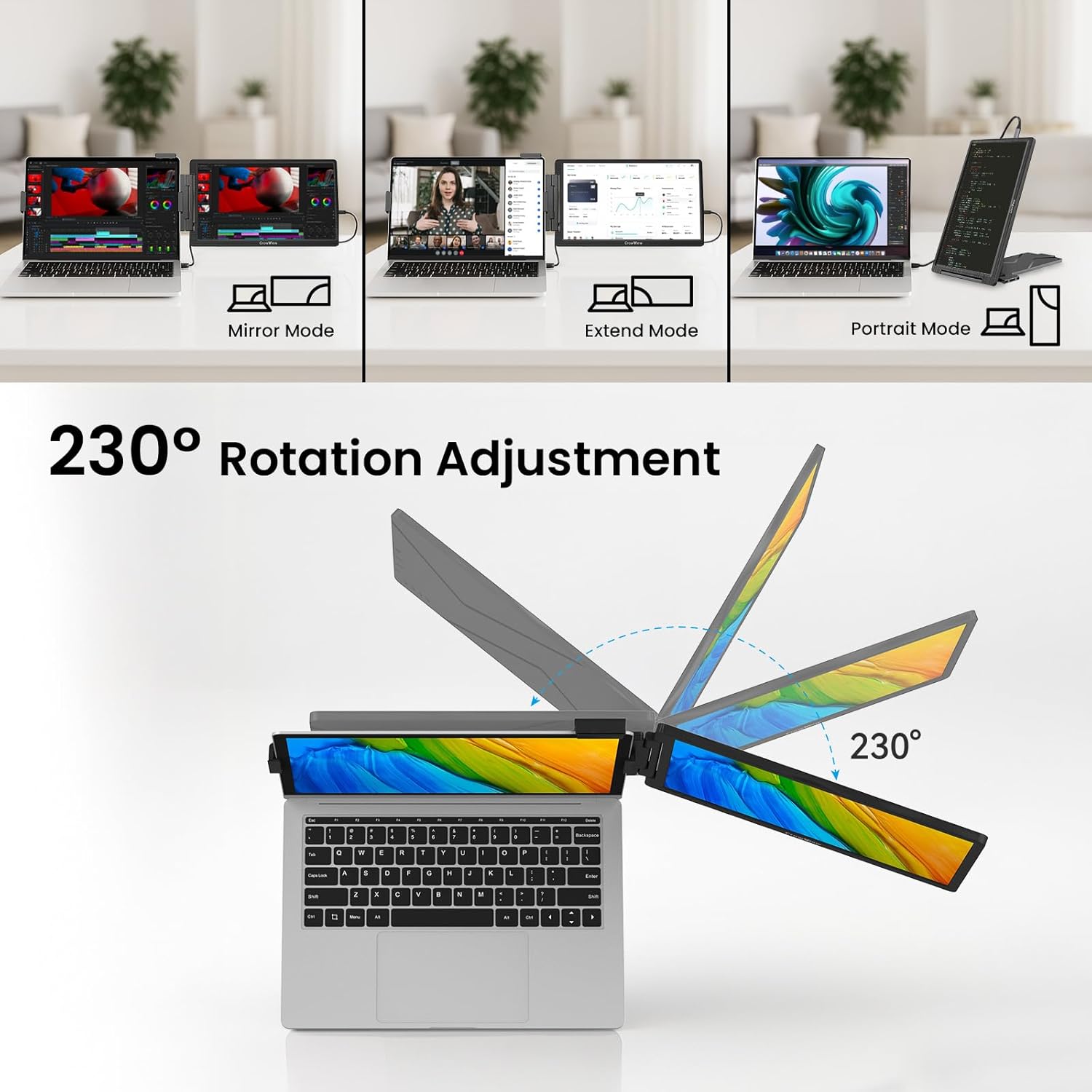
Image: Wide Compatibility. Icons for Windows, Mac, Chrome, Linux, and Android highlight the broad compatibility of the CrowView monitor. The image also indicates compatibility with 13"-16.5" laptops.
Video: video ieu nyadiakeun leuwihview of the CrowView 14-inch attachable portable monitor, showcasing its features and compatibility with various laptops and operating systems.
spésifikasi
Key technical specifications for the ELECROW CrowView 14-inch Portable Monitor Extender:
| Fitur | Spésifikasi |
|---|---|
| Ukuran layar | 14 inci |
| Resolusi | 1920 x 1080 (FHD 1080p) |
| Tipe Panel | IPS |
| Refresh Laju | 60 Hz |
| Rasio Aspék | 16:9 |
| Caang | 400 nits (400 cd/m²) |
| Warna Gamut | 72% NTSC |
| Jerona Warna | 24-bit |
| Konektipitas | Mini HDMI-Compatible, 2x Full-Featured USB-C, Headphone Jack |
| Total palabuhan USB | 2 |
| Voltage | 5 volt |
| Item Beurat | 1.76 pon |
| Dimensi produk | 0.83 x 13.97 x 8.54 inci |

Image: Excellent Visual Experience. This image highlights the monitor's 14-inch screen, 1080P FHD, IPS panel, 178° viewing angle, 400 cd/m² brightness, 60Hz refresh rate, 72% NTSC color, 24-bit color depth, and 800:1 contrast ratio.
Pangropéa
To ensure the longevity and optimal performance of your CrowView monitor, follow these maintenance guidelines:
- beberesih: Make kaen nu lemes, teu aya lint rada dampened with water or a screen-cleaning solution to clean the display surface. Avoid harsh chemicals or abrasive materials.
- Panyimpenan: When not in use, fold the monitor securely and store it in a protective case to prevent scratches and damage.
- Penanganan: Handle the monitor with care, especially the hinge mechanism, to avoid physical damage.
- Lingkungan: Operate and store the monitor in a dry environment, away from extreme temperatures and direct sunlight.
Pamérésan masalah
If you encounter issues with your CrowView monitor, refer to the following common troubleshooting tips:
- Henteu aya tampilan: Ensure all cables are securely connected. If using HDMI, confirm the USB-C power cable is also connected. Check your laptop's display settings to ensure the external monitor is detected and enabled.
- Layar kedip-kedip: Try using a different cable or connecting to another port on your laptop. Ensure your laptop's graphics drivers are up to date.
- Resolusi salah: Adjust the display resolution in your operating system's settings to 1920x1080 for optimal clarity.
- Henteu aya Audio: The monitor does not have built-in speakers. If you are expecting audio, ensure headphones are connected to the monitor's headphone jack or that your laptop's audio output is correctly configured.
- Monitor Teu Diaktipkeun: Verify the power adapter is correctly plugged into a working outlet and the monitor. If using a single USB-C cable, ensure your laptop's USB-C port supports power delivery.
Garansi sareng Rojongan
ELECROW products are designed for reliability and performance. For warranty information, please refer to the documentation included with your purchase or visit the official ELECROW website. For technical support, product inquiries, or assistance with troubleshooting, please contact ELECROW customer service through the contact details provided on the official website or your purchase platform. Please have your model number (CrowView) and purchase details ready when contacting support.


